Choosing a graphics card starts with your monitor, not the card itself: match the GPU’s tier to your resolution and refresh rate, confirm it has enough VRAM for the games and settings you actually use, and verify your power supply can feed it before you compare prices. Everything past that point — brand, ray tracing, cooler size — is secondary to getting those three things right.
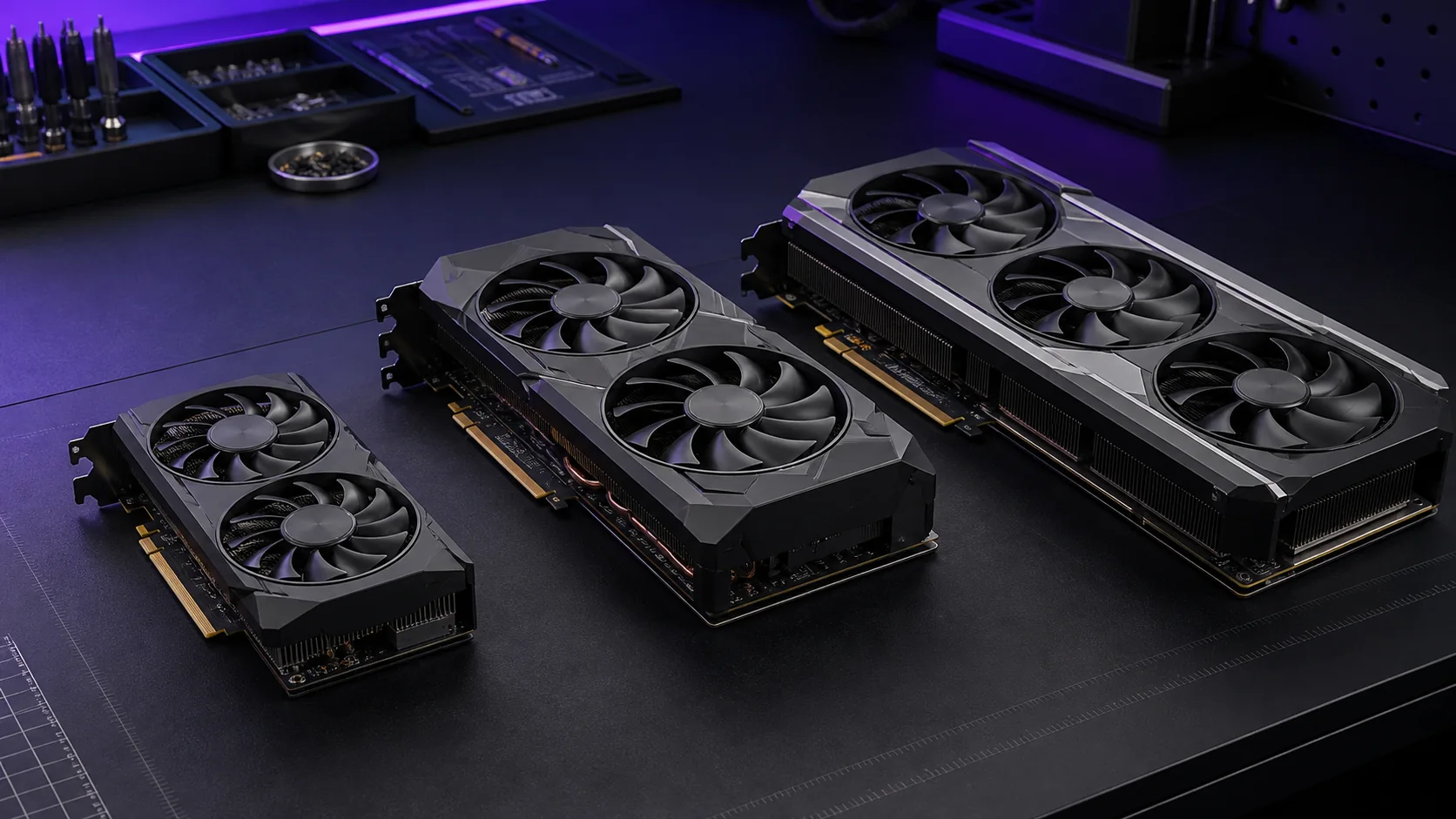
Our Top Picks




Top 3 picks at a glance
Start with your monitor’s resolution and refresh rate
Your display is the single biggest constraint on which graphics card makes sense, and it’s the factor most buyers skip past to look at benchmarks first. A 1080p 60Hz monitor simply cannot use the extra frames a 700-dollar card produces, and pairing that monitor with a card like an RTX 4070 Ti Super wastes the majority of its performance ceiling. Conversely, a 1440p 165Hz panel run with a budget RX 7600 will be capped well below its refresh rate in anything demanding, leaving the panel’s core selling point unused.
As an Amazon Associate we earn from qualifying purchases at no extra cost to you.





For 1080p at 60-144Hz, cards in the RTX 4060 or RX 7600 class are typically enough for most titles at high settings, with esports games running well past 200 fps. For 1440p at 144-165Hz, the realistic tier starts around the RTX 4070 or RX 7800 XT, both of which can sustain 90-120 fps in most AAA titles at high settings without upscaling. For 4K at 60-120Hz, only cards from the RTX 4070 Ti Super upward, or the RX 7900 XTX on the AMD side, keep frame rates comfortably above 60 in recent releases without leaning hard on upscaling.
Refresh rate matters as much as resolution once you’re past 1080p. A 1440p 240Hz competitive monitor calls for a different card than a 1440p 60Hz productivity monitor, even though the resolution is identical. If competitive shooters are the priority, prioritize a card with strong 1% low frame times over one with a higher average, since consistency is what separates a smooth match from a stuttery one during firefights.
It’s also worth checking whether your monitor supports variable refresh rate, since G-Sync or FreeSync compatibility changes how much raw frame rate you actually need. A 100 fps average on a VRR display can feel smoother than a 140 fps average on a fixed-refresh panel, which means a mid-tier card paired with VRR can outperform a higher-tier card paired with a basic monitor in perceived smoothness.
Readers building a full system around resolution targets can compare complete shortlists in our best GPU for 1080p gaming, best GPU for 1440p gaming, and best GPU for 4K gaming guides, each of which breaks results down by specific card rather than generic tier.
Once resolution and refresh rate are locked in, the next step is confirming the card you’re eyeing has enough VRAM to hold up over the years you plan to keep it, which is where a lot of otherwise-good picks fall short.
Match VRAM to the resolution and settings you’ll actually run
VRAM capacity determines how much texture and geometry data a card can hold without swapping to system memory, and running out of it causes stutter even when the GPU core itself isn’t maxed out. This is a separate bottleneck from raw shader performance, and it’s the reason a powerful card with too little VRAM can feel worse in practice than a slower card with more of it. Our dedicated how much VRAM do you need for gaming guide covers this in depth; the summary here is the version you need before shopping.
8GB is the current floor for 1080p gaming at high settings in most titles, though newer releases with high-resolution texture packs are starting to push against that ceiling even at 1080p. 12GB is comfortable for 1440p across current and near-future titles, giving headroom for texture mods and ray tracing without hitting the wall mid-game. 16GB or more matters most at 4K, for heavy ray tracing workloads, and for anyone who also uses the card for video editing or AI image generation alongside gaming.
Memory bandwidth, not just capacity, affects real performance too. A card with 12GB on a narrow 192-bit bus can still bottleneck in bandwidth-heavy scenes even though the capacity number looks fine on paper. This is why two cards with identical VRAM capacity, like a 12GB RTX 4070 and a 12GB card from an older generation, can perform noticeably differently in the same game.
Texture pop-in and sudden frame time spikes during scene changes are the clearest symptoms of VRAM running out, distinct from the steady low frame rate you get from a weak GPU core. If you notice stutter specifically when turning quickly or loading a new area, rather than a general slowdown, VRAM capacity is usually the culprit rather than shader performance.
Buyers upgrading primarily for longevity should round up on VRAM even if it means stepping down slightly on GPU core tier, since a card that runs out of memory becomes a genuine bottleneck years before its shader performance would otherwise become outdated.
Decode the model numbers across the current lineup
Nvidia and AMD both use tiered naming that maps roughly to performance level, and understanding the pattern makes comparison shopping faster than memorizing individual benchmark charts. On the Nvidia side, the current RTX 40-series runs from the RTX 4060 at the entry tier through the RTX 4060 Ti, RTX 4070, RTX 4070 Super, RTX 4070 Ti Super, RTX 4080 Super, and RTX 4090 at the top. Each step up the naming ladder generally brings more CUDA cores, a wider memory bus, and higher power draw.
AMD’s Radeon RX 7000 series follows a similar logic: the RX 7600 and RX 7600 XT sit at entry level, the RX 7700 XT and RX 7800 XT cover the 1440p mainstream, and the RX 7900 GRE and RX 7900 XTX handle 4K. Intel’s Arc B580 and B570 occupy the budget-to-mid tier and have become a legitimate third option, particularly for 1080p and 1440p builds on a tight budget, though driver maturity in older titles still lags the two established brands.
“Super,” “Ti,” and “XT” suffixes typically indicate a refresh or higher-binned variant of a base model, not a different generation. An RTX 4070 Super, for example, uses a larger die than the base RTX 4070 and closes most of the performance gap to the RTX 4070 Ti at a similar price, which is why checking for the suffix matters as much as checking the base number.
Generation number is the first digit or two of the model name and indicates the underlying architecture. Mixing generations when comparing, such as assuming a previous-generation RTX 3070 is a direct downgrade path from a current RTX 4060 Ti, is a common mistake — the 3070 in this example still outperforms the 4060 Ti in raw rasterization despite being an older generation.
When comparison shopping, line up the model name, VRAM, and current street price side by side rather than relying on the model number alone, since retailer pricing shifts often make a higher-numbered card the worse value on a given week.
Check power delivery: PSU wattage and connectors
Every graphics card lists a recommended system wattage and a specific power connector requirement, and both need to match your existing power supply before you commit to a purchase. Our companion piece, GPU power supply requirements explained, walks through the full calculation; here’s what to check at the shortlist stage.
Entry cards like the RTX 4060 or RX 7600 typically recommend a 550W system PSU and use a single 8-pin connector, which most existing mid-range builds already have. Mid-tier cards such as the RTX 4070 Super or RX 7800 XT step up to a 650-750W recommendation and often need either two 8-pin connectors or a single 12VHPWR/12V-2×6 connector, depending on the specific model and board partner.
High-end cards like the RTX 4080 Super or RX 7900 XTX push recommended wattage to 750-850W and require the newer 12VHPWR-style connector on the Nvidia side, which older PSUs won’t have natively even if their total wattage is sufficient — an adapter cable or a PSU with a native connector becomes mandatory, not optional.
Recommended wattage figures from manufacturers include headroom for a full system, not just the card, so don’t assume you can subtract your current draw and buy the exact difference. A 10-15 percent buffer above the card’s own stated draw, once your CPU and other components are factored in, keeps the system stable under transient power spikes that occur during sudden load changes in games.
If your current PSU is more than five years old, check its actual condition rather than just its wattage rating, since capacitor aging can reduce a PSU’s real output well below its printed spec even before it shows obvious signs of failure.
Confirm physical clearance in your case
Modern flagship and even mid-tier graphics cards have grown significantly in physical size, and a card that performs perfectly on paper is useless if it doesn’t fit the case you own. Length, width in PCIe slots, and height above the motherboard all need checking against your case’s published clearance figures before ordering.
Many current RTX 4070 Ti Super and RTX 4080 Super models run 300-340mm long and occupy 3-3.5 PCIe slots in width, which rules them out of compact and small-form-factor cases entirely. Compact mini-ITX builds generally need to stay under 280-300mm in card length and 2.5-2.7 slots in width, which points toward specific compact editions of a given card rather than the reference or largest board-partner version.
GPU sag is a secondary physical concern with longer, heavier cards, since the weight of a triple-fan cooler on a card like the RX 7900 XTX can visibly bend the PCIe slot over time if the case isn’t oriented vertically or supported with a bracket. A support bracket costs under 15 dollars and is worth adding to any build using a card over 1.3kg.
Cable clearance behind the motherboard tray also needs checking on cards using the 12VHPWR connector, since the cable’s bend radius is stricter than older 8-pin cables and can be difficult to route cleanly in cases with tight rear cable space.
Anyone building specifically around a small case should start from our best low profile graphics card shortlist rather than trying to force a full-size card into a compact enclosure, since low-profile cards are purpose-built for exactly this clearance problem.
Understand ray tracing and upscaling before paying for them
Ray tracing and upscaling technologies now factor heavily into graphics card pricing, and it’s worth understanding what you’re actually paying for before those features move a purchase decision. Ray tracing calculates realistic lighting, shadows and reflections in real time, and it’s computationally expensive enough that even high-end cards need upscaling assistance to maintain playable frame rates with it enabled.
DLSS, Nvidia’s upscaling technology, renders games at a lower internal resolution and uses AI to reconstruct a sharper output image, recovering much of the frame rate lost to ray tracing. It’s supported in a wide and growing list of titles and is generally considered the most mature of the three major upscaling technologies in image quality terms. AMD’s FSR performs a similar function without requiring specific hardware, meaning it also works on Nvidia and Intel cards, though image quality at lower internal resolutions has historically lagged DLSS somewhat.
Intel’s XeSS splits the difference: it runs a higher-quality machine-learning path on Intel Arc cards specifically, and a lower-quality general path on other brands’ hardware. For buyers choosing between similarly priced cards, checking which upscaling technologies a given game supports matters more than the marketing name attached to any single card.
Frame generation, a newer feature on both Nvidia’s and AMD’s latest driver stacks, inserts AI-generated frames between rendered ones to boost displayed frame rate further, but it doesn’t reduce input latency the way real rendered frames do, and can introduce visible artifacts in fast-motion scenes. It’s best treated as a smoothness feature for single-player games rather than a genuine performance gain for competitive titles.
Ray tracing’s real-world cost is significant: enabling it typically costs 30-50 percent of frame rate even on capable cards, which is why it’s worth testing in your specific games before assuming the feature is worth the premium some cards charge for stronger ray tracing cores.
Weigh new, used, and open-box pricing
Retail price isn’t the only path to a graphics card, and the secondary market can offer meaningful savings if you know what to check before buying. New cards carry full manufacturer warranty, typically 2-3 years, and are the safest default for anyone without experience evaluating used hardware.
Open-box and manufacturer-refurbished units, sold directly through retailers, typically save 10-15 percent off new pricing while retaining a shortened warranty, usually 90 days to a year. These are a reasonable middle ground since they’ve been tested and repackaged by the retailer or manufacturer rather than sold as-is by an individual seller.
Used cards purchased from individuals can save 25-40 percent but carry real risk: mining and heavy compute use degrades thermal paste and fans faster than typical gaming use, and there’s no way to verify usage history from a listing alone. Ask for photos of the card’s power connector for burn marks, request a recent benchmark screenshot for a known workload, and confirm the seller will accept a return if the card fails within a short window after arrival.
Previous-generation cards, sold new at discount once a newer generation launches, are often the best value of all three options. An RTX 3080 or RX 6800 XT, sold at clearance pricing after their successors launched, can still outperform current-generation cards a full tier below them in price, making generation-old stock worth checking before assuming newer is automatically the better buy.
Whichever route you choose, register the warranty immediately and stress test the card within the return window using a tool like FurMark or a demanding game at max settings for at least 30 minutes, since power delivery faults often only appear under sustained load rather than at idle.
Avoid a CPU bottleneck by pairing components correctly
A graphics card’s real-world performance is capped by the CPU feeding it data, and pairing a high-end card with a weak processor wastes a meaningful part of the GPU’s budget. This relationship is explained in full in our GPU vs CPU bottleneck explained guide; the short version matters at the shopping stage too.
At 1080p, CPU bottlenecks are the most common and the most severe, since the GPU has less rendering work per frame and the CPU’s per-frame overhead becomes proportionally larger. Pairing a card like an RTX 4070 Ti Super with an aging quad-core CPU will leave meaningful performance on the table in CPU-heavy titles, even though the same card performs closer to its potential at 1440p or 4K on the same processor.
As resolution climbs, the GPU does proportionally more work and the CPU’s influence shrinks, which is why 4K gaming is more forgiving of an older CPU than 1080p or high-refresh 1440p gaming is. Someone building a 4K-focused rig can generally stretch their CPU budget further than someone chasing 240Hz at 1080p.
Current mainstream CPUs that pair well without bottlenecking mid-to-high-end cards include the Ryzen 5 7600, Ryzen 7 7800X3D, and Intel Core i5-13400F, all of which handle current game engines well at 1440p and above. For readers assembling a full parts list, our best CPU and GPU combo for gaming and best CPU for 1440p gaming guides pair specific processors to specific card tiers rather than leaving the matching to guesswork.
What each budget tier actually buys
| Budget | Representative cards | Realistic target |
|---|---|---|
| $150-250 | RTX 4060, RX 7600, Arc B570 | 1080p high settings, 60-100 fps |
| $300-450 | RTX 4060 Ti 16GB, RX 7700 XT | 1080p high-refresh, 1440p medium-high |
| $500-650 | RTX 4070 Super, RX 7800 XT | 1440p high settings, 90-120 fps |
| $750-950 | RTX 4070 Ti Super, RX 7900 XTX | 1440p max settings, entry 4K |
| $1,000+ | RTX 4080 Super, RTX 4090 | 4K high-refresh, heavy ray tracing |
These figures reflect street pricing rather than launch MSRP, which shifts as new stock and generations arrive. Readers on a tighter budget should check our best budget graphics card, best GPU under 300 and best GPU under 500 guides for specific model recommendations within each of these bands, updated as pricing moves.
Notice that the jump from the $300-450 tier to the $500-650 tier delivers the largest proportional performance gain per dollar in most generations, since it typically crosses from an 8GB memory bus to a wider, higher-bandwidth configuration. Buyers stretching their budget slightly to clear that specific line often get more value than an equivalent step-up at the top of the stack.
Specialty use cases carry their own budget logic: VR headsets demand consistently high frame rates to avoid motion sickness, which pushes the effective minimum tier higher than the resolution alone would suggest — see our best GPU for VR guide for headset-specific recommendations. Streamers weighing encode quality against gameplay frame rate should check best GPU for streaming, since dedicated encoder hardware quality varies meaningfully between otherwise similar-tier cards.
Common mistakes buyers make
Buying based on GPU core name alone, without checking VRAM capacity, is the single most frequent mistake. Two cards can share a similar core and differ only in memory, with the lower-VRAM variant priced close enough to tempt buyers who don’t realize the long-term cost of running short on memory two years into ownership.
Ignoring the CPU pairing is the second most common error, particularly among buyers focused entirely on the GPU line item. A powerful card bottlenecked by an old CPU at 1080p delivers a worse gaming experience than a mid-tier card on a balanced system, despite costing considerably more.
Skipping the PSU wattage and connector check leads to returns and delayed builds more often than any other single oversight, especially with the newer 12VHPWR connector standard, which many older power supplies simply don’t include even when their total wattage is technically sufficient.
Chasing the newest generation reflexively, rather than checking previous-generation clearance pricing, costs buyers real savings. A discounted last-generation flagship frequently beats a new mid-tier card in raw performance for similar money, particularly in the weeks after a new generation launches and retailers clear remaining stock.
Assuming a case will fit any card without measuring is a recurring and entirely avoidable mistake given how easy the check is — compare the case manufacturer’s published maximum GPU clearance against the specific card’s listed length before ordering, not the reference card’s dimensions if you’re buying a board-partner model.
Finally, underestimating cooler noise under sustained load trips up buyers who only check benchmark charts. Dual-fan budget coolers on cards near their thermal limit can run considerably louder than triple-fan premium coolers on the same core, even at similar price points, so checking independent noise measurements is worth the extra few minutes.
Troubleshooting: the card doesn’t fit, post, or perform as expected
If a new card doesn’t fit the case after arrival, measure the actual clearance from the case’s rear panel to the front fan or drive cage rather than trusting the case spec sheet alone, since drive cages and front fans often eat into the manufacturer’s stated maximum length in practice.
If the system won’t post with the new card installed, reseat the card fully, confirm both PCIe power connectors are seated with an audible click, and check that the PSU has enough available PCIe cables rather than relying on a single cable with multiple connectors when the card needs two separate cables.
If frame rates are far below expectations for the card’s tier, check that the PCIe slot is running at the expected lane width in your motherboard’s BIOS, since some boards drop to a narrower lane width when other slots are populated, and confirm the game is actually using the discrete GPU rather than an integrated graphics chip by checking Task Manager’s GPU usage graph during gameplay.
If the card runs unexpectedly hot or throttles under load, verify case airflow direction and confirm the card isn’t recirculating its own hot exhaust inside a case with poor front-to-back airflow, which is a common issue in cases without adequate intake fans regardless of how capable the GPU cooler itself is.
Frequently asked questions
What’s the most important spec when choosing a graphics card?
Resolution should drive the decision before anything else, because it sets the floor for both VRAM and raw shader performance. A card sized for 1080p, like an RX 7600, will bottleneck a 1440p monitor, while a 4K-capable card like an RTX 4070 Ti Super is wasted money on a 1080p 144Hz panel. Once resolution is fixed, VRAM capacity and memory bandwidth become the next filters.
Is 8GB of VRAM still enough in the current lineup?
For 1080p esports titles and older AAA games at medium-high settings, 8GB on cards like the RTX 4060 is still workable. For 1440p with ray tracing or texture packs in newer releases, 8GB cards show stutter and texture pop-in even when the GPU core has headroom left, so 12GB or more is the safer buy for anyone keeping a card three-plus years.
Should I buy AMD or Nvidia for a first gaming PC?
Nvidia generally leads in ray tracing performance and has DLSS upscaling, which is supported in more titles than AMD’s FSR. AMD cards, such as the RX 7800 XT, often deliver more raw rasterization performance and VRAM per dollar. Neither brand is a wrong choice; the decision usually comes down to whether ray tracing and DLSS matter for the games you play.
How much should I budget for a graphics card upgrade?
A solid 1080p upgrade lands around 250-300 dollars, a 1440p-focused card runs 450-600 dollars, and a 4K or high-refresh 1440p card starts around 750 dollars and climbs past 1,000 for flagship tiers. Set the budget first, then pick the best card inside it rather than chasing a specific model name.
Do I need a new power supply when I upgrade my GPU?
Check the card’s rated wattage and connector type before assuming your existing PSU works. A jump from a 500W unit to a card needing 750W recommended, or from a 6-pin-only PSU to a card needing a 12VHPWR connector, means a PSU upgrade is part of the real cost of the new card, not an optional extra.