A bottleneck happens when one component — the CPU or the GPU — finishes its part of rendering a frame faster than the other, forcing the faster part to sit idle waiting on the slower one, and the practical fix depends entirely on which part is actually waiting. Priya Raghunathan, GPU & CPU Analyst at gamingpchardware.com, diagnoses this daily on an instrumented bench with a PCIe riser, clamp meter and per-rail power logging, and the pattern she sees most often is buyers spending 500 dollars on a new GPU when a 200-dollar CPU swap would have fixed the actual limitation. This guide breaks down how to identify which part is holding your system back and what to do about it.
Our Top Picks
 Lean Six Sigma Explained: Increasing Factory Speeds Through6 x 0.11 x 9 Inches0.25 poundsCheck on Amazon
 Computational Neuroscience Explained: How the Brain Computes From6.2 x 1.15 x 9.2 InchesCheck on Amazon


Top 3 picks at a glance

What a bottleneck actually means in rendering terms
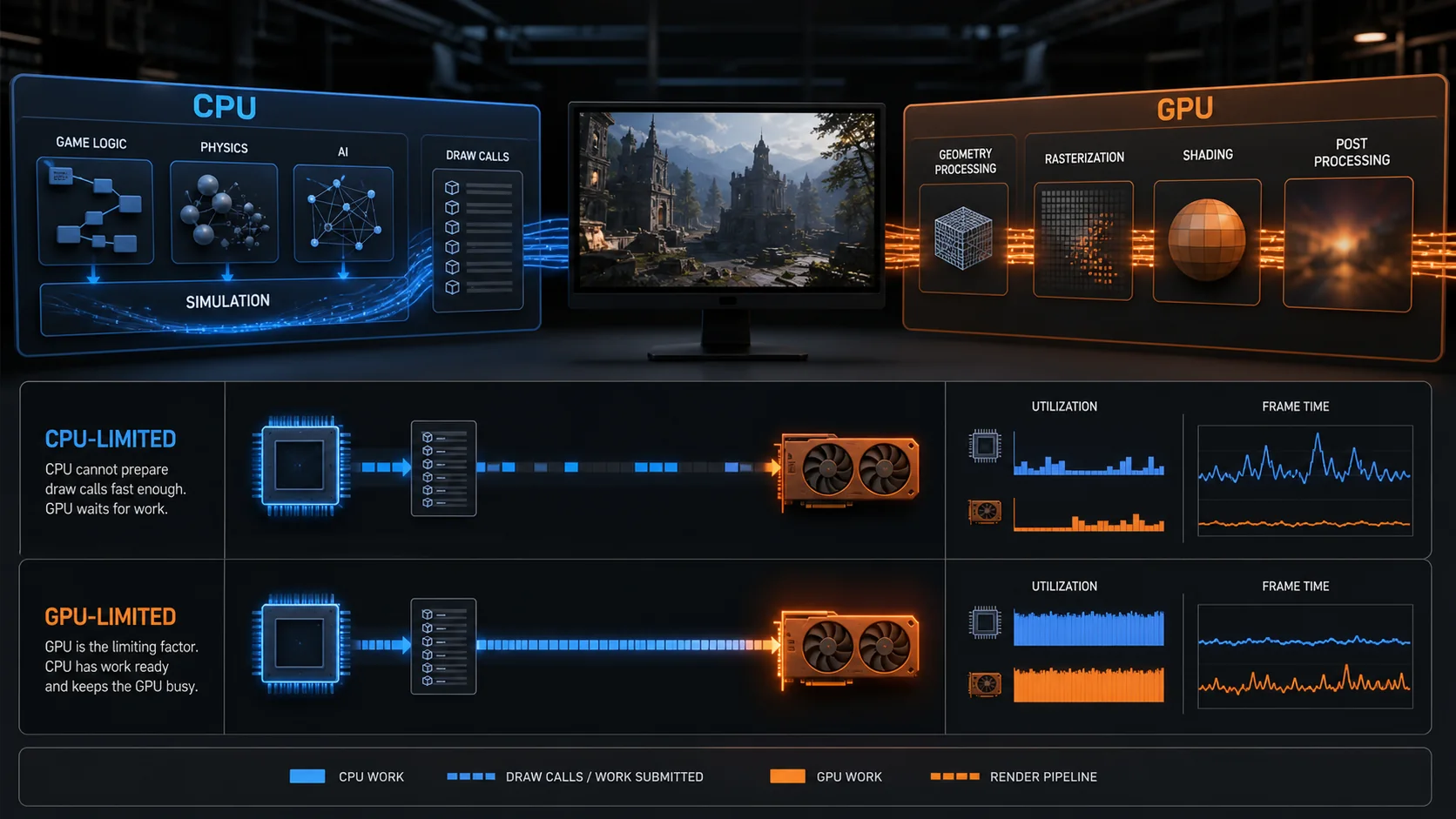
Every frame in a game passes through two broad stages: the CPU prepares game logic, physics, AI calculations and draw call instructions, then hands that data to the GPU, which renders the actual pixels. A bottleneck occurs when one of these stages consistently takes longer than the other, meaning the faster component finishes its work and waits idle for the slower one before the frame can be displayed.
As an Amazon Associate we earn from qualifying purchases at no extra cost to you.



This is different from a hardware failure or a defective part — a bottleneck is a normal, expected outcome any time two components of different relative strength are paired together, and in some sense every system has a bottleneck somewhere, since it’s rare for CPU and GPU workloads to be perfectly balanced in every single game and scene.
The severity of a bottleneck matters more than its mere existence. A GPU running at 85 percent usage while the CPU handles the rest isn’t a crisis; it’s a mild imbalance that might cost a handful of frames per second. A GPU sitting at 50 percent usage while the CPU is pegged at 100 percent, however, represents a severe bottleneck that’s leaving real performance unused.
Bottlenecks aren’t static across a single game session either. An open-world game might be CPU-bound while walking through a crowded city area with many NPCs and physics objects, then become GPU-bound moments later in a rendering-heavy cutscene or a wide outdoor vista with long draw distances.
Understanding this distinction is the foundation for every diagnostic step and purchasing decision that follows, because treating a bottleneck as a single fixed property of your system, rather than something that shifts by scene and game, leads directly to buying the wrong upgrade.
How to diagnose which part is limiting you
The most reliable diagnostic tool is a real-time monitoring overlay, such as MSI Afterburner’s RivaTuner Statistics Server or the built-in overlays in many modern games, configured to show GPU usage percentage, CPU usage percentage, and frame rate simultaneously while you play.
Watch GPU usage first. If it sits consistently at 95-100 percent during gameplay and the frame rate matches what benchmarks suggest for that card at your settings, the GPU is the limiting factor, and that’s the expected, healthy state for a well-matched system. If GPU usage regularly drops to 70 percent or lower while frame rate stays flat or noticeably lower than expected, something else is capping performance.
Next, check individual CPU core usage rather than just the average across all cores, since many games are still not fully multi-threaded and can bottleneck on a single core reaching 100 percent while the overall CPU usage average reads a moderate 40-50 percent — a figure that looks fine at a glance but hides the real limitation.
Testing at a lower resolution is a useful diagnostic trick: dropping from 1440p to 1080p at identical settings shifts more of the workload onto the CPU relative to the GPU. If frame rate barely changes between the two resolutions, the system was already CPU-bound at 1440p, since lowering resolution only relieves GPU workload, not CPU workload.
Comparing your specific frame rate against published benchmark results for your exact GPU model, at matching settings and resolution, is the final check. A frame rate meaningfully below the benchmark average for your GPU tier, despite similar settings, points toward a limitation somewhere else in the system — most often the CPU, but occasionally RAM speed or storage.
Symptoms of a CPU-bound system
A CPU bottleneck shows a distinct pattern on the monitoring overlay: GPU usage noticeably below 90 percent, one or more CPU cores pegged near 100 percent, and frame rate that doesn’t improve when you lower graphics settings that primarily affect GPU load, such as shadow quality or anti-aliasing.
The most reliable in-game symptom is frame rate staying flat or dropping in scenes with many on-screen characters, physics objects, or AI-controlled entities, even in areas with relatively simple visuals. Crowded city hubs in RPGs, large multiplayer battles, and city-builder or strategy games with many simultaneous units are classic CPU-bound scenarios.
1% low frame times — the frame rate during the worst one percent of frames, a better indicator of perceived stutter than the average — often suffer disproportionately under a CPU bottleneck, since the CPU’s per-frame preparation time spikes unpredictably when many entities need processing simultaneously, producing stutter even when the average frame rate looks acceptable.
High refresh rate 1080p gaming is the scenario most likely to expose a CPU bottleneck, because the target frame rate is high (often 144-240 fps) and the GPU’s per-frame workload is comparatively light at that resolution, which shifts a larger share of total frame time onto CPU preparation work.
Older or budget quad-core CPUs without simultaneous multithreading, still found in some pre-built systems, are particularly prone to this pattern in current titles, which increasingly expect six or more logical cores to distribute AI, physics and audio processing without contention.
Symptoms of a GPU-bound system
A GPU bottleneck shows the inverse pattern: GPU usage at or near 100 percent, CPU usage comfortably below its ceiling on all cores, and frame rate that responds directly and predictably to changes in graphics settings like resolution, texture quality, shadow detail, and ray tracing toggles.
This is the desired state for most gaming systems, since it means the GPU — typically the more expensive and more frequently upgraded component — is being used to its full potential rather than sitting idle waiting on other parts. A well-matched gaming PC should be GPU-bound in the large majority of scenes at its target resolution.
The clearest symptom is frame rate scaling cleanly with resolution changes: dropping from 4K to 1440p to 1080p should produce roughly proportional frame rate increases in a GPU-bound scene, since each resolution step meaningfully reduces the pixel count the GPU needs to render.
Ray tracing and other GPU-intensive features amplify GPU-bound behavior specifically, since these effects add substantial rendering work without adding meaningful CPU work, which is why enabling ray tracing on an already GPU-bound system produces a large, predictable frame rate drop rather than no change at all.
A system that’s GPU-bound at 4K may become CPU-bound at 1080p on the exact same hardware, which is the practical reason resolution is one of the first questions to ask when diagnosing performance — the same components can present entirely different bottleneck behavior depending on the settings in use.
How resolution changes the bottleneck balance
Resolution is the single biggest lever affecting which component becomes the limiting factor, because GPU workload scales roughly with pixel count while CPU workload — game logic, physics, AI — stays largely constant regardless of resolution. Doubling pixel count roughly doubles GPU work but leaves CPU work nearly unchanged.
At 1080p, a resolution with a relatively light GPU workload by current standards, the CPU’s fixed per-frame cost represents a larger proportion of total frame time, which is why 1080p high-refresh gaming is the most CPU-sensitive common scenario, especially for competitive titles targeting 200+ fps where every millisecond of CPU preparation time matters.
At 1440p, the balance shifts meaningfully toward the GPU, since the roughly 78 percent increase in pixel count over 1080p adds substantial rendering work while CPU demands stay flat. Most well-matched mid-to-high-end systems land in GPU-bound territory at 1440p across the majority of current titles.
At 4K, GPU workload increases again by roughly 78 percent over 1440p, making 4K systems almost always GPU-bound unless paired with a genuinely outdated CPU, which is why buyers targeting 4K can generally allocate a larger share of their budget to the GPU and a smaller share to the CPU than 1080p or 1440p buyers would.
This resolution relationship is precisely why the same CPU and GPU pairing can be perfectly balanced for one buyer’s use case and badly mismatched for another’s — a competitive 1080p 240Hz player and a single-player 4K enthusiast on identical hardware experience two completely different bottleneck profiles.
Upgrade priority: which part to replace first
If diagnosis shows a consistent, severe CPU bottleneck — GPU usage regularly below 70 percent with CPU cores pegged — the CPU, and possibly the motherboard and RAM alongside it, is the correct upgrade target, not the GPU, even if the GPU is the older-looking component on paper.
If diagnosis shows a consistent GPU bottleneck — GPU usage at 95-100 percent with CPU comfortably under its ceiling — the GPU is the correct upgrade target, and a CPU upgrade in this scenario would produce little to no frame rate improvement since the GPU was already the limiting factor.
Mixed results across different games call for prioritizing based on which games you play most. A buyer who splits time between a CPU-heavy strategy title and a GPU-heavy open-world game needs to decide which experience matters more, since a single upgrade won’t fully resolve both bottlenecks simultaneously in every scenario.
Platform upgrades — a new CPU generation often requiring a new motherboard and sometimes new RAM — cost considerably more than a same-socket CPU swap, so check whether your current motherboard supports a higher-tier CPU on the same socket before assuming a full platform change is necessary. A Ryzen 5 7600 upgraded to a Ryzen 7 7800X3D, for example, stays on the same AM5 socket and typically only needs a BIOS update.
Readers assembling a balanced system from scratch, rather than diagnosing an existing bottleneck, should start from our best CPU and GPU combo for gaming guide, which pairs specific processors to specific card tiers to avoid creating a bottleneck in the first place.
Real-world bottleneck examples by system tier
| CPU | GPU | 1080p result | 1440p result |
|---|---|---|---|
| Ryzen 5 5600 | RTX 4070 Super | Mild CPU-bound | GPU-bound |
| Core i5-13400F | RTX 4070 Ti Super | Moderate CPU-bound | Mild CPU-bound |
| Ryzen 7 7800X3D | RTX 4090 | Balanced | GPU-bound |
| Core i3-13100 | RX 7800 XT | Severe CPU-bound | Moderate CPU-bound |
These pairings are illustrative estimates based on typical scaling patterns across current game engines, not measurements from a specific test session, and actual results vary by game and settings. The pattern to notice is consistent: pairing a flagship GPU like the RTX 4090 with anything less than a strong current-generation CPU wastes a meaningful share of its potential, particularly at 1080p and high-refresh 1440p.
Budget-focused buyers can use this same logic in reverse: a mid-tier GPU paired with a strong CPU, such as an RTX 4070 Super with a Ryzen 7 7800X3D, delivers a smoother, more consistent experience with fewer 1% low dips than a flagship GPU on a weak CPU, even though the second combination has the more expensive graphics card. Our best CPU for 1440p gaming and best budget CPU for gaming guides break down processor picks by exactly this kind of balance.
Bottlenecks beyond CPU and GPU
RAM speed and capacity can mimic a CPU bottleneck in the monitoring overlay, since insufficient or slow RAM forces the CPU to wait on memory access, showing up as high CPU usage with low GPU usage even though the CPU chip itself isn’t the root cause. Current platforms generally want DDR5 running at rated speed, not just installed capacity, to avoid this specific issue.
Storage speed rarely causes an ongoing frame rate bottleneck but can cause stutter during texture streaming in open-world games, particularly on traditional hard drives or older SATA SSDs, which struggle to feed new texture data fast enough during fast travel or rapid camera movement compared to a current NVMe drive.
Background processes and thermal throttling both masquerade as bottlenecks in ways that monitoring overlays sometimes miss at a glance. A CPU throttling due to inadequate cooling shows reduced clock speed under sustained load, which looks similar to a bottleneck in frame rate terms but requires a cooling fix, not a component upgrade, to resolve.
Driver overhead differs meaningfully between Nvidia and AMD in CPU-bound scenarios specifically, with Nvidia’s driver historically carrying somewhat higher CPU overhead in DirectX 11 titles, which can shift an already-marginal CPU bottleneck into a more noticeable one purely based on GPU brand, independent of the GPU’s own raw performance.
Ruling out these secondary causes before spending money on a CPU or GPU upgrade prevents the common outcome of an upgrade that doesn’t fix the actual symptom, because the real limitation was RAM configuration or cooling rather than either headline component.
Testing your specific bottleneck at home
Start with a monitoring overlay running during your normal play session across two or three different games, ideally including both a CPU-heavy title (strategy, simulation, open-world with crowds) and a GPU-heavy title (visually dense single-player games, ray tracing enabled), rather than judging your system from a single game alone.
Record GPU usage percentage, CPU usage percentage per core, and average frame rate over a five-to-ten-minute play session in a representative area of each game, avoiding menu screens or loading sequences, which don’t reflect real gameplay load and can skew the readings.
Repeat the same test at your next-lower supported resolution if possible — if you play at 1440p, run the same scene at 1080p briefly. A frame rate that barely changes between resolutions confirms a CPU bottleneck at both; a frame rate that scales up meaningfully at the lower resolution confirms the system was GPU-bound at 1440p.
Compare your logged numbers against a handful of published reviews for your specific CPU and GPU combination if you can find one, since independent reviewers often test the exact pairing question you’re asking, saving you the need to draw conclusions from a single home test session alone.
Troubleshooting: unexpected or inconsistent results
If GPU usage fluctuates wildly between 40 and 100 percent within the same scene, rather than settling at a consistent value, check for background processes competing for CPU time, such as a browser with many tabs open or a game launcher’s overlay running simultaneously, both of which can introduce inconsistent CPU contention.
If a monitoring overlay itself seems to be affecting frame rate, particularly on lower-end CPUs, switch to a lighter-weight overlay or log data to a file for review afterward rather than watching a live overlay, since some overlay software carries measurable CPU overhead of its own.
If results differ significantly between benchmark tools and real gameplay, trust the real gameplay numbers over a synthetic benchmark, since synthetic tests often stress components differently than actual game engines do, and a bottleneck visible in real gameplay is the one that matters for your experience.
If a fresh driver or BIOS update changes your bottleneck pattern significantly, that’s expected behavior rather than a fault — both GPU drivers and motherboard firmware regularly adjust CPU overhead and power management behavior, so re-running your diagnostic test after major updates is worth the few minutes it takes.
Frequently asked questions
How do I know if my CPU or GPU is the bottleneck?
Open a monitoring overlay showing both GPU and CPU usage percentage while gaming. If GPU usage sits near 95-100 percent and frame rate matches expectations for that card, the GPU is the limiting factor, which is normal and desired. If GPU usage drops well below 90 percent while frame rate stays flat or low, the CPU or another component is holding the system back instead.
Does a CPU bottleneck damage hardware?
No, a CPU bottleneck is purely a performance limitation, not a safety or damage concern. The GPU simply idles more between frames while it waits for the CPU to prepare the next batch of instructions, which can actually reduce GPU temperature and power draw slightly compared to a fully GPU-bound scenario, with no wear implications either way.
Is a bottleneck always bad?
Not necessarily. A CPU that’s fully utilized while the GPU sits at 70-80 percent still delivers a specific, often perfectly playable frame rate; the term “bottleneck” simply describes which part is limiting further gains. A mild bottleneck that still hits your target frame rate at your target resolution isn’t a problem worth spending money to fix.
Will upgrading my GPU fix a CPU bottleneck?
No, and this is the most expensive mistake buyers make. If the CPU is already the limiting factor, a more powerful GPU produces the same or nearly the same frame rate as the old one in CPU-bound scenes, since the GPU is already waiting on the CPU rather than working at full capacity.
Which resolution is most affected by CPU bottlenecks?
1080p, particularly at high refresh rates above 144Hz, is the most CPU-sensitive resolution because the GPU’s per-frame workload is lighter, leaving the CPU’s frame-preparation time as a larger share of total frame time. 4K is the least CPU-sensitive resolution since the GPU carries proportionally more of the workload at that pixel count.