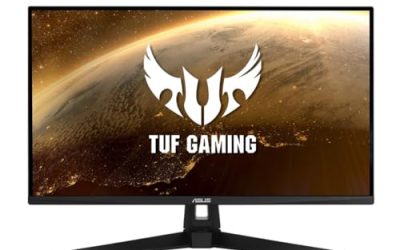
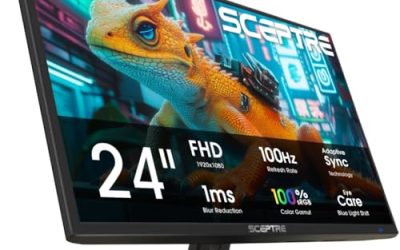
The best 1440p PC monitor for most gamers in 2026 is a 27-inch Fast IPS panel running 165-240Hz. It hits the sweet spot of sharpness (about 109 PPI), frame rates a mid-range GPU can feed, and a mid-range price. If you want the best motion clarity and contrast and can accept burn-in care and a premium price, a 27-inch 1440p OLED at 240-360Hz is the upgrade. The rest of this guide covers which panel type fits your GPU, desk and games, plus the bandwidth math that decides whether your cable and ports can drive the refresh rate you are paying for.
As an Amazon Associate we earn from qualifying purchases at no extra cost to you.


Our Top Picks
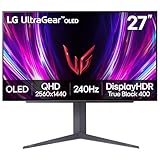
 LG 27GS93QE 27-inch Ultragear OLED Gaming Monitor QHD27 inches10.2 x 23.8 x 22.6 inches14.8 poundsCheck on Amazon

Top 3 picks at a glance
Quick comparison of the best 1440p monitors
These are specific current models or clearly described spec classes. Specs follow the manufacturers’ published sheets, and prices are general market tiers because street prices shift constantly.
| Pick | Best for | Key specs | Price tier |
|---|---|---|---|
| Dell G2724D | Budget all-rounder | 27″ IPS, 2560×1440, 165Hz, adjustable stand | Budget |
| MSI MAG 274QRF-QD | Best value for color | 27″ Rapid IPS, quantum dot, 165Hz, wide-gamut | Budget to mid-range |
| Gigabyte M27Q X | High-refresh IPS | 27″ IPS, 2560×1440, 240Hz, built-in KVM | Mid-range |
| LG UltraGear 27GR95QE | OLED for single-player and mixed use | 27″ OLED, 2560×1440, 240Hz | Premium |
| Alienware AW2725DF | Competitive OLED | 27″ QD-OLED, 2560×1440, 360Hz | Premium |
| 32″ 1440p VA or IPS class | Big screen, mixed work and play | ~92 PPI, 144-170Hz, often curved on VA | Budget to mid-range |
Best overall: a 27-inch Fast IPS at 165-240Hz
The Gigabyte M27Q X is the pick if you want the most balanced screen. A 240Hz IPS panel gives sharp text, wide viewing angles and fast pixel response without OLED’s burn-in considerations. The built-in KVM switch also lets one keyboard and mouse control a PC and a laptop, which is handy for a work-and-game desk. The trade-off is contrast. Any IPS panel typically sits around 1000:1 and shows gray blacks in a dark room, and edge-lit models have some backlight glow.
Best budget: Dell G2724D or MSI MAG 274QRF-QD
The Dell G2724D is a no-nonsense 27-inch 165Hz IPS that covers the fundamentals, and its stand adjusts for height, tilt and swivel. The MSI MAG 274QRF-QD adds a quantum-dot layer for richer color and is a better choice if you edit photos or simply like vivid games. The trade-off for both is HDR. Their HDR modes are essentially marketing labels with no local dimming, so leave HDR off and judge them as excellent SDR screens.
Best OLED: LG UltraGear 27GR95QE
The 27GR95QE is a 27-inch 1440p OLED at 240Hz. It delivers near-instant pixel response, true blacks and strong HDR highlights in games such as Cyberpunk 2077 or Alan Wake 2. The trade-offs are the usual OLED ones: a premium price, some risk of burn-in with static desktop elements, and lower full-screen brightness than a good mini-LED panel. Static taskbars and HUDs are the main risk, so use auto-hide and the panel’s refresh routines.
Best for competitive play: Alienware AW2725DF
At 360Hz on a QD-OLED panel, the AW2725DF targets esports players who want the lowest persistence blur. At 360Hz a frame lasts about 2.8 ms, versus 6.9 ms at 144Hz. The catch is that you need a CPU that can push 300+ FPS in Valorant, CS2 or Apex Legends to benefit. In heavier games it is just a very good 240Hz-class monitor. It is also the most expensive pick here, and the OLED text rendering is slightly softer than an IPS panel’s.
Best large-format option: 32-inch 1440p
A 32-inch 1440p monitor is cheaper than a 32-inch 4K one and easier to drive, but it drops to about 92 PPI, so text looks visibly coarser at normal desk distance. It works if you sit 80 cm or more away and mostly play. If you read, code or browse a lot, a 27-inch panel is the better choice.
How to choose: the numbers that matter
Screen size and pixel density
Pixel density is the diagonal in pixels (about 2937 for 2560×1440) divided by the diagonal in inches.
- 24 inches: about 122 PPI, very sharp, but small for immersion.
- 27 inches: about 109 PPI, the standard choice for 1440p.
- 32 inches: about 92 PPI, roomy but visibly less sharp up close.
Worked example: does your cable and port support the refresh rate?
Bandwidth is pixels x refresh x bits per pixel, plus blanking overhead of roughly 5-10% for typical timings. Here is how it works out for 2560×1440, which is 3,686,400 pixels per frame.
| Mode | Raw data rate | With ~8% overhead | Fits HDMI 2.0 (~14.4 Gbps) | Fits DP 1.4 (~25.9 Gbps) |
|---|---|---|---|---|
| 144Hz, 8-bit (24 bpp) | 12.7 Gbps | ~13.7 Gbps | Yes, barely | Yes |
| 165Hz, 8-bit | 14.6 Gbps | ~15.8 Gbps | No | Yes |
| 240Hz, 8-bit | 21.2 Gbps | ~22.9 Gbps | No | Yes |
| 240Hz, 10-bit (30 bpp) | 26.5 Gbps | ~28.6 Gbps | No | Needs DSC |
| 360Hz, 8-bit | 31.9 Gbps | ~34.4 Gbps | No | Needs DSC |
What this means in practice: HDMI 2.0 tops out near 144Hz at 1440p, so use DisplayPort or HDMI 2.1 for anything faster. At 240Hz with 10-bit HDR, or at 360Hz, you rely on Display Stream Compression (DSC), which is visually lossless but can limit features like fast Alt-Tab on some GPUs or multi-monitor setups. The figures are my own calculation from standard link rates, and actual timings vary by monitor.
Match refresh rate to your GPU
A monitor only helps if your PC can fill its refresh rate. Typical published reviews show approximate 1440p ranges like these, which vary with settings, CPU, game and patch.
| Your situation | Realistic 1440p frame rate in demanding AAA games (approx.) | Sensible monitor |
|---|---|---|
| Entry GPU (8 GB class) | 50-80 FPS at high settings | 27″ 144-165Hz IPS with VRR |
| Mid-range GPU (12-16 GB class) | 80-140 FPS | 27″ 165-240Hz IPS or 240Hz OLED |
| High-end GPU | 130-200+ FPS | 240-360Hz OLED or IPS |
| Esports titles, fast CPU | 250-500+ FPS | 240-360Hz, fast panel |
| Work and play, one PC and a laptop | Varies | IPS with KVM and USB-C |
If your GPU averages 90 FPS in your favorite game, a 165Hz panel with VRR will feel nearly as smooth as a 240Hz one, so spend the difference on panel quality instead.
Panel type decision guide
- Fast IPS: best all-around choice for mixed use, strong color, no burn-in worry. Choose it for a bright room or lots of desktop work.
- VA: higher contrast, usually around 3000:1, and often cheaper, with curved 32-inch options. Pixel smearing in dark scenes is the weak spot, so check reviews for response times.
- OLED (WOLED or QD-OLED): best motion and contrast. Choose it for dim rooms and single-player games, and accept the burn-in precautions.
Other specs worth checking
- Adaptive sync: look for G-SYNC Compatible or FreeSync Premium certification so VRR works without flicker.
- HDR: treat DisplayHDR 400 as a label only. Real HDR needs local dimming or OLED, such as DisplayHDR True Black or DisplayHDR 1000 tiers.
- Stand and ports: height adjustment and a VESA mount matter more than most buyers expect. Check for DisplayPort 1.4, HDMI 2.1 if you use a console, and USB-C if you game on a laptop.
- Response time claims: a listed 1 ms figure is a best-case gray-to-gray number. Independent measurements are more reliable.
Frequently Asked Questions
Is 1440p still worth buying over 4K in 2026?
Yes, for most gamers. 1440p needs roughly 45% fewer pixels than 4K (3.69 million versus 8.29 million), so a mid-range GPU can reach high frame rates without upscaling. 4K makes sense if you have a high-end GPU and mostly play slower, visually rich games.
What is the best size for a 1440p monitor?
27 inches is the best size for most desks, giving about 109 PPI. 24 inches suits tight spaces or competitive setups, and 32 inches suits larger desks if you accept softer text.
Do I need 240Hz at 1440p?
Only if your PC regularly renders more than about 160-200 FPS. For most single-player games, 144-165Hz with VRR looks very smooth. 240Hz is worth it mainly for esports titles or when you are buying OLED anyway.
Is OLED safe for a work and gaming monitor?
It can be, with precautions. Hide the taskbar, use dark mode, let the monitor run its pixel-refresh cycles and check the manufacturer’s burn-in warranty terms. If your screen is full of static windows eight hours a day, an IPS panel is the safer choice.
Which cable should I use for 1440p at high refresh rates?
Use a certified DisplayPort 1.4 cable for 165-240Hz, since HDMI 2.0 tops out near 144Hz at 1440p. For 360Hz or 10-bit HDR at 240Hz you may need DSC, and HDMI 2.1 or DisplayPort 2.1 where both your GPU and the monitor support it.
Does a 1440p monitor work well with consoles?
Yes, but only if it has HDMI 2.1. Consoles can output 1440p on supported displays at up to 120Hz, so look for HDMI 2.1 and VRR support. Many cheaper 1440p monitors only have HDMI 2.0 and cap at 60Hz or 120Hz at lower resolutions.
Related guides
More from Amazon
Programs that pair well with the guide above. Offers and eligibility are set by Amazon and may change.
A free business account with business pricing and bulk-buying tools for work, shop or home office.
Create a business accountFree shipping on eligible items, Prime Video and more. Eligible new members can start with a free trial.
Start a Prime free trialAudiobooks and podcasts to listen to on the go. Eligible new members can start with a free trial.
Try Audible freeAd-free music streaming. Eligible new subscribers can start with a free trial.
Try Music Unlimited freeAs an Amazon Associate we earn from qualifying purchases.