The best 144Hz gaming monitor for most people in 2026 is a 27-inch 1440p IPS panel with adaptive sync, which balances sharpness, speed and GPU demand. Choose 1080p if you have a budget graphics card or play competitive shooters, and 4K 144Hz only if your GPU can realistically hold well over 100 FPS at that resolution. Many current 144Hz panels also overclock to 165Hz or 180Hz, so the “144Hz” label is now a floor rather than a ceiling.
As an Amazon Associate we earn from qualifying purchases at no extra cost to you.


Our Top Picks
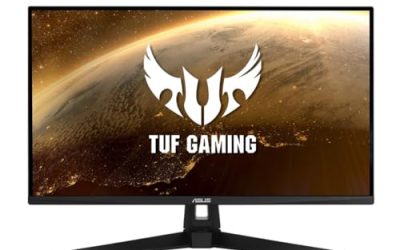
 ASUS TUF Gaming VG27AQ3A 27 Inch 1440p 180Hz14.4" x 24.2" x 2.1"24.2 x 8.4 x 17.9 inches10.1 poundsCheck on Amazon
 ASUS TUF Gaming VG34VQL1B 34 Inch 1440p 165Hz31.85 x 16.38 x 10.79 Inches19.86 poundsCheck on Amazon

Top 3 picks at a glance
Quick comparison of the best 144Hz monitor types
| Pick | Best for | Key specs | Price range |
|---|---|---|---|
| 27-inch 1440p IPS, 144-180Hz (e.g., LG UltraGear 27GP850-B, Dell G2724D, MSI MAG 274QRF-QD) | Best overall | 2560×1440, IPS, 144-180Hz, adaptive sync, about 1 ms GTG claimed | Mid-range |
| 24-inch 1080p IPS, 144Hz (e.g., AOC 24G2 series) | Best budget | 1920×1080, IPS, 144Hz, adaptive sync, DisplayPort and HDMI | Budget |
| 27-inch curved 1440p VA (e.g., Samsung Odyssey G5) | Best for dark rooms and contrast | 2560×1440, VA, curved, up to 144-165Hz depending on model | Budget to mid-range |
| 28-inch 4K IPS, 144Hz (e.g., Gigabyte M28U, ASUS TUF Gaming VG28UQL1A) | Best for high-end GPUs and mixed work and play | 3840×2160, IPS, 144Hz, HDMI 2.1, DisplayPort 1.4 with DSC | Upper mid-range to premium |
Model lineups change and regional variants differ, so confirm refresh rate, panel type and ports on the manufacturer’s spec sheet before buying. The choice that matters most is the class of monitor; the exact model is secondary.
Best overall: 27-inch 1440p IPS
This is the sweet spot because 27 inches at 1440p gives roughly 109 pixels per inch, sharp enough for desktop use without the 4K GPU cost. Good examples have fast IPS panels, adaptive sync and overdrive modes that avoid heavy overshoot. Many also ship with a 165Hz or 180Hz maximum, which gives you headroom later.
Who it suits: anyone with a mid-range or better GPU who plays a mix of shooters, open-world and story games.
Main trade-off: IPS contrast is typically around 1000:1, so blacks look grey in a dark room, and “IPS glow” is visible at the corners. HDR labels on these panels are usually marketing rather than a real upgrade.
Best budget: 24-inch 1080p IPS
A 24-inch 1080p 144Hz IPS monitor is the cheapest way to get the full high-refresh experience, and it is easy to drive. Because 1080p needs far less GPU power, even older or entry-level graphics cards can approach 144 FPS in esports titles. The AOC 24G2 series is a long-running example of this class.
Who it suits: first-time high-refresh buyers, esports players and anyone building around an entry-level GPU.
Main trade-off: at about 92 pixels per inch, text and fine detail look softer than 1440p. Moving up to 27 inches at 1080p is not recommended because pixels become visible.
Best for contrast: curved 1440p VA
VA panels usually reach 3000:1 or higher contrast, so dark scenes in horror, space and atmospheric games look noticeably deeper than on IPS. A 27-inch curved model such as the Samsung Odyssey G5 is a popular example. The curve also helps immersion at typical desk distances.
Who it suits: single-player gamers in dim rooms who value depth over raw speed.
Main trade-off: VA panels can smear in dark transitions, a problem known as black smearing. Viewing angles are narrower than IPS, and results vary between units, so check the overdrive behaviour of your exact model.
Best for high-end GPUs: 28-inch 4K 144Hz
4K at 144Hz is the premium pick when you want sharp text, photo and video work, and fast games on one screen. The Gigabyte M28U and ASUS TUF Gaming VG28UQL1A are examples of 28-inch 4K 144Hz IPS monitors with HDMI 2.1. At about 157 pixels per inch, the image is very crisp.
Who it suits: owners of a high-end graphics card who play with upscaling such as DLSS, FSR or XeSS, and who also do creative work.
Main trade-off: 4K needs about 2.25 times the pixels of 1440p. Without a strong GPU you will sit at 60-90 FPS, which wastes the 144Hz panel.
How to choose: bandwidth and GPU requirements
Worked example: does your cable support the refresh rate?
Raw pixel data rate is width x height x refresh rate x bits per pixel. For 8-bit colour that is 24 bits per pixel. Real signals add blanking overhead, so treat these as minimums.
| Resolution @ 144Hz | Pixels per frame | Data rate, 8-bit (approx.) | Data rate, 10-bit (approx.) |
|---|---|---|---|
| 1920×1080 | 2,073,600 | 7.2 Gbps | 9.0 Gbps |
| 2560×1440 | 3,686,400 | 12.7 Gbps | 15.9 Gbps |
| 3840×2160 | 8,294,400 | 28.7 Gbps | 35.8 Gbps |
Compare those figures with usable link capacity. DisplayPort 1.4 carries about 25.9 Gbps after encoding overhead, HDMI 2.0 about 14.4 Gbps, and HDMI 2.1 up to roughly 42 Gbps at its full 48 Gbps rate. The conclusions follow:
- 1080p at 144Hz: works on any modern DisplayPort or HDMI port. Use DisplayPort if the HDMI port is an older version.
- 1440p at 144Hz: comfortable on DisplayPort 1.4. On HDMI 2.0 it is borderline once blanking is added, which is why some monitors cap HDMI at a lower refresh rate. Use DisplayPort.
- 4K at 144Hz: 28.7 Gbps exceeds DisplayPort 1.4’s 25.9 Gbps, so it needs Display Stream Compression (DSC) or HDMI 2.1. Check that both your GPU and the monitor support the one you plan to use.
Match the monitor to your GPU and frame rate goal
A 144Hz panel only helps if your system delivers frames to match. Frame time at 144Hz is about 6.9 ms versus 16.7 ms at 60Hz. Use this matrix to match your situation to a choice. FPS ranges are approximate, as published reviews report them, and vary with game settings, CPU and patch version.
| Your situation | Typical FPS you can expect | Choose |
|---|---|---|
| Entry-level or older GPU, esports titles | Roughly 100-200 FPS at 1080p low-medium | 24-inch 1080p IPS 144Hz |
| Mid-range GPU, AAA games at high settings | Roughly 60-110 FPS at 1440p, higher in esports titles | 27-inch 1440p IPS 144-165Hz with adaptive sync |
| Upper-mid or high-end GPU | Roughly 100-180 FPS at 1440p | 27-inch 1440p at 165-180Hz; the headroom is useful |
| High-end GPU plus upscaling | Roughly 70-140 FPS at 4K with upscaling | 28-inch 4K 144Hz |
| Dark room, mostly single-player | Any of the above | VA curved 1440p |
| Console only (PS5 or Xbox Series) | Capped at 120Hz | HDMI 2.1 model; 144Hz benefits PC only |
Panel type, size and features that matter
- IPS: best colour and viewing angles, fast response. The default recommendation for most buyers.
- VA: higher contrast, but check the reported dark-transition response.
- TN: now rare at 144Hz. Only consider it if it is very cheap and you play purely competitive titles.
- Adaptive sync: look for G-Sync Compatible validation or FreeSync Premium. It removes tearing without the lag penalty of traditional V-Sync.
- Size and resolution pairing: 24 inch with 1080p, 27 inch with 1440p, 28 inch with 4K. Wider combinations soften the image.
- Ergonomics: height adjustment and VESA mounting matter for long sessions and are often missing on the cheapest models.
- Skip: “HDR400” badges on non-local-dimming panels. They add little real HDR impact.
Set it up correctly after you buy
A surprising number of 144Hz monitors run at 60Hz because the setting was never changed. Follow these steps:
- Use the right cable and port. Use the DisplayPort cable included in the box, plugged into the GPU, not the motherboard. This avoids the integrated graphics output that can cap refresh.
- Set the refresh rate in Windows. Go to Settings, System, Display, Advanced display, and choose 144Hz (or the maximum listed). Without this step, Windows may stay at 60Hz.
- Enable adaptive sync. In the NVIDIA Control Panel or AMD Software, enable G-Sync or FreeSync, and turn it on in the monitor’s on-screen menu if it is off by default.
- Cap your frame rate slightly under the maximum. Set a limit about 3 FPS below the refresh rate, for example 141 FPS at 144Hz, with V-Sync on in the driver. This keeps the game inside the adaptive-sync window and avoids added latency.
- Choose a middle overdrive setting. The maximum overdrive mode often causes inverse ghosting, a bright trailing halo. Pick the medium option and look at a moving-object test pattern.
- Leave the colour mode on sRGB or the standard preset. Disable aggressive “gamer” modes that crush shadow detail.
Frequently Asked Questions
Is 144Hz still worth it in 2026?
Yes. 144Hz remains the practical standard for high-refresh gaming, and it delivers a clear improvement over 60Hz in motion clarity and responsiveness. Higher rates like 240Hz are available, but they require much stronger systems and offer smaller visible gains.
Is 144Hz or 165Hz better?
165Hz is slightly smoother, but the difference is small, about 0.9 ms of frame time. If two monitors are otherwise equal, take the 165Hz one for the headroom. Panel quality, resolution and response behaviour matter more than those extra 21Hz.
Do I need a special cable for 144Hz?
Not for 1080p or 1440p, where a DisplayPort cable or a modern HDMI cable is usually enough. DisplayPort is the safest choice. For 4K at 144Hz, use a cable certified for DisplayPort 1.4 or an Ultra High Speed HDMI cable for HDMI 2.1.
Can a 144Hz monitor work with consoles?
Yes, but PS5 and Xbox Series consoles output a maximum of 120Hz, so the monitor will run at 120Hz at best. If you plan to use both a console and a PC, pick a model with HDMI 2.1 so the console can run at 4K 120Hz.
Is 1080p or 1440p better for 144Hz gaming?
1440p looks sharper and is the better choice if your GPU can keep frame rates in the 100+ range. 1080p is easier to run and better for budget builds or competitive play where frame rate matters most.
Why does my 144Hz monitor only show 60Hz?
The most common causes are the refresh rate not being changed in Windows display settings, the cable being plugged into the motherboard instead of the GPU, or an older HDMI cable or port limiting bandwidth. Switch to DisplayPort on the graphics card and set the refresh rate manually under Advanced display.
Related guides
More from Amazon
Programs that pair well with the guide above. Offers and eligibility are set by Amazon and may change.
A free business account with business pricing and bulk-buying tools for work, shop or home office.
Create a business accountFree shipping on eligible items, Prime Video and more. Eligible new members can start with a free trial.
Start a Prime free trialAudiobooks and podcasts to listen to on the go. Eligible new members can start with a free trial.
Try Audible freeAd-free music streaming. Eligible new subscribers can start with a free trial.
Try Music Unlimited freeAs an Amazon Associate we earn from qualifying purchases.