The best large 144Hz monitor for most people is a 32-inch 4K IPS panel with 144Hz, such as the Gigabyte M32U or LG UltraGear 32GQ950, if your GPU can push high frame rates at 4K. If it can’t, a 34-inch 3440×1440 ultrawide or a 32-inch 1440p panel is the smarter buy. The reason is that a bigger screen at the wrong resolution looks soft, and the wrong resolution for your GPU leaves 144Hz unused.
As an Amazon Associate we earn from qualifying purchases at no extra cost to you.



Top 3 picks at a glance
Quick comparison of the picks
| Pick | Best for | Key specs | Price range |
|---|---|---|---|
| Gigabyte M32U | Best overall 32-inch 4K | 32″, 3840×2160, IPS, 144Hz, DisplayPort 1.4, built-in KVM (per manufacturer spec sheet) | Mid-range to upper mid-range |
| LG UltraGear 32GQ950 | Premium image quality | 32″, 4K Nano IPS, 144Hz (higher overclock mode listed), HDMI 2.1 | Premium |
| Alienware AW3423DWF | Best ultrawide, OLED contrast | 34″ curved QD-OLED, 3440×1440, 165Hz | Premium |
| Gigabyte M34WQ | Best value ultrawide | 34″, 3440×1440, IPS, 144Hz | Mid-range |
| 32-inch 1440p VA, 144–165Hz (e.g. Dell S3222DGM) | Best budget large | 31.5″, 2560×1440, curved VA, about 92 PPI | Budget |
| Gigabyte FV43U | Biggest desk monitor | 43″, 4K, 144Hz, about 103 PPI | Upper mid-range |
Specs and street prices change by region and revision, so check the current spec sheet before buying.
Best overall: 32-inch 4K IPS at 144Hz
The Gigabyte M32U is the reference for this class. It has a 32-inch 4K IPS panel, a 144Hz refresh rate and a USB switch (KVM) for sharing a keyboard and mouse between a PC and a laptop. At 32 inches, 4K gives about 138 PPI, which is sharp enough that text needs little or no scaling. It suits players who split time between games and work and have a high-end GPU. The trade-off is IPS contrast: blacks look grey in a dark room, and local dimming, where present, is limited.
Best premium: LG UltraGear 32GQ950
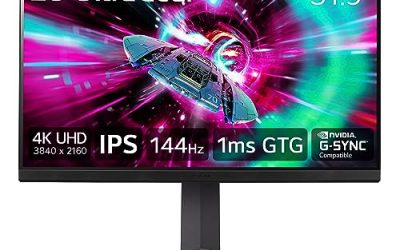
This is a 32-inch 4K Nano IPS with 144Hz and HDMI 2.1, so consoles and a PC can both use high refresh. It has wider colour coverage and stronger HDR support than a basic IPS. It suits buyers who want the best LCD picture at 32 inches and will pay for it. The trade-off is cost, and HDR on edge-lit or limited-zone LCDs still can’t match OLED.
Best ultrawide: 34-inch 3440×1440
The Alienware AW3423DWF is a 34-inch curved QD-OLED running at up to 165Hz. It gives near-perfect blacks and very fast pixel response, and the 3440×1440 resolution is easy on the GPU. Its trade-offs are a sub-pixel layout that makes fine text slightly fringed, and the usual OLED care around static elements. For a cheaper route, the Gigabyte M34WQ gives the same resolution and 144Hz on an IPS panel. It is a good fit for racing, flight and open-world games where extra width matters more than extra height.
Best budget large: 32-inch 1440p at 144–165Hz
A curved 32-inch 1440p VA, such as the Dell S3222DGM, is the cheapest way to get a big screen with high refresh. VA panels have strong contrast and moderate GPU demands. The trade-off is pixel density: about 92 PPI means visible pixel structure and softer text at desk distance. It suits mid-range GPUs and players who put smoothness ahead of sharpness. VA also tends to smear dark transitions more than IPS or OLED.
Best for a huge screen: 43-inch and 48-inch
The Gigabyte FV43U is a 43-inch 4K 144Hz monitor, and some 48-inch OLED TVs, such as LG’s C-series 48-inch models, support 4K at 144Hz over HDMI 2.1. These work as a wall of pixels for single-player games and media at 1 m or more. They are poor for text-heavy work at close range, because at 43 inches you sit well back to see the whole screen. Check that your desk is at least 80 cm deep before buying one.
How to choose: the numbers that matter
1. Pixel density by size and resolution
| Size / resolution | Pixels | PPI | Comfortable viewing distance |
|---|---|---|---|
| 27″ 2560×1440 | 3.69M | 109 | 60–80 cm |
| 32″ 2560×1440 | 3.69M | 92 | 70–90 cm |
| 34″ 3440×1440 | 4.95M | 110 | 70–90 cm |
| 32″ 3840×2160 | 8.29M | 138 | 70–90 cm |
| 43″ 3840×2160 | 8.29M | 103 | 90–120 cm |
| 49″ 5120×1440 | 7.37M | 109 | 80–100 cm |
PPI is the diagonal pixel count divided by the diagonal size. For example, a 32-inch 4K panel has a diagonal of about 4,406 pixels, and 4,406 ÷ 32 gives roughly 138. Below about 95 PPI most people see individual pixels at normal desk distance. Above about 105 PPI the picture looks clean.
2. Worked GPU load calculation
The GPU renders every pixel on every frame, so the load scales with pixels per second:
- 1440p at 144Hz: 3.69M × 144 ≈ 0.53 billion pixels per second.
- 3440×1440 at 144Hz: 4.95M × 144 ≈ 0.71 billion, about 1.34× the 1440p load.
- 4K at 144Hz: 8.29M × 144 ≈ 1.19 billion, about 2.25× the 1440p load.
So a GPU that holds 144 FPS in a game at 1440p will, as a rough rule, manage 60–70 FPS at native 4K in the same game, since GPU load is not perfectly proportional to pixel count. A 4K 144Hz monitor only makes sense with a high-end GPU, or if you accept upscaling (DLSS, FSR) and lower settings in demanding games.
3. Cable bandwidth for 4K at 144Hz
4K at 144Hz in 8-bit colour needs about 3840×2160×144×24 bits ≈ 28.7 Gbps of pixel data, and about 30 Gbps once blanking is included. DisplayPort 1.4 (HBR3) carries about 25.9 Gbps of usable data, so it cannot do this uncompressed. It relies on Display Stream Compression (DSC), which is visually lossless but can limit some features such as certain scaling modes and multi-monitor setups on some GPUs. HDMI 2.1 (48 Gbps link, about 42.7 Gbps usable) carries it without compression. By comparison, 3440×1440 at 144Hz needs only about 18 Gbps, which fits DisplayPort 1.4 without compression.
4. Panel type
- IPS: accurate colour, wide viewing angles, average contrast. Best all-rounder.
- VA: strong contrast and low prices, but slower dark transitions.
- QD-OLED / OLED: best contrast and response, higher cost, and sensitivity to static content over years of desktop use.
Decision matrix: match your situation to a choice
| Your situation | Best choice | Why |
|---|---|---|
| High-end GPU, mixed work and gaming | 32″ 4K IPS 144Hz | 138 PPI and enough GPU headroom |
| Mid-range GPU, want a big screen | 32″ 1440p or 34″ ultrawide | 1.0–1.34× the 1440p load instead of 2.25× |
| Racing, sims, immersion | 34″ ultrawide, 3440×1440 | Wider field of view at modest GPU cost |
| Dark room, single-player games | QD-OLED ultrawide | Contrast and response beat LCD |
| Console and PC on one screen | 32″ 4K with HDMI 2.1 | Uncompressed 4K at 120Hz or higher |
| Deep desk, media and games, little text | 43″ 4K | Large image at 100+ PPI |
| Tight budget | 32″ 1440p VA at 144–165Hz | Cheapest large panel with high refresh |
Settings to get right after you buy
- Set the refresh rate manually in Windows (Advanced display settings). Many monitors default to 60Hz until you change it.
- Use a DisplayPort or HDMI 2.1 cable certified for the bandwidth, not the thin cable from an old monitor.
- Turn on adaptive sync (G-Sync Compatible or FreeSync) and cap frame rate a few FPS under the refresh rate, for example 141 FPS on a 144Hz panel, to avoid tearing and latency spikes.
- On 4K at 32 inches, start with 125–150% Windows scaling. Large panels at 92 PPI can sit at 100%.
Frequently Asked Questions
What counts as a large gaming monitor?
Most buyers mean 32 inches and above, or 34-inch ultrawides. A 27-inch monitor is the mainstream size, and 32-inch is the usual step up. Above 40 inches you are in TV-like territory with different viewing distances.
Is 144Hz enough on a large monitor?
Yes. At 4K, few GPUs sustain much more than 144 FPS in demanding games anyway, so higher refresh rates add little. Competitive esports players on 1440p may prefer 240Hz, but those panels are usually smaller.
Is 1440p acceptable on a 32-inch monitor?
It is acceptable for gaming, at about 92 PPI, but text looks softer than on a 27-inch 1440p screen. If you do a lot of reading or office work on the same monitor, 4K at 32 inches is noticeably cleaner.
Do I need DisplayPort or HDMI for 4K 144Hz?
Either works if the GPU and monitor support it. HDMI 2.1 carries 4K 144Hz uncompressed, while DisplayPort 1.4 needs DSC. DisplayPort 2.1 monitors and GPUs avoid that limit, but they cost more.
Is a curved or flat screen better at this size?
Curved panels suit 34-inch and larger ultrawides and 32-inch VA monitors because they keep the edges at a similar distance from your eyes. Flat panels suit 4K 32-inch IPS monitors and any use involving design work or straight lines.
Will an OLED monitor suffer burn-in on the desktop?
It can, with static elements like taskbars and HUDs left on for long periods. Manufacturers include pixel shifting and refresh routines, and warranties vary, so read the burn-in terms. Varying your content and enabling auto-hide on the taskbar reduces the risk.
Related guides
More from Amazon
Programs that pair well with the guide above. Offers and eligibility are set by Amazon and may change.
A free business account with business pricing and bulk-buying tools for work, shop or home office.
Create a business accountFree shipping on eligible items, Prime Video and more. Eligible new members can start with a free trial.
Start a Prime free trialAudiobooks and podcasts to listen to on the go. Eligible new members can start with a free trial.
Try Audible freeAd-free music streaming. Eligible new subscribers can start with a free trial.
Try Music Unlimited freeAs an Amazon Associate we earn from qualifying purchases.