For most PC gamers, the best 144Hz monitor in 2026 is a 27-inch 1440p IPS panel with adaptive sync and a 144-180Hz refresh range. It gives a clear sharpness upgrade over 1080p, and a mid-range graphics card can still push frame rates near the refresh ceiling. If your budget or GPU is tighter, a 24-inch 1080p IPS 144Hz panel is the sensible fallback. 4K only makes sense if your graphics card can hold well above 100 fps.
Many “144Hz” monitors now ship as 165Hz or 180Hz, and the extra headroom costs little. Treat 144Hz as the baseline, not the ceiling, and choose mainly on resolution, panel type, and the ports your GPU needs.
As an Amazon Associate we earn from qualifying purchases at no extra cost to you.


Our Top Picks
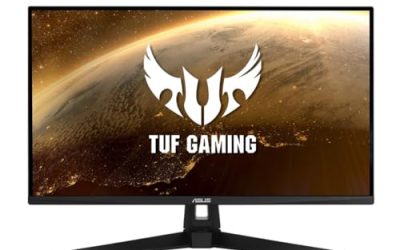
 ASUS TUF Gaming VG27AQ3A 27 Inch 1440p 180Hz14.4" x 24.2" x 2.1"24.2 x 8.4 x 17.9 inches10.1 poundsCheck on Amazon
 ASUS TUF Gaming VG34VQL1B 34 Inch 1440p 165Hz31.85 x 16.38 x 10.79 Inches19.86 poundsCheck on Amazon

Top 3 picks at a glance
Quick comparison of the best 144Hz monitor types
| Pick | Best for | Key specs | Price tier |
|---|---|---|---|
| 27″ 1440p fast-IPS, 144-180Hz | Best overall | 2560×1440, IPS, 1 ms GtG (manufacturer claim), adaptive sync, DisplayPort + HDMI 2.0 | Mid-range |
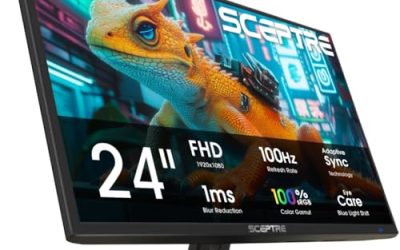
| 24″ 1080p IPS, 144-165Hz (e.g. the AOC 24G2 family) | Best budget | 1920×1080, ~92 PPI, IPS, adaptive sync | Budget |
| 27″ 1440p curved VA, 144-165Hz | Best for dark rooms and single-player games | Contrast around 3000:1 (typical VA), 1000R-1500R curve | Budget to mid-range |
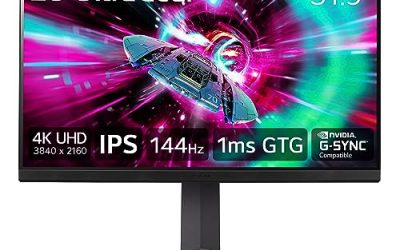
| 27″ 4K IPS, 144Hz with HDMI 2.1 | Best for high-end GPUs | 3840×2160, ~163 PPI, DSC or HDMI 2.1 required | Premium |
| 24.5″ 1080p IPS, 240Hz+ | Best for competitive shooters | 1920×1080, lower frame time, strong overdrive | Mid-range |
Best overall: 27-inch 1440p IPS at 144-180Hz
At 27 inches, 1440p works out to roughly 109 pixels per inch, which looks sharp at a normal desk distance. IPS panels give wide viewing angles and accurate color, and the better ones list response times around 1 ms gray-to-gray per the manufacturer’s spec sheet. Real-world overdrive results vary by model, so check independent response-time measurements before buying.
Who it suits: anyone with a GPU in the mid-range class or better who plays a mix of shooters, open-world games, and everyday work.
Main trade-off: IPS contrast is typically around 1000:1, so blacks look grey in a dark room, and “IPS glow” at the corners is normal.
Best budget: 24-inch 1080p IPS at 144Hz
A 24-inch 1080p IPS 144Hz panel is the cheapest way to get high-refresh motion. It is also the easiest screen to drive. Even entry-level and older graphics cards can reach 100-144 fps in esports titles at this resolution.
Who it suits: first-time high-refresh buyers, students, and anyone with an older GPU.
Main trade-off: at about 92 PPI, text is softer than on 1440p, and 27-inch 1080p screens look noticeably coarse. Keep 1080p to 24-25 inches.
Best for contrast: curved VA at 1440p
VA panels offer roughly three times the contrast of IPS, so dark scenes in horror, space, and cinematic games look richer. Many 144-165Hz curved 1440p VA monitors cost less than comparable IPS models.
Main trade-off: VA pixels transition slowly from dark grey to black, which can leave faint smearing in fast dark scenes. That matters most in competitive shooters.
Best for 4K: 27-inch 4K 144Hz
This tier suits owners of a high-end GPU who want 4K detail and high refresh. The scaling cost is steep, as the bandwidth and workload sections below show. Check the ports carefully, because some 4K 144Hz models depend on Display Stream Compression (DSC) or HDMI 2.1 to reach full refresh.
Main trade-off: price, and the need to lower settings or use upscaling to keep frame rates near 144.
Best for competitive play: step up to 240Hz
If you mainly play fast shooters, a 240Hz 1080p panel cuts frame time from 6.94 ms to 4.17 ms. Only buy it if your CPU and GPU can actually deliver well beyond 144 fps in your games. Otherwise a 144Hz panel looks identical.
How to choose: the numbers that matter
1. Match resolution to what your GPU can sustain
Pixel count drives GPU load. Going from 1080p to 1440p increases pixels by about 78%, and 4K quadruples them. As a rough rule, a GPU that holds 144 fps at 1080p will often manage roughly 80-110 fps at 1440p in the same game, and roughly 45-70 fps at 4K. These ranges vary heavily with game, settings, CPU, and patch version.
| Resolution | Pixels per frame | Relative load vs 1080p | Frame time needed for 144 fps |
|---|---|---|---|
| 1920×1080 | 2.07 million | 1.0× | 6.94 ms |
| 2560×1440 | 3.69 million | 1.78× | 6.94 ms |
| 3840×2160 | 8.29 million | 4.0× | 6.94 ms |
2. Check cable bandwidth (worked calculation)
Raw pixel data rate = width × height × refresh × bits per pixel. At 8-bit color (24 bits per pixel), that gives:
- 1080p at 144Hz: 1920 × 1080 × 144 × 24 ≈ 7.2 Gbps. Almost any modern cable handles this.
- 1440p at 144Hz: 2560 × 1440 × 144 × 24 ≈ 12.7 Gbps. That needs DisplayPort 1.2 or newer (about 17.3 Gbps usable) or HDMI 2.0 (about 14.4 Gbps usable). Blanking overhead leaves little margin on HDMI 2.0.
- 4K at 144Hz: 3840 × 2160 × 144 × 24 ≈ 28.7 Gbps. That exceeds DisplayPort 1.4 (about 25.9 Gbps usable), so it needs DSC, DisplayPort 2.x, or HDMI 2.1.
In practice, use the DisplayPort cable in the box for PC gaming. Many monitors limit their HDMI port to 100-120Hz or lower.
3. Pick the panel type for your habits
- IPS: best all-rounder. Good colors, fast response, average contrast.
- VA: best contrast, usually curved, with a possible dark-scene smear.
- TN: now rare. It is fast and cheap, but colors shift at an angle.
4. Confirm adaptive sync
Look for FreeSync or G-Sync Compatible support, which per Nvidia and AMD works with most modern GPUs over DisplayPort. Adaptive sync removes tearing without the input lag of traditional V-Sync. It matters most when your frame rate floats between 70 and 140 fps.
5. Size and desk distance
- 24-25 inches: 1080p, desks about 60-70 cm deep.
- 27 inches: 1440p, about 70-80 cm viewing distance.
- 32 inches: 1440p is soft at that size, so choose 4K.
Decision matrix: which 144Hz monitor fits your setup
| Your situation | Choose | Why |
|---|---|---|
| Older or entry-level GPU, tight budget | 24″ 1080p IPS 144Hz | Reachable frame rates, lowest cost |
| Mid-range GPU, mixed gaming and work | 27″ 1440p IPS 144-180Hz | Best sharpness and speed balance |
| Dark room, story-driven games | 27″ curved 1440p VA | Higher contrast |
| High-end GPU, want maximum detail | 27″ 4K 144Hz with DSC or HDMI 2.1 | Sharper image, but GPU-heavy |
| Mostly esports shooters, strong CPU | 24.5″ 1080p 240Hz | Lower frame time |
| PS5 or Xbox Series X as well as PC | Any model with HDMI 2.1 or a solid 120Hz HDMI port | Consoles cap at 120Hz, not 144 |
Set it up correctly: the step most buyers miss
- Use DisplayPort. It reliably unlocks the full refresh rate on PC.
- Set the refresh rate in Windows. Open Settings, then System, Display, Advanced display, and choose 144Hz. A new monitor often defaults to 60Hz.
- Enable adaptive sync. Turn on FreeSync or G-Sync Compatible in the monitor’s menu and in the GPU control panel.
- Cap frame rate slightly below refresh. Use around 141 fps on a 144Hz panel so frames stay inside the adaptive sync range and avoid V-Sync input lag.
- Choose a moderate overdrive mode. The most aggressive setting often adds inverse ghosting (bright trails). The middle setting is usually cleanest.
Frequently Asked Questions
Is a 144Hz monitor worth it over 60Hz?
Yes, if you play games that run above 60 fps. Frame time falls from 16.7 ms to 6.9 ms, so motion looks clearer and input feels more responsive. Desktop use also feels smoother. You will not see a benefit in games that are locked to 60 fps.
Is 144Hz or 165Hz better?
The difference is about 15%, which is small in practice. If a 165Hz model costs about the same and has the panel and ports you want, take it. Do not pay extra just for the number.
Will my GPU run 144Hz at 1440p?
It depends on the game. Esports titles at 1440p often exceed 144 fps on mid-range cards, while demanding AAA games at high settings may land in the 60-100 fps range. Published reviews vary with settings, CPU, and patch. Adaptive sync keeps lower frame rates smooth, so a 144Hz monitor remains useful either way.
Do I need HDMI 2.1 for a 144Hz monitor?
Not for 1080p or 1440p. DisplayPort 1.2 or HDMI 2.0 is enough for those resolutions at 8-bit color. HDMI 2.1 matters mainly for 4K at 120-144Hz and for newer consoles.
Can I run 144Hz over HDMI?
Often, but check the manual. Many monitors support 1080p 144Hz over HDMI 1.4 or 2.0, while some limit HDMI to a lower refresh at 1440p. DisplayPort avoids the guesswork.
Is a curved or flat 144Hz monitor better?
For 27-inch screens, it is mostly preference. Curved VA panels add contrast and immersion, while flat IPS panels keep geometry straight for editing or work with multiple windows. Choose the panel type first and treat curvature as a secondary feature.
Related guides
More from Amazon
Programs that pair well with the guide above. Offers and eligibility are set by Amazon and may change.
A free business account with business pricing and bulk-buying tools for work, shop or home office.
Create a business accountFree shipping on eligible items, Prime Video and more. Eligible new members can start with a free trial.
Start a Prime free trialAudiobooks and podcasts to listen to on the go. Eligible new members can start with a free trial.
Try Audible freeAd-free music streaming. Eligible new subscribers can start with a free trial.
Try Music Unlimited freeAs an Amazon Associate we earn from qualifying purchases.