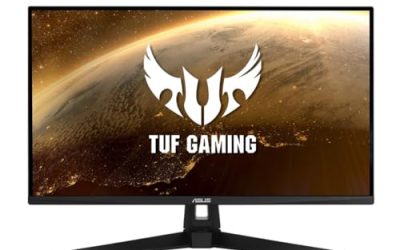
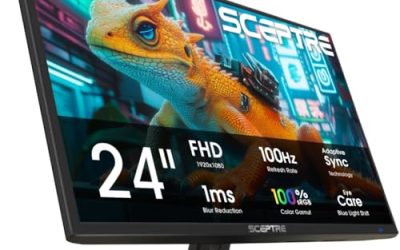
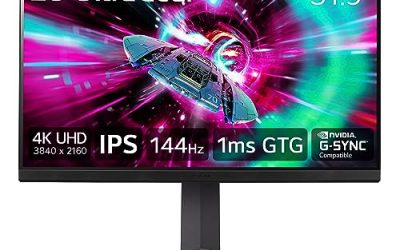
The best 144Hz FreeSync monitor for most players is a 27-inch 1440p IPS model with a 144 to 170Hz refresh rate and FreeSync Premium certification, such as the Dell G2724D or Gigabyte M27Q. If you are on a tight budget with a mid-range GPU, a 24-inch 1080p IPS panel like the AOC 24G2U gives the same smoothness for less. Pick the resolution your graphics card can actually drive near 144 fps, because refresh rate only helps if your frame rate gets close to it.
As an Amazon Associate we earn from qualifying purchases at no extra cost to you.


Our Top Picks
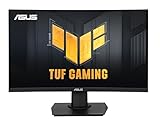
 ASUS TUF Gaming VG27AQ3A 27 Inch 1440p 180Hz14.4" x 24.2" x 2.1"24.2 x 8.4 x 17.9 inches10.1 poundsCheck on Amazon

Top 3 picks at a glance
Quick comparison of the picks
| Pick | Best for | Key specs (per manufacturer spec sheets) | Price range |
|---|---|---|---|
| Dell G2724D | Best overall | 27″, 2560×1440, IPS, 165Hz, FreeSync Premium, G-Sync Compatible | Mid-range |
| Gigabyte M27Q | Best for work and play (KVM) | 27″, 2560×1440, IPS, up to 170Hz, FreeSync Premium, built-in KVM switch | Mid-range |
| AOC 24G2U | Best budget | 23.8″, 1920×1080, IPS, 144Hz, FreeSync Premium | Budget |
| Samsung Odyssey G5 (LC27G55T) | Best for dark rooms and contrast | 27″, 2560×1440, curved VA, 144Hz, FreeSync Premium | Budget to mid-range |
| Gigabyte M32U | Best 4K 144Hz | 31.5″, 3840×2160, IPS, 144Hz, FreeSync Premium-class, KVM | Premium |
| 3440×1440 ultrawide, VA, 144Hz+ (spec class) | Best ultrawide for immersion | 34″, 21:9, 1000R-1500R curve, FreeSync Premium, DisplayPort 1.4 | Mid-range to premium |
Models and revisions change often, and manufacturers sometimes swap panels within one product name. Check the exact revision’s spec sheet before you buy.
Best overall: Dell G2724D
This 27-inch 1440p IPS panel runs at 165Hz, so it clears 144Hz with headroom. It carries FreeSync Premium, which per AMD’s program requires low framerate compensation and at least 120Hz at 1080p or above. It also works as a G-Sync Compatible display on GeForce cards. It suits anyone with a Radeon RX 7700 XT-class card or better, or a comparable GeForce. The main trade-off is that IPS contrast is typically around 1000:1, so blacks look grey in a dark room. HDR is nominal at best.
Best for work and play: Gigabyte M27Q
The M27Q is a 27-inch 1440p IPS with refresh up to 170Hz and a built-in KVM switch. One keyboard and mouse can control both a gaming PC and a work laptop. That feature is rare at this tier. The trade-off is a basic stand and a conventional IPS contrast ratio, so it suits desks where flexibility matters more than image depth.
Best budget: AOC 24G2U
A 23.8-inch 1080p IPS at 144Hz is the cheapest way to get a clean, fast FreeSync experience. Pixel density is about 92 ppi, which looks sharp at normal desk distance. It is a good match for an RX 6600-class card or older hardware. The trade-off is resolution. Text is less crisp than on 1440p, and you will want to stay at 24 inches, because at 27 inches 1080p drops to about 82 ppi and looks soft.
Best for contrast: Samsung Odyssey G5 (LC27G55T)
This is a 27-inch 1440p VA panel with a 1000R curve and 144Hz. VA panels typically offer roughly 3000:1 native contrast, about three times a typical IPS, so dark scenes look richer. The trade-off is slower dark-pixel transitions, which can cause smearing in fast games, plus narrower viewing angles. Pick it for single-player games in a dim room, not for competitive shooters.
Best 4K 144Hz: Gigabyte M32U
This is a 31.5-inch 4K IPS at 144Hz, about 138 ppi. It only makes sense with a high-end GPU, because 4K needs about 2.25 times the pixels of 1440p. The trade-off is cost and the fact that most players will drop settings or use upscaling to hold 100+ fps. It is also the monitor where the cable and port details below matter most.
Best ultrawide: 34-inch 3440×1440 VA class
A 34-inch 21:9 VA monitor at 144Hz or higher pushes about 4.95 million pixels, roughly 34% more than 16:9 1440p. That is a fair step up in GPU load. It is excellent for racing, RPGs and flight sims. It is a poor choice if you play esports titles that crop or stretch the image.
How to choose: the numbers that matter
1. Match resolution to your GPU
Frame time at 144Hz is 6.94 ms. If your GPU cannot deliver around 100 fps or more in the games you play, a higher resolution will not give you the 144Hz experience. This table is a rough guide only. Real results vary with game settings, CPU and patch.
| Your situation | Resolution | Panel | Why |
|---|---|---|---|
| Older or entry GPU (RX 6600 class, GTX 1660 class) | 1080p, 24″ | IPS | Easy to hold 100-144 fps in esports and many AAA titles at medium settings |
| Mid-range GPU (RX 7700 XT/7800 XT class) | 1440p, 27″ | IPS | Typically 90-144 fps in popular titles at high settings; varies by game |
| High-end GPU, plays mostly competitive games | 1440p, 27″ | Fast IPS, 165Hz+ | Frame rate can exceed the refresh, so extra Hz is useful |
| High-end GPU, plays cinematic games in the dark | 1440p or ultrawide | VA | Contrast matters more than the last millisecond of response |
| Flagship GPU, wants 4K | 4K, 32″ | IPS | Needs upscaling or settings cuts in demanding games |
2. Do the bandwidth math before buying a cable
Uncompressed data rate is width x height x refresh x bits per pixel. At 8-bit color (24 bits per pixel), the active-pixel figures are:
- 1920×1080 at 144Hz: about 7.2 Gbps
- 2560×1440 at 144Hz: about 12.7 Gbps
- 3840×2160 at 144Hz: about 28.7 Gbps (about 35.8 Gbps at 10-bit)
Blanking intervals add a few percent. Effective capacity is roughly 14.4 Gbps for HDMI 2.0 and 25.9 Gbps for DisplayPort 1.4, per the published standards. That leads to three practical conclusions:
- 1440p at 144Hz fits over HDMI 2.0, but only just. DisplayPort is safer and is the connection AMD recommends for FreeSync.
- 4K at 144Hz does not fit over DisplayPort 1.4 uncompressed, so the monitor and GPU must use Display Stream Compression (DSC). HDMI 2.1 is the other route.
- Some budget 1080p monitors reach 144Hz only on DisplayPort or HDMI 2.0, and fall back to 60Hz on a basic HDMI 1.4 port. Check the spec sheet for which port supports full refresh.
3. Read the FreeSync tier, not just the logo
- FreeSync: basic adaptive sync. The VRR range can be narrow.
- FreeSync Premium: at least 120Hz at 1080p, plus low framerate compensation. This is the sensible minimum for a 144Hz buy.
- FreeSync Premium Pro: adds validated HDR and low-latency behavior. It is only worth paying for if the panel has real HDR hardware.
Check the VRR range. LFC works when the maximum refresh is at least twice the minimum, so a 48-144Hz range qualifies. A 100-144Hz range does not.
4. Pick IPS or VA for how you play
IPS gives better viewing angles and faster, more consistent pixel response. VA gives much higher contrast but can smear dark scenes. TN is now rare and rarely worth it.
Settings that make FreeSync work properly
- Use DisplayPort and enable adaptive sync in the monitor’s menu. Some models ship with it off.
- Turn on FreeSync in AMD Software. On GeForce, enable G-Sync Compatible mode in the NVIDIA Control Panel. This only works if the monitor is validated or the feature is switched on manually.
- Cap your frame rate 3 fps below max. On a 144Hz screen, cap at 141 fps. Staying inside the VRR window avoids the added latency from V-Sync kicking in at the ceiling.
- Keep V-Sync on in the driver and off in the game if you want tear-free output. Competitive players who accept some tearing for lower latency may skip this.
- Set overdrive to the middle option. The highest “Extreme” setting often adds inverse ghosting, a bright trail behind moving objects. Test with a moving-object pattern and back off one step if you see it.
- Set the refresh rate in Windows. Under Advanced display settings, choose 144Hz or the panel’s maximum. Windows sometimes defaults to 60Hz on a new monitor.
Frequently Asked Questions
Is FreeSync worth it if I have a GeForce card?
Yes, in most cases. NVIDIA GPUs support adaptive sync on many FreeSync monitors through G-Sync Compatible mode over DisplayPort. Monitors that NVIDIA has validated work automatically, and others can often be enabled manually, though results vary by model.
Is 144Hz still enough, or should I buy 165Hz or 240Hz?
144Hz is plenty for most players. Going from 60Hz to 144Hz is a large improvement, while going from 144Hz to 240Hz is much smaller and needs a GPU and CPU that can hold well over 200 fps. Many 1440p monitors now offer 165-180Hz at similar prices, so the extra headroom is often cheap.
Do I need FreeSync Premium Pro for a 144Hz monitor?
Not unless you care about HDR gaming. Premium Pro adds HDR validation, but many monitors with the badge have limited HDR brightness and no local dimming. FreeSync Premium covers the features that matter for smooth SDR gaming.
Is 1080p or 1440p better for 144Hz gaming?
1440p looks sharper on a 27-inch screen, but 1080p is easier to run at high frame rates. If your GPU struggles to hold 100 fps at 1440p in the games you play, a 24-inch 1080p monitor will feel smoother. If you have a mid-range or better card, 1440p is the better long-term buy.
Why does my new 144Hz monitor only show 60Hz?
The usual causes are the wrong cable or port, or Windows still set to 60Hz. Switch to a DisplayPort cable or a certified HDMI 2.0 cable, plug into the GPU rather than the motherboard, and select the higher rate in Windows display settings. If 144Hz still does not appear, check whether the monitor needs a setting enabled in its on-screen menu.
Does a curved monitor matter for gaming?
It is mostly a matter of preference. A 1000R to 1500R curve on a 27-inch or wider screen can feel more immersive at close viewing distances. On a 24-inch panel the effect is minimal. Flat panels are usually better for desk work and graphic design.
Related guides
More from Amazon
Programs that pair well with the guide above. Offers and eligibility are set by Amazon and may change.
A free business account with business pricing and bulk-buying tools for work, shop or home office.
Create a business accountFree shipping on eligible items, Prime Video and more. Eligible new members can start with a free trial.
Start a Prime free trialAudiobooks and podcasts to listen to on the go. Eligible new members can start with a free trial.
Try Audible freeAd-free music streaming. Eligible new subscribers can start with a free trial.
Try Music Unlimited freeAs an Amazon Associate we earn from qualifying purchases.