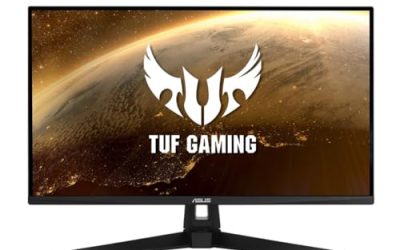
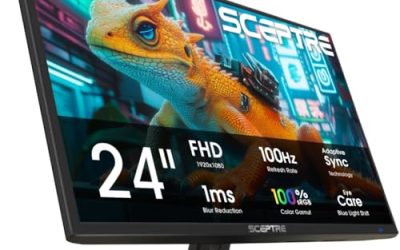
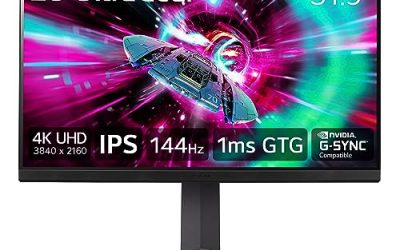
The best 144Hz G-Sync monitor for most people in 2026 is a 27-inch 1440p IPS panel that is “G-Sync Compatible” and runs at 144Hz or higher, such as the LG 27GP850-B. A native G-Sync module only matters if you want variable overdrive or hardware-level extras, and it usually costs noticeably more. On a tighter budget, a 1080p 144Hz IPS like the AOC 24G2 gives you the same smooth, tear-free motion on a GeForce card.
Most monitors sold today as “144Hz G-Sync” are really adaptive-sync (FreeSync-class) panels that Nvidia validated or that work through the DisplayPort standard. Your choice comes down to resolution, panel type, which GPU you own, and whether you need a real G-Sync module. Product specs below follow manufacturer spec sheets. Models and regional availability change, so check the current listing before you buy.
As an Amazon Associate we earn from qualifying purchases at no extra cost to you.


Top 3 picks at a glance
Quick comparison of the picks
| Pick | Best for | Key specs (per manufacturer) | Price range |
|---|---|---|---|
| LG 27GP850-B | Best overall | 27″, 2560×1440 Nano IPS, 165Hz native, G-Sync Compatible, DisplayPort 1.4 and HDMI 2.0 | Mid-range |
| AOC 24G2 / 24G2U class | Best budget | 23.8″, 1920×1080 IPS, 144Hz, adaptive sync over DisplayPort | Budget |
| ASUS ROG Swift PG279QM | Best with a native G-Sync module | 27″, 2560×1440 IPS, 240Hz, G-Sync module, DisplayPort 1.2 and HDMI 2.0 | Premium |
| Alienware AW3423DW | Best ultrawide / OLED | 34″, 3440×1440 QD-OLED, 175Hz, G-Sync Ultimate module | Premium |
| 4K 144Hz class (HDMI 2.1) | High-end GPUs and consoles | 27-32″, 3840×2160, 144Hz, HDMI 2.1 and DisplayPort 1.4 with DSC | Premium |
G-Sync, G-Sync Compatible and G-Sync Ultimate: what you are buying
- G-Sync Compatible: an adaptive-sync monitor that Nvidia validated for a clean variable refresh experience. It works with GeForce GTX 10-series and newer over DisplayPort. It is the most common tier and the best value.
- G-Sync (module): a monitor with Nvidia’s dedicated hardware. Its main practical benefit is variable overdrive, which keeps pixel response tuned as the refresh rate moves. Compatible panels can show more overshoot or smearing at low frame rates.
- G-Sync Ultimate: the top tier. It historically meant a module plus HDR requirements. On modern monitors the label is not consistent, so read the spec sheet for peak brightness and local dimming rather than trusting the badge.
Some newer high-refresh models also carry Nvidia’s G-Sync Pulsar branding for strobing motion clarity. That is usually found on 360Hz-class panels, not typical 144Hz screens.
Best overall: LG 27GP850-B
This 27-inch Nano IPS 1440p monitor has a 165Hz native refresh rate (LG lists an overclock mode above that) and is validated as G-Sync Compatible. It suits anyone with a mid-range or better GeForce card who wants sharp text, wide viewing angles and good colour for both gaming and daily use. Trade-off: contrast is typical of IPS, around the 1000:1 class, so dark scenes look greyish in a dim room. HDR support is nominal only.
Best budget: AOC 24G2 class (1080p 144Hz IPS)
A 24-inch 1080p IPS at 144Hz is the cheapest way to get a proper G-Sync experience. It is also easy for older GPUs to drive at high frame rates. It suits esports-leaning players and anyone with a GTX 16-series or RTX 3050-class card. Trade-off: at 1080p on a 27-inch screen pixels become visible, so stay at 24 to 25 inches. Confirm the model is on Nvidia’s validated list, or at least that it supports adaptive sync over DisplayPort, because HDMI behaviour varies.
Best with a native G-Sync module: ASUS ROG Swift PG279QM
This 27-inch 1440p IPS runs at 240Hz with a G-Sync module. It suits players who often drop to 50 to 90 FPS in demanding games and want consistent pixel response through those swings. It also suits anyone who wants a fast monitor that will not be outgrown. Trade-off: you pay a premium for the module, and the DisplayPort 1.2 input is the limit on connectivity (see the bandwidth section). It also has fewer ports than a Compatible panel.
Best ultrawide: Alienware AW3423DW
This 34-inch QD-OLED ultrawide at 3440×1440 and 175Hz uses a G-Sync Ultimate module. It suits single-player and racing fans who want near-instant pixel response and true blacks. Trade-off: text fringing from its sub-pixel layout, automatic brightness limiting in bright scenes, and burn-in care (varied content, screen-saver and pixel-refresh features enabled). The panel is the main cost, so it sits in the premium bracket.
4K 144Hz: a spec class, not one model
A 27 to 32-inch 4K panel with HDMI 2.1 and DisplayPort 1.4 with DSC suits an RTX 4070 Ti-class or faster GPU. It is also the one to choose if you want a console and a PC on one screen. Trade-off: hitting 144 FPS at native 4K needs a high-end card or upscaling in most modern titles. Many 4K 144Hz monitors are G-Sync Compatible rather than module-based.
How much bandwidth does 144Hz need?
Cable and port limits decide whether you actually get 144Hz. The uncompressed pixel data rate is width x height x refresh rate x bits per pixel, plus a few percent for blanking.
| Resolution at 144Hz | Pixels per second | 8-bit colour (24 bpp) | 10-bit colour (30 bpp) | Works over |
|---|---|---|---|---|
| 1920×1080 | about 298.6 million | about 7.2 Gbps | about 9.0 Gbps | DisplayPort 1.2+, HDMI 2.0 (8-bit) |
| 2560×1440 | about 530.8 million | about 12.7 Gbps | about 15.9 Gbps | DisplayPort 1.2 (17.28 Gbps effective), HDMI 2.0 (14.4 Gbps effective, tight with blanking) |
| 3440×1440 | about 713.4 million | about 17.1 Gbps | about 21.4 Gbps | DisplayPort 1.4 (25.92 Gbps effective) |
| 3840×2160 | about 1.19 billion | about 28.7 Gbps | about 35.8 Gbps | DisplayPort 1.4 with DSC, or HDMI 2.1 |
These figures are raw pixel data before blanking overhead. Blanking adds roughly 5 to 10 percent with reduced-blanking timings, so treat them as minimums.
The key takeaways: 1440p at 144Hz fits comfortably on DisplayPort 1.2 or later. Ultrawide 1440p needs DisplayPort 1.4. 4K at 144Hz exceeds DisplayPort 1.4’s 25.92 Gbps effective rate, so it needs DSC compression, which Nvidia RTX cards support, or HDMI 2.1.
Decision matrix: match your situation to a monitor
| Your situation | Choose | Why |
|---|---|---|
| GTX 1660 / RTX 3050 class, competitive shooters | 24″ 1080p 144Hz IPS, G-Sync Compatible | Frame rates stay near the refresh ceiling, and pixel density is fine at 24″ |
| RTX 4060 to 4070 class, mixed gaming and work | 27″ 1440p 144-165Hz IPS | Best balance of sharpness and GPU load |
| Frame rates often dip below 60 FPS | Native G-Sync module monitor | Variable overdrive reduces smearing at low refresh rates |
| Dark room, single-player, immersive | OLED ultrawide | True blacks and very fast pixel response |
| PC plus a modern console | 4K 144Hz with HDMI 2.1 | One screen for both, 4K at 120Hz from the console |
| AMD or Intel GPU | Any adaptive-sync monitor | The G-Sync badge does not matter. Check FreeSync support instead |
Settings that make G-Sync actually work
- Use DisplayPort. G-Sync Compatible is guaranteed over DisplayPort. HDMI support varies by model, and HDMI 2.0 limits some resolutions.
- Enable it in the monitor’s OSD first. Turn on Adaptive Sync, FreeSync or Variable Refresh Rate if the monitor has a toggle. Some ship with it off.
- Enable it in the Nvidia Control Panel. Under “Set up G-SYNC,” tick “Enable G-SYNC, G-SYNC Compatible” and choose full screen (or windowed and full screen if you play borderless).
- Set V-Sync to On in the driver. Under Manage 3D Settings, V-Sync on prevents tearing when frame rate approaches the refresh rate, while G-Sync handles everything below it.
- Cap frame rate a few frames under the refresh rate. On a 144Hz screen, a cap of 141 FPS keeps the game inside the variable range so V-Sync does not add input lag. Use the in-game limiter if available, or the driver’s Max Frame Rate setting.
- Set the refresh rate in Windows. Under Advanced display settings, pick 144Hz. Many monitors default to 60Hz until you change it.
- Choose a moderate overdrive mode. The fastest preset often causes inverse ghosting on Compatible panels. Start in the middle setting.
If you see flicker in menus or loading screens, that is typically a variable refresh quirk on some VA and OLED panels. Capping the frame rate for those screens, or turning G-Sync off for menus, usually reduces it.
How to choose: the short checklist
- Resolution: 1080p for 24 inches and weaker GPUs, 1440p for 27 inches, 3440×1440 for 34-inch ultrawide, 4K only with a strong GPU.
- Panel: IPS for all-round use, VA for contrast on a budget (check pixel smearing), OLED for blacks and response time.
- VRR range: look for a range that starts at 48Hz or lower, ideally with low-framerate compensation, which needs a maximum at least about double the minimum.
- Ports: at least one DisplayPort 1.4 for 1440p and above.
- Future-proofing: a 165 to 240Hz panel runs fine at 144Hz and extends the monitor’s useful life, often for a small extra cost.
Frequently Asked Questions
Do I need a real G-Sync module monitor?
Most players do not. G-Sync Compatible monitors deliver the same tear-free variable refresh on a GeForce GPU. A module mainly helps with variable overdrive and consistent behaviour at very low frame rates. If your games usually stay above 60 FPS, a Compatible panel is the better value.
Is 144Hz still worth it in 2026?
Yes, especially at 1080p and 1440p, where it is the practical sweet spot between smoothness and GPU load. Many new monitors run at 165 to 240Hz and can be used at 144Hz without a downside. The jump from 60Hz to 144Hz is much more noticeable than 144Hz to 240Hz.
Can I use a G-Sync monitor with an AMD graphics card?
Usually yes, if it is G-Sync Compatible, because it is an adaptive-sync panel and works with FreeSync over DisplayPort. Monitors with a native G-Sync module generally do not support variable refresh on AMD cards. Confirm this on the manufacturer’s spec sheet before buying.
Why is G-Sync not showing in the Nvidia Control Panel?
The usual causes are using HDMI instead of DisplayPort, adaptive sync being off in the monitor’s menu, or the monitor running at 60Hz. Update your GPU driver and the monitor’s firmware if available, then switch to DisplayPort. Reboot after toggling the OSD setting.
Should I cap my frame rate with G-Sync on?
Yes. Capping a few frames below your refresh rate, such as 141 FPS on a 144Hz screen, keeps the game inside the variable range. This prevents V-Sync from adding input lag at the top of the range.
Which is better for 144Hz gaming, 1080p or 1440p?
1440p looks sharper at 27 inches and is the better choice if your GPU can hold around 100 FPS or more in your games. 1080p is easier to drive, and at 24 inches it still looks good. Pick based on the GPU you own now, not the one you hope to buy.
Related guides
More from Amazon
Programs that pair well with the guide above. Offers and eligibility are set by Amazon and may change.
A free business account with business pricing and bulk-buying tools for work, shop or home office.
Create a business accountFree shipping on eligible items, Prime Video and more. Eligible new members can start with a free trial.
Start a Prime free trialAudiobooks and podcasts to listen to on the go. Eligible new members can start with a free trial.
Try Audible freeAd-free music streaming. Eligible new subscribers can start with a free trial.
Try Music Unlimited freeAs an Amazon Associate we earn from qualifying purchases.