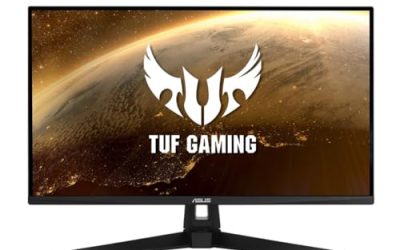
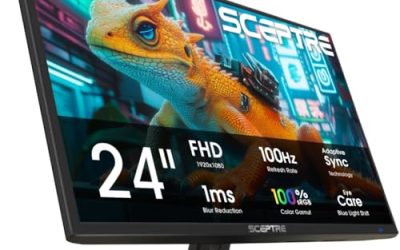
The best 1080p FreeSync monitor for most people is a 24-inch IPS panel at 165-180 Hz with FreeSync Premium, such as the LG UltraGear 24GS60F or ASUS TUF Gaming VG249Q1A. Pay more for 240-360 Hz only if your GPU can actually hold those frame rates in the games you play. Pay less for a 144 Hz model like the AOC 24G2 if you are on a tight budget.
Refresh rate, panel type and FreeSync range matter more than brand. Prices below are general market ranges and shift with sales and region. Specs come from manufacturer spec sheets, and exact versions or revisions can differ by country.
As an Amazon Associate we earn from qualifying purchases at no extra cost to you.


Top 3 picks at a glance
Quick comparison of the picks
| Pick | Best for | Key specs | Typical price range |
|---|---|---|---|
| LG UltraGear 24GS60F | Best overall | 23.8″ IPS, 1080p, 180 Hz, FreeSync Premium-class VRR | $110-$170 |
| ASUS TUF Gaming VG249Q1A | Best value 165 Hz | 23.8″ IPS, 1080p, up to 165 Hz, FreeSync Premium, ELMB | $120-$180 |
| AOC 24G2 series | Best budget | 23.8″ IPS, 1080p, 144 Hz, FreeSync Premium | $110-$160 |
| AOC C24G2 | Best for contrast (VA, curved) | 23.6″ curved VA, 1080p, 165 Hz, FreeSync Premium | $120-$180 |
| Gigabyte G24F 2 | Best for color and sharp motion | 23.8″ IPS, 1080p, 165 Hz (higher overclock mode), FreeSync Premium | $120-$180 |
| Alienware AW2523HF | Best for competitive esports | 24.5″ IPS, 1080p, 360 Hz, FreeSync Premium Pro | $280-$420 |
Best overall: LG UltraGear 24GS60F
This 24-inch IPS monitor runs at 180 Hz with adjustable variable refresh. It suits anyone with a midrange GPU who wants smooth motion without paying esports prices. IPS panels give wide viewing angles and good color for the money, and 180 Hz is a clear step up from 144 Hz for shooters and racers.
Trade-off: the stand is basic, usually tilt-only, and contrast is typical IPS at roughly 1000:1. Plan on a VESA mount if you want height adjustment.
Best value 165 Hz: ASUS TUF Gaming VG249Q1A
This is a long-running pick that has stayed popular. It offers a 165 Hz IPS panel with FreeSync Premium, a height-adjustable stand and ASUS’s Extreme Low Motion Blur (ELMB) strobing mode. It suits budget builders who want a sturdy stand and a proven panel.
Trade-off: ELMB strobing cannot be used together with adaptive sync, so you choose between tear-free VRR and lower blur. HDR support is only nominal on a panel this class.
Best budget: AOC 24G2 series
The 24G2 and its USB-hub variant have been a budget reference for years. They offer a 144 Hz IPS panel with FreeSync Premium and a thin-bezel design. For anyone playing on a GPU that averages 80-140 FPS, 144 Hz is plenty.
Trade-off: It is an older design, so you get less refresh headroom than newer 180 Hz models. Overdrive modes also need tuning, since the strongest setting can cause inverse ghosting.
Best for contrast: AOC C24G2
A curved VA panel at 165 Hz delivers deeper blacks, often around 3000:1 contrast on VA, which helps in dark games and in dim rooms. It suits players who value image depth over absolute pixel speed.
Trade-off: VA panels usually have slower dark-color transitions, so smearing in dark scenes is more likely than on IPS. Competitive players often prefer IPS for this reason.
Best for color and motion: Gigabyte G24F 2
A 165 Hz IPS panel with a fast-response tuning mode and decent sRGB coverage per Gigabyte’s spec sheet. It suits mixed use, where you game in the evening and edit photos or work in the daytime.
Trade-off: The overclocked refresh mode and faster overdrive settings can introduce artifacts, so check them with a moving-object test before settling on one.
Best for competitive esports: Alienware AW2523HF
At 360 Hz on a 24.5-inch IPS panel, this is a spec-class pick for players of Counter-Strike 2, Valorant and similar titles who already hit 300+ FPS. Frame time falls to about 2.8 ms.
Trade-off: It needs a strong CPU, since esports titles at 360 FPS are usually CPU-limited. It also needs DisplayPort, not HDMI, to run at full speed. See the bandwidth table below.
How to choose: the numbers that matter
1. Match refresh rate to your actual frame rate
Variable refresh only helps up to the monitor’s maximum. Frame time is 1000 ÷ Hz, so each tier shrinks it by a smaller amount:
- 60 Hz = 16.7 ms
- 144 Hz = 6.94 ms
- 165 Hz = 6.06 ms
- 180 Hz = 5.56 ms
- 240 Hz = 4.17 ms
- 360 Hz = 2.78 ms
Going from 60 to 144 Hz saves about 9.7 ms per frame. Going from 144 to 240 Hz saves only about 2.8 ms. That is why 144-180 Hz is the sweet spot for most buyers, and 240 Hz and above pays off only if your PC can feed it.
2. Check your cable and port bandwidth
Raw pixel data for 1080p at 8-bit color is 1920 × 1080 × refresh × 24 bits. Real signals add blanking overhead of roughly 5-10% with reduced-blanking timings. Here is what each refresh rate needs:
| Refresh rate | Active-pixel data | Approx. with blanking | Safe connection |
|---|---|---|---|
| 144 Hz | 7.2 Gbps | ~7.7 Gbps | DP 1.2, HDMI 2.0 (HDMI 1.4 is borderline) |
| 180 Hz | 9.0 Gbps | ~9.6 Gbps | DP 1.2, HDMI 2.0 |
| 240 Hz | 11.9 Gbps | ~12.8 Gbps | DP 1.2 (17.28 Gbps effective), HDMI 2.0 (14.4 Gbps effective) |
| 360 Hz | 17.9 Gbps | ~19 Gbps | DP 1.4 or newer, or DSC; HDMI 2.0 is not enough |
The rule is simple: use DisplayPort for anything above 144 Hz. FreeSync over HDMI also depends on the monitor and GPU, so DisplayPort is the safer route to working VRR.
3. Check the FreeSync tier and range
Low framerate compensation (LFC) needs a maximum refresh of at least about 2× the minimum. A 48-165 Hz range qualifies (165 ÷ 48 ≈ 3.4). A 48-75 Hz range does not, which is why some cheap 75 Hz office monitors with “FreeSync” are poor for gaming. Look for FreeSync Premium or a published range that starts near 48 Hz or lower. FreeSync Premium Pro adds HDR requirements, but on a 1080p budget panel the HDR is rarely meaningful.
4. Pick the screen size for your sharpness tolerance
Pixel density at 1080p is 1920×1080 diagonal pixels (about 2203) divided by screen diagonal:
- 24 inch: ~92 PPI
- 25 inch: ~88 PPI
- 27 inch: ~82 PPI
At 27 inches, text and edges look visibly softer at normal desk distance. For 1080p, 24-25 inches is the better choice. If you want a 27-inch screen, a 1440p panel is the better buy.
5. Choose the panel type
- IPS: best all-rounder, with good angles, fast response and good color.
- VA: higher contrast and often cheaper, but dark smearing is more likely.
- TN: rare now, though very fast; viewing angles and color are weaker.
Decision matrix: which monitor fits your PC
| Your situation | Typical average FPS (varies by game, settings, CPU, patch) | Best choice |
|---|---|---|
| Older GPU or integrated graphics | 40-90 FPS | 144 Hz IPS (AOC 24G2 class) |
| Midrange GPU, mixed AAA and esports | 90-165 FPS | 165-180 Hz IPS (LG 24GS60F or ASUS VG249Q1A) |
| Dark-room gamer, single-player focus | 60-140 FPS | 165 Hz VA (AOC C24G2) |
| Strong GPU and CPU, esports only | 250-400+ FPS | 240-360 Hz IPS (Alienware AW2523HF class) |
| Nvidia GPU owner | Any | Any FreeSync model, ideally via DisplayPort and checked as G-Sync Compatible in the driver |
Recommended settings after you plug in
- Set the refresh rate manually. Windows sometimes defaults to 60 Hz. Pick the maximum in Display settings under Advanced display.
- Enable FreeSync in the monitor OSD. On AMD, confirm it in Adrenalin software. On Nvidia, enable G-Sync Compatible in the control panel.
- Cap your frame rate 3-5 FPS below max refresh. For a 165 Hz screen, cap at 160 FPS. This keeps the game inside the VRR range and avoids V-Sync-style latency at the ceiling.
- Use the middle overdrive setting. The highest setting often causes inverse ghosting (bright trails). Test with a moving-object pattern.
- Turn off the “dynamic contrast” and similar modes. They can cause brightness flicker with VRR.
Frequently Asked Questions
Is 1080p still worth buying in 2026?
Yes, if you want high frame rates on a modest GPU or play competitive shooters. A 24-inch 1080p panel is sharp enough at ~92 PPI and is much easier to drive than 1440p. If your GPU can handle 1440p at 100+ FPS, a 1440p monitor is usually the better long-term buy.
Does FreeSync work with Nvidia graphics cards?
Generally yes. Nvidia supports adaptive sync on many FreeSync monitors under the G-Sync Compatible name, mainly over DisplayPort, and many monitors also work over HDMI. Results vary by model, so check the monitor’s listing and test for flicker in the driver.
What is the difference between FreeSync and FreeSync Premium?
Per AMD’s specifications, FreeSync Premium requires at least 120 Hz at Full HD and low framerate compensation. Basic FreeSync does not guarantee either. For gaming, buy FreeSync Premium or better.
Is 240 Hz worth it at 1080p?
Only if your games run at 200+ FPS. The frame-time gain over 144 Hz is only about 2.8 ms, and it is more noticeable in fast esports titles than in single-player games. Many players get better value from a good 165-180 Hz IPS panel and a stronger GPU.
Should I use HDMI or DisplayPort for a 1080p FreeSync monitor?
Use DisplayPort when you can, especially above 144 Hz. HDMI 2.0 can carry 1080p at 240 Hz in terms of bandwidth, but monitors vary in what they allow, and VRR support over HDMI is less consistent. 360 Hz needs DisplayPort 1.4 or newer.
IPS or VA for a 1080p gaming monitor?
IPS is the safer choice for fast games, with quicker pixel transitions and wider angles. VA offers deeper blacks and better contrast, which suits dark, atmospheric games. Choose VA only if contrast matters more to you than smear-free dark scenes.
Related guides
More from Amazon
Programs that pair well with the guide above. Offers and eligibility are set by Amazon and may change.
A free business account with business pricing and bulk-buying tools for work, shop or home office.
Create a business accountFree shipping on eligible items, Prime Video and more. Eligible new members can start with a free trial.
Start a Prime free trialAudiobooks and podcasts to listen to on the go. Eligible new members can start with a free trial.
Try Audible freeAd-free music streaming. Eligible new subscribers can start with a free trial.
Try Music Unlimited freeAs an Amazon Associate we earn from qualifying purchases.