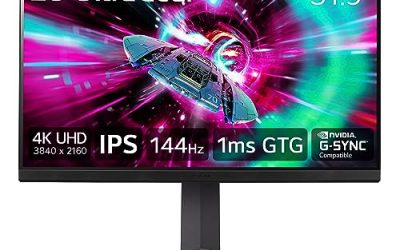
The best 1440p FreeSync monitor for most gamers is a 27-inch IPS panel running 165–240 Hz with FreeSync Premium, such as the Gigabyte M27Q X or MSI MAG 274QRF-QD E2. If you want the fastest motion and best contrast and can pay premium money, the QD-OLED Alienware AW2725DF or the Samsung Odyssey OLED G60SD are the picks. A budget buyer should look at the Samsung Odyssey G5 G50D class. Match the refresh rate to what your GPU can actually deliver, because a 360 Hz panel is wasted on a card that manages 110 fps.
As an Amazon Associate we earn from qualifying purchases at no extra cost to you.


Our Top Picks
 ASUS TUF Gaming VG27AQ3A 27 Inch 1440p 180Hz14.4" x 24.2" x 2.1"24.2 x 8.4 x 17.9 inches10.1 poundsCheck on Amazon

Top 3 picks at a glance
Quick comparison of the picks
| Pick | Best for | Key specs (per manufacturer) | Price tier |
|---|---|---|---|
| Gigabyte M27Q X | Best overall | 27″, 2560×1440, IPS, 240 Hz, FreeSync Premium, KVM switch | Mid-range |
| MSI MAG 274QRF-QD E2 | Best colour for the money | 27″, 2560×1440, quantum-dot IPS, 180 Hz, adaptive sync | Mid-range |
| Samsung Odyssey G5 G50D | Best budget | 27″, 2560×1440, IPS, 180 Hz, FreeSync Premium | Budget |
| Alienware AW2725DF | Best OLED for esports | ~27″, 2560×1440, QD-OLED, 360 Hz, FreeSync Premium Pro | Premium |
| Samsung Odyssey OLED G60SD | Best OLED for bright rooms | 27″, 2560×1440, OLED, 360 Hz, glare-free coating, FreeSync Premium Pro | Premium |
| 34″ 3440×1440 VA ultrawide class | Best for immersion | 34″, 3440×1440, VA, 144–180 Hz, FreeSync Premium, 1000R–1500R curve | Mid-range |
Check current specs before buying. Manufacturers revise models quietly, and regional versions sometimes differ in refresh rate or ports.
Best overall: Gigabyte M27Q X
This 27-inch IPS panel runs at 240 Hz with FreeSync Premium and includes a built-in KVM switch. The KVM lets one keyboard and mouse control a PC and a laptop, which is handy for hybrid work and play. It suits anyone with a mid-range or better GPU who wants fast, low-blur motion without paying OLED prices. The trade-off is contrast. IPS panels typically sit around 1000:1, so dark scenes look grey next to an OLED.
Best for colour on a mid-range budget: MSI MAG 274QRF-QD E2
This is a quantum-dot IPS monitor with a 180 Hz ceiling. Its wider colour gamut gives noticeably richer colour than a standard IPS, which helps in single-player games and photo editing. The trade-off is a lower refresh ceiling than the Gigabyte. For anything short of competitive shooters, 180 Hz is plenty.
Best budget: Samsung Odyssey G5 G50D class
A 27-inch 1440p IPS panel at 180 Hz with FreeSync Premium is the entry point worth considering. It gives you the sharpness jump from 1080p and smooth variable refresh without paying for extras. Expect fewer ergonomic options, a plain stand and average HDR. Treat any “HDR” label on a budget panel as marketing, since it cannot reach the brightness needed.
Best OLED for esports: Alienware AW2725DF
This QD-OLED reaches 360 Hz at 1440p, with pixel response measured in fractions of a millisecond and near-perfect black levels. It suits fast shooters and anyone with a high-end GPU. The trade-offs are the usual OLED ones: lower full-screen brightness, a small risk of burn-in with static HUDs, and the highest price tier here. Slightly raised black levels in bright rooms are also common on QD-OLED.
Best OLED for bright rooms: Samsung Odyssey OLED G60SD
This 27-inch, 360 Hz OLED uses a glare-free matte coating, which helps in rooms with windows. It suits players who want OLED motion without reflections. The trade-off is that a matte coating can make blacks look slightly less deep than on a glossy panel. Samsung’s warranty terms and burn-in policy also vary by region, so read them before you buy.
Best for immersion: 34-inch ultrawide class
A 3440×1440 ultrawide renders about 34 percent more pixels than 2560×1440, so it needs a stronger GPU for the same frame rate. VA panels give good contrast, but dark-scene smearing varies by model. This suits racing, flight and open-world games. It is a poor fit for competitive shooters, where many players prefer a 27-inch 16:9 screen.
How to choose: the numbers that matter
1. Match refresh rate to your GPU, not to the box
Variable refresh works best when your frame rate sits inside the monitor’s VRR window, so buy for the frames you will really get. Typical ranges in published reviews, which vary with settings, CPU and patch:
- Entry GPUs (around an RX 7600 or RTX 4060 class): roughly 60–110 fps in demanding AAA games at high settings, so a 144–180 Hz panel is enough.
- Mid-range GPUs (RX 7800 XT or RTX 4070 class): roughly 90–150 fps in the same games, which suits 165–240 Hz.
- High-end GPUs: 150+ fps in many titles, and well above that in esports games, where 240–360 Hz begins to pay off.
2. Work out the bandwidth before you pick a cable
Uncompressed bandwidth is roughly width x height x refresh rate x bits per pixel, plus a few percent for blanking. At 2560×1440, that is 3,686,400 pixels per frame.
| Mode | Calculation (before blanking) | Approx. need | Fits? |
|---|---|---|---|
| 144 Hz, 8-bit | 3,686,400 x 144 x 24 | 12.7 Gbps | HDMI 2.0 (about 14.4 Gbps usable): barely; DP 1.4 yes |
| 165 Hz, 8-bit | 3,686,400 x 165 x 24 | 14.6 Gbps | HDMI 2.0 no; DP 1.4 yes |
| 240 Hz, 10-bit | 3,686,400 x 240 x 30 | 26.5 Gbps | DP 1.4 (about 25.9 Gbps usable) no without DSC; HDMI 2.1 yes |
| 360 Hz, 10-bit | 3,686,400 x 360 x 30 | 39.8 Gbps | Needs DSC, HDMI 2.1 or DP 2.1 |
The practical takeaway is to use DisplayPort for anything above 144 Hz. Many 240–360 Hz monitors rely on Display Stream Compression (DSC) to hit full refresh at 10-bit. DSC is visually lossless by design, but it can disable some features, such as certain multi-monitor or DSR/VSR modes, on some GPU and monitor combinations.
3. Know the FreeSync tiers
- FreeSync: basic adaptive sync, with no guaranteed range.
- FreeSync Premium: at least 120 Hz at 1080p or higher and low framerate compensation (LFC), which repeats frames when fps drops below the VRR floor.
- FreeSync Premium Pro: adds validated HDR and low latency requirements, per AMD’s certification description.
For 1440p gaming, Premium is the sensible minimum. Nvidia GPUs also work with FreeSync monitors through G-Sync Compatible mode, though certification and behaviour vary by model.
4. Pick the panel type for your habits
- IPS or quantum-dot IPS: the safe all-rounder, with good viewing angles and no burn-in concern.
- VA: better contrast, but some models smear in dark scenes.
- OLED: the fastest response and best contrast. Expect text fringing at 27 inches, because subpixel layouts are less ideal than on LCD, and keep static elements in mind.
5. Size: 27 inches is the 1440p sweet spot
At 27 inches, 1440p gives about 109 pixels per inch. At 32 inches it drops to about 92 PPI, which looks softer at desk distance. If you want a 32-inch screen, consider 4K instead.
Decision matrix: your situation to your monitor
| Your situation | Choose | Why |
|---|---|---|
| Entry GPU, mostly single-player | 27″ IPS, 144–180 Hz, FreeSync Premium | You will rarely exceed 110 fps, so extra Hz is wasted |
| Mid-range GPU, mixed games | 27″ IPS or QD-IPS, 165–240 Hz | Best value; the VRR window fits your frame rates |
| High-end GPU, competitive shooters | 27″ OLED, 240–360 Hz | Lowest blur and response times |
| Bright room with windows | Matte-coated OLED or bright IPS | Glossy OLED loses contrast in daylight |
| Racing and flight sims | 34″ ultrawide, 3440×1440 | Wider field of view |
| Work and gaming on one desk | IPS with KVM and USB-C | Switch between two computers with one keyboard and mouse |
| HDMI-only console as well | Panel with HDMI 2.1 | Console 120 Hz needs HDMI 2.1 |
Setup tips after you buy
- Enable FreeSync in both the monitor’s on-screen menu and the AMD or Nvidia driver software.
- Cap your frame rate a few fps below the refresh rate, for example 237 fps on a 240 Hz panel, so you stay inside the VRR window.
- Leave overdrive on the middle setting first. The highest setting often creates inverse ghosting.
- Use the cable in the box, since cheap DisplayPort cables are a common source of black-screen flicker at high refresh rates.
Frequently Asked Questions
Is a 1440p FreeSync monitor worth it over 1080p?
Yes, if your GPU can hold 90 fps or more at 1440p. At 27 inches the picture is clearly sharper than 1080p, and the GPU cost is moderate, since 1440p renders about 78 percent more pixels than 1080p.
Will FreeSync work with an Nvidia graphics card?
Generally yes. Nvidia drivers support adaptive sync over DisplayPort and on many HDMI 2.1 displays, under the G-Sync Compatible name. Performance varies by monitor, so look for a model that is specifically validated or well reviewed with Nvidia cards.
Is 240 Hz noticeably better than 165 Hz at 1440p?
It is a smaller step than 60 to 144 Hz. You will see slightly less motion blur and lower input lag, but only if your PC regularly renders 200+ fps. For single-player games, 165–180 Hz is usually enough.
Should I get an OLED or an IPS panel?
Choose OLED if you have a strong GPU, a dimmer room and a budget for a premium monitor, since its motion clarity and contrast are the best available. Choose IPS if you want lower cost, brighter full-screen images and no burn-in worries from static desktop elements.
Do I need DisplayPort or is HDMI fine?
For 144 Hz and below at 1440p, HDMI 2.0 can work. For 165 Hz and above, DisplayPort 1.4 is the safer choice, and for 240 Hz at 10-bit you rely on DSC or HDMI 2.1. Check which ports your monitor has and which your GPU supports before you pick.
Is a 32-inch 1440p monitor a good idea?
It is usable but not ideal, because pixel density falls to about 92 PPI and text looks softer. If you want 32 inches, a 4K panel is usually the better buy. Otherwise stay at 27 inches for 1440p.
Related guides
More from Amazon
Programs that pair well with the guide above. Offers and eligibility are set by Amazon and may change.
A free business account with business pricing and bulk-buying tools for work, shop or home office.
Create a business accountFree shipping on eligible items, Prime Video and more. Eligible new members can start with a free trial.
Start a Prime free trialAudiobooks and podcasts to listen to on the go. Eligible new members can start with a free trial.
Try Audible freeAd-free music streaming. Eligible new subscribers can start with a free trial.
Try Music Unlimited freeAs an Amazon Associate we earn from qualifying purchases.