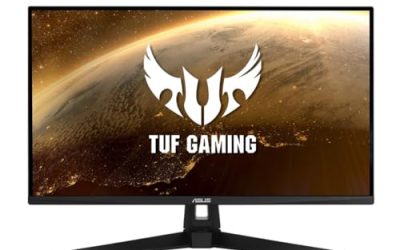
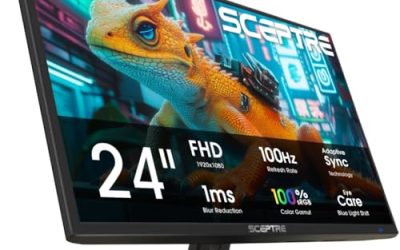
The best 1080p IPS gaming monitor for most people in 2026 is a 24-inch, 165–180 Hz model such as the AOC 24G2 series or the ASUS TUF Gaming VG249Q3A, because that size and refresh rate give the best mix of sharpness, speed and price. Step up to a 240–360 Hz panel only if your GPU can actually push those frame rates in competitive games. (The keyword is often typed “ISP”, but the panel type you want is IPS, in-plane switching.)
As an Amazon Associate we earn from qualifying purchases at no extra cost to you.


Top 3 picks at a glance
Quick comparison of the picks
| Pick | Best for | Key specs (check your exact variant) | Typical price |
|---|---|---|---|
| AOC 24G2 series | Best overall | 23.8″ IPS, 1920×1080, 144–165 Hz, 1 ms MPRT, FreeSync | $130–$190 |
| ASUS TUF Gaming VG249Q3A | Best for a newer 180 Hz panel | 23.8″ IPS, 180 Hz, 1 ms MPRT, ELMB, adaptive sync | $130–$190 |
| Acer Nitro VG240Y series | Best budget | 23.8″ IPS, 144–180 Hz depending on suffix, FreeSync | $100–$150 |
| Dell G2524H | Best for competitive shooters | 24.5″ IPS, 280 Hz, 1920×1080, adaptive sync | $200–$300 |
| Alienware AW2523HF | Best premium 360 Hz | 24.5″ Fast IPS, 360 Hz, 1 ms GtG, DisplayPort and HDMI | $300–$450 |
Prices are general market ranges and shift with sales. Model families such as the AOC 24G2 and Acer Nitro VG240Y are sold in several revisions with different refresh rates and ports, so confirm the exact suffix against the manufacturer’s spec sheet before buying.
Best overall: AOC 24G2 series
This is the long-running default recommendation. It pairs a 23.8-inch IPS panel with a high refresh rate, adaptive sync, a height-adjustable stand and wide viewing angles. It suits anyone with a mid-range GPU who wants one monitor for shooters, single-player games and daily use. Trade-off: contrast is typical IPS (roughly 1000:1 per most spec sheets), so dark scenes look grayish next to a VA panel, and HDR support is nominal at best.
Best for a newer 180 Hz panel: ASUS TUF Gaming VG249Q3A
ASUS lists a 180 Hz IPS panel with adaptive sync and its ELMB motion-blur reduction. It suits buyers who want a little more refresh headroom than 144 or 165 Hz without paying esports prices. Trade-off: motion-blur reduction modes usually dim the image and can’t be combined with adaptive sync on many monitors, so most people will leave them off.
Best budget: Acer Nitro VG240Y series
Acer’s Nitro VG240Y line delivers IPS color and a 144 Hz or higher refresh rate at the bottom of the price range. It suits a first gaming monitor or a second screen. Trade-off: stands are usually tilt-only, and build quality and HDMI version vary by suffix. If you need height adjustment, budget for a VESA arm.
Best for competitive shooters: Dell G2524H
At 24.5 inches and 280 Hz on an IPS panel, the Dell G2524H targets Valorant, CS2 and Apex players. It suits anyone whose GPU already holds 240+ fps in those games. Trade-off: you pay a premium over 165 Hz models, and the gain is only realized if your CPU and GPU can deliver the frames.
Best premium 360 Hz: Alienware AW2523HF
This 24.5-inch Fast IPS monitor runs at 360 Hz with a 1 ms GtG response time per Dell’s specifications. It suits serious esports players with a strong CPU. Trade-off: it needs a high-end CPU to get any benefit, and the cost is hard to justify unless you play competitively every day.
Why 1080p still makes sense, and where it stops
1080p is cheaper to drive than 1440p, since it has 2.07 million pixels against 3.69 million, about 78% more at 1440p. That leaves GPU budget for high frame rates. The catch is pixel density, which depends on screen size:
| Size | Pixel density at 1920×1080 | Verdict |
|---|---|---|
| 23.8–24″ | about 92 PPI | Sharp for gaming at a normal desk distance |
| 24.5–25″ | about 88 PPI | Fine, and the usual esports size |
| 27″ | about 82 PPI | Text looks soft, so consider 1440p instead |
| 32″ | about 69 PPI | Visibly pixelated up close, so avoid it |
PPI here is the diagonal pixel count (about 2,203) divided by the screen diagonal. The rule: keep 1080p at 25 inches or smaller.
Worked example: do your cable and port support the refresh rate?
The raw pixel data a cable must carry is width × height × refresh rate × 24 bits (8-bit color):
- 1080p at 144 Hz: 2,073,600 × 144 × 24 ≈ 7.2 Gbps
- 1080p at 240 Hz: ≈ 11.9 Gbps
- 1080p at 360 Hz: ≈ 17.9 Gbps
Blanking intervals add a few percent on top. DisplayPort 1.2 carries about 17.28 Gbps of effective data, and HDMI 2.0 about 14.4 Gbps. That means 240 Hz fits either one, but 360 Hz exceeds DisplayPort 1.2 and needs DisplayPort 1.4 (about 25.9 Gbps effective). Older HDMI 1.4 ports (about 8.16 Gbps effective) are marginal above 120–144 Hz at 1080p. In practice, use DisplayPort for any monitor above 144 Hz, and use the cable in the box.
Match the refresh rate to your GPU and games
Frame rates vary widely with settings, CPU and game patch, so treat these as typical ranges from published reviews, not guarantees.
| Your situation | Refresh rate to buy | Why |
|---|---|---|
| Entry GPU, AAA games at high settings (often 60–100 fps) | 100–144 Hz | You won’t reach more, and adaptive sync smooths the dips |
| Mid-range GPU, mixed library (often 100–160 fps) | 165–180 Hz | Best value and enough headroom |
| Esports titles on a modern 6–8 core CPU (often 250+ fps at low settings) | 240–280 Hz | Lower input lag and cleaner motion |
| High-end CPU, esports only, high-end GPU | 360 Hz | Gains over 240 Hz are small but measurable for some players |
| Console only (PS5 or Xbox Series X) | 120 Hz HDMI 2.0 or 2.1 | Consoles cap at 120 Hz, so check that the HDMI port supports it at 1080p |
How to choose: the criteria that matter
- Panel quality over headline response time. “1 ms” usually refers to MPRT or the best-case overdrive mode. Look for independent GtG measurements and the overshoot (inverse ghosting) at each overdrive setting.
- Adaptive sync range. A range like 48–165 Hz works well with low-framerate compensation, which needs the maximum to be at least about twice the minimum.
- Stand ergonomics. A tilt-only stand is common at the budget end. If the monitor has VESA 100×100 mounting, an arm solves it.
- IPS glow and backlight bleed. Both are normal to some degree, but they are more visible in a dark room. Buy from a seller with an easy return policy and inspect the panel with a black screen.
- Color coverage. Most budget IPS panels cover roughly 99% sRGB. Wider DCI-P3 claims on cheap models often come with oversaturation when games aren’t color-managed.
Settings to apply after unboxing
- Set the refresh rate in the OS. Windows often defaults to 60 Hz. Choose the maximum under Advanced display settings.
- Use the middle overdrive setting. The highest mode often adds overshoot halos. Medium usually has the cleanest motion.
- Enable adaptive sync in the monitor menu and GPU driver, and cap frame rate a few fps below the maximum refresh rate to avoid tearing at the top of the range.
- Lower brightness. Factory brightness is often far above comfortable levels in a normal room. Around 100–120 nits suits most rooms.
Frequently Asked Questions
Is 1080p IPS still worth buying in 2026?
Yes, if you want high frame rates on a modest GPU or play competitive games. At 24–25 inches the image is sharp enough, and the monitors cost less than comparable 1440p models. If you’re buying a 27-inch screen, 1440p is the better choice.
Is IPS better than VA for gaming?
IPS offers wider viewing angles, better color accuracy and generally cleaner motion. VA panels offer higher contrast, so blacks look deeper. Choose IPS for competitive and general use, and VA for dark-room single-player games if you can tolerate occasional smearing.
Do I need a 240 Hz monitor at 1080p?
Only if your system regularly produces more than about 200 fps in the games you play. Otherwise a 165–180 Hz monitor delivers most of the benefit for less money. The jump from 60 to 144 Hz is far more noticeable than 144 to 240 Hz.
What size is best for a 1080p monitor?
23.8 to 25 inches is the sweet spot, at about 88–92 PPI. Larger sizes make individual pixels visible, especially in text, and are better served by a 1440p panel.
Is HDMI good enough, or do I need DisplayPort?
HDMI 2.0 handles 1080p up to about 240 Hz, so it works for most monitors. DisplayPort is the safer choice above that, and 360 Hz requires DisplayPort 1.4. For adaptive sync on older setups, DisplayPort is also more reliably supported.
Why does my IPS monitor look gray in dark scenes?
That is IPS glow and limited native contrast, typically around 1000:1. Lowering brightness, sitting directly in front of the panel and using a bias light behind the monitor can help. If the glow is extreme, return the unit, because panel quality varies between samples.
Related guides
More from Amazon
Programs that pair well with the guide above. Offers and eligibility are set by Amazon and may change.
A free business account with business pricing and bulk-buying tools for work, shop or home office.
Create a business accountFree shipping on eligible items, Prime Video and more. Eligible new members can start with a free trial.
Start a Prime free trialAudiobooks and podcasts to listen to on the go. Eligible new members can start with a free trial.
Try Audible freeAd-free music streaming. Eligible new subscribers can start with a free trial.
Try Music Unlimited freeAs an Amazon Associate we earn from qualifying purchases.