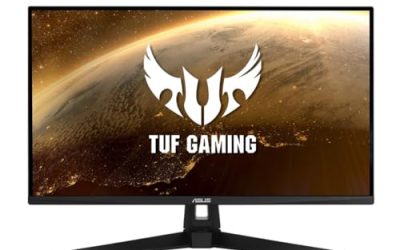
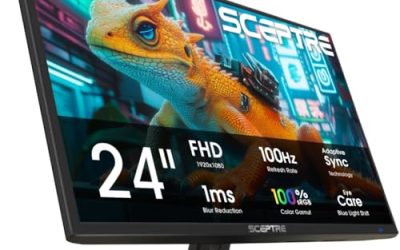
The best 1080p gaming monitor for most people in 2026 is a 24–25 inch IPS panel running 165–280Hz with adaptive sync. The AOC 24G2 series is the value pick, and the Dell G2524H is the step up if your GPU can push well past 144 FPS. Go above 280Hz only if you play competitive shooters and have a fast CPU, because the extra refresh rate does nothing for you if your frame rate cannot reach it.
As an Amazon Associate we earn from qualifying purchases at no extra cost to you.


Top 3 picks at a glance
Quick comparison of the picks
Specs below come from the manufacturers’ spec sheets. Variants differ by region and revision, so confirm the exact model suffix before you buy. Prices are general market ranges and move often.
| Pick | Best for | Key specs | Typical price |
|---|---|---|---|
| AOC 24G2 series | Best overall value | ~24″ IPS, 1080p, 144–165Hz depending on variant, adaptive sync | $130–$180 |
| ASUS TUF Gaming VG249Q1A | Best budget | ~24″ IPS, 1080p, up to 165Hz, 1ms MPRT, adaptive sync | $120–$170 |
| Dell G2524H | Best high-refresh upgrade | 24.5″ IPS, 1080p, 280Hz, fast IPS response | $180–$260 |
| Alienware AW2523HF | Best for 360Hz IPS | 24.5″ IPS, 1080p, 360Hz, 1ms GtG | $250–$380 |
| BenQ Zowie XL2566K | Best for esports | 24.5″ TN, 1080p, 360Hz, DyAc 2 motion blur reduction | $400–$550 |
Best overall: AOC 24G2 series
This long-running line is the default recommendation for 1080p because it hits the practical sweet spot. It has an IPS panel with good color and viewing angles, 144Hz or higher depending on the variant, and adaptive sync that works with both AMD and Nvidia GPUs. It suits anyone with a midrange GPU who plays a mix of shooters, battle royales and single-player games.
Trade-off: contrast is typical IPS, around 1000:1, so dark scenes look gray in a dim room. The stand and build are also basic.
Best budget: ASUS TUF Gaming VG249Q1A
This is a straightforward 24-inch IPS panel with up to 165Hz and a thin-bezel design. It is the pick if your total monitor budget is around $150 and you want a real high-refresh panel instead of a 60Hz office display.
Trade-off: it has few extras. Expect limited ergonomic adjustment, no USB hub and modest HDR, which is effectively cosmetic at this price.
Best high-refresh upgrade: Dell G2524H
At 280Hz on a 24.5-inch IPS panel, this is where a modern GPU starts to show its value in fast games. It suits players with an RTX 4060 / RX 7600-class card or better who run esports titles at low or medium settings and routinely see 200+ FPS.
Trade-off: if your games run at 100–120 FPS, you will not see the benefit of 280Hz and a cheaper 165Hz panel is the smarter buy.
Best for 360Hz IPS: Alienware AW2523HF
This model pairs a 360Hz refresh rate with an IPS panel, so you get high speed without the narrow viewing angles and washed-out color of TN. It suits competitive players with a recent high-clock CPU.
Trade-off: the price is high for a 1080p panel, and you need a DisplayPort connection and a strong CPU to use the refresh rate (see the bandwidth math below).
Best for esports: BenQ Zowie XL2566K
This is a TN panel tuned for competitive play. It runs at 360Hz and includes DyAc 2 backlight strobing for clearer motion, plus an esports-focused stand and OSD. Pick it if input latency and motion clarity matter more than color.
Trade-off: TN color and viewing angles are visibly weaker than IPS, and strobing modes usually cost some brightness and work best at a fixed high frame rate.
How to choose: the numbers that matter
1. Size and sharpness: 24–25 inches is the 1080p ceiling
Pixel density falls as the screen grows. The diagonal of a 1920×1080 grid is about 2,203 pixels. Divided by diagonal size:
- 23.8–24″ ≈ 92 PPI (sharp enough at desk distance)
- 24.5″ ≈ 90 PPI
- 27″ ≈ 82 PPI (pixels become visible, text looks soft)
If you want 27 inches, 1440p is usually the better fit. For 1080p, 24–25 inches keeps the image clean.
2. Match refresh rate to the frame rate you actually get
Each refresh rate has a frame time: 60Hz = 16.7 ms, 144Hz = 6.9 ms, 240Hz = 4.2 ms, 360Hz = 2.8 ms. A monitor only shows its advantage when your GPU and CPU deliver frames at that pace. Check your average FPS in your main games (results vary with settings, CPU and game patch), then buy a panel at or slightly above that rate. Adaptive sync covers the gap when frame rate dips below the maximum.
3. Cable bandwidth: a worked example
Raw video data for 1080p at 24-bit color is 1920 × 1080 × 24 = about 49.8 megabits per frame. Multiply by refresh rate, then add roughly 5–8% for blanking overhead:
| Refresh rate | Raw data | With blanking (approx.) | Minimum practical connection |
|---|---|---|---|
| 144Hz | 7.2 Gbps | ~7.5 Gbps | HDMI 1.4 (8.16 Gbps effective) or better |
| 240Hz | 11.9 Gbps | ~12.5 Gbps | DisplayPort 1.2 (17.28 Gbps) or HDMI 2.0 (14.4 Gbps) |
| 280Hz | 13.9 Gbps | ~14.6 Gbps | DisplayPort 1.2 / 1.4 |
| 360Hz | 17.9 Gbps | ~18.8 Gbps | DisplayPort 1.4 (25.92 Gbps) or HDMI 2.1 |
The practical lesson is that the box cable matters. An old HDMI cable can cap a 240Hz monitor at 120Hz or 144Hz, and 360Hz needs a DisplayPort 1.4-class connection. Use DisplayPort when the monitor offers it.
4. Panel type: IPS, VA or TN
- IPS: best all-round choice, with good color, wide viewing angles and fast modern response times.
- VA: higher contrast (often 3000:1), which suits dark games, but some panels smear in dark transitions. Examples include LG’s 180Hz UltraGear budget models.
- TN: fastest and often cheapest at extreme refresh rates, but with the weakest color. It is mainly for esports.
5. Response time claims
Manufacturers quote “1ms”, but that is often MPRT (a motion-blur measure) or a best-case gray-to-gray figure with overdrive set aggressively. A better test is whether the panel keeps pixel transitions shorter than the frame time at your refresh rate, for example under 4.2 ms at 240Hz. Independent review measurements are more reliable than the box number, and the middle overdrive setting is usually the cleanest.
Decision matrix: which one fits your situation
| Your situation | Choose | Why |
|---|---|---|
| Budget GPU, 60–100 FPS in most games | 144–165Hz IPS (ASUS TUF VG249Q1A, AOC 24G2) | Higher refresh would go unused |
| Midrange GPU, 140–200 FPS in esports titles | 240–280Hz IPS (Dell G2524H) | Frame rate can use the headroom; IPS keeps color |
| High-end CPU, 300+ FPS in Valorant, CS2 or similar | 360Hz IPS or TN (Alienware AW2523HF, BenQ Zowie XL2566K) | Only case where 360Hz is fully used |
| Mostly single-player, cinematic games | IPS or VA at 144Hz | Color and contrast matter more than speed |
| Console (PS5 / Xbox Series X) | 120Hz-capable panel with HDMI 2.0 or 2.1 | Consoles cap at 120Hz at most |
Settings to apply after you plug in
- Set the refresh rate manually. Windows often defaults to 60Hz. Go to Display settings, then Advanced display, and pick the highest option.
- Enable adaptive sync (FreeSync or G-Sync Compatible) in the monitor OSD and the GPU control panel. Cap your frame rate a few FPS below max refresh (for example 141 on a 144Hz panel) to stay inside the sync range.
- Use the middle overdrive setting. The highest level often introduces inverse ghosting, bright trails behind moving objects.
- Turn off dynamic contrast and “game enhancer” modes. They crush shadow detail and add processing.
Is 1080p still worth buying in 2026?
Yes, for specific cases. It is the cheapest way to reach very high frame rates, it is easy on GPUs, and at 24–25 inches it looks clean. If you have a card in the RTX 4070 / RX 7800 XT class or above and play single-player games, 1440p is usually a better value, but for esports and budget builds 1080p remains a sound choice.
Frequently Asked Questions
What size is best for a 1080p gaming monitor?
24 to 25 inches is best. At that size pixel density is around 90 PPI, so text and edges look reasonably sharp. At 27 inches density drops to about 82 PPI and the image looks noticeably softer.
Is 144Hz enough for 1080p gaming?
For most players, yes. 144Hz or 165Hz is a big step up from 60Hz and works well with midrange GPUs. Go to 240Hz or more only if your games regularly run well above 200 FPS.
Do I need a 360Hz monitor?
Only if you play fast competitive shooters and your system consistently delivers 300+ FPS. The difference between 240Hz and 360Hz is small in frame time (4.2 ms versus 2.8 ms), so most players see far more benefit from a better GPU or CPU than from the faster panel.
Should I choose IPS, VA or TN for 1080p?
IPS is the best default because it combines good color with fast response. Choose VA if you want deeper blacks and mostly play dark single-player games, and TN if you want the fastest possible motion for esports and can accept weaker color.
Does HDMI or DisplayPort matter for a 1080p monitor?
Yes at high refresh rates. HDMI 1.4 handles 1080p at 144Hz, but 240Hz needs DisplayPort 1.2 or HDMI 2.0, and 360Hz needs DisplayPort 1.4 or HDMI 2.1. If you see a lower refresh rate than expected, check the cable and the port first.
Is FreeSync or G-Sync better for 1080p?
Both reduce tearing and stutter, and most FreeSync monitors also work with Nvidia cards as G-Sync Compatible. Dedicated G-Sync modules are rare at 1080p and add cost, so a FreeSync Premium panel is enough for nearly everyone.
Related guides
More from Amazon
Programs that pair well with the guide above. Offers and eligibility are set by Amazon and may change.
A free business account with business pricing and bulk-buying tools for work, shop or home office.
Create a business accountFree shipping on eligible items, Prime Video and more. Eligible new members can start with a free trial.
Start a Prime free trialAudiobooks and podcasts to listen to on the go. Eligible new members can start with a free trial.
Try Audible freeAd-free music streaming. Eligible new subscribers can start with a free trial.
Try Music Unlimited freeAs an Amazon Associate we earn from qualifying purchases.