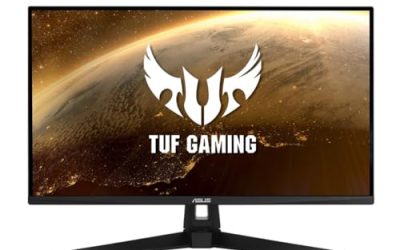
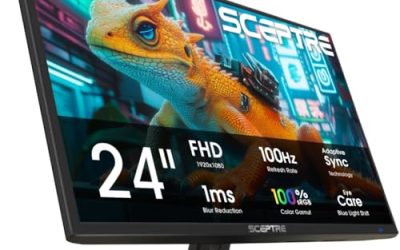
The best 1080p 200Hz monitor for most players is a 24- or 25-inch fast IPS panel with adaptive sync, a measured response time under about 5 ms, and a DisplayPort input. If you want the cheapest route to 200Hz, a 24-inch VA panel is the budget pick. A 27-inch IPS suits a larger desk, but it costs sharpness. Because 200Hz at 1080p is a crowded spec class, this guide sorts monitors by panel type, size and connection rather than naming a single “winner” model.
As an Amazon Associate we earn from qualifying purchases at no extra cost to you.


Top 3 picks at a glance
Quick comparison of the best 1080p 200Hz monitor types
| Pick | Best for | Key specs to look for | Typical price |
|---|---|---|---|
| Best overall: 24–25″ fast IPS | Mixed competitive and general use | 200Hz, IPS, 1ms GtG (marketing) , FreeSync/G-Sync Compatible, DisplayPort 1.2+, sRGB 95%+ | Usually $110–$180 |
| Best budget: 24″ VA | Lowest cost to hit 200Hz, dark-room play | 200Hz, VA, 3000:1+ contrast, DisplayPort, 1ms MPRT | Usually $90–$140 |
| Best for bigger desks: 27″ IPS | Single-player, shooters at a deeper desk | 200Hz, IPS, ~82 PPI, HDMI 2.0 + DisplayPort | Usually $140–$220 |
| Best for competitive play: 24.5″ IPS with strobing | Esports titles at very high fps | 200Hz+, backlight strobing (MBR), height-adjustable stand, overdrive modes | Usually $150–$260 |
| Best for immersion: 27″ curved VA | Racing, RPGs, movies | 200Hz, 1500R curve, high contrast, HDR10 signal support | Usually $150–$230 |
Prices are general market ranges and shift with sales and region. Always compare the exact model’s spec sheet, because the same product line often ships with different panels over time.
Best overall: 24–25″ fast IPS at 200Hz
A 24- or 25-inch fast IPS panel is the safest buy because it balances color, viewing angles and motion clarity. At 24 inches, 1920×1080 works out to about 92 pixels per inch (about 90 PPI at 24.5″), which is sharp enough for games at normal desk distance. Pixel response is usually the strongest part of the category, and overdrive tuning is far better than on older 144Hz IPS monitors.
Main trade-off: IPS contrast is typically around 1000:1 per manufacturer specs, so blacks look gray in a dark room. Some units also show “IPS glow” at the corners.
Best budget: 24″ VA at 200Hz
VA panels commonly advertise 3000:1 or higher contrast, which makes dark scenes look deeper than on IPS at a similar price. They are often the cheapest way to get a 200Hz label. This is a good fit for a first high-refresh monitor in a dim room.
Main trade-off: VA panels are prone to dark-transition smearing, where dark gray pixels change slowly. That can leave trails in fast shooters. Narrower viewing angles are also common. Choose this only if your games are not strictly competitive.
Best for bigger desks: 27″ IPS at 200Hz
If your eyes sit 70–90 cm from the screen, a 27-inch panel fills more of your view. The trade-off is pixel density: 1080p at 27 inches is about 82 PPI, and text and UI edges look visibly softer. It suits console-style gaming and single-player shooters. If you mostly work or browse, a 1440p panel is the better value, as covered in our Best 1440p Monitors guide.
Best for competitive play: IPS with strobing and a good stand
If you play Counter-Strike 2, Valorant or Apex Legends, look for a monitor with backlight strobing (sold as MBR, ELMB, DyAc or similar), several overdrive levels and a height-adjustable stand. Strobing cuts perceived motion blur, but it usually lowers brightness and often cannot run together with variable refresh rate. Treat it as an optional extra.
Main trade-off: It costs more than a standard 200Hz panel. Many models with strobing also lock it to a fixed refresh rate, such as 120Hz or 144Hz, instead of 200Hz.
Best for immersion: 27″ curved VA
A 1500R curved VA at 27 inches gives high contrast and a wraparound feel. It suits racing games and cinematic single-player titles. Check that the 200Hz mode works over DisplayPort and that the monitor lists adaptive sync support. Some cheaper models only offer a narrow VRR window.
Do the bandwidth math before you buy
200Hz at 1080p is easy for DisplayPort, but it can trip up older HDMI ports. Here is the working:
- Active pixel data: 1920 × 1080 × 200 Hz × 24 bits ≈ 9.95 Gbps.
- With reduced-blanking timings, the total frame is roughly 2080 × 1111 pixels, so the pixel clock is about 2080 × 1111 × 200 ≈ 462 MHz. At 24 bits that is roughly 11.1 Gbps of link bandwidth.
- HDMI 1.4 tops out around a 340 MHz pixel clock (about 8.2 Gbps of video data), so it cannot carry 1080p at 200Hz.
- HDMI 2.0 supports up to 600 MHz (about 14.4 Gbps), so it carries 200Hz at 1080p comfortably.
- DisplayPort 1.2 offers about 17.3 Gbps of data, which is plenty.
| Connection | Approx. usable data rate | Handles 1080p 200Hz? |
|---|---|---|
| HDMI 1.4 | ~8.2 Gbps | No (limited to about 1080p 120–144Hz) |
| HDMI 2.0 | ~14.4 Gbps | Yes |
| DisplayPort 1.2 | ~17.3 Gbps | Yes, with adaptive sync |
| DisplayPort 1.4 | ~25.9 Gbps | Yes, with headroom |
The practical rule is to use the DisplayPort cable in the box. If a seller lists only HDMI 1.4 ports, the monitor may be capped below 200Hz in real use.
Can your PC actually use 200Hz?
A 200Hz screen refreshes every 5.0 ms. That compares with 6.94 ms at 144Hz and 4.17 ms at 240Hz. To fill every refresh, your PC must render about 200 frames per second, and the 1% lows matter as much as the average. Published reviews show that esports titles such as Valorant and CS2 often exceed 200 fps at 1080p on mid-range GPUs. Heavier games like Cyberpunk 2077 or Alan Wake 2 usually sit well below that. Results vary widely with settings, CPU, resolution and game patch.
| Your situation | What to buy | Why |
|---|---|---|
| Esports titles, any recent mid-range GPU | 24.5″ fast IPS, strobing optional | You can reach 200 fps, so you benefit from low response times |
| AAA games at 80–120 fps | Any 200Hz IPS or VA with VRR | Adaptive sync smooths the frame-rate swings; the extra 200Hz is mostly headroom |
| Older GPU, 60–100 fps in most titles | Budget 144–165Hz instead | The 200Hz premium is wasted below about 120 fps |
| Work and games on one monitor | Consider 1440p at 165–180Hz | 1080p text looks soft, especially at 27 inches |
| Console (PS5/Xbox Series X) | Any 1080p 120Hz-capable model with HDMI 2.0 | Consoles cap at 120Hz, so 200Hz goes unused |
How to choose: the criteria that matter
- Panel type: IPS for balance, VA for contrast on a budget, and TN only if the price is very low and viewing angles don’t matter.
- Size: 24–25″ for the sharpest 1080p image. Go 27″ only if you accept ~82 PPI.
- Response time: Treat the manufacturer’s “1ms” figure as a best-case marketing number, since it is often MPRT or the most aggressive overdrive mode. Independent measurements are more useful.
- Adaptive sync: Look for FreeSync Premium or G-Sync Compatible, and check that VRR works across the whole range up to 200Hz.
- Stand: Height adjustment and a VESA 100×100 mount are worth more than extra RGB.
- Warranty and dead-pixel policy: Budget monitors vary here, so check the manufacturer’s terms.
Settings to apply after setup
- Set 200Hz in Windows. Go to Settings > System > Display > Advanced display. Windows often defaults to 60Hz on a new monitor.
- Use DisplayPort. It supports VRR and 200Hz without HDMI version issues.
- Turn on FreeSync or G-Sync Compatible in the monitor menu and in the GPU driver control panel.
- Cap your frame rate at about 197 fps (a few below the refresh rate) so VRR stays active and input lag stays low.
- Use the middle overdrive setting. The highest level usually adds inverse ghosting, bright halos behind moving objects. Test with a ghosting pattern and step down if you see it.
Frequently Asked Questions
Is 200Hz noticeably better than 144Hz at 1080p?
The jump is smaller than going from 60Hz to 144Hz. Frame time drops from 6.94 ms to 5 ms, which competitive players may notice in fast aim tracking. For single-player games, most people will not see a big difference.
Is a 1080p 200Hz monitor worth it in 2026?
Yes, for esports or if you have a modest GPU, since 1080p keeps frame rates high and the monitors are cheap. If you play mostly demanding AAA games or do desk work, a 1440p monitor at 165–180Hz is often a better value.
Do I need DisplayPort for 200Hz?
Not strictly. HDMI 2.0 can carry 1080p at 200Hz, but HDMI 1.4 cannot. DisplayPort is the safer choice because it also supports adaptive sync on nearly all GPUs.
Is 24 inches or 27 inches better for 1080p?
24 to 25 inches is better. It gives about 90–92 PPI, while 27 inches drops to roughly 82 PPI, so text and edges look softer. A 27-inch screen only makes sense if you sit further back or prioritize screen size.
Do consoles benefit from a 200Hz monitor?
Not beyond 120Hz. PS5 and Xbox Series X output at most 120Hz, so a 1080p 120Hz-capable screen with HDMI 2.0 is enough. A 200Hz monitor will still work, but you pay for refresh rate the console can’t use.
Should I choose IPS or VA for 200Hz gaming?
Choose IPS if you play fast shooters or want accurate colors, because it has faster pixel transitions and wider viewing angles. Choose VA if contrast matters most, you play in a dark room and you want a lower price. Be aware of possible smearing in dark scenes on VA.
Related guides
More from Amazon
Programs that pair well with the guide above. Offers and eligibility are set by Amazon and may change.
A free business account with business pricing and bulk-buying tools for work, shop or home office.
Create a business accountFree shipping on eligible items, Prime Video and more. Eligible new members can start with a free trial.
Start a Prime free trialAudiobooks and podcasts to listen to on the go. Eligible new members can start with a free trial.
Try Audible freeAd-free music streaming. Eligible new subscribers can start with a free trial.
Try Music Unlimited freeAs an Amazon Associate we earn from qualifying purchases.