
Choosing a copper vs aluminum NVMe SSD heatsink is less about finding the “best” metal and more about matching the cooler to your drive, case, and budget. Copper conducts heat more efficiently, while aluminum usually offers a lighter, less expensive, and easier-to-install package. For many home PCs and gaming consoles, either material can work well when the heatsink has a properly fitted thermal pad and enough airflow.
The real buyer decision is whether you need maximum heat transfer from a fast, heavily used PCIe 4.0 or PCIe 5.0 drive, or simply want affordable protection against thermal throttling. A heatsink will not fix a blocked case, a poor thermal pad, or a drive installed under a graphics card with no airflow. It is one part of the cooling system—not a substitute for good ventilation.
As an Amazon Associate we earn from qualifying purchases at no extra cost to you.



Our Top Picks



Top 3 picks at a glance
Quick Verdict
Choose copper when your NVMe SSD regularly handles large file transfers, game installations, video editing, workstation workloads, or other sustained activity. Copper moves heat away from the controller quickly and is especially attractive when the drive has a high power rating or limited airflow.
Choose aluminum for most everyday home computers, office systems, laptops that support aftermarket cooling, and gaming PCs with reasonable airflow. Aluminum heatsinks are generally lighter, cheaper, and easier to find in slim single-sided designs. They are also less likely to create a clearance problem around nearby components.
For many buyers in 2026, a well-designed aluminum heatsink with a quality thermal pad is the sensible default. Copper is the upgrade for demanding workloads, tight thermal conditions, or buyers who value maximum thermal conductivity more than weight and price.
Side by Side
| Factor | Copper NVMe heatsink | Aluminum NVMe heatsink |
|---|---|---|
| Heat conductivity | Higher conductivity; transfers heat away from the controller quickly | Lower than copper, but adequate for many consumer drives |
| Comfort | Heavier to handle and can feel dense during installation | Lightweight and easier to position in a cramped slot |
| Durability | Strong and resistant to bending; surface can tarnish | Rigid enough for normal use; anodized finishes resist scuffs and corrosion |
| Typical price range | About $10–$30 for an M.2 2280 heatsink | About $6–$20 for an M.2 2280 heatsink |
| Maintenance | Usually dusting only; exposed copper may darken over time | Usually dusting only; coated surfaces are low maintenance |
| Space needed | Often 3–10 mm thick, with heavier designs needing careful clearance checks | Commonly 3–8 mm thick, including many slim options |
| Look | Warm metallic color; may be covered by a nickel or black finish | Silver, black, or colored anodized finishes are widely available |
| Resale | Can retain appeal to performance-focused buyers, but resale is limited | Easy to replace and inexpensive, though individual resale value is modest |
| Best for | Sustained workloads, high-power drives, and restricted airflow | General gaming, office work, upgrades, and budget-conscious builds |
Where Copper Wins
Copper’s primary advantage is thermal conductivity. In practical terms, a copper heatsink can pull heat from the NVMe controller and spread it across the heatsink more rapidly than aluminum of the same basic shape. That matters because the controller—not the flash memory alone—often generates the most concentrated heat during sustained writes and reads.
A copper model makes sense for a PCIe 4.0 or PCIe 5.0 SSD used for frequent video exports, 3D work, large backups, software development, or repeated game transfers. It can also be useful when the drive sits beneath a graphics card, inside a compact mini PC, or in another location where airflow is limited. If the SSD’s manufacturer lists a high peak power draw, copper gives the heatsink more thermal headroom.
Copper is also useful when a heatsink has a small contact area. A compact copper plate can spread heat effectively without requiring a very large fin stack. However, material alone does not guarantee better performance. A copper heatsink with a thick, poorly fitting thermal pad can perform worse than a thoughtfully designed aluminum model with firm contact and open fins.
There are trade-offs. Copper is significantly denser than aluminum, so a copper heatsink can weigh several times more at the same volume. A typical M.2 2280 heatsink may weigh roughly 15–40 grams depending on its fins, cover, and fastening system. That weight is rarely a problem in a desktop, but clearance and mounting pressure still deserve attention. Copper can also oxidize and develop a darker surface, although this is mainly cosmetic.
Where Aluminum Nvme Ssd Heatsink Wins
Aluminum is the practical choice for a large share of home installations. It is light, affordable, easy to machine, and available in many sizes. A basic aluminum M.2 2280 heatsink often weighs around 8–25 grams and may be only 3–5 mm thick. That slim profile can help it fit beneath a graphics card, laptop bottom cover, or console expansion bay.
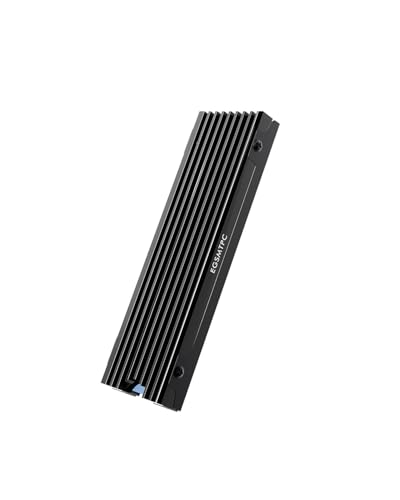
Price is another advantage. The GLOTRENDS 2-Pack M.2 NVMe SSD Heatsink, sized at 22 x 70 x 3 mm, is an example of the compact aluminum format and is listed at around $7 for two heatsinks. The EGSMTPC NVMe M.2 SSD Heatsink is another aluminum option, with double-sided cooling and a thermal pad for M.2 2280 drives used in PS5 and PC systems; its listed price is around $5. These products illustrate why aluminum is appealing when you need to cool more than one drive or keep an upgrade inexpensive.
Aluminum also works well with airflow. Its lower density lets manufacturers create taller fins or broader surfaces without adding much weight. In a desktop with a front intake fan and a rear exhaust fan, a finned aluminum heatsink may dissipate heat effectively enough for gaming and everyday work.
Installation is usually straightforward, but check whether your drive is single-sided or double-sided. A double-sided SSD may need a thicker thermal pad or a heatsink specifically designed to accommodate chips on both sides. Also measure the available height. A heatsink that is 8 mm tall could interfere with a graphics card, motherboard cover, or laptop shell even if its length and width are correct.
Cost Over 5 Years
Over five years, the purchase-price difference is usually small compared with the cost of the computer. A standard aluminum NVMe heatsink may cost $6–$20, while a copper design commonly costs $10–$30. If the thermal pad remains intact and the heatsink is not removed repeatedly, either can last the full life of the SSD.
Maintenance costs are close to zero. Plan to dust the surrounding PC or console area every 6–12 months, depending on pets, carpeting, and room conditions. Replacement thermal pads typically cost about $3–$10, although thickness must match the original design. Replacing a pad once during a five-year ownership period might bring the realistic total to approximately $9–$30 for aluminum or $13–$40 for copper.
The larger financial consideration is avoiding unnecessary replacement. Excessive heat can contribute to performance throttling and may complicate long transfers, but a heatsink cannot extend an SSD’s rated endurance beyond its specifications. Buy the right size initially rather than paying for the heaviest material after a clearance problem or installation failure.
Copper supplements are not a substitute for a copper heatsink. For example, Pure Encapsulations Copper (Glycinate), 60 Capsules, is listed at $13, while Solgar Chelated Copper, 100 Tablets, is listed at around $7. Those are nutritional products, not computer cooling components, and should not be confused with hardware when comparing prices.
Which One for Your Home
Small apartment
Choose a slim aluminum NVMe heatsink unless your computer performs sustained professional workloads. Small apartments often mean compact desktops, mini PCs, or shared work areas where clearance and low weight matter. A 3–5 mm aluminum model is easier to fit and typically provides adequate cooling when the case has at least modest airflow.
Family with kids or pets
Aluminum is usually the better value. Spend the savings on a dust filter, better case airflow, or a replacement thermal pad rather than paying for copper that your drive may not need. Keep the computer elevated from carpet and clean accumulated pet hair before it restricts intake vents.
Rental
For a rental-friendly setup, select an aluminum heatsink that installs without permanent modification. Confirm that it fits the motherboard’s M.2 slot and does not require drilling, adhesive, or changes to the case. A removable thermal-pad design is preferable if you expect to move the system.
Long-term home
Choose copper if you plan to keep a high-performance desktop for many years and regularly use demanding applications. Choose aluminum if the SSD is primarily for gaming, browsing, documents, and media storage. In either case, prioritize correct dimensions, thermal-pad contact, and airflow over the metal label.
FAQ
Is copper always better than aluminum for an NVMe heatsink?
No. Copper conducts heat better, but the complete design matters more than the material alone. Fin area, thermal-pad thickness, mounting pressure, airflow, and clearance can make an aluminum heatsink the better real-world choice.
Does every NVMe SSD need a heatsink?
No. Lightly used PCIe 3.0 drives may operate acceptably without one, especially in a well-ventilated desktop. A heatsink is more useful for high-speed drives, sustained transfers, gaming systems, and compact cases.
What size heatsink fits a standard M.2 SSD?
Most desktop and console drives use the M.2 2280 format, which is 22 mm wide and 80 mm long. The heatsink itself may be shorter, such as 70 mm, to leave room around the mounting screw. Always check height and whether the SSD is single-sided or double-sided.
Can an NVMe heatsink improve SSD lifespan?
It can help the drive stay within its intended operating range and reduce performance throttling, but it does not guarantee a longer lifespan. Install it correctly, avoid excessive mounting pressure, keep the system clean, and follow the SSD manufacturer’s temperature guidance.









