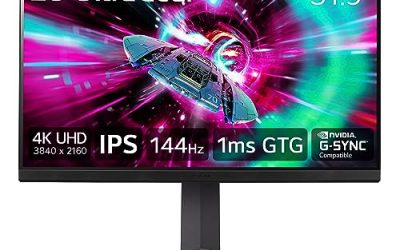
The best 1440p 200Hz monitor for most gamers is a 27-inch fast IPS panel with a DisplayPort 1.4 input and adaptive sync, such as the LG UltraGear 27GS85Q. It gives sharp text, wide viewing angles and enough refresh headroom for a mid-range or better GPU. If you want deeper blacks, step up to a 1440p OLED. If you want to spend less, a 1440p VA or entry-level IPS at 165–200Hz is the sensible compromise.
As an Amazon Associate we earn from qualifying purchases at no extra cost to you.


Our Top Picks
 ASUS TUF Gaming VG27AQ3A 27 Inch 1440p 180Hz14.4" x 24.2" x 2.1"24.2 x 8.4 x 17.9 inches10.1 poundsCheck on Amazon

Top 3 picks at a glance
Quick comparison of the best 1440p 200Hz picks
| Pick | Best for | Key specs | Price tier |
|---|---|---|---|
| LG UltraGear 27GS85Q (27-inch Nano IPS) | Best overall | 2560×1440, 200Hz, 1 ms GtG (manufacturer spec), G-Sync Compatible / FreeSync, ~109 ppi | Mid-range |
| 27-inch 165–200Hz VA or entry IPS class | Best budget | 2560×1440, 165–200Hz, adaptive sync, DP 1.2/1.4 | Budget |
| Curved 1000R–1500R VA, 27 or 32 inch | Best for immersion and dark rooms | 2560×1440, 165–200Hz, high native contrast (often 3000:1+), slower dark transitions | Budget to mid-range |
| 240Hz fast IPS, 27-inch class | Best for competitive shooters | 2560×1440, 240Hz, 1 ms GtG class, DP 1.4 | Mid-range |
| 27-inch QD-OLED, 240–360Hz (e.g. Alienware AW2725DF) | Best premium upgrade | 2560×1440, 360Hz on that model, near-instant pixel response, per-pixel dimming | Premium |
One caveat: 200Hz is an unusual refresh rate. Many 1440p panels top out at 144Hz, 165Hz, 170Hz, 180Hz or 240Hz. If a 180Hz or 240Hz model has a better panel at your budget, take it. The gap between 180Hz and 200Hz is about 0.55 ms per frame, which you will not notice.
Best overall: 27-inch Nano IPS at 200Hz
The LG UltraGear 27GS85Q is the clearest example of what this search is after. According to LG’s spec sheet it is a 27-inch 2560×1440 Nano IPS panel running at 200Hz, with a 1 ms GtG response claim and support for both G-Sync Compatible and FreeSync. At 27 inches, 1440p gives roughly 109 pixels per inch, which is sharp enough for text and still easy to drive.
Who it suits: players with an RTX 4070-class or RX 7800 XT-class GPU or better, and anyone mixing games with office work. Main trade-off: IPS contrast is typically around 1000:1, so dark scenes look grey next to VA or OLED. Check the exact SKU and its port list before buying, because regional variants differ.
Best budget: 165–200Hz VA or entry IPS
This is a spec class rather than one model. Look for a 27-inch panel with adaptive sync, at least 165Hz, and a DisplayPort input. Budget panels save money on factory calibration, stand ergonomics (often tilt only) and overdrive tuning.
Main trade-off: VA panels can smear in dark scenes, and the 1 ms claims on spec sheets usually refer to the fastest overdrive mode, which adds overshoot. Pick the middle overdrive setting rather than the most aggressive one.
Best curved: 1000R–1500R VA at 27 or 32 inches
Curved VA monitors suit single-player and racing games and rooms where you control the lighting. Native contrast is several times that of IPS. A 32-inch 1440p panel drops to about 92 ppi, so text looks softer than on a 27-inch screen. Choose 32 inches only if you sit farther away or prioritise screen size over sharpness.
Best for competitive play: 240Hz fast IPS
If you play Valorant, CS2 or Apex and your CPU and GPU can hold 220+ fps, a 240Hz 1440p panel is the better buy than a 200Hz one. Frame time at 240Hz is 4.17 ms against 5.0 ms at 200Hz. Prices often overlap with 200Hz models, so check first.
Best premium upgrade: 1440p QD-OLED
The Alienware AW2725DF is a 27-inch 1440p QD-OLED running at up to 360Hz, per Dell’s specifications. OLED pixels switch in a fraction of a millisecond, so motion is clearer than on any IPS or VA panel. Trade-offs: higher price, the risk of burn-in with static HUD elements over years, and slightly less sharp text because of the subpixel layout. Use the manufacturer’s pixel-refresh and screen-saver features.
Worked calculation: can your cable carry 1440p at 200Hz?
Many buyers lose refresh rate to the wrong cable or port. Here is the arithmetic.
- Pixels per frame: 2560 × 1440 = 3,686,400.
- Pixels per second at 200Hz: 3,686,400 × 200 = 737.3 million.
- 8-bit colour (24 bits per pixel): 737.3M × 24 ≈ 17.7 Gbit/s. Add roughly 4% for reduced blanking and you need about 18.4 Gbit/s.
- 10-bit colour (30 bits per pixel): 737.3M × 30 ≈ 22.1 Gbit/s, or about 23 Gbit/s with blanking.
| Connection | Usable data rate | Max 1440p refresh at 8-bit (approx.) | Verdict for 200Hz |
|---|---|---|---|
| HDMI 2.0 | ~14.4 Gbit/s | ~155Hz | Not enough |
| DisplayPort 1.2 (HBR2) | ~17.3 Gbit/s | ~188Hz | Not enough at 8-bit |
| DisplayPort 1.4 (HBR3) | ~25.9 Gbit/s | ~280Hz | Fine, including 10-bit |
| HDMI 2.1 (FRL, up to 48 Gbit/s) | ~42 Gbit/s | 300Hz+ | Fine |
The takeaway: use DisplayPort 1.4 or HDMI 2.1 for 200Hz. Consoles and older laptops with HDMI 2.0 will cap near 144–155Hz at 1440p. These figures are estimates based on standard timing overheads, and exact limits vary with the monitor’s timing.
How to choose: match the panel to your GPU and games
A 200Hz monitor only helps if your system can push frames near that number. Approximate 1440p frame rates below are typical ranges from published reviews. They vary a lot with settings, CPU and game patch.
| Your situation | Typical 1440p result | Best choice |
|---|---|---|
| Esports titles, any recent mid-range GPU | 200–400+ fps at low settings | 200–240Hz IPS or OLED |
| Mid-range GPU, AAA games at high settings | ~70–120 fps | Budget 165–200Hz panel; spend the savings on the GPU |
| High-end GPU, mixed library | ~120–200 fps | 200Hz IPS, or OLED if you want the best motion |
| Dark room, single-player focus | Any | VA or OLED for contrast |
| Console or HDMI 2.0-only device | Capped by the port | Prioritise HDMI 2.1 support, not 200Hz |
Check these specs before buying
- Panel type: IPS for balance, VA for contrast and price, OLED for motion clarity and black levels.
- Size: 27 inches at about 109 ppi is the sweet spot. 32 inches is about 92 ppi.
- VRR range: look for a low limit of 48Hz or lower, and G-Sync Compatible or FreeSync Premium certification.
- Stand: height adjustment and a VESA mount matter more than a spec-sheet extra.
- HDR claims: HDR400 on an IPS or VA panel usually means little. Real HDR needs local dimming or OLED.
Settings that get the most from a 200Hz panel
- Set 200Hz in the OS. Windows often defaults to 60Hz or 144Hz after a first connection. Check Advanced display settings.
- Use a DisplayPort 1.4 cable and an unused port on the GPU, per the bandwidth math above.
- Enable adaptive sync in the monitor menu and GPU driver. This removes tearing without the latency of classic V-Sync.
- Cap frame rate a few fps under the maximum, for example 197 fps. That keeps the game inside the VRR window, so V-Sync does not add input lag at the top of the range.
- Choose the middle overdrive setting. Aggressive modes cause inverse ghosting (bright trails), especially on VA.
- Leave 10-bit colour on only if needed. It raises bandwidth to about 23 Gbit/s, which is fine on DP 1.4 but may force lower refresh on a marginal cable.
Frequently Asked Questions
Is 1440p 200Hz worth it over 144Hz?
Yes, if your GPU regularly produces 150+ fps. Frame time drops from 6.9 ms to 5.0 ms, which makes motion smoother and reduces input delay slightly. If your games run near 100 fps, you will not use the extra refresh.
Is 180Hz or 240Hz better than 200Hz?
A 180Hz panel is nearly identical in feel, so choose on panel quality and price. A 240Hz panel is a real step up for competitive games if you can hold frame rates that high. Do not pay extra for 200Hz alone.
Do I need DisplayPort for 1440p 200Hz?
In practice, yes, unless you have HDMI 2.1 on both the GPU and monitor. HDMI 2.0 carries only about 14.4 Gbit/s of usable data, which caps 1440p near 155Hz at 8-bit. DisplayPort 1.4 handles 200Hz comfortably.
Which GPU do I need for 1440p at 200Hz?
For esports games, most modern mid-range GPUs can reach 200 fps at tuned settings. For demanding AAA titles at high settings, even high-end cards often land around 100–160 fps, depending on the game, CPU and patch. That is why adaptive sync matters more than hitting 200 exactly.
IPS, VA or OLED for 1440p 200Hz?
IPS is the safest all-rounder, VA is cheaper with stronger contrast but slower dark transitions, and OLED has the best motion and blacks at a higher price. If the monitor is also your work screen with lots of static windows, IPS is the lower-risk option.
Is 27 inches the right size for 1440p?
For most desks, yes. A 27-inch 1440p panel is about 109 ppi, which looks crisp at normal sitting distance. At 32 inches, the same resolution falls to about 92 ppi and looks softer up close.
Related guides
More from Amazon
Programs that pair well with the guide above. Offers and eligibility are set by Amazon and may change.
A free business account with business pricing and bulk-buying tools for work, shop or home office.
Create a business accountFree shipping on eligible items, Prime Video and more. Eligible new members can start with a free trial.
Start a Prime free trialAudiobooks and podcasts to listen to on the go. Eligible new members can start with a free trial.
Try Audible freeAd-free music streaming. Eligible new subscribers can start with a free trial.
Try Music Unlimited freeAs an Amazon Associate we earn from qualifying purchases.