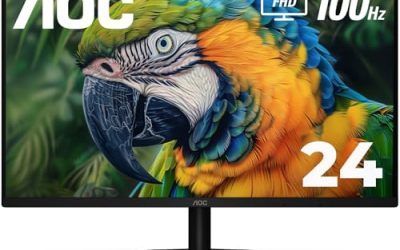
The best 25-inch 1440p monitor is, in practice, a 24.5 to 27-inch QHD gaming panel with a fast IPS or OLED screen, because true 25-inch 1440p models are rare and most “25-inch” listings are 1080p. If you want the sharpest picture at the smallest desk footprint, look for 2560×1440 at 24.5 to 27 inches with a 165Hz or higher refresh rate; pixel density is the real number that matters, not the diagonal.
As an Amazon Associate we earn from qualifying purchases at no extra cost to you.



Our Top Picks

Top 3 picks at a glance
Why 25-inch 1440p is a hard size to find
Most 24 and 25-inch gaming monitors are 1920×1080, built for esports players who prefer a smaller screen to see the whole display at a glance. 2560×1440 became standard at 27 inches, so 25-inch QHD panels are uncommon, and some listings mix up 24.5-inch 1080p and 27-inch 1440p. Always confirm the native resolution on the manufacturer’s spec sheet rather than trusting the title.
The pixel density tells you what to expect. Pixels per inch is the diagonal pixel count divided by the screen size:
| Size | Resolution | Pixel density (approx.) | Typical look |
|---|---|---|---|
| 24.5 inch | 1920×1080 | 90 PPI | Visible pixels, esports-focused |
| 24.5 / 25 inch | 2560×1440 | 120 PPI | Very sharp, small UI |
| 27 inch | 2560×1440 | 109 PPI | Sharp, the common sweet spot |
| 27 inch | 3840×2160 | 163 PPI | Very sharp, heavy GPU load |
| 32 inch | 2560×1440 | 92 PPI | Noticeably softer at desk distance |
A 25-inch QHD panel therefore gives roughly 117 to 120 PPI, about 10 percent sharper than a 27-inch QHD monitor. Text and UI elements are smaller, so you may use 100 to 125 percent Windows scaling.
Quick comparison: what to buy in this size class
| Pick | Best for | Key specs | Typical price range |
|---|---|---|---|
| 24.5 to 25-inch QHD fast IPS, 165 to 240Hz | Best overall, if you can find one | 2560×1440, 1ms GtG, adaptive sync, sRGB 95%+ | $220 to $400 |
| 27-inch QHD fast IPS, 165 to 240Hz | Best alternative and most widely available | 2560×1440, 1ms GtG, adaptive sync | $180 to $350 |
| 27-inch QHD QD-OLED or WOLED, 240 to 360Hz | Best image quality and motion | 2560×1440, near-instant pixel response, HDR | $450 to $800 |
| 27-inch QHD VA, 165 to 180Hz | Budget with higher contrast | 2560×1440, 3000:1 contrast, 1ms MPRT | $160 to $250 |
Best overall: a 24.5 to 25-inch QHD fast IPS
If you find a genuine 2560×1440 panel at this size with a 165Hz or faster refresh rate, it is the ideal desk monitor: very sharp, easy to see in your central vision, and compatible with a mid-range GPU. A fast IPS gives accurate colors, wide viewing angles and quick response. Its trade-off is limited contrast of about 1000:1, so dark scenes look grey in a dark room compared with OLED or VA.
Best alternative: 27-inch QHD fast IPS
For most buyers, a 27-inch QHD IPS panel is the realistic choice. It is widely available at a lower price, works well with 165 to 240Hz refresh rates, and the slightly larger size is easier on the eyes for productivity work. If your desk is shallower than 70cm, sit a little farther back to avoid scanning across the screen.
Best image quality: 27-inch QHD OLED
OLED monitors at 1440p deliver per-pixel contrast, response times around 0.03 ms according to manufacturer spec sheets, and refresh rates up to 360Hz on some models. The trade-offs are higher price, a risk of burn-in with static elements over long periods, and slightly softer text on some pixel layouts. Use dark mode, auto-hide the taskbar and enable the panel’s refresh cycles to reduce the risk.
Worked example: bandwidth for 1440p at high refresh
Bandwidth needs depend on resolution, refresh rate and color depth. Uncompressed, 2560×1440 at 8 bits per channel is 2560 x 1440 x 24 bits, which is about 88.5 megabits per frame. At 165Hz that is roughly 14.6 Gbps of pixel data; with blanking overhead, you need about 16 to 17 Gbps. At 240Hz the figure is about 21 to 24 Gbps.
| Mode | Approx. bandwidth needed | Works over |
|---|---|---|
| 1440p 144Hz, 8-bit | 13 to 14 Gbps | DisplayPort 1.2 (17.3 Gbps), HDMI 2.0 (14.4 Gbps) |
| 1440p 165Hz, 8-bit | 16 to 17 Gbps | DisplayPort 1.2 borderline, DisplayPort 1.4 or HDMI 2.1 |
| 1440p 240Hz, 10-bit | 26 to 30 Gbps | DisplayPort 1.4 (32.4 Gbps), DSC for some monitors |
| 1440p 360Hz, 10-bit | 40+ Gbps | DisplayPort 2.1 or DSC over DisplayPort 1.4 |
The practical lesson: use the DisplayPort cable that came with the monitor and connect it to your GPU’s DisplayPort output, not an HDMI 2.0 port, if you want the highest refresh rate.
Will your GPU keep up?
A 1440p monitor needs about 78 percent more pixels than 1080p, so a GPU that handles 1080p at 144fps may deliver closer to 90 to 110fps at 1440p in the same game. For 144Hz at high settings in modern games, aim for a GPU in the RTX 5060 Ti, RTX 5070 or Radeon RX 9060 XT and RX 9070 class. Esports titles run much faster on lower-end cards. These are general guides and results vary by game, settings and CPU.
How to choose: key decisions
- Verify the native resolution on the spec sheet: 2560×1440, not 1920×1080.
- Pick the panel type: IPS for color and balance, VA for contrast on a budget, OLED for the best motion and blacks.
- Match refresh rate to your GPU: 165 to 180Hz suits most mid-range builds, while 240Hz and higher suits strong GPUs and competitive play.
- Check adaptive sync: G-Sync Compatible or FreeSync Premium certification reduces tearing.
- Check ergonomics: height adjustment, tilt and VESA mount support.
Recommended settings after setup
- Set the refresh rate in Windows display settings to the monitor’s maximum; it often defaults to 60Hz.
- Enable adaptive sync in the GPU control panel and cap frame rate 3 fps below the refresh rate to avoid latency from V-Sync.
- Set Windows scaling to 100 or 125 percent depending on how small the text looks.
- Use the monitor’s overdrive setting at its middle level; the highest level often causes inverse ghosting.
Desk distance and scaling
At 24.5 to 27 inches, a comfortable viewing distance is roughly 60 to 80cm. At that range a 120 PPI panel looks crisp without visible pixels, but Windows interface text can feel small at 100 percent scaling. Try 125 percent for a few days before returning the monitor; most people adapt quickly, and games render their own interface independently of Windows scaling. If you also edit documents or spreadsheets for long hours, the slightly larger 27-inch size reduces eye strain compared with a 24.5-inch panel at the same resolution.
Frequently Asked Questions
Do 25-inch 1440p monitors exist?
They exist but are uncommon compared with 24.5-inch 1080p and 27-inch 1440p models. Check the exact resolution on the spec sheet, because many 25-inch listings are 1080p.
Is 1440p worth it on a small monitor?
Yes. At 24.5 to 27 inches, 1440p looks noticeably sharper than 1080p, and the GPU cost is moderate compared with 4K. It is the usual compromise for balanced gaming and desktop use.
Is 27-inch too big for competitive games?
Many esports players prefer 24 to 25 inches because the full screen fits in their field of view. At a normal desk distance of 60 to 80cm, a 27-inch monitor is still manageable, and some players use a smaller image size in-game.
Is IPS or OLED better at 1440p?
OLED has better contrast and motion clarity, but it costs more and carries burn-in considerations. A fast IPS is cheaper, brighter in office conditions and fine for most gamers.
What refresh rate do I need at 1440p?
165Hz is a strong value point for most players. Go to 240Hz or higher only if your GPU can deliver those frame rates in the games you play.
Related guides
More from Amazon
Programs that pair well with the guide above. Offers and eligibility are set by Amazon and may change.
A free business account with business pricing and bulk-buying tools for work, shop or home office.
Create a business accountFree shipping on eligible items, Prime Video and more. Eligible new members can start with a free trial.
Start a Prime free trialAudiobooks and podcasts to listen to on the go. Eligible new members can start with a free trial.
Try Audible freeAd-free music streaming. Eligible new subscribers can start with a free trial.
Try Music Unlimited freeAs an Amazon Associate we earn from qualifying purchases.