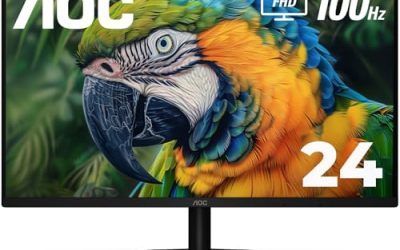
The best monitor for an iBUYPOWER gaming PC is the one that matches the graphics card inside it: a 27-inch 1440p monitor at 165 to 240 Hz suits most mid-range iBUYPOWER builds, a 1080p 144 to 180 Hz panel suits entry-level builds, and a 4K 144 Hz or 1440p OLED suits RTX 5080 or RTX 5090 class systems. iBUYPOWER is a system builder, not a monitor maker, so any standard DisplayPort or HDMI monitor works. What matters is plugging into the graphics card rather than the motherboard, and picking a resolution your GPU can drive at the refresh rate you paid for.
As an Amazon Associate we earn from qualifying purchases at no extra cost to you.


Top 3 picks at a glance
Step 1: Plug into the right port
On an iBUYPOWER pre-built, the graphics card sits in the lower part of the rear panel, and the motherboard’s video outputs sit higher up, usually covered by a plate or left empty. Connect the monitor to a port on the graphics card. If you plug into the motherboard, the monitor will either show nothing or run from the integrated graphics at far lower performance. Then open Windows display settings and confirm the refresh rate is set to the monitor’s maximum, because Windows often defaults to 60 Hz.
Step 2: Match the monitor to the GPU class
iBUYPOWER ranges from entry builds with RTX 5050 or RTX 5060 class cards through RTX 5070 and RTX 5070 Ti to enthusiast systems with the RTX 5080 and RTX 5090, as well as AMD Radeon options. Rather than guess, use the table below to map your card to a sensible monitor.
| Graphics card class | Best resolution | Refresh target | Example monitor class | Price range |
|---|---|---|---|---|
| RTX 5050 / 5060 or RX 7600 class | 1080p | 144-180 Hz | 24-27 inch IPS or VA, such as an Acer Nitro or Samsung Odyssey G3 class | Usually $120-$220 |
| RTX 5060 Ti / 5070 or RX 9060 XT class | 1440p | 165-240 Hz | 27-inch QHD IPS, such as a Samsung Odyssey G5 or MSI MAG 274QRF-QD class | Usually $200-$350 |
| RTX 5070 Ti / RX 9070 XT class | 1440p high refresh or 4K 60-120 Hz | 240 Hz QHD or 4K 144 Hz | 27-inch QHD OLED or 4K IPS | Usually $350-$700 |
| RTX 5080 / 5090 class | 4K | 144-240 Hz | 27-32 inch 4K OLED or high-end 4K IPS, such as an Alienware or ASUS ROG Swift OLED class | Usually $600-$1,200 |
Best overall: 27-inch 1440p IPS at 165 to 240 Hz
This is the sweet spot for most iBUYPOWER systems. At 27 inches, 1440p has about 109 pixels per inch, so text is clear without scaling, and a mid-range GPU can usually hold high frame rates in esports and well-optimized titles. Models in the class of the Samsung Odyssey G5, MSI MAG 274QRF-QD and Acer Nitro XV272U are widely cited by reviewers as good-value 1440p gaming panels. The trade-off compared with OLED is lower contrast and visible black glow in dark rooms.
Best budget: 24 to 27-inch 1080p at 144 to 180 Hz
If your iBUYPOWER build uses an entry-level card, a fast 1080p screen is the efficient pick. Spending the saved money on the PC is wiser than buying a 1440p panel the GPU cannot fill. A 1080p 27-inch panel has about 82 pixels per inch, which looks softer, so a 24-inch screen at about 92 pixels per inch is sharper for the same resolution.
Best for image quality: 27-inch 1440p OLED
QD-OLED and WOLED gaming monitors such as the LG UltraGear OLED models and ASUS ROG Swift OLED line, plus Alienware’s 27-inch OLED, deliver near-instant pixel response and true blacks. The trade-offs are higher prices, a risk of burn-in with static elements, and automatic brightness limiting in bright scenes. They suit RTX 5070 Ti and higher systems.
Best for high-end systems: 4K at 144 Hz or more
An RTX 5080 or RTX 5090 can drive 4K at high frame rates in many games, especially with DLSS upscaling and frame generation. A 27 to 32-inch 4K panel gives about 140 to 163 pixels per inch. Make sure the monitor has DisplayPort 1.4 with DSC or DisplayPort 2.1 and that the graphics card has a port that supports the full refresh rate.
Worked example: bandwidth check for cable choice
Before you buy a cable, calculate the bandwidth. Raw pixel data equals width times height times refresh rate times bits per pixel. For 2560 x 1440 at 240 Hz with 8-bit color (24 bits per pixel): 2560 x 1440 = 3,686,400 pixels, times 240 = 884.7 million pixels per second, times 24 bits = about 21.2 Gbps. Adding about 20 percent for blanking overhead brings it to roughly 25 Gbps. DisplayPort 1.4 carries about 25.9 Gbps of usable data, so 1440p at 240 Hz fits without compression. For 4K at 144 Hz: 3840 x 2160 x 144 x 24 = about 28.7 Gbps, plus overhead roughly 34 Gbps. That exceeds DisplayPort 1.4 and needs Display Stream Compression, HDMI 2.1 (about 42 Gbps usable) or DisplayPort 2.1.
| Resolution and refresh | Approx. data rate | Cable that works |
|---|---|---|
| 1920×1080 at 144 Hz | about 8 Gbps | HDMI 2.0 or DisplayPort 1.2 |
| 2560×1440 at 165 Hz | about 17 Gbps | DisplayPort 1.4 or HDMI 2.1 |
| 2560×1440 at 240 Hz | about 25 Gbps | DisplayPort 1.4 |
| 3840×2160 at 120 Hz | about 28 Gbps | HDMI 2.1 or DisplayPort 1.4 with DSC |
| 3840×2160 at 144 Hz | about 34 Gbps | HDMI 2.1, DSC or DisplayPort 2.1 |
Step 3: Choose the panel type for how you play
- IPS. Wide viewing angles, good color, fast response. The best general-purpose choice.
- VA. Higher native contrast, curved options, but slower dark transitions that can smear in fast games.
- OLED. The fastest pixel response and best HDR, with burn-in precautions and higher cost.
- Mini-LED. Excellent HDR brightness with local dimming zones; blooming can show around small bright objects.
Step 4: Check the features that matter
- Adaptive sync. Pick a monitor listed as G-Sync Compatible or FreeSync Premium; it works with both NVIDIA and AMD cards in iBUYPOWER systems.
- Ports. At least one DisplayPort and one HDMI 2.1 port. HDMI 2.1 matters for consoles too.
- Stand. Height adjustment and VESA mount support help posture and desk space.
- Response time. Manufacturers quote gray-to-gray figures under their best settings, so use them as a rough guide only.
Settings to apply after plugging in
Open the NVIDIA Control Panel or AMD Software and confirm the resolution and refresh rate match the panel. Enable the monitor’s adaptive sync in its on-screen menu, then enable G-Sync or FreeSync in the driver. Cap the frame rate a few frames below the maximum refresh, for example 237 fps on a 240 Hz panel, to keep adaptive sync active and reduce input lag. In the monitor menu, turn on the overdrive mode that avoids overshoot, usually the middle setting.
Frequently Asked Questions
Does iBUYPOWER sell its own monitors?
iBUYPOWER mainly sells PCs and may offer monitors from other brands as add-ons. Any standard monitor from another maker works with an iBUYPOWER PC, so you are free to shop on price and features.
Which port should I use on an iBUYPOWER PC?
Use a DisplayPort or HDMI port on the graphics card, located lower on the rear panel. The motherboard’s ports are tied to the integrated graphics, so a monitor plugged in there will not use the GPU.
Is 1440p or 4K better for an RTX 5070 system?
1440p is the better match for most RTX 5070 class systems, because it holds high refresh rates in many current games. 4K is possible with upscaling, but frame rates fall and you may need to lower settings.
Do I need a 240 Hz monitor?
Only if your PC can push frame rates near that figure, which usually means competitive shooters at medium settings. For single-player games at 80 to 120 fps, a 144 or 165 Hz monitor feels nearly as smooth and costs less.
Is OLED safe for desktop use with a gaming PC?
Yes, with sensible habits. Use a dark taskbar, enable the panel’s pixel-refresh feature, and avoid leaving static windows on screen for hours. Most manufacturers include burn-in warranties, so check the terms before buying.
Related guides
More from Amazon
Programs that pair well with the guide above. Offers and eligibility are set by Amazon and may change.
A free business account with business pricing and bulk-buying tools for work, shop or home office.
Create a business accountFree shipping on eligible items, Prime Video and more. Eligible new members can start with a free trial.
Start a Prime free trialAudiobooks and podcasts to listen to on the go. Eligible new members can start with a free trial.
Try Audible freeAd-free music streaming. Eligible new subscribers can start with a free trial.
Try Music Unlimited freeAs an Amazon Associate we earn from qualifying purchases.