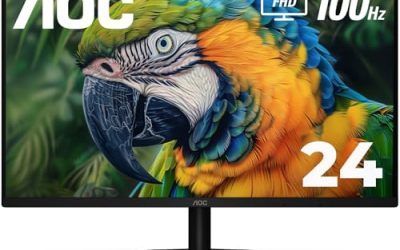
The best 4K monitor for camera work is a factory-calibrated 27-inch IPS panel that covers close to 100 percent of sRGB and ideally 95 percent or more of DCI-P3, with a Delta E under 2 and a USB-C connection for laptops. Photographers and videographers who edit footage from their cameras care about accurate color and sharp detail far more than refresh rate, so professional-oriented models from BenQ, ASUS ProArt, Dell UltraSharp and LG lead this category.
What “camera monitor” should mean for a desk setup
Searches for 4K camera monitors usually point to a desktop screen for reviewing and editing photos and video shot on a camera. On-camera field monitors are a separate product class used on a rig. This guide covers desktop displays for editing 4K footage and high-resolution stills. A 4K panel at 27 inches shows about 163 pixels per inch, which makes a 24-megapixel image (6000 × 4000) display at roughly 1.4 times smaller than full size when fit to the screen height, so you still zoom in to check focus but see a clean full-frame preview.
Quick comparison
| Pick | Best for | Key specs | Price range |
|---|---|---|---|
| BenQ SW271C | Photo editing and print work | 27-inch 4K IPS, Adobe RGB, hardware calibration, USB-C | Usually $1,000–$1,300 |
| ASUS ProArt PA279CRV | Best overall for video and photo | 27-inch 4K IPS, wide DCI-P3 coverage, factory calibrated, USB-C | Usually $500–$800 |
| Dell UltraSharp U2723QE | Mixed office and editing | 27-inch 4K IPS Black panel, strong contrast, USB-C hub | Usually $500–$750 |
| LG UltraFine/UltraGear 4K 27-inch class | Budget accurate color | 4K IPS, sRGB-focused, basic stand | Usually $300–$450 |
| 32-inch 4K IPS class | Timeline-heavy video editing | More desktop space, same pixel density as 27-inch 5K alternatives is not matched | Usually $500–$1,000 |
Best overall: ASUS ProArt PA279CRV
ProArt models are built for creators, with factory calibration reports, wide gamut coverage and USB-C power delivery. Per the manufacturer’s spec sheet, this class covers nearly all of DCI-P3, which suits video grading for web and cinema-style delivery. The trade-off is a standard 60 Hz refresh and a modest peak brightness, so it will not double as a HDR editing display.
Best for photographers who print: BenQ SW271C
The SW series adds Adobe RGB coverage and hardware calibration, which stores the correction in the monitor instead of the computer. That matters if you want prints to match the screen. The trade-off is price, and the monitor includes extras such as a shading hood that some buyers do not need.
Best all-rounder: Dell UltraSharp U2723QE
An IPS Black panel gives deeper blacks than ordinary IPS, with contrast typically around 2000:1 according to the manufacturer. It also has a built-in USB-C hub with Ethernet, which tidies a laptop-based workflow. The trade-off is that the color gamut is not as wide as dedicated creator models.
Best budget: a 27-inch 4K IPS monitor with sRGB coverage
If you publish mainly for the web, a lower-cost 4K IPS monitor covering about 99 percent of sRGB is enough. Calibrate it with a colorimeter to remove any factory variation. You give up wide-gamut coverage and often get a plain stand without height adjustment.
Best for video timelines: a 32-inch 4K IPS monitor
A 32-inch 4K screen offers around 138 pixels per inch and more room for timelines, bins and scopes in editing software. The trade-off is a larger footprint and slightly less sharp text than a 27-inch panel.
How to choose with numbers
Worked example: bandwidth for 4K
A 3840 × 2160 image at 60 Hz with 10-bit color needs roughly 3840 × 2160 × 60 × 30 bits, about 14.9 Gbit/s of pixel data before overhead. HDMI 2.0 provides 18 Gbit/s total, and DisplayPort 1.4 provides about 25.9 Gbit/s of usable bandwidth, so DisplayPort or USB-C with DisplayPort alt mode handles 10-bit 4K60 comfortably. A cheap HDMI cable on an older port can force 8-bit color or a lower refresh rate, which matters when grading footage.
Which color spec matters for you
| Your work | Target gamut | Accuracy target |
|---|---|---|
| Web and social photos | 99% sRGB | Delta E under 3 |
| Video grading for streaming | 95%+ DCI-P3 | Delta E under 2 |
| Print photography | 95%+ Adobe RGB, hardware calibration | Delta E under 2 |
| Casual editing and gaming | sRGB is enough | Factory calibration helpful |
Setup tips for accurate color
- Set the monitor to its sRGB or DCI-P3 mode instead of a vivid default, because the preset clamps colors to the target standard.
- Lower brightness to about 100 to 120 nits for editing in a dim room, since a bright screen makes edits look darker on other displays.
- Set white point to 6500 K, the standard for most photo and video work.
- Calibrate with a colorimeter every month or two, as panels drift over time.
- Use a hood or neutral wall color to limit reflections that skew perceived contrast.
Common mistakes
- Choosing a gaming monitor with oversaturated colors and no calibration for an editing desk.
- Ignoring the video cable and port, which limits bit depth or refresh rate.
- Buying 4K at 24 inches, where scaling makes text and tools small unless you use 150 percent scaling.
- Assuming a high HDR badge means accurate HDR editing. Entry-level HDR labels usually lack the brightness and local dimming needed for true grading.
Viewing distance and scaling at 4K
At 27 inches, sit about 60 to 80 cm from the screen. At that distance Windows scaling of 125 to 150 percent keeps interface text comfortable, and macOS handles scaling smoothly on a 4K panel. A 32-inch monitor works best at 70 to 90 cm. If you run scaling at 100 percent on a 27-inch 4K panel, menus and timeline controls in editing software become very small, so most people settle on 125 or 150 percent. Cameras that record 4K video at 24, 25 or 30 frames per second play back smoothly on a 60 Hz monitor, but footage at 50 or 60 frames per second also needs the 60 Hz mode to be active, which depends on the cable and port you use.
Panel technology notes
IPS panels dominate this category because they keep color stable from side angles, which helps when a client looks over your shoulder. OLED monitors offer excellent contrast and are appearing in creator lines, but they can show burn-in risk with static timelines and toolbars, and their peak brightness is limited in bright rooms. Mini-LED panels add local dimming for HDR previews, though blooming around bright objects can distract during grading. For most editors, a well-calibrated IPS panel remains the practical choice, and any of these technologies should be judged by the manufacturer’s published color coverage and calibration report rather than by the marketing name.
Frequently Asked Questions
Is 4K necessary for photo editing?
It is not required, but it helps. A 4K panel shows about 8.3 million pixels, enough to preview a 24-megapixel image at near full detail, and it makes video footage from modern cameras display at native resolution.
Do I need a 10-bit monitor?
For grading video and editing gradients without banding, a 10-bit or 8-bit plus FRC panel is better. Many creator monitors list 1.07 billion colors, which indicates 10-bit support.
What size is best for a 4K editing monitor?
27 inches is the common balance of sharpness and desk space. Choose 32 inches if you work with large timelines and sit a bit farther from the screen.
Can a laptop drive a 4K monitor?
Most recent laptops can, through USB-C with DisplayPort alt mode or HDMI 2.0 and newer. Check the port specification, because some older laptop ports are limited to 4K at 30 Hz.
Should I buy an on-camera monitor instead?
Only if you shoot on a rig and need a bright screen for focus and framing. For editing at a desk, a calibrated 4K display is the correct tool.
Related guides
More from Amazon
Programs that pair well with the guide above. Offers and eligibility are set by Amazon and may change.
A free business account with business pricing and bulk-buying tools for work, shop or home office.
Create a business accountFree shipping on eligible items, Prime Video and more. Eligible new members can start with a free trial.
Start a Prime free trialAudiobooks and podcasts to listen to on the go. Eligible new members can start with a free trial.
Try Audible freeAd-free music streaming. Eligible new subscribers can start with a free trial.
Try Music Unlimited freeAs an Amazon Associate we earn from qualifying purchases.