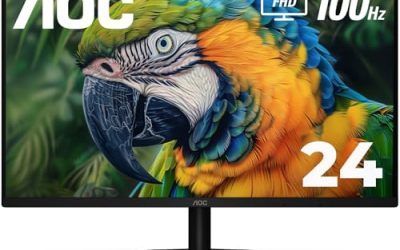
The best 28-inch UHD monitor in 2026 is a 3840×2160 IPS panel with a 144 Hz refresh rate and HDMI 2.1, because that mix keeps text sharp at roughly 157 pixels per inch while still giving a modern GPU something worth driving. If you only work and watch video, a 60 Hz office-grade 28-inch 4K panel at a lower price is the smarter buy. The 28-inch size is the sweet spot for desk depth of 60-80 cm, where 4K detail is visible without needing to scale the interface above 150 percent.
Quick comparison of the best 28-inch 4K picks
| Pick | Best for | Key specs | Typical price range |
|---|---|---|---|
| Samsung Odyssey G7 28-inch (G70B class) | Best overall for gaming | IPS, 3840×2160, 144 Hz, HDMI 2.1, 1 ms GtG claimed | Usually $450-$650 |
| Gigabyte M28U | Best value for high refresh | SS IPS, 3840×2160, 144 Hz, HDMI 2.1, KVM switch | Usually $400-$550 |
| Acer Nitro XV282K class | Best for competitive play plus color | IPS, 3840×2160, 144 Hz, DisplayPort 1.4 with DSC, wide gamut | Usually $450-$650 |
| Generic 28-inch 4K 60 Hz IPS/VA | Best budget and office use | 3840×2160, 60 Hz, HDMI 2.0, DisplayPort 1.2 | Usually $230-$350 |
| Color-managed 28-inch 4K creator monitor | Best for photo and video work | IPS, 3840×2160, 99 percent sRGB or better, factory calibration report | Usually $500-$900 |
Model lineups change often, so treat the named products as examples of a spec class. Always confirm the exact panel, refresh rate and ports on the manufacturer’s spec sheet before buying.
Best overall: a 144 Hz IPS 28-inch with HDMI 2.1
Samsung’s 28-inch Odyssey G7 (the G70B generation) is the reference for this class: an IPS panel, 144 Hz, HDMI 2.1 for consoles and a height-adjustable stand. It suits players who split time between a PC and a PS5 or Xbox Series X, since HDMI 2.1 allows 4K at 120 Hz on consoles. The main trade-off is that IPS contrast sits around 1000:1 per the manufacturer’s figures, so dark scenes look gray compared with a VA or OLED panel, and the HDR support is basic rather than true HDR performance.
Best value: Gigabyte M28U
The Gigabyte M28U packs a 144 Hz 4K IPS panel, HDMI 2.1 and a built-in KVM switch that lets one keyboard and mouse control two computers. It is usually priced a bit under the Samsung, which makes it the pick if your budget is fixed. The trade-offs are a plain stand with limited height adjustment and an OSD menu that is slower to navigate than the competition. If you plan to use a monitor arm, that stand compromise disappears because the VESA 100×100 mount is standard.
Best for competitive and mixed use: Acer Nitro XV282K class
Monitors in the Acer Nitro XV282K class are aimed at players who want 144 Hz at 4K plus a wide color gamut near 90 percent DCI-P3 and VRR support for both Nvidia and AMD cards. They typically include DisplayPort 1.4 with Display Stream Compression, so you can reach the full refresh rate over a single cable. The downside is that DSC can block certain features on some Nvidia drivers, such as running DSR resolutions at full refresh, and the stand is basic.
Best budget: 28-inch 4K at 60 Hz
If you mainly write, code, edit spreadsheets or stream video, a 60 Hz 28-inch 4K panel gives you the same sharpness as the expensive models for $230-$350. It also asks far less of your graphics card: a modest GPU can run desktop work and older games at 4K without sweating. The trade-off is clear. Moving a mouse at 60 Hz feels visibly less smooth than at 144 Hz, and these monitors rarely include HDMI 2.1, so console owners are limited to 4K at 60 Hz.
Best for creators: factory-calibrated 28-inch 4K
For photo editing and color grading, look for 99 percent or better sRGB coverage, a delta E of 2 or less out of the box, and a calibration report in the box. Panels in this class often skip high refresh rates, so the money goes to uniformity and color accuracy. The trade-off is that you pay $500-$900 for a monitor that is a weaker choice for fast shooters.
Worked calculation: can your GPU and cable drive it?
A 4K signal at 144 Hz is a lot of data. The raw calculation for 8-bit color is:
- Pixels per frame: 3840 x 2160 = 8,294,400
- Bits per pixel at 8-bit RGB: 24
- At 144 Hz: 8,294,400 x 24 x 144 = about 28.7 Gbps of pixel data, before blanking overhead
DisplayPort 1.4 carries about 25.9 Gbps of usable bandwidth (HBR3), so 4K 144 Hz does not fit uncompressed and relies on DSC, which the monitor and GPU both have to support. HDMI 2.1 offers up to 48 Gbps raw, which handles 4K 144 Hz with room to spare. The practical rule: use HDMI 2.1 if both your GPU and cable support it, and use a certified “Ultra High Speed” HDMI cable or a VESA-certified DisplayPort 1.4 cable otherwise. A 60 Hz 4K signal needs only about 12 Gbps raw, which is why 60 Hz panels work on older HDMI 2.0 ports.
Pixel density at 28 inches
The diagonal of a 3840×2160 panel is sqrt(3840^2 + 2160^2) = about 4,406 pixels. Dividing by 28 inches gives roughly 157 PPI. A 27-inch 1440p monitor is about 109 PPI and a 32-inch 4K is about 138 PPI. That jump in density is why 28-inch 4K text looks crisp, but it also means Windows scaling matters. At 100 percent scale, UI elements are small, so most users run 125 or 150 percent. At 150 percent the effective workspace is 2560×1440 with sharper edges.
What GPU do you need for 4K gaming?
| Goal | GPU class | VRAM guidance | Typical expectation |
|---|---|---|---|
| 4K desktop, video, older games | Entry or integrated modern graphics | 4-8 GB | 60 Hz fine, light games at low settings |
| 4K 60 fps in modern titles with upscaling | Upper mid-range GPU | 12 GB or more | DLSS, FSR or XeSS in Quality mode is usually needed |
| 4K high settings near 100 fps | High-end GPU | 16 GB or more | Depends heavily on the game, patch and ray tracing |
| 4K 144 fps in esports titles | Mid to high-end GPU | 8-12 GB | Lighter engines scale well, results vary by title |
FPS depends on settings, resolution, CPU and the game patch, so published reviews show wide ranges. As a rule of thumb, 4K asks for about 2.25 times the pixel work of 1440p and 4 times that of 1080p, which is why upscaling is part of almost every 4K plan.
How to choose: a decision matrix
| Your situation | Choose | Why |
|---|---|---|
| PC gamer with a recent high-end GPU | 144 Hz IPS with HDMI 2.1 or DP 1.4 plus DSC | You can use the refresh rate the panel offers |
| PC plus PS5 or Xbox Series X | HDMI 2.1 model | Needed for 4K 120 Hz on consoles |
| Office, coding, streaming | 60 Hz 4K IPS | Sharp text at the lowest price |
| Photo and video editing | Calibrated IPS with 99 percent sRGB | Accuracy matters more than refresh rate |
| Dark room, movies, high contrast | VA or OLED class if budget allows | IPS contrast is lower |
| Laptop as the main source | USB-C with DisplayPort Alt Mode and power delivery | One cable for video and charging |
Checks before you buy
- Confirm the panel is true 3840×2160 and not a stretched 1440p mode.
- Check VRR support: G-Sync Compatible or FreeSync Premium appears on the spec sheet, and the VRR range should reach 48 Hz or lower.
- Look at the stand: height, tilt and pivot adjustment matter more than most buyers expect on a 28-inch screen.
- Look up the manufacturer’s brightness figure: 300 nits is fine for indoor use, while 400 nits or more helps in bright rooms.
- Check the return policy for dead pixels, since a few units in every batch have them.
Frequently Asked Questions
Is 28 inches too small for 4K?
No. At about 157 PPI, 28-inch 4K produces very sharp text and images, and most people run Windows scaling at 125 to 150 percent. If you prefer larger interface elements without scaling, a 32-inch 4K at 138 PPI is the alternative.
Do I need HDMI 2.1 on a 28-inch 4K monitor?
You need it if you want 4K at 120 Hz or higher from a console, or from a PC graphics card that does not use DisplayPort. A PC with a modern GPU can use DisplayPort 1.4 with DSC instead. For 60 Hz desktop use, HDMI 2.0 is enough.
Is 144 Hz worth it at 4K?
Only if your GPU can produce well above 60 fps in the games you play. For esports and older titles it can, and the extra smoothness is noticeable even on the desktop. For demanding single-player games, many players cap at 60 to 90 fps and gain more from a higher-quality panel.
IPS, VA or OLED for a 28-inch 4K?
IPS is the most common option and balances color, viewing angles and response time. VA offers better contrast but can smear in fast motion. OLED panels give the best contrast and response times but cost more and have burn-in considerations, so check the warranty terms.
Will a 28-inch 4K monitor work with a laptop?
Yes. Use HDMI or a USB-C port that supports DisplayPort Alt Mode. Check that your laptop can output 4K at the refresh rate you want, as some older models are limited to 4K at 30 Hz over HDMI 1.4.
Related guides
More from Amazon
Programs that pair well with the guide above. Offers and eligibility are set by Amazon and may change.
A free business account with business pricing and bulk-buying tools for work, shop or home office.
Create a business accountFree shipping on eligible items, Prime Video and more. Eligible new members can start with a free trial.
Start a Prime free trialAudiobooks and podcasts to listen to on the go. Eligible new members can start with a free trial.
Try Audible freeAd-free music streaming. Eligible new subscribers can start with a free trial.
Try Music Unlimited freeAs an Amazon Associate we earn from qualifying purchases.