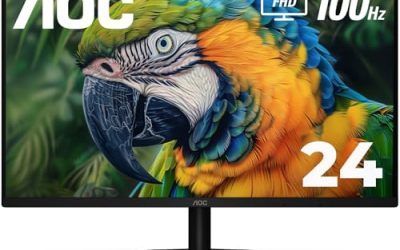
The best 4K desktop monitor for most people in 2026 is a 27-inch or 32-inch IPS panel with 4K resolution, around 400 nits of brightness and USB-C connectivity if you work as much as you play, or a 4K 144 Hz gaming IPS or OLED panel if frame rate matters most. At 27 inches, 4K gives roughly 163 pixels per inch, which is sharp enough that text looks print-like; at 32 inches it drops to about 138 PPI, which is the sweet spot for desk distance and Windows scaling. Below, the picks are grouped by use, followed by the maths on cables and graphics power that many buyers miss.
Quick comparison of the 4K monitor picks
| Pick | Best for | Key specs | Price range |
|---|---|---|---|
| Dell UltraSharp U2725QE class (27-inch IPS Black) | Best overall for work and general use | 3840×2160, 120 Hz, USB-C hub, about 2000:1 contrast | usually $550-$750 |
| 32-inch 4K 144 Hz gaming IPS, such as the Gigabyte M32U class | Best for gaming on an LCD | 144 Hz, HDMI 2.1, KVM, about 350 nits | usually $450-$700 |
| LG UltraGear 32GS95UE class OLED | Best image quality and motion | 32-inch OLED, 4K up to 240 Hz, dual-mode 1080p higher refresh | usually $900-$1,300 |
| 27-inch 4K 60 Hz IPS office panel | Best budget | 3840×2160, sRGB 99 percent, DisplayPort and HDMI | usually $250-$380 |
| Color-accurate creator monitor, such as the ASUS ProArt class | Best for photo and video | factory calibration, wide gamut, Delta E under 2 | usually $450-$900 |
The specs listed follow the manufacturers’ published sheets for each product class. Models are refreshed often, so check the current revision for the exact refresh rate, ports and panel type.
Best overall: a 27-inch 4K IPS with USB-C
Monitors such as the Dell UltraSharp U2725QE series use a newer IPS Black type of panel that roughly doubles the contrast of traditional IPS, which is why dark scenes and text on a dark theme look cleaner. They add a USB-C or Thunderbolt hub, so one cable can carry video, 90 W-class laptop charging and peripherals. Who it suits: office and creative users, and casual gamers who are happy with 60 to 120 Hz. The trade-off is price, and refresh rate that tops out below dedicated gaming panels.
Best for gaming on LCD: 32-inch 4K 144 Hz IPS
Gaming-focused 4K IPS panels such as the Gigabyte M32U class offer 144 Hz, HDMI 2.1 for consoles and a built-in KVM switch. They are the cost-effective route to high refresh at 4K. The trade-offs are modest HDR, since most only reach about 350 to 400 nits with no local dimming, and the graphics card required: at 4K, a 144 Hz target needs a card in the RTX 5070 Ti or RX 9070 XT range or better, or heavy use of upscaling.
Best image quality: 4K OLED gaming monitors
OLED panels like the LG UltraGear 32GS95UE class deliver near-instant pixel response, true blacks and strong HDR. Some offer a dual-mode feature that switches to 1080p at a much higher refresh rate for competitive shooters. The trade-offs are cost, possible burn-in if the same static elements are shown for thousands of hours, and text clarity that can look slightly softer on some subpixel layouts. Use the panel-care features supplied by the manufacturer, such as pixel shifting and screen savers, and avoid static taskbars at full brightness.
Best budget: 27-inch 4K 60 Hz IPS
A plain 4K 60 Hz IPS monitor is the lowest-cost way to a sharp desktop. It covers about 99 percent of sRGB, runs from a modest graphics card, and works well for coding, spreadsheets, photo viewing and video. The trade-off is 60 Hz, which feels slower than 144 Hz in fast games and even in mouse movement, so it is a poor choice for a gamer.
Best for creators: factory-calibrated wide gamut
Creator monitors such as the ASUS ProArt line ship with calibration reports, cover 95 to 100 percent of DCI-P3 or Adobe RGB and keep colour error under a Delta E of 2. They suit photo editing, video grading and design work. Gaming performance is usually secondary, with 60 to 75 Hz common.
How to choose: size, scaling and cable maths
Pixel density determines how big text and interface elements appear. Pixels per inch equals the diagonal pixel count divided by diagonal size. A 4K panel has about 4,405 pixels along its diagonal.
| Screen size | PPI at 4K | Recommended Windows scaling | Comfortable viewing distance |
|---|---|---|---|
| 27 inch | about 163 | 150 percent | 60-80 cm |
| 28 inch | about 157 | 150 percent | 60-80 cm |
| 32 inch | about 138 | 125-150 percent | 70-90 cm |
| 43 inch | about 103 | 100 percent | 90-120 cm |
Worked bandwidth example
The video signal needs raw bandwidth of pixels times refresh rate times bits per pixel. For 4K at 144 Hz with 10-bit colour (30 bits per pixel): 3840 x 2160 x 144 x 30 gives about 35.8 Gbit/s, plus blanking overhead which brings the real figure near 40 Gbit/s. HDMI 2.1 provides up to 48 Gbit/s and DisplayPort 1.4 provides about 25.9 Gbit/s of usable bandwidth, so DisplayPort 1.4 needs Display Stream Compression to reach 4K 144 Hz at high bit depth. Plain 4K 60 Hz at 8-bit is only about 12 Gbit/s and works on almost any modern cable. The lesson: buy certified HDMI 2.1 or DisplayPort 1.4 or later cables for high refresh rates and verify that your graphics card has the matching output.
Worked GPU example
Moving from 1440p to 4K increases the pixel count from 3.69 million to 8.29 million, a factor of 2.25. If a graphics card renders a game at about 120 fps at 1440p, expect a result roughly in the 55 to 70 fps range at native 4K, varying with the game, settings and CPU. Upscalers like DLSS, FSR and XeSS render at a lower internal resolution and recover much of that loss.
Checklist before buying
- Pick the size: 27 inch for sharpness, 32 inch for immersion and easier text.
- Match your use: 60 Hz is fine for work, but choose 120 Hz or more for gaming.
- Check ports: HDMI 2.1 for consoles, DisplayPort for PC, USB-C with power delivery for laptops.
- Look at panel type: IPS for balanced colour, OLED for contrast and motion, VA for contrast at a lower price.
- Check stand adjustability, VESA 100 x 100 support, and the manufacturer’s dead-pixel and burn-in warranty terms.
Settings to apply after setup
Set the monitor to its native 3840×2160 resolution and the highest refresh rate your cable allows in the operating system’s display settings; many monitors default to 60 Hz after first connection. Turn on variable refresh rate (FreeSync or G-Sync Compatible) in the monitor menu and graphics driver, and cap frame rate a few frames under the maximum refresh to stay inside the variable range. For HDR, enable it in Windows only for games and video that support it, since desktop SDR content can look washed out on some panels. If colours look oversaturated on a wide-gamut screen, choose the sRGB mode in the on-screen menu for everyday work.
Frequently Asked Questions
Is 4K worth it on a 27-inch monitor?
Yes, if you value text sharpness and fine detail. At 163 PPI the difference from 1440p is clearly visible in text and photos, though in fast games you may prefer a 1440p 240 Hz monitor for frame rate.
What graphics card do I need for 4K gaming?
For 60 fps in most modern games, a mid-to-high-end card such as the RTX 5070 or RX 9070 class is a sensible starting point, usually with upscaling enabled. For 120 fps or higher at native 4K you need a flagship-class card.
Is a 4K monitor good for productivity?
Very. The extra pixels give room for several windows side by side, and with scaling set to 125 or 150 percent, text stays readable. USB-C docking models also reduce cable clutter.
Do I need HDMI 2.1 for 4K?
Only for 4K at 120 Hz or higher over HDMI, which includes current consoles. For 4K 60 Hz, HDMI 2.0 is enough, and many PC users use DisplayPort instead.
Should I get 4K or 1440p for gaming?
If your graphics card is mid-range and you want 144 Hz or more, 1440p is the easier target. Choose 4K when you have a strong GPU, play visually rich single-player games, or use the screen for work and media as well.
Related guides
More from Amazon
Programs that pair well with the guide above. Offers and eligibility are set by Amazon and may change.
A free business account with business pricing and bulk-buying tools for work, shop or home office.
Create a business accountFree shipping on eligible items, Prime Video and more. Eligible new members can start with a free trial.
Start a Prime free trialAudiobooks and podcasts to listen to on the go. Eligible new members can start with a free trial.
Try Audible freeAd-free music streaming. Eligible new subscribers can start with a free trial.
Try Music Unlimited freeAs an Amazon Associate we earn from qualifying purchases.