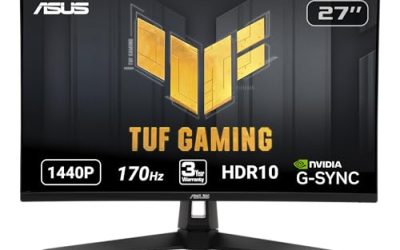
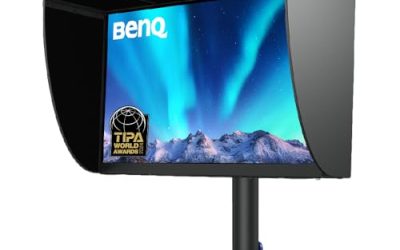
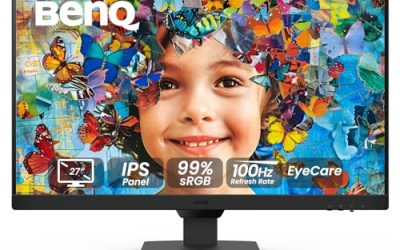
The best 4K gaming monitor for most people in 2026 is a 27 to 32-inch 4K panel running at 144 to 240 Hz with HDMI 2.1 or DisplayPort 1.4 with DSC, and your choice between QD-OLED and fast IPS or mini-LED comes down to black levels versus brightness and burn-in risk. To run it well you need a graphics card in the RTX 4070 Ti or RX 7900 XT class or newer, because 4K pushes about 2.25 times as many pixels as 1440p.
Quick comparison: the picks by spec class
| Pick | Best for | Key specs | Typical price |
|---|---|---|---|
| Best overall | Mixed gaming and media | 32″ 4K QD-OLED, 240 Hz, 0.03 ms response, HDR | $900–$1,300 |
| Best value | Budget 4K | 27–32″ 4K IPS, 144 Hz, HDMI 2.1, HDR400 | $350–$550 |
| Best for bright rooms | HDR and daytime use | 32″ mini-LED 4K, 144–160 Hz, 1,000+ nits, local dimming | $700–$1,200 |
| Best for esports and 4K | High refresh | 27″ 4K 240 Hz with dual-mode 1080p 480 Hz | $900–$1,100 |
| Best large format | Console and desk TV | 42–48″ 4K OLED, 120–138 Hz, HDMI 2.1 | $700–$1,300 |
Specific model lineups from Samsung, LG, ASUS, MSI, Gigabyte, Dell/Alienware, Sony and others rotate every year, so this guide focuses on the spec classes to look for. Check the manufacturer’s spec sheet for exact numbers.
Best overall: 32-inch 4K QD-OLED at 240 Hz
QD-OLED panels combine near-instant pixel response with true blacks and wide color, covering roughly 99 percent of DCI-P3 in manufacturer specifications. Motion clarity is excellent, and a 240 Hz refresh at 4K is available on newer models. The trade-offs are cost, text fringing on some subpixel layouts, lower full-screen brightness than mini-LED, and the long-term risk of burn-in from static elements, which is why most makers include pixel shifting and warranties that cover it. If you game in a dim room and watch movies, this is the most impressive class.
Best value: 4K IPS at 144 Hz
A fast IPS panel with HDMI 2.1 and 144 Hz is the practical way into 4K gaming. IPS offers a contrast ratio around 1,000:1, so blacks look gray in dark rooms, and HDR400 labels are largely marketing without local dimming. But colors are accurate, there is no burn-in, and prices are the lowest. This class pairs well with a mid-range GPU that targets 60 to 100 FPS using upscaling.
Best for bright rooms: mini-LED with local dimming
Mini-LED backlights with hundreds of dimming zones reach 1,000 nits or higher in HDR, per VESA DisplayHDR 1000 certification, and avoid burn-in. The trade-off is blooming around bright objects on dark backgrounds, and prices that approach OLED. They are the better choice for sunlit rooms and for people who use the monitor for long productivity sessions.
Best for competitive play: dual-mode 4K/1080p
Some recent 27-inch panels offer a 4K 240 Hz mode and a 1080p mode that goes to 480 Hz. It lets you run single-player games at 4K and competitive shooters at a higher frame rate. It is a niche, expensive feature, but it suits players who split their time.
Worked calculation: can your cable and GPU drive it?
The bandwidth needed for uncompressed video is width x height x refresh x bits per pixel. At 4K (3840 x 2160) and 144 Hz with 10-bit color (30 bits per pixel), that is 3840 x 2160 x 144 x 30 = about 35.8 Gbit/s before blanking overhead, which is more than DisplayPort 1.4’s roughly 25.9 Gbit/s of usable bandwidth. This is why many monitors rely on Display Stream Compression (DSC).
| Mode | Approx. raw data rate | Cable needed |
|---|---|---|
| 4K 60 Hz, 8-bit | about 12 Gbit/s | HDMI 2.0 or DP 1.2 |
| 4K 120 Hz, 10-bit | about 30 Gbit/s | HDMI 2.1 or DP 1.4 with DSC |
| 4K 144 Hz, 10-bit | about 36 Gbit/s | HDMI 2.1 or DP 1.4 with DSC |
| 4K 240 Hz, 10-bit | about 60 Gbit/s | DP 2.1 or HDMI 2.1 with DSC |
HDMI 2.1 supports up to 48 Gbit/s, and DisplayPort 2.1 UHBR20 supports 80 Gbit/s per the VESA specification. Use the cable included with the monitor or a certified one, and enable DSC in the monitor menu if it is optional.
What GPU do you need?
Frame-rate expectations depend on the game, settings and patch, so treat these as ranges. A mid-range card in the RTX 5070 or RX 9070 class commonly reaches around 60 to 90 FPS in demanding games at 4K with upscaling and high settings. A high-end card in the RTX 5080 or 5090 class can push 100 FPS and above, particularly with frame generation. Since 4K has so many pixels, the GPU is the bottleneck far more often than the CPU.
How to choose
- Size: 27 inches gives about 163 pixels per inch for crisp text; 32 inches gives about 138 PPI and a more immersive view; 42 inches and up is better for couch use.
- Panel type: OLED for contrast and motion, mini-LED for brightness, IPS for value, VA for contrast on a budget.
- Refresh rate: choose a refresh your GPU can reach. 144 Hz is the practical target at 4K for most.
- Ports: HDMI 2.1 is a must for consoles; DisplayPort 1.4 or 2.1 for PCs; a USB-C input with 65 to 90 W helps laptops.
- Adaptive sync: G-Sync Compatible or FreeSync Premium reduce tearing and stutter.
- HDR: look for DisplayHDR 600 minimum, 1000 or True Black 400 for OLED.
Settings to get the most from a 4K gaming monitor
- Set the refresh rate in Windows: open Advanced display settings and pick the highest rate, because the default is often 60 Hz after first connecting.
- Enable adaptive sync: turn on G-Sync Compatible or FreeSync in both the monitor menu and the GPU control panel, so frame pacing matches the refresh.
- Cap the frame rate slightly below refresh: a limit of 3 to 4 FPS under the maximum (for example 140 on a 144 Hz panel) keeps adaptive sync active and lowers latency.
- Calibrate HDR: use the Windows HDR Calibration app and set the in-game peak brightness to your panel’s measured nits, not the maximum slider.
- Use upscaling: DLSS Quality or FSR Quality renders internally near 1440p, which cuts the GPU load by roughly 40 percent while keeping a sharp 4K image.
Pixel density also affects scaling. At 32 inches, 4K runs comfortably at 125 to 150 percent Windows scaling, while a 27-inch panel usually needs 150 percent. Without scaling, text looks tiny, which surprises first-time buyers.
Frequently Asked Questions
Is 4K gaming worth it in 2026?
Yes, if you have a strong GPU and care about visual quality. With upscaling such as DLSS or FSR, 4K is more attainable than in the past, but 1440p at a high refresh rate is still easier and cheaper.
Is OLED safe from burn-in?
Modern OLED monitors reduce risk with pixel shifting, refresh cycles and logo dimming, and many carry warranties that cover burn-in. Heavy static use, such as a desktop taskbar for 10 hours a day, is the highest risk.
What size is best for a 4K gaming monitor?
27 inches suits close desks and sharp text, and 32 inches is the most popular size. Bigger panels work only if you sit farther back.
Do I need HDMI 2.1?
For consoles and 4K at 120 Hz on PC, yes. DisplayPort 1.4 with DSC is also fine for most PC setups.
Can a 4K monitor run 1440p well?
Yes, but scaling can look soft, so it is better to use integer scaling or upscaling from the GPU driver. Some monitors offer a 1440p mode at higher refresh rates.
Related guides
More from Amazon
Programs that pair well with the guide above. Offers and eligibility are set by Amazon and may change.
A free business account with business pricing and bulk-buying tools for work, shop or home office.
Create a business accountFree shipping on eligible items, Prime Video and more. Eligible new members can start with a free trial.
Start a Prime free trialAudiobooks and podcasts to listen to on the go. Eligible new members can start with a free trial.
Try Audible freeAd-free music streaming. Eligible new subscribers can start with a free trial.
Try Music Unlimited freeAs an Amazon Associate we earn from qualifying purchases.