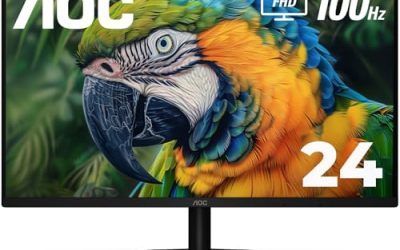
For a dual 4K setup, the best choice for most people is a pair of matching 27-inch 4K IPS monitors with USB-C or DisplayPort, because matching panels keep color and scaling consistent across both screens. Gamers should pick one 4K high-refresh monitor and a second 4K 60 Hz screen, but only after confirming that their graphics card has enough video outputs and bandwidth for both.
Quick comparison of dual 4K monitor picks
| Pick | Best for | Key specs | Typical price range |
|---|---|---|---|
| Dell U2723QE class (27-inch IPS Black) | Best overall for work and media | 3840×2160, 60 Hz, USB-C hub with 90 W charging, DisplayPort out for daisy chain | Usually $450-$650 each |
| Gigabyte M28U class (28-inch 4K gaming) | Best for gaming plus second screen | 3840×2160, 144 Hz, HDMI 2.1, KVM function | Usually $350-$500 each |
| LG 27US500 class (27-inch 4K budget IPS) | Best budget pair | 3840×2160, 60 Hz, HDR10 support, HDMI and DisplayPort | Usually $250-$350 each |
| ASUS ProArt PA279CRV class (27-inch color-accurate) | Best for photo and video editing | 3840×2160, wide gamut, factory color calibration, USB-C | Usually $450-$650 each |
| 32-inch 4K VA or IPS pair | Best for large desks and spreadsheets | 3840×2160, 60 to 144 Hz, bigger pixels at the same scaling | Usually $350-$800 each |
Best overall: matching 27-inch 4K IPS panels with USB-C
A 27-inch 4K panel gives about 163 pixels per inch, which is sharp enough that text looks smooth at 150 percent scaling. The Dell U2723QE class adds a USB-C connection that carries video, data and up to 90 watts of charging to a laptop through one cable. Per the manufacturer’s spec sheet, it also has DisplayPort output for daisy chaining a second display, which reduces cable clutter.
Who it suits: office users, programmers and laptop owners who plug into a dock. The trade-off is the 60 Hz refresh rate, which is fine for productivity but not for fast games.
Best for gaming plus work: one high-refresh 4K, one standard
A 28-inch 4K monitor running at 144 Hz, such as the Gigabyte M28U class, makes sense as the primary display. Pair it with a cheaper 4K 60 Hz side monitor for chat, browser and guides. The mismatch is acceptable because you look at the side screen less, and you save hundreds compared with two high-refresh panels.
The trade-off is GPU load. Running a game at 4K and 144 Hz demands a high-end graphics card, and a second monitor with video playing adds a small additional load. Games will need upscaling or lower settings on mid-range cards.
Best budget pair: 27-inch 4K 60 Hz IPS
Two entry-level 4K IPS monitors cost less than a single premium model. You get the sharp text and decent color of 4K, but you give up USB-C power delivery, height-adjustable stands and brightness above about 300 nits. Plan to add a monitor arm if the stand is fixed.
The trade-off is build quality and lower contrast, with IPS glow visible in dark rooms. For spreadsheets, coding and browsing, it is a strong value.
Best for creators: color-accurate 4K
Photo and video editors need factory calibration and wide gamut coverage. Panels in the ASUS ProArt class advertise full sRGB and high DCI-P3 coverage with a delta E under 2 calibration report, per the manufacturer’s spec sheet. Buying two of the same model makes the colors match across both screens, which is the main reason to choose a matched pair.
The trade-off is price and lower refresh rate, plus you still need a hardware calibrator if you do print work.
Worked calculation: can your graphics card drive two 4K screens?
Bandwidth depends on resolution, refresh rate and color depth. A 4K frame has 3840 x 2160 = 8,294,400 pixels. At 60 Hz and 24 bits per pixel, the active video data is 8,294,400 x 60 x 24 = about 11.9 Gbps. With blanking overhead, a 4K 60 Hz signal needs roughly 12.5 Gbps.
- DisplayPort 1.4 carries about 25.9 Gbps of usable data. One 4K 60 Hz stream uses about half, so two streams over a daisy chain are close to the limit.
- HDMI 2.0 carries about 14.4 Gbps usable, enough for one 4K 60 Hz 8-bit stream but not 4K 144 Hz.
- 4K at 144 Hz, 10-bit needs about 8,294,400 x 144 x 30 = 35.8 Gbps before blanking, so it requires Display Stream Compression on DisplayPort 1.4 or HDMI 2.1.
| Setup | Approx. bandwidth needed | Connection that works |
|---|---|---|
| Two 4K 60 Hz, separate cables | 12.5 Gbps each | Any two DisplayPort 1.2+ or HDMI 2.0 ports |
| Two 4K 60 Hz, daisy chain | about 25 Gbps total | DisplayPort 1.4 with MST, reduced blanking |
| One 4K 144 Hz 8-bit | about 29 Gbps | DisplayPort 1.4 with DSC or HDMI 2.1 |
| 4K 144 Hz plus 4K 60 Hz | two separate ports | Two ports on the GPU, no daisy chain |
The practical rule is to use separate ports for each monitor rather than daisy chaining when the main screen runs above 60 Hz.
How to choose
- Count your GPU ports. Most modern graphics cards have three DisplayPort outputs and one HDMI. Two 4K monitors will use two of them without issue.
- Pick the size. A 27-inch screen at 4K suits a desk about 70 to 80 cm deep. A 32-inch screen needs more distance or the two panels become too wide for a normal desk, since a pair is more than 140 cm across.
- Decide on matching. Buy the same model for both when color and brightness uniformity matter. Mix models only if the second screen is for secondary tasks.
- Check stand adjustability. Height and tilt adjustments help you align the two screens. If a stand is fixed, budget for VESA arms.
- Plan scaling. Windows scaling at 125 to 150 percent is usual on 27 inches. Mixed DPI between monitors can cause blurry apps, so match pixel density.
Common problems with dual 4K setups
If one screen flickers or drops to 30 Hz, the cause is usually an HDMI cable that is not rated for high speed, or a port that is limited to HDMI 1.4. Swap in a certified cable and check the monitor’s menu to confirm the port mode. If the second monitor shows a different color temperature, set both to the same preset and reset brightness to the same value. Games running on the primary display can lose frame rate if a video plays on the second monitor, so close heavy tabs while gaming.
Frequently Asked Questions
Can any graphics card run two 4K monitors?
Most recent discrete cards and many integrated graphics solutions can output two 4K 60 Hz streams. Gaming at 4K on both is a different matter, since only one screen is normally used for the game.
Is 27 inches or 32 inches better for dual 4K?
27 inches suits most desks and gives sharper text. 32 inches gives larger content at the same scaling and suits people who sit farther back, but a pair takes a lot of desk width.
Do I need a daisy chain?
No. Daisy chaining saves a cable and a port, but it shares bandwidth and needs both monitors to support DisplayPort MST. Two separate cables are more reliable.
Should both monitors have the same refresh rate?
It is not required. Windows handles different refresh rates per display, though some users see minor stutter when a video plays on a 60 Hz screen while the main monitor is at 144 Hz.
Does 4K on two screens hurt gaming performance?
Only slightly. The second screen displays static content in most cases, so the main cost is video memory used by the desktop and any apps running there. If the game is at 4K, upscaling features can recover frame rate.
Related guides
More from Amazon
Programs that pair well with the guide above. Offers and eligibility are set by Amazon and may change.
A free business account with business pricing and bulk-buying tools for work, shop or home office.
Create a business accountFree shipping on eligible items, Prime Video and more. Eligible new members can start with a free trial.
Start a Prime free trialAudiobooks and podcasts to listen to on the go. Eligible new members can start with a free trial.
Try Audible freeAd-free music streaming. Eligible new subscribers can start with a free trial.
Try Music Unlimited freeAs an Amazon Associate we earn from qualifying purchases.