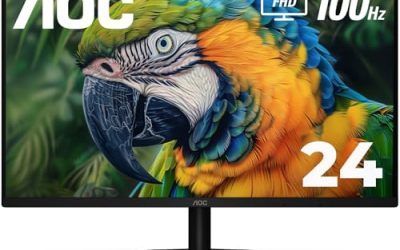
The best 34-inch monitor for most people is a 3440×1440 ultrawide: a QD-OLED or OLED panel such as the Dell Alienware AW3425DW or LG UltraGear 34GS95QE class if you game and have the budget, and a 34-inch VA or IPS at 144-165 Hz if you want value. For office work, a 34-inch IPS with USB-C docking is more practical. A 34-inch ultrawide is about 31 percent wider than a 27-inch 16:9 screen at the same height, which is why the format suits both games and multitasking.
Quick comparison: 34-inch monitor picks
| Pick | Best for | Key specs | Typical price range |
|---|---|---|---|
| 34-inch QD-OLED ultrawide (Alienware AW3425DW class) | Best overall for gaming | 3440×1440, up to 240 Hz, 0.03 ms-class response, 1800R curve | Usually $700-$1,000 |
| 34-inch OLED with high refresh (LG UltraGear 34GS95QE class) | Competitive and HDR play | 3440×1440, 240 Hz, OLED contrast, anti-glare coating | Usually $800-$1,100 |
| 34-inch VA curved (value gaming) | Best budget | 3440×1440, 144-165 Hz, 1500R-1800R curve, high static contrast | Usually $300-$450 |
| 34-inch IPS ultrawide for office | Productivity and color work | 3440×1440, 75-100 Hz, USB-C power delivery, KVM on some models | Usually $400-$700 |
| 34-inch QHD IPS 165 Hz | All-round mixed use | 3440×1440, 144-165 Hz, wide color gamut, HDR 400 label | Usually $350-$550 |
What “34 inch” means in practice
Almost every 34-inch monitor sold today is a 21:9 ultrawide with 3440×1440 resolution, giving about 110 pixels per inch. That is similar pixel density to a 27-inch 2560×1440 monitor, so text stays sharp, and you simply gain horizontal room. A few 34-inch screens are 3440×1440 curved with a 1000R-1800R curve, and a smaller number are 34-inch 5120×2160 or 3840×1600 panels, which are less common.
The physical size is about 32.0 inches wide and 13.7 inches tall for the panel itself. It needs a desk at least 24 inches deep to sit comfortably, and a stand that supports a wide base.
Best overall: a 34-inch QD-OLED ultrawide
If budget allows, a QD-OLED such as the Dell Alienware AW3425DW class is the strongest all-round option. It gives true black levels, a refresh rate up to 240 Hz and near-instant pixel response, with a curve that suits wide games. Per the manufacturer’s specification, the panel supports DisplayHDR True Black certification, which delivers noticeably better contrast than IPS or VA in dark scenes.
The trade-offs are price and care. Static elements, such as a taskbar, can risk burn-in over years, so enable the screen-saver, pixel-shift and auto-hide features. Text clarity can also look slightly softer than on a traditional RGB-stripe panel.
Best for competitive and HDR play: a 34-inch OLED with a flat-ish curve
An OLED such as the LG UltraGear 34GS95QE class adds a 240 Hz refresh rate and a matte coating that reduces reflections in bright rooms. It is the better choice when you play fast shooters and want response time to be as low as possible.
The trade-off is cost, and the HDR peak brightness is limited at large bright areas because of automatic brightness limiting on OLED panels.
Best budget: a 34-inch curved VA at 144-165 Hz
A VA ultrawide gives the best price-to-performance. The panel offers high native contrast, typically around 3000:1 to 4000:1 per manufacturers’ spec sheets, which makes dark scenes look richer than IPS. Many models support 144 to 165 Hz with FreeSync or G-Sync compatibility.
The trade-off is slower dark-transition response, which can show smearing in fast games, and narrower viewing angles than IPS.
Best for office work: a 34-inch IPS with USB-C
An office-focused ultrawide trades refresh rate for connectivity. Look for USB-C with 65 W or higher power delivery, a built-in USB hub, an Ethernet port and a KVM switch so one keyboard and mouse can control two computers. Two documents side by side fit comfortably in 3440 pixels.
The trade-off is a lower refresh rate, often 60 to 100 Hz, which is less suited to action games.
Best mixed use: a 34-inch QHD IPS at 144-165 Hz
If you work and game on the same display, an IPS panel at 144 to 165 Hz offers wide viewing angles, good color accuracy and smooth motion. It sits between the VA value pick and OLED in price.
The trade-off is the contrast ratio, which is around 1000:1, so blacks look grey in a dark room.
Worked example: what GPU does a 34-inch ultrawide need?
The 3440×1440 resolution contains about 4.95 million pixels, compared with 2.07 million at 1920×1080 and 3.69 million at 2560×1440. That is roughly 2.4 times the pixels of a 1080p screen and 34 percent more than 1440p 16:9. Since GPU load scales broadly with pixel count, a card that delivers 120 FPS at 1080p will typically land around 60-75 FPS at 3440×1440 in the same game, depending on settings.
| Target | Rough GPU class for 3440×1440 | Notes |
|---|---|---|
| 60-90 FPS, high settings | Mid-range, 12 GB VRAM class | Good for esports at high settings and modern single-player games with upscaling |
| 100-144 FPS, high settings | Upper mid-range to high-end, 16 GB class | Upscaling or frame generation helps in demanding games |
| 165-240 FPS in esports titles | High-end card plus a fast CPU | CPU limit becomes the bottleneck in many games |
These are approximate ranges typical of published reviews and vary with settings, patch, resolution and CPU.
Panel type decision guide
| Your situation | Choose | Reason |
|---|---|---|
| Dark room, single-player and fast games | OLED or QD-OLED | Perfect blacks and instant response |
| Bright room, long office hours | IPS or matte OLED | Wide viewing angles, less glare risk |
| Tight budget, mostly games | VA | Highest contrast per dollar |
| Static spreadsheets all day | IPS | No burn-in concern and sharp text |
How to choose and set up a 34-inch monitor
- Confirm desk depth. You need at least 24 inches so the screen edges are within comfortable view.
- Match the port. Use DisplayPort 1.4 for 3440×1440 at 144 Hz or higher. HDMI 2.1 is needed on consoles. Check that your cable is certified for the refresh rate.
- Set the refresh rate manually. Windows often defaults to 60 Hz. Change it in Advanced Display Settings.
- Enable adaptive sync. Turn on FreeSync or G-Sync compatible mode in the GPU control panel to reduce tearing.
- Check the game’s ultrawide support. Most modern titles support 21:9, but some cutscenes and older games are pillarboxed.
Frequently Asked Questions
Is a 34-inch ultrawide better than two 24-inch monitors?
For gaming, yes, because there is no bezel gap in the middle. For heavy multitasking, two screens can be easier to organize, but an ultrawide is simpler to set up and uses one cable.
What resolution is a 34-inch monitor?
Most are 3440×1440, a 21:9 resolution also called UWQHD. Some are 3840×1600 or 5120×2160, but those are less common and cost more.
Do I need a curved screen?
Not strictly, but curvature of 1500R to 1800R suits a 34-inch width because it keeps the edges at a more even distance from your eyes. Flat panels are better for precise design and photo editing.
Will OLED burn in on a 34-inch monitor?
It can, with static elements left on screen for thousands of hours at high brightness. Use auto-hide for the taskbar, a dark theme and the built-in pixel refresh features, and most users will not notice problems.
Does a 34-inch monitor work with consoles?
Some do, but many consoles do not support the 21:9 resolution natively, so they output 16:9 with black bars. Check the console’s supported resolutions before buying.
Related guides
More from Amazon
Programs that pair well with the guide above. Offers and eligibility are set by Amazon and may change.
A free business account with business pricing and bulk-buying tools for work, shop or home office.
Create a business accountFree shipping on eligible items, Prime Video and more. Eligible new members can start with a free trial.
Start a Prime free trialAudiobooks and podcasts to listen to on the go. Eligible new members can start with a free trial.
Try Audible freeAd-free music streaming. Eligible new subscribers can start with a free trial.
Try Music Unlimited freeAs an Amazon Associate we earn from qualifying purchases.