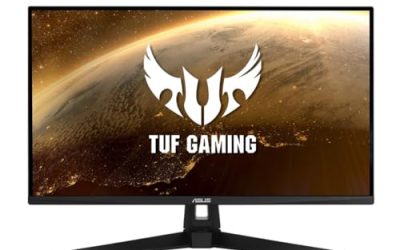
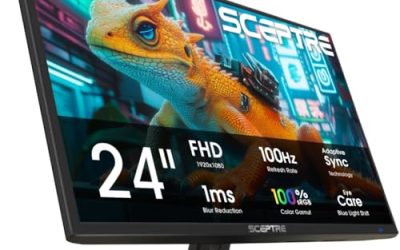
The best 1440p 60Hz monitor for most people is a 27-inch IPS panel with solid factory color, such as the Dell UltraSharp U2722D, because 27 inches is the size where 2560×1440 looks sharp without scaling. If you mainly want a cheap, sharp gaming screen, a 75Hz or higher 1440p IPS often costs about the same as a strict 60Hz model, so check that option before you commit. Strict 60Hz 1440p monitors now mostly serve office, photo, coding and console-adjacent use, and they make sense when image quality, USB-C or a low GPU load matter more than refresh rate.
As an Amazon Associate we earn from qualifying purchases at no extra cost to you.


Top 3 picks at a glance
Quick comparison of the picks
These are specs per the manufacturers’ published data. Panel batches, firmware and regional versions vary, so confirm the exact model code before buying.
| Pick | Best for | Key specs | Price range |
|---|---|---|---|
| Dell UltraSharp U2722D | Best overall | 27″, 2560×1440, IPS, 60Hz, factory-calibrated, DisplayPort and HDMI, USB hub | Upper mid-range |
| BenQ PD2705Q | Best for creators | 27″, 2560×1440, IPS, 60Hz, 100% sRGB, USB-C, designer color modes | Upper mid-range |
| Dell P2723D | Best for office and mixed use | 27″, 2560×1440, IPS, 60Hz, height-adjustable stand, DP and HDMI | Mid-range |
| Generic 27″ 1440p IPS, 60-75Hz class | Best budget | 27″, sRGB-class IPS, HDMI and DP, tilt-only stand | Budget |
| 32″ 1440p VA, 60-75Hz class | Best for big-screen value | 32″, about 92 PPI, high contrast VA, often curved | Budget to mid-range |
Best overall: Dell UltraSharp U2722D
The U2722D is a 27-inch IPS monitor at 2560×1440 and 60Hz. It is factory-calibrated, has a fully adjustable stand and a USB hub, and its UltraSharp line has a reputation for consistent panels and a long warranty. It suits anyone who spends hours reading text, editing spreadsheets, coding or doing light photo work, and who games casually at 60 fps.
Trade-off: the price is higher than a basic 1440p IPS that may offer 75Hz or more. You pay for build quality, color accuracy and support, not for speed. If you want a USB-C single-cable laptop setup, look at the U2722DE variant of this model, which adds USB-C connectivity.
Best for creators: BenQ PD2705Q
The PD2705Q is a 27-inch 1440p IPS monitor aimed at designers. It covers 100% of sRGB per BenQ’s spec sheet and adds USB-C and color modes aimed at design and CAD work. It suits illustrators, web designers and photographers who work in sRGB and want one cable from a laptop.
Trade-off: it is not a gaming monitor. Response tuning and motion handling are modest, and HDR is not a selling point. It makes sense only if color work comes first.
Best for office and mixed use: Dell P2723D
The P2723D is a 27-inch QHD IPS monitor from Dell’s more affordable Professional line. It has a height-adjustable stand and standard DisplayPort and HDMI inputs. It suits a work-from-home desk that doubles as an evening gaming station.
Trade-off: its color tuning and extras are less refined than the UltraSharp, and it has no gaming features such as adaptive sync tuning. Check the current spec sheet for exact port and sync support.
Best budget: a 27-inch 1440p IPS in the 60-75Hz class
Many value brands sell 27-inch 1440p IPS monitors that run at 60Hz or 75Hz. Look for sRGB coverage near 99%, HDMI plus DisplayPort, and VESA mounting. These are the right buy if the budget is tight and you want sharpness more than speed.
Trade-off: tilt-only stands, average backlight uniformity and basic color are typical. Budget panels also vary between batches, so a replacement stand or arm may be worth it.
Best for big-screen value: a 32-inch 1440p VA
A 32-inch 1440p VA panel gives a large canvas and strong contrast for movies and single-player games. It suits someone sitting 80-100 cm away who values immersion over text sharpness.
Trade-off: pixel density drops to about 92 PPI, so text looks softer than on a 27-inch model. VA panels can also smear in dark scenes.
Why 27 inches is the 1440p sweet spot: the PPI math
Pixel density is the diagonal pixel count divided by the screen size. At 2560×1440 the diagonal is about 2,937 pixels.
| Screen size | PPI at 2560×1440 | Windows scaling usually needed | Notes |
|---|---|---|---|
| 24″ | about 122 | 125% | Very sharp, but small UI at 100% |
| 27″ | about 109 | 100% | Best balance of size and sharpness |
| 32″ | about 92 | 100% | Larger, softer text at normal distance |
For comparison, a 27-inch 1080p screen sits near 82 PPI, so 1440p gives a clear step up in text clarity. A 27-inch 4K screen reaches about 163 PPI and needs scaling, which is why 1440p remains popular at this size.
What 60Hz at 1440p means for your PC
GPU load
1440p has 3.69 million pixels, versus 2.07 million at 1080p (about 1.78 times as many) and 8.29 million at 4K (about 2.25 times as many as 1440p). Capping at 60 fps means a mid-range GPU is enough for many games at high settings. Published reviews show frame rates vary widely with the game, settings, CPU and patch, so check results for the titles you play.
Cable and bandwidth
The raw pixel data for 2560×1440 at 60Hz and 8-bit color is 2560 x 1440 x 60 x 24 bits, which is about 5.3 Gbps. With standard reduced-blanking timing the pixel clock is about 241.5 MHz, or roughly 5.8 Gbps on the wire at 24-bit and 7.2 Gbps at 30-bit (10-bit) color.
- HDMI 1.4 carries about 8.16 Gbps of data, so it handles 1440p60 even in 10-bit.
- DisplayPort 1.2 carries about 17.28 Gbps of data, which is plenty.
- Going higher: 1440p at 144Hz needs roughly 14 Gbps at 8-bit, which exceeds HDMI 1.4 but fits DisplayPort 1.2 and newer HDMI versions.
So any cable in the box will work for 60Hz. The bandwidth math only matters if you later upgrade to a faster monitor.
Decision matrix: which monitor fits your situation
| Your situation | Choose | Reason |
|---|---|---|
| Office, spreadsheets, coding, 8+ hours a day | 27″ IPS, 60Hz (U2722D or P2723D class) | Sharp text, good stand, calibrated color |
| Photo or design work on a laptop | BenQ PD2705Q or similar sRGB USB-C model | One-cable USB-C, color modes |
| Casual gaming, older or entry GPU | 27″ 1440p IPS, 60-75Hz | Lower cost and no need for a fast GPU |
| Competitive shooters | 1440p at 100Hz or higher instead | 60Hz adds input delay and motion blur |
| Movies and single-player on a large screen | 32″ 1440p VA | High contrast, big image |
| Tight desk, under 70 cm deep | 24″ or 27″ with a monitor arm | Keeps viewing distance comfortable |
How to choose: the criteria that matter
- Panel type: IPS gives the best color and viewing angles. VA gives better contrast but can smear. Avoid TN at this resolution.
- Size: 27 inches for most desks. Pick 32 inches only if you sit farther back.
- Color coverage: look for 99-100% sRGB if you do any photo or design work.
- Stand: height adjustment and a VESA 100×100 mount save money on arms later.
- Ports: DisplayPort and HDMI at minimum. USB-C with power delivery matters for laptops.
- Refresh ceiling: if a 75Hz or 100Hz model costs about the same, take it. Extra refresh rate costs little and helps mouse movement even on the desktop.
- Warranty and dead-pixel policy: check the manufacturer’s policy, since some brands cover bright pixels and others do not.
Settings to apply after setup
- Set the refresh rate manually. In Windows, open Display settings, then Advanced display, and pick 60Hz (or the highest available). Some monitors default to a lower rate on HDMI.
- Use the native resolution. Set 2560×1440 so text is not blurred by scaling.
- Set scaling to 100% on 27 inches. Try 125% only if the UI feels too small at your distance.
- Turn on adaptive sync only if the monitor supports it. If it does not, use V-Sync or a 60 fps cap in the game to avoid tearing.
- Pick the sRGB mode for color work. A wide-gamut preset can oversaturate content made for sRGB.
- Lower brightness to around 100-120 nits for indoor use. Full brightness on an office monitor causes eye strain and shortens backlight life.
Frequently Asked Questions
Is 1440p at 60Hz good enough for gaming?
Yes, for single-player, strategy and most casual games, 60Hz is smooth enough, especially with a stable frame rate. Competitive shooters benefit from higher refresh rates because motion is clearer and input feels quicker. If you play those, a 100Hz or higher 1440p model is a better choice.
Is 1440p 60Hz worth it over 1080p 144Hz?
It depends on what you do. For reading text, editing and viewing photos, 1440p is noticeably sharper. For fast games, 1080p at 144Hz feels smoother, so choose based on whether clarity or motion matters more to you.
What size is best for a 1440p monitor?
27 inches is the best fit, with about 109 PPI and comfortable 100% scaling. A 24-inch screen is sharper but small, and a 32-inch screen has softer text at normal desk distance.
Can my GPU run 1440p at 60 fps?
Most modern mid-range GPUs can handle 1440p at 60 fps in many games, but demanding new releases may require lower settings or upscaling. Because 1440p has about 1.78 times the pixels of 1080p, expect a meaningful GPU load increase. Check reviews for your specific games and card.
Do I need DisplayPort for 1440p 60Hz?
No. HDMI 1.4 or newer carries 2560×1440 at 60Hz without problems. DisplayPort becomes important only if you move to higher refresh rates or want features such as adaptive sync on some monitors.
Is a 1440p 60Hz monitor good for consoles?
It works, but consoles are built around 1080p and 4K outputs, and support for 1440p varies by system and model. Check the console maker’s documentation before buying. For console gaming, a 4K TV or monitor is usually the better match.
Related guides
More from Amazon
Programs that pair well with the guide above. Offers and eligibility are set by Amazon and may change.
A free business account with business pricing and bulk-buying tools for work, shop or home office.
Create a business accountFree shipping on eligible items, Prime Video and more. Eligible new members can start with a free trial.
Start a Prime free trialAudiobooks and podcasts to listen to on the go. Eligible new members can start with a free trial.
Try Audible freeAd-free music streaming. Eligible new subscribers can start with a free trial.
Try Music Unlimited freeAs an Amazon Associate we earn from qualifying purchases.