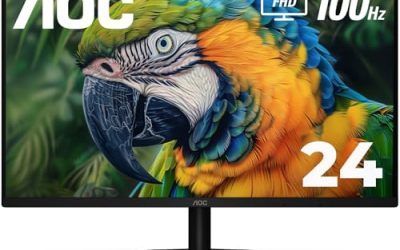
For most gamers in 2026, a 27-inch 1440p monitor is the sweet spot, but if you are choosing strictly between 4K and 1920×1080, buy 4K when your graphics card can sustain 60-100 FPS at that resolution and 1080p when you want 144 Hz or more on a modest GPU. The two resolutions are not just “sharper” and “softer”: they change how much GPU power, bandwidth and money you need. This guide maps your situation to the right panel and shows the math behind it.
Quick comparison: 4K vs 1080p gaming monitors
| Pick | Best for | Key specs | Typical price range |
|---|---|---|---|
| Best overall 4K | High-end GPU owners | 27-32 inch, 3840×2160, 144 Hz, HDMI 2.1 | $450-$800 |
| Best premium 4K | Image quality first | 32 inch QD-OLED, 3840×2160, 240 Hz | $900-$1,200 |
| Best budget 4K | Mixed gaming and work | 27-28 inch, 4K, 60-144 Hz IPS | $280-$450 |
| Best 1080p esports | Competitive shooters | 24-25 inch, 1920×1080, 240-360 Hz | $180-$350 |
| Best 1080p budget | Entry-level GPUs | 24 inch, 1920×1080, 144-180 Hz IPS | $100-$180 |
Best overall 4K: a 27-32 inch 144 Hz IPS or mini-LED panel
A 4K 144 Hz monitor with HDMI 2.1 and DisplayPort 1.4 is the most balanced choice if you own a card in the RTX 4070 Ti or RX 7900 class or newer. Models such as the Gigabyte M28U and LG UltraGear 4K 27-inch series are typical of the category. Per the manufacturers’ spec sheets, these panels pair 3840×2160 with a 1 ms grey-to-grey response claim, variable refresh rate support and decent HDR highlights.
The main trade-off is GPU demand. Four times as many pixels as 1080p means frame rates drop sharply in demanding games unless you use upscaling such as DLSS, FSR or XeSS. If you are not prepared to use upscaling, a 4K 144 Hz panel is partly wasted.
Best premium 4K: a 32-inch QD-OLED
If budget is flexible, a 32-inch 4K QD-OLED such as the Alienware AW3225QF class delivers near-instant pixel response, true blacks and 240 Hz refresh. It suits people who play single-player games and watch video on the same screen. The trade-offs are price, the risk of static-element burn-in with long desktop use, and a text clarity quirk on some subpixel layouts. Check the warranty terms for burn-in coverage before buying.
Best budget 4K: 27-28 inch 60-144 Hz IPS
A 28-inch 4K 60 Hz monitor costs little more than a good 1440p panel and gives excellent desktop sharpness. It is a smart pick if you play at 60 FPS on a console or mid-range GPU and also do photo editing or spreadsheets. The trade-off: a 60 Hz ceiling feels noticeably less smooth in fast games, and there is no headroom to grow into a faster GPU later. If you can stretch to a 144 Hz 4K panel, do so.
Best 1080p for esports: 24-25 inch, 240 Hz and up
Competitive players in titles like Counter-Strike 2, Valorant and Apex Legends often prefer 1080p because the GPU can push 240-400 FPS and the monitor can show them. Typical examples are 24.5-inch fast IPS or TN panels at 240-360 Hz, such as the ASUS ROG Swift Pro class. At this size, 1080p yields about 90 pixels per inch, which is acceptable for gaming but visibly coarse for text.
Best 1080p budget: 24-inch 144-180 Hz IPS
For a GTX 1660, RX 6600 or similar card, a 24-inch 1080p IPS at 144-180 Hz is the practical match. Models like the AOC 24G2 class set the standard: wide viewing angles, Adaptive-Sync, and a low price. The trade-off is sharpness. Nothing here will look crisp on a desktop at 27 inches, so keep the size at 24-25 inches.
The math: pixel density and GPU load
Pixels per inch (PPI) is the diagonal pixel count divided by the diagonal size. For 1920×1080 the diagonal is about 2,203 pixels; for 3840×2160 it is about 4,406 pixels.
| Size and resolution | PPI | Pixels per frame | Relative GPU load |
|---|---|---|---|
| 24 inch 1920×1080 | about 92 | 2.07 million | 1.0x |
| 27 inch 1920×1080 | about 82 | 2.07 million | 1.0x |
| 27 inch 2560×1440 | about 109 | 3.69 million | 1.8x |
| 27 inch 3840×2160 | about 163 | 8.29 million | 4.0x |
| 32 inch 3840×2160 | about 138 | 8.29 million | 4.0x |
As a rough rule, GPU load scales with pixel count. If a card delivers around 150 FPS at 1080p in a given game, expect roughly 40-60 FPS at native 4K, varying with settings, CPU and patch. That is why 4K at 144 Hz needs upscaling in most modern titles.
Bandwidth check: can your cable carry it?
Uncompressed bandwidth is width x height x refresh rate x bits per pixel. For 10-bit colour (30 bits per pixel), 4K at 144 Hz needs 3840 x 2160 x 144 x 30 = about 35.8 Gbps before blanking overhead. DisplayPort 1.4 provides roughly 25.9 Gbps of usable bandwidth, so 4K 144 Hz relies on Display Stream Compression, which is visually lossless in most cases. HDMI 2.1 offers up to 48 Gbps raw. By comparison, 1080p at 240 Hz in 8-bit colour needs only about 12 Gbps and works on almost any modern cable.
How to choose: decision matrix
| Your situation | Choose | Reason |
|---|---|---|
| RTX 4070 Ti / RX 7900 XT or better, single-player games | 4K 144 Hz | GPU can hold 60-100 FPS with upscaling |
| Mid-range GPU, shooters at 200+ FPS | 1080p 240 Hz | Frame rate matters more than sharpness |
| Console owner (PS5 / Xbox Series X) | 4K 120 Hz, HDMI 2.1 | Consoles output 4K at up to 120 Hz |
| Mixed work and gaming on a 27-inch screen | 4K, or 1440p as a compromise | 1080p looks soft at 27 inches |
| Tight budget, older GPU | 24-inch 1080p 144 Hz | Cheapest smooth experience |
Features worth paying for, and ones to skip
- Worth it: Adaptive-Sync (G-SYNC Compatible or FreeSync), HDMI 2.1 on 4K models, a stand with height adjustment, and a panel that meets a real HDR tier such as DisplayHDR 600 or higher.
- Usually skippable: “HDR 400” labels, which add little real contrast, and built-in speakers.
- Watch for: response-time claims measured in the fastest overdrive mode that leave visible overshoot; check independent response-time charts when available.
Frequently Asked Questions
Is 4K worth it for gaming in 2026?
Yes if your GPU can maintain at least 60 FPS at 4K with upscaling and you value image detail. If you chase 144 FPS or more in competitive games, 1440p or 1080p remains the more practical choice. Many players land on 1440p as a middle ground.
Does 1080p look bad on a 4K monitor?
1920×1080 divides exactly into 3840×2160 (each pixel becomes a 2×2 block), so it scales cleanly on many displays, but panel scalers and GPU scaling settings vary. It will look softer than native 4K but not blurry on a well-implemented panel. Upscalers like DLSS or FSR usually look better than plain 1080p scaling.
What size should a 1080p gaming monitor be?
Stay at 24-25 inches. Beyond that, pixel density drops under 85 PPI and text and edges look rough. For 27 inches and above, 1440p or 4K is a better fit.
Do I need HDMI 2.1 for a 4K monitor?
You need it for 4K at 120 Hz or more from consoles and for full-bandwidth 4K 144 Hz from some GPUs over HDMI. On a PC, DisplayPort 1.4 with compression handles 4K 144 Hz, so HDMI 2.1 is optional but useful.
Which is better for esports, 4K or 1080p?
1080p at 240 Hz or higher is generally preferred in esports, because the frame rate and low input latency matter more than detail. The smaller pixel count also lets mid-range hardware reach very high frame rates.
Related guides
More from Amazon
Programs that pair well with the guide above. Offers and eligibility are set by Amazon and may change.
A free business account with business pricing and bulk-buying tools for work, shop or home office.
Create a business accountFree shipping on eligible items, Prime Video and more. Eligible new members can start with a free trial.
Start a Prime free trialAudiobooks and podcasts to listen to on the go. Eligible new members can start with a free trial.
Try Audible freeAd-free music streaming. Eligible new subscribers can start with a free trial.
Try Music Unlimited freeAs an Amazon Associate we earn from qualifying purchases.