
Our Top Picks

The Short Answer
Yes — for most desktop PC builders running a modern PCIe 4.0 or PCIe 5.0 NVMe drive, an SSD heatsink is worth installing, with one condition: your motherboard doesn’t already include a built-in M.2 heatsink. If your board shipped with a metal M.2 cover or thermal armor, that factory solution is usually adequate, and bolting a second heatsink on top is often physically impossible. For everyone else — especially PCIe 5.0 drives that can pull 8 to 11 watts under load — a $5 to $10 heatsink is cheap insurance against thermal throttling.
For laptops, the answer shifts to “usually no,” but with a genuine exception worth knowing about, which we’ll cover below.
As an Amazon Associate we earn from qualifying purchases at no extra cost to you.


What You Actually Get
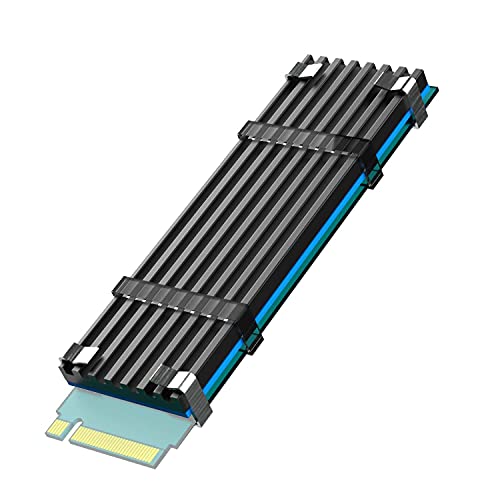
An M.2 heatsink is a small piece of finned metal — typically aluminum, sometimes copper — that clamps onto the controller chip of a 2280-format NVMe SSD (80mm long, 22mm wide). The GLOTRENDS aluminum heatsink, for example, measures just 22 x 70 x 3mm and weighs a few grams, so it adds almost no bulk. Copper models, like the laptop-oriented heatsinks sold with nano thermal pads, are denser and pull heat away faster, at the cost of roughly 8 to 15 grams per unit.
Under sustained transfers, an unheatsinked high-end NVMe drive can hit 70 to 80°C, which is the threshold where most controllers begin throttling speeds to protect themselves. A passive heatsink can hold temperatures meaningfully lower during long file copies, game installs, or video exports. On PCIe 5.0 drives — which run noticeably hotter than their PCIe 4.0 predecessors — a heatsink stops throttling from starting in the first place during heavy workloads.
What you will not get is a faster drive at idle or in short bursts. Everyday tasks like booting Windows, opening a browser, or launching a game pull data for a second or two at a time — not long enough for temperatures to climb into throttling territory. The heatsink’s value shows up in sustained, heavy sequential workloads.
Pros
- Prevents thermal throttling during sustained transfers, which keeps your drive performing at its rated speed when it matters.
- Extends component longevity by keeping controller and NAND flash temperatures out of the sustained 80°C+ range, where flash degradation accelerates.
- Extremely cheap — basic aluminum models like the GLOTRENDS unit run about $5, and dual-pack copper laptop kits sit around $9.
- Tiny footprint — at roughly 3mm thick, desktop models fit under GPU shrouds and in small-form-factor builds without clearance issues.
- No power draw and no noise — it’s passive metal; nothing to plug in, nothing to fail.
- Tool-light installation — most kits use thermal pads and a single screw or clip, taking under five minutes.
Cons
- Redundant on modern motherboards — most boards from the last several generations include M.2 heatsinks or thermal pads on at least the primary slot.
- Laptop fitment problems — many ultrabooks and gaming laptops have no vertical clearance for even a 3mm heatsink, and a drive that won’t seat properly can damage the slot or the battery above it.
- Incorrect installation can hurt — if the thermal pad contacts the NAND chips instead of the controller, or if the heatsink blocks the drive’s own thermal label from contacting the motherboard pad, you can trap heat rather than dissipate it.
- Some drives void warranty terms if the manufacturer requires the factory label to remain intact and uncovered — check your SSD maker’s policy first.
- Negligible benefit for light use — web browsing, office work, and gaming sessions with short load spikes will never approach throttle temperatures.
- Trace amounts of added weight and height matter only in ultra-compact builds, but they’re worth measuring before you buy.
Who Should Buy It
Buy a heatsink if you’re installing a PCIe 5.0 NVMe drive in an open M.2 slot with no factory cooler — this is the clearest-cut case, since Gen 5 drives run hot enough that most manufacturers now recommend or require a heatsink for sustained performance. It’s also a smart buy if you run sustained workloads (large video edits, frequent multi-hundred-gigabyte transfers, heavy compiling) on a PCIe 4.0 drive in a bare slot, or if your case has poor airflow around the M.2 slot — for instance, when a large triple-slot GPU sits directly above the drive.
Laptop users have one narrow use case: thicker machines with verified clearance above the M.2 slot can benefit from a low-profile copper heatsink with a thin nano thermal pad. Measure the gap first — anything under about 4mm of clearance means skip it. For most laptop owners, the laptop’s own chassis cooling and thermal pads handle the job.
Who Should Skip It
Skip it if your motherboard already has M.2 heatsinks — nearly every mid-range and high-end board does. Skip it if your workload is general productivity, gaming, or light creative work on a PCIe 3.0 or 4.0 drive with reasonable case airflow; the drive will throttle so rarely that you’d never notice. Skip it in laptops without measured clearance, and skip it on SATA M.2 drives entirely — SATA drives max out around 550 MB/s and generate only 2 to 3 watts, far below throttle-inducing levels.
Also skip it if your SSD’s warranty explicitly requires the original label to stay exposed. A few dollars saved isn’t worth a denied RMA on a $100-plus drive.
Cheaper Alternatives
| Option | Cost | Trade-off |
|---|---|---|
| Motherboard’s included M.2 heatsink | $0 | Already installed and well-matched to your board; only covers the slots the manufacturer chose. |
| Improve case airflow (add or reposition a case fan near the GPU/M.2 area) | $5–$15 per fan | Cools the whole system, not just the SSD; requires an open fan mount and takes more effort. |
| Thermal pad alone on a factory motherboard pad | $3–$8 | Helps only if your board has a bare metal M.2 shield with no factory pad; messy if applied wrong. |
| Choose a cooler-running PCIe 4.0 drive instead of a hot PCIe 5.0 model | Often $10–$30 less than Gen 5 equivalents | You give up top-end sequential speeds most users won’t miss; real-world gaming and productivity differences are small. |
FAQ
Does an SSD heatsink actually improve performance?
Only under sustained heavy workloads. By preventing the controller from reaching throttling temperatures (typically 70–80°C), the heatsink keeps the drive at its rated speeds during long transfers. Short bursts — game loads, app launches, boot times — won’t change at all.
Can I put a heatsink on my laptop SSD?
Sometimes, but measure first. You generally need at least 4mm of clearance above the drive. Low-profile copper heatsinks with nano thermal pads, sold in pairs for around $9, are designed for this. If your laptop’s bottom panel bulges or won’t close, remove it — trapped heat and pressure against the battery are worse than a hot drive.
Do PCIe 4.0 SSDs need heatsinks?
Not usually. Most PCIe 4.0 drives run 5 to 7 watts under load and stay below throttle thresholds with normal case airflow. It’s worthwhile mainly for bare slots with no motherboard heatsink, poor airflow, or sustained professional workloads. PCIe 5.0 drives, pulling 8 to 11 watts, are a much stronger case.
How much should I expect to spend?
Basic aluminum desktop heatsinks like the GLOTRENDS 22 x 70 x 3mm model cost about $5. Copper laptop kits with thermal pads run roughly $9 for a two-pack. Even premium aftermarket motherboards’ integrated solutions aside, there’s little reason to spend more than $10–$15 on a standalone SSD heatsink as we move through 2026 — the budget options do the job fine.









