
Our Top Picks

The Short Answer
Yes—if you are installing an M.2 NVMe SSD in a PS5 expansion slot, it needs a heatsink or another effective heat-dissipation structure. The PS5’s storage requirements specifically call for one, and the complete drive assembly must fit within the console’s size limits.
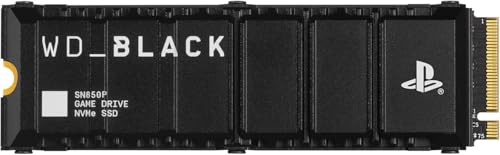
The important condition is that the heatsink must be compatible with the PS5 bay: the SSD and heatsink together must be no more than 110mm long, 25mm wide, and 11.25mm high. A bare SSD may physically fit, but it is not the right finished setup for sustained game downloads, updates, and play. You can buy an SSD with a heatsink already attached, or purchase a compatible heatsink separately.
As an Amazon Associate we earn from qualifying purchases at no extra cost to you.


What You Actually Get
A PS5-compatible M.2 SSD is an internal storage expansion drive, not a replacement for the console’s built-in storage. After installation, it appears as an additional location for downloading and moving PS5 and PS4 games. You can play supported games directly from it rather than using it only as an archive.
The drive itself uses the compact M.2 2280 format in many common configurations. Sony recommends a PCIe 4.0 NVMe SSD with sequential read speeds of at least 5,500MB/s. That figure is a compatibility guideline rather than a promise that every game will load exactly faster on a drive rated above it. A fast drive helps the system meet its requirements, but game design and console software also affect loading times.
The heatsink is a metal cooling component attached to the SSD’s controller and memory chips. Its job is to spread heat over a larger surface area and release it into the air inside the expansion bay. Without adequate cooling, an SSD can reduce its speed to protect itself from excessive temperatures. This is called thermal throttling. It usually means slower sustained transfers rather than immediate damage, but it is an avoidable compromise in a console designed for a properly cooled expansion drive.
For example, the WD_BLACK SN850P options listed for PS5 include the heatsink from the start. The 1TB version is priced at around $230, while the 2TB version is listed at around $470. Both are rated for sequential read speeds up to 7,300MB/s and are officially licensed for PS5 consoles. The license and preinstalled heatsink make installation straightforward, though the premium price is substantial compared with a standard SSD plus a separate heatsink.
Capacity is the other major decision. A 1TB expansion drive provides useful room for several large games, but its usable capacity will be lower than the advertised number after formatting and system overhead. A 2TB model costs more but is better suited to players who keep a large library installed. Before buying, check that the drive has a heatsink attached or budget for one that stays within the PS5’s 11.25mm height limit.
Pros
- Consistent sustained performance: A suitable heatsink helps the SSD maintain speed during large transfers, downloads, and installations.
- Required by the console’s specifications: You avoid building a setup around a bare drive that does not meet the PS5’s heat-dissipation guidance.
- Simple installation: A factory-fitted heatsink eliminates the extra step of selecting and attaching a cooling solution.
- More game storage: An expansion SSD lets you keep more PS5 and PS4 titles ready to play without relying on an external USB drive.
- Long-term convenience: Paying for the correct cooling hardware upfront is easier than reopening the console after discovering that an uncooled SSD performs poorly.
- Good fit when dimensions are verified: A PS5-specific product is less likely to have an oversized heatsink that interferes with the expansion cover.
Cons
- Higher total cost: Drives with branded, preinstalled heatsinks can cost much more than comparable bare NVMe SSDs.
- Extra height must be checked: Not every attractive desktop heatsink fits the PS5. The 11.25mm maximum includes the SSD, heatsink, and any protruding components.
- Limited visible benefit: The heatsink does not usually make a game load dramatically faster by itself. It mainly helps the SSD sustain its intended performance.
- Capacity is not the whole story: A high-capacity drive may be expensive if its speed, warranty, or cooling design is not suitable for the console.
- Installation still requires care: You must fully shut down the PS5, remove the outer panels, secure the drive with the supplied spacer and screw, and replace the expansion cover correctly.
Who Should Buy It
Buy an SSD with a heatsink if you want the simplest, lowest-risk PS5 storage upgrade. It is especially sensible for buyers who do not want to compare separate components, measure heatsink height, or install a cooling plate themselves. A preassembled PS5-compatible drive is also a good choice when the price difference between a bare SSD and a complete, reputable kit is modest.
Choose 1TB if your internal storage is nearly full but you usually rotate games. It offers a practical balance between capacity and cost. Choose 2TB if you regularly play large modern releases, share the console with other people, or want to avoid moving games between drives. The officially licensed WD_BLACK SN850P products are examples of this convenience-first approach, although their listed prices—roughly $235 for 1TB and $470 for 2TB—put them firmly in the premium category.
Who Should Skip It
Skip the premium factory-heatsink model if you are comfortable shopping carefully for a compatible PCIe 4.0 NVMe SSD and a low-profile heatsink. In 2026, there are often many more affordable combinations than the highest-priced licensed options. You still need to verify the drive’s speed, capacity, dimensions, warranty, and compatibility before buying.
You may also skip an internal SSD upgrade altogether if you only need archival storage. An external USB drive can store PS4 games and PS5 titles that you are not currently playing, although PS5 games must be copied back to the internal storage or M.2 expansion drive before they can run. That option is slower for active game management but can cost less per terabyte.
Cheaper Alternatives
| Option | Cost | Trade-off |
|---|---|---|
| 1TB PCIe 4.0 NVMe SSD plus compatible low-profile heatsink | About $80–$150 total | Usually much cheaper, but you must confirm the SSD reaches at least 5,500MB/s and the combined height stays within 11.25mm. |
| 2TB PCIe 4.0 NVMe SSD plus compatible low-profile heatsink | About $130–$240 total | Excellent capacity value, but model quality, firmware, warranty, and heatsink fit require more research. |
| Preassembled non-licensed PS5-compatible SSD with heatsink | About $100–$220 for 1TB–2TB | Easy to install and often less expensive, but it may not include the same console-specific support or branding. |
| External USB HDD or SSD | About $50–$180 | Useful for storing games, but PS5 titles cannot be played directly from the external drive. |
FAQ
Can I install a PS5 SSD without a heatsink?
You should not. Sony’s expansion-storage guidance calls for an effective heat-dissipation structure, and a bare SSD does not provide that. Even if it installs physically, it may throttle during sustained transfers and does not meet the intended setup requirements.
Does the PS5 heatsink need to be official?
No. It does not have to carry Sony or PlayStation branding. It does need to be designed for an M.2 NVMe SSD, attach securely, and fit inside the console’s limits. The complete assembly must be no more than 110mm long, 25mm wide, and 11.25mm high.
Is a faster-than-recommended SSD worth buying?
Not usually at any price. A drive rated around 5,500MB/s or higher is the sensible target. A model rated at 7,300MB/s may offer strong specifications, but the PS5 and individual games may not turn the extra theoretical speed into noticeably shorter loading times. Prioritize reliable performance, a suitable heatsink, warranty coverage, and a fair price.
Should I buy 1TB or 2TB?
Buy 1TB if you want a lower upfront cost and commonly uninstall games after finishing them. Buy 2TB if you keep a large rotating library or want fewer storage-management chores. Remember that formatted capacity is lower than the number on the box, so neither option provides the full advertised space for game files.









