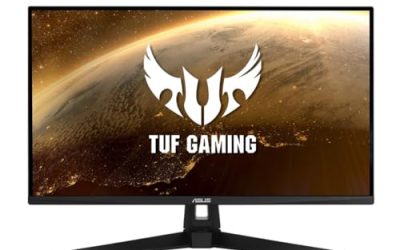
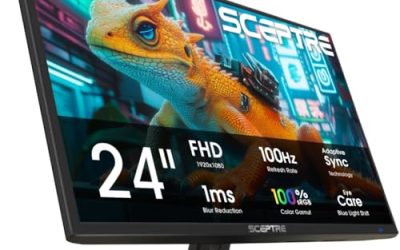
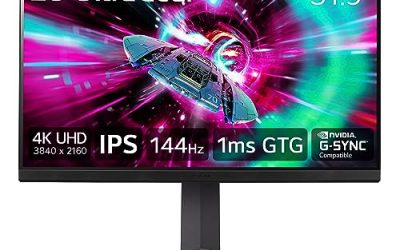
The best 144Hz dual monitor setup for most people is two identical 27-inch 1440p IPS panels running at 144Hz or higher, such as a pair of LG 27GP850-B or Gigabyte M27Q monitors. If you are on a tight budget or a mid-range graphics card, two 24-inch 1080p 144Hz IPS panels like the AOC 24G2U give you the same smoothness for much less money and GPU load. Buy two of the same model, because mismatched panels show different colors, brightness and bezel sizes right where the screens meet.
As an Amazon Associate we earn from qualifying purchases at no extra cost to you.


Our Top Picks
 ASUS TUF Gaming VG27AQ3A 27 Inch 1440p 180Hz14.4" x 24.2" x 2.1"24.2 x 8.4 x 17.9 inches10.1 poundsCheck on Amazon

Top 3 picks at a glance
Quick comparison of the picks
| Pick | Best for | Key specs (per manufacturer) | Price range (per monitor) |
|---|---|---|---|
| LG 27GP850-B | Best overall | 27″, 2560×1440, Nano IPS, 165Hz, DisplayPort 1.4, 2x HDMI 2.0 | Mid-range |
| AOC 24G2U | Best budget pair | 23.8″, 1920×1080, IPS, 144Hz, FreeSync, height-adjustable stand | Budget |
| Gigabyte M27Q | Best for work + gaming | 27″, 2560×1440, IPS, 165-170Hz depending on revision, built-in KVM switch, USB hub | Mid-range |
| Dell S2722DGM | Best for immersion | 27″ curved VA, 2560×1440, 165Hz, DisplayPort 1.2, 2x HDMI 2.0 | Budget to mid-range |
| ASUS TUF Gaming VG27AQ | Best 144Hz-native 1440p | 27″ IPS, 2560×1440, 144Hz native with overclock to 165Hz, G-Sync Compatible | Mid-range |
Check current specs before buying. Manufacturers release small revisions of these models, and refresh rate, ports and stands sometimes change between them.
Best overall: LG 27GP850-B (pair)
This 27-inch Nano IPS panel combines 1440p sharpness, fast response and wide viewing angles, which matter when two screens sit side by side at a slight angle. It has a DisplayPort 1.4 input, so a high refresh rate is no problem on either screen. Its stand tilts, swivels and adjusts in height. The trade-off is that its HDR support is modest, and the stand takes up desk depth, so most people end up using monitor arms.
Best budget: AOC 24G2U (pair)
Two 24-inch 1080p IPS panels at 144Hz are the cheapest way to get a clean dual-monitor gaming setup. The pixel density of roughly 92 PPI is fine at normal desk distance, and the combined width is manageable on a standard desk. The trade-off is that text is softer than on 1440p, and you have less room for side-by-side windows. This is the best choice if your GPU is an entry-level card or you mostly play esports titles.
Best for work and gaming: Gigabyte M27Q (pair)
The M27Q has a built-in KVM switch and USB hub. That helps if the left monitor is shared between a gaming desktop and a work laptop, because one keyboard and mouse can switch between both. The trade-off is that the panel is good rather than class-leading in contrast, and the stand is basic. Confirm which hardware revision you are buying, because refresh rates differ.
Best for immersion: Dell S2722DGM (pair)
The curved VA panel gives much better contrast than IPS, which suits dark games and movies. A pair of curved screens angled inward wraps around you well. The trade-off is that VA panels can smear in dark scenes, and the curve looks slightly odd for photo or design work across the center seam. It is best for players who care about contrast more than color accuracy.
Best 144Hz-native 1440p: ASUS TUF Gaming VG27AQ (pair)
This panel runs 144Hz natively and can be overclocked to 165Hz. It supports G-Sync Compatible variable refresh and has a motion blur reduction mode. It is a safe choice if you want 144Hz on both screens without hoping a refresh-rate overclock holds stable. The trade-off is an older design with fewer extras such as KVM or a USB hub.
How to choose: the numbers that matter
1. Check the bandwidth for each cable
Each monitor needs its own full-bandwidth connection. Uncompressed video needs roughly width x height x refresh rate x 24 bits (8-bit color), plus blanking overhead.
- 1080p at 144Hz: 1920 x 1080 x 144 x 24 = about 7.2 Gbps, around 7.5 Gbps with blanking.
- 1440p at 144Hz: 2560 x 1440 x 144 x 24 = about 12.7 Gbps, around 13.5-14 Gbps with blanking.
- 1440p at 165Hz: about 14.6 Gbps raw, roughly 15.5-16 Gbps with blanking.
| Connection | Approx. usable bandwidth | 1080p 144Hz | 1440p 144Hz | 1440p 165Hz |
|---|---|---|---|---|
| HDMI 1.4 | about 8.2 Gbps | Tight, often limited | No | No |
| HDMI 2.0 | 14.4 Gbps | Yes | Borderline, 8-bit only | No |
| DisplayPort 1.2 | 17.3 Gbps | Yes | Yes | Yes |
| DisplayPort 1.4 | 25.9 Gbps | Yes | Yes | Yes |
The practical rule: use DisplayPort for both monitors whenever possible. Most graphics cards have three DisplayPort outputs and one HDMI port. If your card has only two DisplayPorts, run the second monitor on HDMI 2.0 at 1080p 144Hz or a lower 1440p refresh rate. Do not assume HDMI 1.4 cables or ports will hold 144Hz.
2. Match the resolution to your GPU
Games usually render on only one screen, so the second monitor mostly adds idle load. The main exception is if you stream or watch video on the second screen while gaming. The first screen’s pixel count is what matters.
- 1080p = 2.07 million pixels per frame. Easy for entry-level and mid-range cards at high refresh rates in esports titles.
- 1440p = 3.69 million pixels, about 1.78 times more than 1080p. Reaching 144 fps in demanding games needs a mid-range to high-end card. Typical published reviews show wide variation depending on settings, CPU and patch.
If you only play competitive shooters, 1080p screens at 144Hz are easier to drive. If you also play single-player games or work with text, 1440p is the better pair.
3. Measure your desk before choosing the size
A 27-inch 16:9 monitor is about 24 inches wide, and a 24-inch is about 21.5 inches wide. Two 27-inch monitors need roughly 48 inches of width plus a small gap. Two 24-inch panels need about 43 inches. A desk narrower than 48 inches fits 24-inch panels better, or 27-inch panels on a wall or desk-mounted arm. Check that your monitors have a 100×100 mm VESA mount pattern, which most 24- and 27-inch gaming monitors do.
4. Choose the panel type by use
- IPS: best viewing angles and color consistency across two screens. This is the safest default for a dual setup.
- VA: higher contrast, better for dark rooms, but with more risk of smearing in fast scenes.
- TN: mostly obsolete for dual setups because of poor viewing angles.
Decision matrix: which setup fits your situation
| Your situation | Best choice | Reason |
|---|---|---|
| Entry-level GPU, esports focus, small desk | 2x 24″ 1080p 144Hz IPS | Low GPU load, narrow footprint, lowest cost |
| Mid-range GPU, mixed gaming and work | 2x 27″ 1440p 144-165Hz IPS | Sharper text, balanced GPU demand |
| One gaming PC plus a work laptop | Pair with a built-in KVM (such as the Gigabyte M27Q) | One keyboard and mouse for two computers |
| Dark-room gaming and movies | 2x curved 27″ VA 165Hz | Deeper blacks and a wraparound view |
| Fast shooters as primary use, second screen for chat | One 144Hz+ main monitor plus a cheaper 60-75Hz secondary | Saves money, since only the main screen needs high refresh |
Set up both screens correctly
- Set the refresh rate manually. In Windows, open Display settings, then Advanced display, and select 144Hz (or the maximum) for each screen. Windows often defaults to 60Hz on a new monitor, which is the most common reason people think a 144Hz panel is not working.
- Make the gaming monitor the primary display. Games and variable refresh features target it by default.
- Enable variable refresh rate (FreeSync or G-Sync Compatible) in the driver. It reduces tearing at frame rates between roughly 48 and 144 fps.
- Use the same cable type on both screens when possible. This avoids one panel being limited to a lower mode.
- Keep both screens at the same refresh rate. Some GPUs hold higher idle memory clocks and draw more idle power with mismatched refresh rates. If this happens, matching the refresh rates or lowering the secondary monitor usually fixes it.
- Match color settings. Put both monitors in the same picture mode (sRGB if available) and set the same brightness with the on-screen menu.
Frequently Asked Questions
Do both monitors need to be 144Hz?
No. Only the screen you game on needs a high refresh rate. A secondary 60Hz or 75Hz monitor works fine for chat, guides or streaming software. However, matching refresh rates makes mouse movement across the screens feel more consistent, and can reduce idle GPU quirks.
Do I need two identical monitors?
You do not strictly need them, but it is strongly recommended. Identical models share the same color temperature, brightness and bezel width, so the seam looks cleaner. Panels from the same model can still vary slightly, so set both to the same preset and adjust brightness manually.
Will a second monitor lower my FPS?
Usually only slightly. If the second screen shows a video, browser or streaming software, expect a small drop that varies by game, GPU and CPU. For the best frame rates, close heavy applications on the second screen or turn off hardware acceleration in apps that cause problems.
Is two 27-inch 1440p monitors better than one ultrawide?
It depends. Two monitors give you cleaner multitasking and separate windows, and they usually cost less per screen area. An ultrawide has no center seam, which is better for immersive games. If you want to game on one screen and chat or browse on another, a dual setup is the better choice.
Which ports does my graphics card need?
You need two free outputs, and DisplayPort for both is best. Most modern graphics cards have three DisplayPort outputs and one or more HDMI ports, which covers a dual 144Hz setup easily. Check your card’s output list first, because some compact cards have fewer ports.
Can I use HDMI for both monitors at 144Hz?
You can at 1080p, since HDMI 2.0 handles 1080p at 144Hz comfortably. At 1440p 144Hz, HDMI 2.0 is borderline and works only with specific timings and 8-bit color. For 1440p at 144Hz or higher, DisplayPort is the safer connection.
Related guides
More from Amazon
Programs that pair well with the guide above. Offers and eligibility are set by Amazon and may change.
A free business account with business pricing and bulk-buying tools for work, shop or home office.
Create a business accountFree shipping on eligible items, Prime Video and more. Eligible new members can start with a free trial.
Start a Prime free trialAudiobooks and podcasts to listen to on the go. Eligible new members can start with a free trial.
Try Audible freeAd-free music streaming. Eligible new subscribers can start with a free trial.
Try Music Unlimited freeAs an Amazon Associate we earn from qualifying purchases.