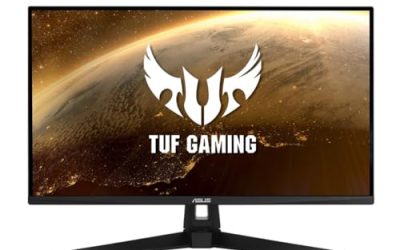
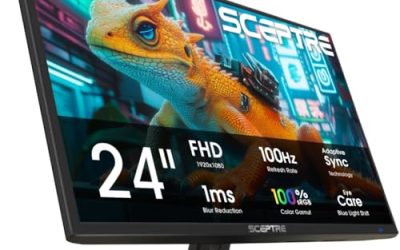
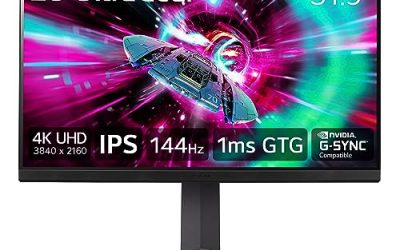
For most players, the best choice in 2026 is a 27-inch 1440p monitor at 165-240Hz. Pick 144Hz if your GPU averages under about 160 fps in the games you play, and 240Hz if you play competitive shooters at 200+ fps. OLED panels give the fastest pixel response but cost more and carry burn-in and text-clarity trade-offs, so a fast IPS is the safer value pick.
As an Amazon Associate we earn from qualifying purchases at no extra cost to you.


Top 3 picks at a glance
Quick comparison of the picks
| Pick | Best for | Key specs | Price range |
|---|---|---|---|
| AOC 24G2 class (1080p 144Hz IPS) | Budget builds, entry GPUs | 23.8″, 1920×1080, 144Hz, IPS, DisplayPort + HDMI | Budget |
| LG UltraGear 27GR83Q | Best overall for most gamers | 27″, 2560×1440, 240Hz, Nano IPS, DP 1.4, HDMI 2.0 | Mid-range |
| ASUS ROG Swift PG27AQDM | Best for image quality and motion | 26.5″, 2560×1440, 240Hz, OLED, DP 1.4 | Premium |
| 1080p 240-360Hz IPS class | Esports on a modest GPU | 24-25″, 1920×1080, 240Hz+, fast IPS | Budget to mid-range |
| 4K 144Hz class | High-end GPU, mixed gaming and work | 27-32″, 3840×2160, 144Hz, HDMI 2.1 or DP 1.4 with DSC | Premium |
Specs come from the manufacturers’ published sheets. Models are revised often, so check the exact suffix and panel revision before buying.
Best overall: 27-inch 1440p 240Hz IPS (LG UltraGear 27GR83Q)
This is the sweet spot. 1440p at 27 inches gives sharper text than 1080p, and a mid-to-high-end GPU can push high frame rates at that resolution. Per LG’s spec sheet, the 27GR83Q is a 240Hz Nano IPS panel with DisplayPort 1.4 and HDMI 2.0, so you want DisplayPort for the full refresh rate.
Trade-off: IPS contrast is modest (typically around 1000:1), so dark scenes look grayer than on OLED. You also need a strong GPU to fill 240Hz at 1440p in modern titles.
Best for image quality: 1440p 240Hz OLED (ASUS ROG Swift PG27AQDM)
OLED pixel response is typically a fraction of a millisecond, so fast motion looks very clean, and contrast and HDR are far better than on IPS. The PG27AQDM is a 1440p, 240Hz OLED according to ASUS. It suits players who want one monitor for both competitive shooters and cinematic games.
Trade-off: Static HUD elements and desktop icons carry a long-term burn-in risk, and subpixel layouts can make small text slightly softer. Panels also dim in large bright scenes. Use the manufacturer’s pixel-refresh features and a dark theme.
Best budget: 1080p 144Hz IPS (AOC 24G2 class)
A 24-inch 1080p 144Hz IPS is still the cheapest way to get the main benefit of high refresh. It stays sharp at 24 inches, is easy on the GPU, and even HDMI 2.0 handles it. This is the right buy for an older card or a first gaming PC.
Trade-off: At 27 inches, 1080p looks noticeably coarse, so stay at 24-25 inches.
Best for esports: 1080p 240Hz or 360Hz
If you mainly play CS2, Valorant, Apex or Overwatch on a 24-25 inch screen, a 1080p 240Hz+ panel is easiest to drive. Many esports players choose it to keep frame rates well above the refresh rate. Look for fast IPS or OLED. Older TN panels have worse color and viewing angles.
Trade-off: Gains above 240Hz are small. Going from 144Hz to 240Hz cuts frame time by about 2.8 ms, while 240Hz to 360Hz saves only about 1.4 ms more.
Best for high-end rigs: 4K 144Hz
A 4K 144Hz panel makes sense only with a top-tier GPU and games where you accept lower frame rates or upscaling. It is also the best choice if you do photo work or watch a lot of video on the same screen.
Trade-off: It needs HDMI 2.1 or DisplayPort 1.4 with DSC (Display Stream Compression), and it is expensive to drive.
How to choose: the numbers that matter
1. Match refresh rate to your real frame rate
A monitor only shows as many frames as your PC delivers. Frame time is 1000 / Hz:
- 144Hz = 6.94 ms per refresh
- 165Hz = 6.06 ms
- 240Hz = 4.17 ms
- 360Hz = 2.78 ms
If a game averages 110 fps on your system, a 240Hz monitor will not look much different from a 144Hz one, and variable refresh rate (G-Sync or FreeSync) will handle the mismatch. As a rule of thumb, buy a refresh rate no more than about 1.3-1.5x your typical average fps in the games you care about.
2. Check cable bandwidth with a worked example
Required data rate is roughly width x height x refresh x bits per pixel, plus about 5-10% for blanking. Here are three cases at 8-bit color (24 bits per pixel):
- 1080p at 240Hz: 1920 x 1080 x 240 x 24 = about 11.9 Gbps, or roughly 12.5-13 Gbps with blanking. That fits HDMI 2.0 (about 14.4 Gbps usable).
- 1440p at 240Hz: 2560 x 1440 x 240 x 24 = about 21.2 Gbps, or roughly 23 Gbps with blanking. That fits DisplayPort 1.4 (about 25.9 Gbps usable) but not HDMI 2.0.
- 4K at 144Hz: 3840 x 2160 x 144 x 24 = about 28.7 Gbps, or roughly 30 Gbps with blanking. That exceeds DP 1.4 without DSC, so you need DSC or HDMI 2.1.
At 10-bit color, 1440p 240Hz rises to roughly 29 Gbps, which is also beyond DP 1.4 without DSC. This is why some monitors drop to 8-bit or use DSC for HDR at top refresh rates.
3. Panel type decision matrix
| Your situation | Resolution / refresh | Panel | Why |
|---|---|---|---|
| Older or entry GPU, tight budget | 1080p / 144Hz | IPS | Easy to drive, cheap, sharp at 24″ |
| Competitive shooters, 200+ fps | 1080p / 240-360Hz | Fast IPS or OLED | Frame rate headroom, lowest latency |
| Mid-range or better GPU, mixed games | 1440p / 165-240Hz | IPS | Best sharpness-to-performance balance |
| Single-player and HDR, dark room | 1440p / 240Hz | OLED | Contrast and motion clarity |
| Flagship GPU, work and play | 4K / 144Hz | IPS or mini-LED | Sharpness, needs DSC or HDMI 2.1 |
| Console (PS5 / Xbox Series X) | 1440p or 4K / 120Hz | HDMI 2.1 model | Consoles cap at 120Hz, so 240Hz is wasted |
4. GPU tiers, roughly
Frame rates vary widely with game, settings, CPU and patch. As approximate ranges seen in published reviews, entry GPUs often manage about 60-100 fps in demanding modern titles at 1440p high settings, while upper-tier cards often reach 120-200 fps. Lightweight esports titles run far higher, often 250+ fps at 1080p on mid-range hardware. Use those ranges as a guide, then check reviews for the games you play.
5. Spec details that matter more than the headline Hz
- Response time: Manufacturers usually quote best-case gray-to-gray figures. Independent reviews that measure overshoot are more useful than a “1 ms” claim.
- VRR range: Look for G-Sync Compatible or FreeSync Premium certification, and a range that starts low (around 48Hz or lower).
- Size and pixel density: 24″ 1080p is about 92 PPI, 27″ 1440p is about 109 PPI, and 27″ 4K is about 163 PPI.
- Stand: Height adjustment and VESA 100×100 support save you from buying an arm later.
Settings to apply after you buy
- Set the refresh rate in the OS. Windows often defaults to 60Hz. Go to Display settings, then Advanced display, and choose the highest rate. Otherwise you are paying for refresh you are not using.
- Use DisplayPort when possible. It carries 1440p 240Hz without compromises. Use the cable that shipped with the monitor.
- Turn on VRR. Enable FreeSync or G-Sync in the monitor menu and the GPU control panel. It removes tearing without the lag of classic V-Sync.
- Cap fps a few frames below max. On a 240Hz screen, a cap around 237 keeps the game inside the VRR window and reduces latency spikes.
- Use a moderate overdrive setting. The highest option often adds inverse ghosting (bright trails). Test with a motion test page and pick the setting without halos.
Frequently Asked Questions
Is 240Hz worth it over 144Hz?
It is worth it if your games run at 200 fps or more and you play fast competitive titles. The frame time falls from 6.94 ms to 4.17 ms, which helps with motion clarity and tracking. If you play demanding single-player games at 90-120 fps, 144Hz or 165Hz gives nearly the same experience for less money.
Do I need a special cable for 144Hz or 240Hz?
Often yes. DisplayPort 1.4 handles 1440p at 240Hz and 1080p at 240Hz or higher. HDMI 2.0 can run 1080p at 240Hz, but it cannot run 1440p at 240Hz at full color. Older or generic HDMI cables may also limit speed, so use a certified cable.
Is 1440p or 1080p better for high refresh gaming?
1440p is better for most players with a mid-range or better GPU, because it is noticeably sharper at 27 inches. 1080p suits entry GPUs and esports setups that prioritize very high frame rates. The choice comes down to whether you value sharpness or frame rate more.
Is OLED or IPS better for fast gaming?
OLED has much faster pixel response and better contrast, so it looks clearer in motion. IPS is cheaper, has no burn-in risk, and gives crisper text. If you leave static windows on screen for hours, a good IPS is the lower-risk choice.
Can my console use a 144Hz or 240Hz monitor?
Current PlayStation 5 and Xbox Series X consoles output up to 120Hz in supported games, so 240Hz brings no extra benefit. A monitor with HDMI 2.1 and 120Hz support at 1440p or 4K is the better console match. A monitor that also runs 144Hz or more is useful if you share it with a PC.
Will a 240Hz monitor help if my PC only reaches 100 fps?
Only slightly. The screen can show only the frames your PC produces, so you will see roughly 100 fps either way. With VRR enabled, the monitor will match its refresh to your frame rate. A better GPU or lower settings will do more than a faster panel.
Related guides
More from Amazon
Programs that pair well with the guide above. Offers and eligibility are set by Amazon and may change.
A free business account with business pricing and bulk-buying tools for work, shop or home office.
Create a business accountFree shipping on eligible items, Prime Video and more. Eligible new members can start with a free trial.
Start a Prime free trialAudiobooks and podcasts to listen to on the go. Eligible new members can start with a free trial.
Try Audible freeAd-free music streaming. Eligible new subscribers can start with a free trial.
Try Music Unlimited freeAs an Amazon Associate we earn from qualifying purchases.