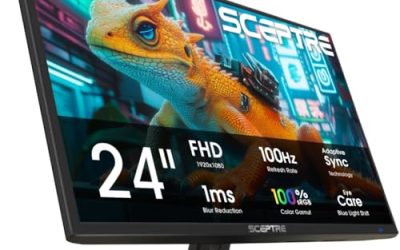
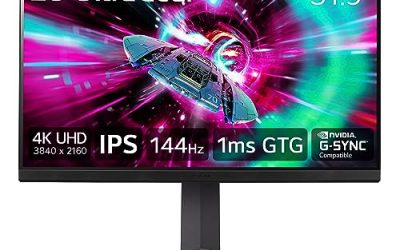
The best 1440p 144Hz monitor for most players is a 27-inch Fast IPS panel running 165Hz or higher, such as the LG UltraGear 27GP850-B, because it pairs fast pixel response with good colour at a mid-range cost. Choose a curved VA panel like the Dell S2722DGM for deeper contrast on a tighter budget, or a QD-OLED like the Alienware AW2725DF if you want the best motion clarity and can pay a premium. Almost every “144Hz” 1440p monitor sold in 2026 is really a 144-180Hz model, so the useful question is which panel type and connection fit your GPU and room.
A note on the search term: “144mhz” is a common typo for 144Hz, which is the refresh rate (frames drawn per second). Megahertz is a different unit and does not apply to monitors.
Quick comparison of the picks
| Pick | Best for | Key specs (per manufacturer spec sheets) | Price range |
|---|---|---|---|
| LG UltraGear 27GP850-B | Best overall | 27″, 2560×1440, Nano IPS, 165Hz (overclocked mode), 1ms GtG, DisplayPort 1.4 + 2× HDMI 2.0, HDR400-class | Mid-range |
| Dell S2722DGM | Best budget | 27″ curved, 2560×1440, VA, 165Hz, 1ms (extreme mode), DisplayPort 1.2 + 2× HDMI 2.0 | Budget to lower mid-range |
| Gigabyte M27Q | Best for mixed work and play | 27″, 2560×1440, IPS, up to 170Hz, built-in KVM switch, USB hub, DisplayPort 1.2 + HDMI 2.0 | Budget to mid-range |
| Alienware AW2725DF | Best premium / motion clarity | 27″, 2560×1440, QD-OLED, 360Hz, sub-1ms GtG, DisplayPort 1.4 + HDMI 2.1 | Premium |
| Generic 32″ 1440p, 144-165Hz VA or IPS | Best for big-screen, no-4K needs | 31.5″, 2560×1440 (about 93 PPI), 144-165Hz, FreeSync/G-Sync Compatible | Budget to mid-range |
Models and variants change often, so confirm the exact panel and refresh rate on the current spec sheet before buying. Manufacturers sometimes revise panels under the same name.
Best overall: LG UltraGear 27GP850-B
This 27-inch Nano IPS is the safe default. It has wide viewing angles, strong colour coverage (LG quotes roughly 98% DCI-P3), and a 165Hz mode that sits comfortably above the 144Hz target. It suits players who split time between competitive shooters and single-player games. The trade-off is the usual IPS weakness: contrast is around 1000:1, so dark rooms show grey blacks and some backlight glow. HDR is only a nominal bonus at this brightness.
Best budget: Dell S2722DGM
A curved VA panel gives much higher native contrast (around 3000:1 per Dell) than IPS, which makes games look richer in a dim room. It reaches 165Hz at 1440p and costs less than most Fast IPS rivals. The trade-offs are narrower viewing angles and VA’s tendency toward slower dark-colour transitions, which can cause smearing in fast dark scenes. Its DisplayPort 1.2 input is enough for 165Hz at 8-bit colour, but not for 10-bit at that rate.
Best for mixed work and play: Gigabyte M27Q
The M27Q is a 27-inch IPS with a built-in KVM switch, so one keyboard and mouse can control a gaming PC and a work laptop. It suits people who use one monitor for both. The trade-off is that its HDR and contrast are basic, and its overclocked 170Hz mode matters less than the KVM and USB hub for most buyers.
Best premium: Alienware AW2725DF
QD-OLED gives near-instant pixel response, perfect blacks and excellent colour, so even a 144Hz game looks sharper in motion than on LCD. It is the pick for players with a strong GPU who want a visibly better picture. The trade-offs are cost, lower full-screen brightness than good LCDs, and burn-in precautions: use the built-in pixel-refresh routines and avoid static desktop elements for hours at a time. Its 360Hz ceiling is far above what the 144Hz target needs.
Best for big-screen use: 32-inch 1440p
A 31.5-inch 1440p screen is about 93 pixels per inch, versus roughly 109 on a 27-inch. It fills more of your view but looks softer for text. It suits players sitting about 80-100 cm away who want immersion without paying for 4K. Pick 27 inches if you want sharp text and sit close.
Worked example: which cable and port do you need?
Bandwidth explains why some 144Hz monitors will not run at full spec over HDMI. Start with the raw pixel data:
- Pixels per frame: 2560 × 1440 = 3,686,400
- At 144Hz: 3,686,400 × 144 = about 531 million pixels per second
- At 8-bit colour (24 bits per pixel): about 12.7 Gbps. With blanking overhead, roughly 13.5 Gbps.
- At 10-bit colour (30 bits per pixel): about 15.9 Gbps raw, roughly 17 Gbps with blanking.
- At 165Hz and 8-bit: about 14.6 Gbps raw, roughly 15.5 Gbps with blanking.
Compare these with usable link capacity: HDMI 2.0 carries about 14.4 Gbps of data, and DisplayPort 1.2 about 17.3 Gbps. DisplayPort 1.4 carries about 25.9 Gbps.
| Mode | Approx. need | HDMI 2.0 (14.4) | DP 1.2 (17.3) | DP 1.4 (25.9) |
|---|---|---|---|---|
| 1440p 144Hz, 8-bit | 13.5 Gbps | Fits, barely | Fits | Fits |
| 1440p 144Hz, 10-bit | 17 Gbps | No | Borderline | Fits |
| 1440p 165Hz, 8-bit | 15.5 Gbps | No | Fits | Fits |
| 1440p 240Hz, 8-bit | about 23 Gbps | No | No | Fits |
The practical rule is to use the DisplayPort cable that comes with the monitor and connect it to your graphics card’s DisplayPort output. HDMI 2.0 handles 144Hz at 8-bit but leaves no room for higher rates or 10-bit colour.
How to choose: decision matrix
| Your situation | Choose | Why |
|---|---|---|
| Competitive shooters, bright room | Fast IPS, 165Hz+ | Low response time, good viewing angles, bright image |
| Single-player games, dim room | VA or OLED | Better contrast and black levels |
| Tight budget | VA, 165Hz | Best contrast per unit of cost; accept slower dark transitions |
| Work and gaming on two PCs | IPS with KVM | One keyboard, mouse and screen for both machines |
| Console owner (PS5/Xbox Series X) | HDMI 2.1 model | Consoles output 1440p on supported models; HDMI 2.1 gives headroom for 120Hz |
| Mid-range GPU (class of RTX 4060 / RX 7600) | 144-165Hz, no need for 240Hz+ | Frame rates rarely exceed the panel’s ceiling in demanding games |
Match refresh rate to your GPU
Published reviews generally show that entry-level current graphics cards land at roughly 60-110 FPS in demanding modern games at 1440p high settings, and well above 144 FPS in esports titles. Mid-range and higher cards sit nearer 100-170 FPS in demanding games. These ranges vary with settings, CPU, game and patch, so treat them as approximate. If your card cannot reach 144 FPS in the games you play, adaptive sync (G-Sync Compatible or FreeSync) matters more than raising the refresh ceiling, because it keeps motion smooth at 90-130 FPS.
Specs worth checking beyond refresh rate
- Panel type: IPS for colour and angles, VA for contrast, QD-OLED for motion and blacks.
- Adaptive sync range: a range that starts at 48Hz or lower, with low framerate compensation, avoids stutter when frames drop.
- Overdrive modes: use the middle setting; the fastest often adds inverse-ghosting halos.
- Stand adjustment: height and tilt adjustment is worth more than extra RGB.
- Backlight strobing: useful for competitive players, but it generally cannot run together with adaptive sync.
Settings to apply after setup
- Set the refresh rate in Windows (Settings > Display > Advanced display); new monitors often default to 60Hz.
- Enable the monitor’s adaptive sync option in its on-screen menu, then enable G-Sync Compatible or FreeSync in your GPU driver.
- Cap in-game frame rate a few FPS below the maximum refresh rate to keep adaptive sync active and reduce latency.
- Choose a medium overdrive setting and check for trailing or halos with a motion test pattern.
- Use the DisplayPort output, not HDMI, if you want 165Hz or 10-bit colour.
Frequently Asked Questions
Is 144Hz at 1440p worth it over 60Hz?
Yes, for games. Going from 60Hz to 144Hz makes mouse movement and camera panning noticeably smoother and cuts the delay between frames, which most players notice immediately. It is less important for office work, but it still makes cursor movement feel more responsive.
Is 1440p 144Hz better than 4K 60Hz for gaming?
For most gamers, yes. 1440p at 144Hz needs far less GPU power than 4K, so you can keep high settings and high frame rates. 4K 60Hz looks sharper in slow games, but motion is less smooth.
Do I need HDMI 2.1 for a 1440p 144Hz monitor?
Not for a PC. DisplayPort 1.2 or 1.4 handles 144Hz and 165Hz easily, and HDMI 2.0 manages 144Hz at 8-bit. HDMI 2.1 matters for consoles or if you want 240Hz and above over HDMI.
What size is best for 1440p?
27 inches is the sweet spot at about 109 pixels per inch, giving sharp text and images at normal desk distance. 32 inches works if you sit farther back, but pixels become visible at close range.
Is a curved monitor better for gaming?
It depends on size and taste. A gentle curve (about 1000R to 1500R) can feel more immersive on a 27-inch or larger screen, but it adds little for competitive play. Flat panels are better for tasks that need straight lines, such as design work.
Should I buy 165Hz or 180Hz instead of exactly 144Hz?
Yes, if the price is similar. The higher ceiling gives some headroom, and the extra cost is usually small. Check that the higher rate is available over the cable and port you plan to use.
Related guides
More from Amazon
Programs that pair well with the guide above. Offers and eligibility are set by Amazon and may change.
A free business account with business pricing and bulk-buying tools for work, shop or home office.
Create a business accountFree shipping on eligible items, Prime Video and more. Eligible new members can start with a free trial.
Start a Prime free trialAudiobooks and podcasts to listen to on the go. Eligible new members can start with a free trial.
Try Audible freeAd-free music streaming. Eligible new subscribers can start with a free trial.
Try Music Unlimited freeAs an Amazon Associate we earn from qualifying purchases.