A gaming mouse can change how quickly you move through a video edit, because the work is rarely about one click. You are scrubbing a timeline, trimming clips, jumping between tools, marking cuts, adjusting audio, and returning to the playhead again and again. A mouse with too few buttons forces those actions back to the keyboard, while a precise sensor and a comfortable shape keep small timeline movements under control during long sessions.
This guide is for editors who also game, for creators who cut in Premiere Pro or DaVinci Resolve, and for anyone building a desk setup that must handle both editing and play. The four mice below were chosen from their names and specifications on the Amazon page, with attention to programmable buttons, sensor precision, scroll-wheel control, and comfort for extended timeline work.
Top 3 picks at a glance
Quick Picks
As an Amazon Associate we earn from qualifying purchases
| Product | Best for | Key spec from title |
|---|---|---|
| Logitech G502 HERO | Balanced editing and gaming on one wired mouse | HERO 25K Sensor, 25,600 DPI, 11 Buttons |
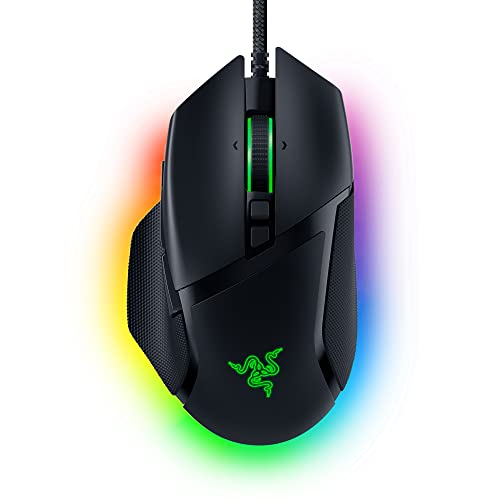
| Razer Basilisk V3 | Precise timeline control with a tilt scroll wheel | Focus Plus 26K DPI Optical Sensor, 11 Programmable Buttons |
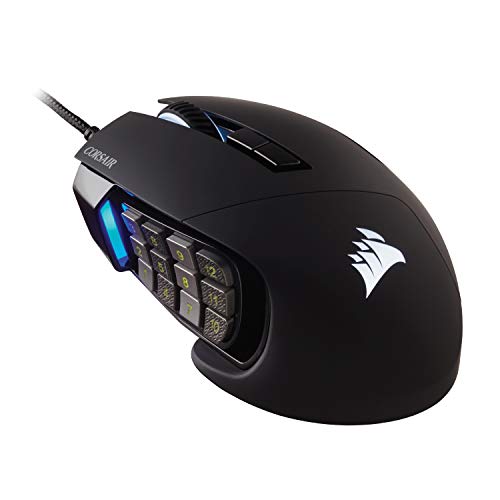
| Corsair Scimitar RGB Elite | Editors who want a large thumb panel for shortcuts | 18,000 DPI, 17 Programmable Buttons |
| Logitech G600 MMO Gaming Mouse | Maximum shortcut coverage for complex editing workflows | 20 Programmable Buttons, RGB Backlit |
How to Choose
Count the buttons you will actually use
Extra buttons only help when each one has a clear editing job, such as blade, ripple delete, play and pause, undo, zoom to fit, or toggle audio. A mouse with eleven programmable buttons suits most editors, because it covers the common tools without turning the side panel into a puzzle. Seventeen or twenty buttons suit editors who work with layered timelines, colour panels, and effects, and who are willing to spend time learning the layout. Before choosing, write down the six to ten commands you repeat most often. If that list is short, a simpler mouse will feel faster. If the list keeps growing, a thumb grid will save more hand movement over a full project.
Match sensor precision to timeline work
Timeline editing rewards small, controlled movements more than raw speed. A sensor with a wide DPI range lets you set a low sensitivity for frame-by-frame trimming and a higher setting for moving across a long timeline or a second monitor. Look for a sensor that tracks without smoothing or acceleration, so the cursor stops where you expect it to stop when you release the mouse. Adjustable DPI steps matter here, because a jump from one preset to the next should feel deliberate rather than sudden. A mouse that supports on-the-fly DPI switching is useful when you move between fine trimming and broad navigation in the same session.
Choose a shape that survives long sessions
Video editing sessions stretch for hours, and a mouse that feels fine for twenty minutes can become uncomfortable by the third hour. A right-handed ergonomic shape with a thumb rest supports the hand during repeated scrubbing, while a wider body suits palm grips and a narrower body suits claw grips. Weight matters too: a heavier mouse can feel steady for precise cuts, while a lighter mouse reduces fatigue when you move across a large timeline. Check the length and width against your hand size, and pay attention to where the side buttons sit. If you must stretch your thumb to reach them, you will use them less often.
Check the software and the scroll wheel
Editing software rewards a mouse whose companion app can store profiles, remap buttons for each application, and switch settings without a long setup process. Onboard memory is valuable when you move between a desktop and a laptop, because your editing layout travels with the mouse. The scroll wheel deserves equal attention. A tilt wheel can move horizontally through a timeline, while a dual-mode wheel can switch between stepped scrolling for precise frame movement and free spinning for fast travel through long footage. Test how the wheel feels for zooming, because that action appears in almost every editing session.
The 4 Best Options
Logitech G502 HERO

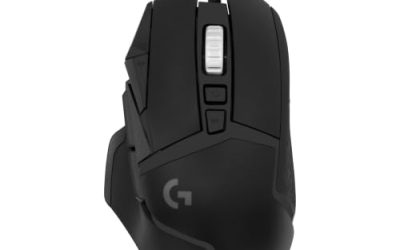
The Logitech G502 HERO fits editors who want one wired mouse for both editing and gaming without learning a large thumb grid. Its eleven programmable buttons cover the core editing commands, while the dual-mode scroll wheel helps with both precise trimming and fast movement through long clips. The shape suits palm grips and longer sessions, and the adjustable weight system lets you tune the feel toward steady, deliberate movement. It is a practical choice when you want familiar controls, dependable tracking, and a layout that stays out of the way.
Specs
- HERO 25K optical sensor with 200 to 25,600 DPI
- 11 programmable buttons
- Dual-mode hyper-fast scroll wheel with tilt left and right
- Adjustable weight system with five 3.6-gram weights
- Onboard memory for up to five profiles
- LIGHTSYNC RGB lighting
- Model number 910-005469
- Wired connection
Best for: Editors who want a balanced wired mouse for editing, gaming, and everyday desktop work.
Watch out for: Confirm the wired cable length and desk layout before buying, and check that the right-handed shape suits your grip.
Razer Basilisk V3
The Razer Basilisk V3 fits editors who spend much of their time on the timeline and want fine control over scrolling and cursor movement. Its tilt wheel makes horizontal navigation feel natural, and its eleven programmable buttons provide room for blade, zoom, undo, and playback shortcuts without crowding the thumb. The ergonomic right-handed shape supports the hand during long cuts, while the high-resolution sensor helps with precise placement of the playhead. It suits creators who value smooth, predictable tracking and a wheel that can change character between detailed work and fast review.
Specs
- Focus Plus 26K DPI optical sensor
- 11 programmable buttons
- HyperScroll tilt wheel
- Razer Optical Mouse Switches Gen 2 with 0.2 ms actuation speed
- Switches rated for up to 70 million clicks
- 11 Razer Chroma RGB lighting zones
- Model number RZ01-04000100-R3U1
- Wired connection
Best for: Editors who want precise timeline navigation and a tilt wheel for horizontal scrolling.
Watch out for: Confirm that your editing software allows the button assignments you plan to use, and check the right-handed shape against your hand size.
Corsair Scimitar RGB Elite
The Corsair Scimitar RGB Elite fits editors who rely on many shortcuts and want them grouped in one place under the thumb. Its twelve side buttons can hold timeline tools, audio controls, markers, and clip commands, while the remaining programmable buttons cover navigation and playback. The Key Slider system lets you reposition the side panel, which helps when your thumb naturally rests higher or lower than the default layout. It is best for editors who edit complex projects, switch between panels often, and prefer to keep their left hand on the keyboard for fewer commands.
Specs
- Native 18,000 DPI optical sensor adjustable in 1 DPI resolution steps
- 17 fully programmable buttons
- 12 mechanical side buttons
- Patented Key Slider control system for repositioning the side buttons
- Omron switches rated for 50 million clicks
- iCUE compatible
- Model number CH-9304211-NA
- Wired connection
Best for: Editors who want a large thumb panel for timeline shortcuts, markers, and effects controls.
Watch out for: Check the width and side-panel position against your hand, and allow time to learn the twelve-button layout before a deadline project.
Logitech G600 MMO Gaming Mouse

The Logitech G600 MMO Gaming Mouse fits editors who want the widest shortcut coverage in this guide. Its twenty programmable buttons include a twelve-button thumb panel, so common editing actions can stay under one thumb instead of spreading across the keyboard. A dedicated G-Shift button doubles the actions available on other buttons, which suits editors who work with several panels and many repeated commands. The laser sensor covers fine trimming and broader timeline movement, while the RGB lighting can help distinguish profiles. It is a strong fit when shortcut density matters more than a minimal layout.
Specs
- 20 programmable buttons
- 12-button thumb panel
- Gaming-grade laser tracking up to 8,200 DPI
- Resolution range of 50 to 8,200 DPI
- G-Shift ring-finger button for doubling button actions
- RGB backlit lighting
- Primary buttons rated to 20 million clicks
- Braided USB cable
- Model number 910-002864
Best for: Editors with complex workflows who want the most programmable buttons for editing shortcuts.
Watch out for: Confirm that the thumb panel layout suits your hand and that you are comfortable learning a dense button grid.
Which One Fits Your Situation
You edit and game on the same desk
Choose the Logitech G502 HERO when one mouse must cover both worlds without a steep learning curve. Its eleven buttons handle editing shortcuts, its weight tuning helps you settle on a steady feel, and its onboard profiles let you keep separate setups for editing and gaming. The wired connection also removes battery checks from long sessions.
You spend most of your time trimming on the timeline
Choose the Razer Basilisk V3 when precise cursor placement and scrolling matter most. The tilt wheel supports horizontal timeline movement, the high-resolution sensor helps with frame-level adjustments, and the ergonomic shape supports the hand during repeated trimming. It is a good match for editors who value control over sheer button count.
You want shortcuts grouped under your thumb
Choose the Corsair Scimitar RGB Elite when you want a dedicated panel for editing commands. Its twelve side buttons can hold tools, markers, and audio shortcuts, while the Key Slider lets you move the panel to fit your thumb. This layout works well for editors who cut long projects and switch tools often.
You run a complex, panel-heavy workflow
Choose the Logitech G600 MMO Gaming Mouse when your editing setup involves many repeated commands across several panels. Its twenty programmable buttons and G-Shift function give you room for a full shortcut map, while the thumb panel keeps those commands close at hand. It suits editors who are willing to learn the layout in exchange for fewer keyboard trips.
Common Mistakes
- Choosing a mouse by button count alone, without mapping each button to a command you repeat every day.
- Setting DPI too high for timeline work, which makes frame-by-frame trimming harder to control.
- Ignoring hand size and grip style, then struggling with side buttons that sit too far from the thumb.
- Skipping the companion software setup, so profiles, button remaps, and DPI steps never match the editing app.
- Buying a mouse without checking cable length, desk space, and whether the shape suits long editing sessions.
Frequently Asked Questions
Is a gaming mouse good for video editing?
Yes, a gaming mouse can work well for video editing when it offers programmable buttons, precise tracking, and a comfortable shape. Extra buttons can hold blade, undo, zoom, and playback commands, while a good sensor helps with accurate trimming. The benefit depends on mapping the buttons to actions you repeat, rather than leaving them at their default settings.
How many buttons do I need for video editing?
Most editors do well with eleven programmable buttons, which cover the core tools, navigation, and playback commands. Seventeen or twenty buttons suit editors who work with layered timelines, colour tools, and effects, and who use many shortcuts every day. Start with the commands you repeat most often, then choose a mouse with enough buttons to cover that list.
Does DPI matter for video editing?
DPI matters for control rather than speed. A lower setting helps with frame-by-frame trimming and precise placement of the playhead, while a higher setting helps you move across a long timeline or a wide monitor. A mouse with adjustable DPI steps and on-the-fly switching lets you change sensitivity without opening settings during an edit.
Should I choose a wired or wireless mouse for editing?
A wired mouse suits long editing sessions because it needs no charging and keeps a constant connection. A wireless mouse suits editors who value a clear desk and move between machines, provided the connection stays stable and the battery lasts through a full session. Choose based on your desk setup, session length, and how often you move the mouse between computers.
Related guides
More from Amazon
Programs that pair well with the guide above. Offers and eligibility are set by Amazon and may change.
A free business account with business pricing and bulk-buying tools for work, shop or home office.
Create a business accountFree shipping on eligible items, Prime Video and more. Eligible new members can start with a free trial.
Start a Prime free trialAudiobooks and podcasts to listen to on the go. Eligible new members can start with a free trial.
Try Audible freeAd-free music streaming. Eligible new subscribers can start with a free trial.
Try Music Unlimited freeAs an Amazon Associate we earn from qualifying purchases.