
Most laptop SSD heatsink mistakes happen before the package is opened. Buyers often order a full-height desktop M.2 cooler that prevents the bottom cover from closing, pick a thick thermal pad that bends the drive, or assume every warm SSD needs extra cooling. In a laptop, the available space around the M.2 slot matters more than the largest-looking fin stack.
A good heatsink can help an NVMe drive shed heat during long file transfers, game installs, video editing, and sustained work. But it must fit the drive, the slot, the laptop’s bottom panel, and any factory shielding already in place. The best option is usually a slim copper or graphite-coated copper plate with an appropriately sized thermal pad—not a dramatic desktop-style cooler.
As an Amazon Associate we earn from qualifying purchases at no extra cost to you.


This guide explains how to choose an SSD heatsink for laptops in 2026 without creating fitment problems or wasting money on features your machine cannot use.
Our Top Picks
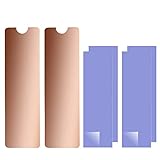
 NVME M.2 Heatsink SSD Heatsink: Graphite Covered Pure2.76 x 0.79 x 0.08 Inches0.1 PoundsCheck on Amazon


Top 3 picks at a glance
Decide These 3 Things First
- Confirm that your laptop has room for one. Remove the bottom cover only if your warranty and service instructions allow it. Measure the clearance between the SSD’s top surface and the underside of the laptop cover. Many laptops have only 1.5 to 3 mm of usable vertical space above the drive.
- Identify your SSD length and component layout. Most laptop NVMe SSDs use the M.2 2280 format: 22 mm wide and 80 mm long. Shorter 2230, 2242, and 2260 drives need a heatsink sized for their actual length. Also check whether memory chips are on one side or both sides of the SSD.
- Check for a factory thermal solution. A thin thermal pad, metal cover, graphite sheet, or heat spreader may already be installed. If the laptop manufacturer included one, retain it unless a replacement is clearly needed. Layering an aftermarket heatsink on top of an existing cover can create pressure and clearance issues.
Size and Clearance: The Non-Negotiable Factor
Start with the physical envelope, not the material. A standard 2280 SSD measures 80 x 22 mm, so most laptop-compatible heatsinks are approximately 70 x 20 mm. That slight undersizing is intentional: it keeps the metal plate away from the connector and mounting screw.
For laptops, look for a heatsink body around 0.5 to 1.5 mm thick, plus a thermal pad between 0.5 and 1 mm thick. A finished installed height of roughly 1.5 to 3 mm is the safest target for many machines, but never treat that as universal. Ultrabooks may allow less than 2 mm total, while thicker gaming laptops can have more room.
A product described as 70 x 20 x 2 mm, such as slim graphite-covered copper models, may work well in a laptop—but the listed 2 mm dimension often refers to the metal assembly alone. Add the pad thickness before deciding it will fit. A 2 mm heatsink plus a 1 mm pad can require roughly 3 mm of clearance, and compression will not make every laptop cover fit safely.
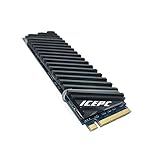
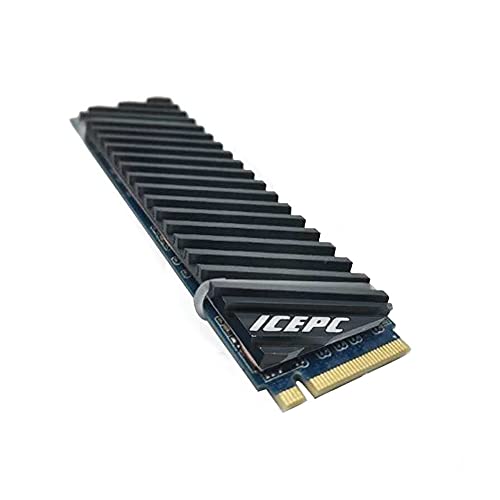
Avoid tall finned heatsinks intended for desktop motherboards or PlayStation 5 upgrades. These may be 5 to 15 mm tall. Even if they fit over the SSD initially, they can press against the battery, keyboard deck, bottom cover, or internal fan shroud.
Material: Copper, Aluminum, or Graphite-Coated Designs
For a thin laptop heatsink, copper is usually the sensible choice. Copper transfers heat efficiently in a very small footprint, which is useful when the heatsink has little or no airflow. Many inexpensive laptop kits use a thin copper plate weighing only a few grams, commonly around 3 to 8 grams for a 70 x 20 mm piece.
Aluminum is lighter and often less expensive, but it is more common in taller finned designs where surface area and airflow compensate for the material difference. In a cramped laptop bay, a slim copper plate is generally easier to recommend than a bulky aluminum fin stack.
Graphite-coated copper products are another practical option. The graphite layer can spread heat across the surface while the copper plate absorbs and distributes localized heat from the SSD controller. These are typically still slim, often listed around 70 x 20 x 2 mm, making them more suitable for many 2280 laptop drives than conventional finned coolers.
Do not mistake a decorative black finish for a meaningful material upgrade. What matters is whether the listing clearly states copper, aluminum, graphite, or a composite structure—and whether it includes a thermal pad. Vague descriptions such as “metal cooling armor” without dimensions or material details are not enough.
Construction and Thermal Pad Quality
The thermal pad is as important as the heatsink plate. It fills the microscopic gaps between the SSD components and the metal surface. Without a pad, a flat heatsink may touch only a small area and provide limited benefit.
For most single-sided laptop SSDs, begin with a 0.5 mm pad. A 1 mm pad is useful when the SSD components sit lower than the surrounding PCB, when the cover has extra clearance, or when the kit is designed for it. Some kits include both 0.5 mm and 1 mm pads, which is helpful because SSD layouts vary.
Do not use a pad so thick that it bows the M.2 board. An M.2 SSD should lie flat against its mounting post and secure with its retaining screw. If the drive arches, the pad is too thick, the heatsink is too tall, or the assembly is incorrectly positioned. Bending the PCB can stress the connector and solder joints.
Look for these construction details:
- A smooth underside with no sharp edges near SSD components.
- Electrical insulation from the thermal pad or a nonconductive layer where required.
- Pre-cut pad dimensions close to 70 x 20 mm for a 2280 drive.
- Thin adhesive strips or an included retaining band only if the design needs them.
- A low-profile shape that does not extend over the M.2 screw or connector.
Be cautious with metal clips, thick rubber bands, and rigid frames. They can add unwanted height. A simple copper plate secured by a properly fitted pad and the laptop’s normal enclosure pressure is often enough, provided the manufacturer’s instructions support that arrangement.
Performance Needs and Laptop Comfort
Not every SSD needs an aftermarket heatsink. For web browsing, office work, streaming, and occasional file copies, a modern NVMe drive may operate acceptably with the laptop’s existing thermal design. The case for extra cooling becomes stronger if you regularly move large video files, compile code, run virtual machines, install large games, edit high-resolution footage, or use the SSD heavily while the laptop is charging.
Focus on sustained workloads rather than a single temperature reading. NVMe SSDs can reduce speed when they become too warm, but the temperature reported by monitoring software can vary by sensor and drive model. A heatsink should be viewed as a way to improve heat spreading and reduce the chance of heat buildup during extended activity—not as a guarantee of a specific temperature drop.
Also consider where that heat goes. A heatsink does not destroy heat; it redistributes it. In a thin laptop, a copper plate can make the area around the SSD warmer to the touch if the chassis uses that zone as part of its thermal path. That is not automatically a problem, but it reinforces why a thin spreader is preferable to a large block that crowds other components.
If your laptop’s SSD sits directly beneath the palm rest, prioritize the thinnest compatible solution. If it sits beside a fan intake or near a vented base panel, a slightly larger low-profile plate may be reasonable. Never block a vent or alter airflow routing to accommodate an SSD cooler.
Price Tiers: What $6, $12, and $20 Really Buy
Budget: $5 to $9. This range includes basic copper plates and simple laptop M.2 kits. A typical kit may include one thin copper heatsink and one or two thermal pads. The Easycargo-style format—copper plate plus 0.5 mm and 1 mm pads—can be a good value when you need flexibility and have measured clearance. At this price, inspect the listed dimensions carefully and do not expect extensive documentation.
Mid-range: $10 to $16. Here, you are more likely to find graphite-coated copper designs, cleaner edge finishing, better packaging, and pads cut specifically for 2280 drives. Slim 70 x 20 x 2 mm copper-and-graphite options fit into this range. This is the practical sweet spot for most buyers who need a low-profile solution for one laptop SSD.
Premium: $17 to $30. Premium laptop-compatible kits may offer more carefully engineered multi-layer construction, several pad thicknesses, better instructions, or a model-specific fit. Pay extra only when the design is genuinely thinner, includes a needed mounting solution, or comes from a manufacturer that provides clear compatibility support. Paying $25 for a tall finned cooler that cannot fit is worse than paying $7 for a plain copper plate that does.
For most laptop upgrades, spending more than about $15 is unnecessary unless you have a known clearance challenge or an unusually demanding workstation workload.
Warranty and Support Considerations
An SSD heatsink is a simple accessory, but support still matters. Look for a stated return period of at least 30 days and a product warranty of 1 year or more when available. Low-cost accessory brands do not always offer long warranties, so clear dimensional information can be more valuable than a vague multi-year promise.
Before installation, photograph the original SSD area and save any factory pads, shields, screws, and covers. If you later need laptop service, restoring the original configuration is much easier when those parts are organized. Keep the SSD label visible where possible; do not cover serial-number labels unless the drive maker specifically permits it.
Remember that the laptop manufacturer, not the heatsink seller, determines whether opening the machine or modifying internal thermal materials affects warranty coverage. Check the laptop documentation before proceeding.
Delivery and Assembly: Small Parts, Careful Installation
These kits are inexpensive partly because they are small and simple, but tiny parts can still be frustrating. Confirm whether the package includes one heatsink or a two-pack, whether pads are included, and whether the pad is pre-cut. A two-pack can be useful if you own multiple laptops, but it is not automatically better if the pads are the wrong thickness.
Installation normally takes 10 to 20 minutes for someone comfortable opening a laptop. You may need a precision Phillips or Torx screwdriver, a plastic pry tool, and a clean, static-conscious work surface. Shut the laptop down fully, unplug power, and disconnect the battery if the service manual instructs you to do so.
Peel only one side of the thermal pad backing at a time. Align the pad over the SSD’s controller and NAND package area, then place the heatsink without covering the M.2 retaining screw. Reinstall the bottom cover gently. If it requires force, stop and remove the heatsink assembly. Do not tighten the cover to “make it fit.”
Spec Checklist
| Spec | Budget | Mid | Premium |
|---|---|---|---|
| Typical price | $5–$9 | $10–$16 | $17–$30 |
| Best material | Plain copper | Graphite-coated copper or refined copper plate | Low-profile multi-layer copper or model-specific design |
| Common 2280 footprint | About 70 x 20 mm | About 70 x 20 mm | About 70 x 20 mm, sometimes custom shaped |
| Target installed height | About 1.5–3 mm | About 1.5–3 mm | As low as 1–2.5 mm where specified |
| Thermal pad options | Usually one 0.5 mm or 1 mm pad | Often 0.5 mm and 1 mm pads | Multiple thicknesses or pre-sized pads |
| Best for | Measured, straightforward laptop upgrades | Most 2280 laptop SSD installations | Very tight clearances or specific compatibility needs |
Red Flags
- No dimensions beyond “fits M.2 SSD.” M.2 refers to several lengths and many thickness constraints.
- A heatsink taller than 3 mm for an unmeasured laptop installation.
- Desktop fins, fan attachments, or bulky clamps marketed as laptop universal.
- No thermal pad included and no guidance about pad thickness.
- Claims of guaranteed temperature reductions without stating the SSD, workload, ambient conditions, or test method.
- Metal adhesive tape that could contact exposed components or interfere with the M.2 screw.
- Instructions telling you to stack a new heatsink over an existing factory shield without checking clearance.
- Listings that call every 2280 product “PS5 and laptop compatible.” A part can suit one platform while being too tall for the other.
FAQ
Do laptops really need SSD heatsinks?
Some do, but many do not. Consider one when your laptop has a bare NVMe drive, enough clearance, and frequent sustained storage workloads. If a factory shield or thermal pad is already present, it may be all you need.
What thickness SSD heatsink is safe for a laptop?
There is no universal safe thickness. Measure the available space first. For many laptops, a metal plate around 0.5 to 1.5 mm thick paired with a 0.5 mm pad is a reasonable starting point. Always account for the combined installed height.
Can I use a PS5 M.2 heatsink in a laptop?
Only if its actual dimensions fit. Many products are advertised for both uses because they fit a 2280 SSD, but a PS5-oriented heatsink may be far too tall for a laptop. Compare the full height, not just the 80 x 22 mm drive format.
Should the thermal pad cover the entire SSD?
Usually, the pad should make contact with the heat-producing components on the top side of the drive, especially the controller and NAND packages. A full-size 70 x 20 mm pad is common and convenient, but it must not interfere with the connector, mounting hole, or fit of the laptop cover.









