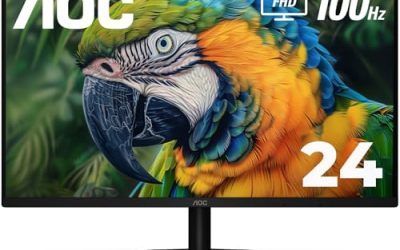
The best 144 Hz 1ms monitors are IPS or fast VA panels in the 24- to 27-inch range, such as the AOC 24G2 series for 1080p, the Gigabyte M27Q-class for 1440p and the Samsung Odyssey G5 for a curved VA option. The “1ms” figure usually refers to MPRT with backlight strobing or to the best-case gray-to-gray time, not typical pixel response, so check independent response-time charts as well as the spec sheet. For most buyers, a 1080p 144 Hz IPS monitor at a price between $120 and $200 is the best balance.
Quick comparison of the best 144 Hz 1ms monitor classes
| Pick | Best for | Key specs | Typical price |
|---|---|---|---|
| AOC 24G2 / 24G2SP class | Best overall 1080p | 24 in IPS, 1920×1080, 144-165 Hz, 1ms MPRT, FreeSync | Usually $120-$180 |
| Gigabyte M27Q class | Best 1440p IPS | 27 in IPS, 2560×1440, 144-170 Hz, 0.5ms MPRT, KVM | Usually $220-$300 |
| Samsung Odyssey G5 27 in | Best curved VA | 27 in VA, 1440p, 144 Hz, 1ms MPRT, 1000R curve | Usually $200-$300 |
| Budget 24 in VA 144 Hz | Best cheapest | 1080p, 144 Hz, 1ms MPRT, high contrast | Usually $100-$150 |
| TN 24 in 144 Hz class | Best for competitive shooters | 1080p, 144 Hz, 1ms GtG, narrower viewing angles | Usually $120-$170 |
| 27 in 1080p 144 Hz IPS class | Best large screen on a budget | 27 in IPS, 1080p, lower pixel density (about 82 PPI) | Usually $140-$200 |
Prices are general market ranges that vary by retailer and region.
What “1ms” really means
Two different numbers hide behind the same label. GtG (gray to gray) measures how long a pixel takes to move between shades, and the best-case figure on the box is usually from a favorable transition at the strongest overdrive setting. MPRT (moving picture response time) measures perceived blur and is often reduced to 1ms by inserting black frames with a backlight strobing mode. According to monitor makers’ spec sheets, many IPS “1ms” models mean MPRT, while their true GtG average is often around 4 to 6 ms.
At 144 Hz, one frame lasts 1000 / 144 = 6.94 ms. A monitor with an average GtG of 4 ms completes most transitions inside a frame, which looks clean. If the average is 8 ms or more, ghosting appears behind fast objects. So the practical goal is average GtG under about 5 ms with minimal overshoot, not the 1ms headline.
Best overall 1080p: AOC 24G2 series class
This 24-inch IPS design became a benchmark for budget gaming monitors. It offers a 144 Hz or 165 Hz refresh, wide viewing angles, strong color for the price and adaptive sync support. The trade-offs are modest contrast (around 1000:1 typical) and a plain stand. If you play at 1080p on a mid-range GPU, this class is hard to beat.
Best 1440p IPS: Gigabyte M27Q class
A 27-inch 1440p panel gives a sharper image at about 109 pixels per inch. The Gigabyte M27Q-class monitors add a KVM switch, USB hub and good sRGB coverage. You need a more capable GPU, since 1440p has 78 percent more pixels than 1080p, but 144 Hz at high settings is realistic with an RTX 5060 Ti or Radeon RX 9060 XT class card in many games.
Best curved VA: Samsung Odyssey G5
VA panels offer a contrast ratio around 3000:1, which makes dark scenes look deeper than on IPS. The 1000R curve is aggressive and immersive, and the 1ms MPRT spec applies to the strobing mode. The drawback is that some VA panels show dark-transition smearing, so watch for black smearing in reviews and enable the overdrive setting at a mid level.
Best cheapest: budget 24-inch VA
If money is tight, a budget VA monitor gives high contrast and 144 Hz at the lowest price. Its viewing angles and color accuracy are worse than IPS, but for gaming in a dark room it is a solid value.
Best for competitive shooters: fast TN
A TN panel can reach a true GtG of 1 ms with little overshoot, which suits tactical shooters where every frame counts. The drawbacks are washed-out colors when viewed off-axis and weaker contrast. Choose TN only if you prioritize speed over image quality.
Worked example: cable bandwidth for 144 Hz
A frame at 1920×1080 and 24-bit color contains 1920 x 1080 x 24 = 49.8 million bits. Multiply by 144 frames per second and you need about 7.2 Gbps of pixel data, not counting blanking intervals. With typical blanking overhead of around 10 percent, it comes to about 8 Gbps.
| Resolution and refresh | Approx. data rate (24-bit) | Minimum practical connection |
|---|---|---|
| 1920×1080 @ 144 Hz | About 8 Gbps | DisplayPort 1.2 or HDMI 2.0 (HDMI 1.4 is borderline) |
| 2560×1440 @ 144 Hz | About 14 Gbps | DisplayPort 1.2 (17.3 Gbps effective) or HDMI 2.0 with limits |
| 2560×1440 @ 165 Hz | About 16 Gbps | DisplayPort 1.2 or 1.4 |
| 3840×2160 @ 144 Hz | About 32 Gbps | DisplayPort 1.4 with DSC or HDMI 2.1 |
This is why a monitor can be set to 60 Hz when connected by an older HDMI cable: the cable or port cannot carry the signal, not because the monitor is faulty.
Step-by-step: unlock the full 144 Hz and tune the response
- Use the right port. Connect with DisplayPort or an HDMI 2.0 or higher cable. Reason: HDMI 1.4 and older cables may limit refresh.
- Set the refresh rate in Windows. Open Display settings, Advanced display, and choose 144 Hz. Windows often defaults to 60 Hz after a new monitor is detected.
- Turn on adaptive sync. Enable FreeSync in the monitor menu and G-Sync Compatible or FreeSync in the GPU driver to remove tearing.
- Set overdrive to the middle level. Maximum overdrive can create inverse ghosting (bright trails), while the middle setting usually balances speed and artifacts.
- Cap your frame rate. Set the cap about 3 FPS below the refresh rate (141 FPS) when using adaptive sync with V-Sync, to avoid latency spikes.
- Use motion blur reduction sparingly. Strobing modes cut blur but lower brightness and often disable adaptive sync.
How to choose: a decision matrix
| Your situation | Choose | Why |
|---|---|---|
| Mid-range GPU, 1080p gaming | 24 in IPS 144 Hz | Easy to drive, great price |
| RTX 5060 Ti or better, want sharper image | 27 in 1440p IPS 144-170 Hz | Better detail without heavy cost |
| Dark room, movies and games | VA panel | Higher contrast ratio |
| Pure competitive FPS | Fast TN or 240 Hz IPS | Lowest blur |
| Mixed work and gaming | IPS with USB hub | Color accuracy and connectivity |
Frequently Asked Questions
Is a 1ms monitor really 1ms?
Not usually. The 1ms figure is often MPRT with strobing or a best-case GtG value, while average GtG on IPS panels is typically a few milliseconds higher. Independent response-time tests are the best guide.
Is 144 Hz good enough for gaming?
Yes. It is a big improvement over 60 Hz and suits most players. Competitive players may prefer 240 Hz, but only if the GPU can hold those frame rates.
IPS, VA or TN for a 144 Hz monitor?
IPS offers the best color and viewing angles, VA offers the best contrast, and TN offers the fastest raw response but weaker image quality. IPS is the safe pick for most players.
Do I need FreeSync or G-Sync?
Adaptive sync prevents tearing when frame rates fluctuate. Most 144 Hz monitors support FreeSync and work with NVIDIA cards as G-Sync Compatible, so you rarely need to pay extra for a dedicated G-Sync module.
Why does my 144 Hz monitor show 60 Hz?
The most common causes are a wrong cable or port, or the refresh rate was not changed in Windows after connecting. Switch to DisplayPort and set 144 Hz in Display settings.
Is 27 inches too big for 1080p?
At about 82 pixels per inch, text and edges look softer than on a 24-inch 1080p screen at 92 PPI. If you sit close, choose 24 inches for 1080p or step up to 1440p for 27 inches.
Related guides
More from Amazon
Programs that pair well with the guide above. Offers and eligibility are set by Amazon and may change.
A free business account with business pricing and bulk-buying tools for work, shop or home office.
Create a business accountFree shipping on eligible items, Prime Video and more. Eligible new members can start with a free trial.
Start a Prime free trialAudiobooks and podcasts to listen to on the go. Eligible new members can start with a free trial.
Try Audible freeAd-free music streaming. Eligible new subscribers can start with a free trial.
Try Music Unlimited freeAs an Amazon Associate we earn from qualifying purchases.