Our Short List of 3
All 3 Picks at a Glance
| Product | Specs | Action |
|---|---|---|
 WD Black 6TB | Check price on Amazon | |
 Seagate BarraCuda 2TB | Check price on Amazon | |
 Seagate IronWolf 8TB | Check price on Amazon |
Video editing puts a hard drive through a very different workload from everyday storage. Premiere Pro reads large media files in long, steady streams, writes render files and cache files constantly, and asks the drive to keep up while you scrub the timeline. A slow or unsuitable drive shows up as stuttering playback, long import times and a timeline that lags behind your mouse. The best hard drives for Premiere Pro deliver fast sustained reads, enough capacity for raw footage and project files, and the reliability to hold a project you have spent weeks cutting.
This guide covers the best hard drives for Premiere Pro across several roles, from a fast large-capacity drive that holds an active project to a high-capacity archive drive that stores finished footage. Every pick below is a real internal hard drive sold on Amazon US, and each one is matched to a different part of the editing workflow, so you can build storage that keeps up with your timeline.
Our Top Picks
Top 3 picks at a glance
How to Choose
1. Sustained read speed
Editing is a sequential workload: the drive reads long video files in a steady stream, so sustained read speed matters more than burst performance. A 7200 RPM drive with a large cache delivers the sustained throughput that smooth playback needs, while a slower drive can stutter when you play back high-bitrate footage or several video tracks at once.
2. Capacity and project size
Raw footage eats storage quickly, and a single project can run to hundreds of gigabytes once you add proxies, renders and exports. Choose a drive large enough to hold the active project with room to spare, and keep a separate drive or volume for finished work so the active project never competes for space with an archive.
3. Cache size
A larger cache smooths out the bursts of activity that editing creates, such as scrubbing the timeline, loading a new clip or writing a render. For a drive that holds media and cache files, a 256MB cache is a good baseline, and it helps most when the drive is busy with several tasks at once.
4. CMR recording for editing
Conventional magnetic recording, known as CMR, writes data in parallel tracks and handles rewrites cleanly, which suits a drive that constantly writes render files and cache data. Shingled magnetic recording, known as SMR, overlaps tracks and can slow down badly during large rewrites, which is exactly what an editing drive does all day. Check the recording method before buying, and prefer CMR for any drive that holds an active project.
5. Workload rating and reliability
An editing drive works hard: long hours of reading and writing, often in a warm case. A drive with a high annual workload rating and a longer warranty is built for that duty, and it is a better bet for a project you cannot afford to lose. Keep a backup regardless of the drive you choose, because no single drive is a backup strategy.
6. Noise and heat
A 7200 RPM drive runs warmer and louder than a slower model, which matters in a quiet editing room. Give the drive airflow, mount it securely to reduce vibration, and consider a slower, quieter drive for archive storage while keeping the fast drive for the active project.
7. Role in the workflow
The best editing setups split storage by role: a fast drive for the operating system and applications, a fast drive for media and cache, and a large drive for finished projects and archives. A single large drive can cover all three roles in a small setup, but splitting the work across drives keeps the timeline smooth when the system is busy.
Top Picks
Seagate IronWolf Pro 8TB
View the Seagate IronWolf Pro 8TB on Amazon
The Seagate IronWolf Pro 8TB is the best all-round hard drive for Premiere Pro in this guide, and it is the one to begin with when you want a single large drive for an active project. It is a NAS-rated drive with a 7200 RPM spindle, a large cache and a high workload rating, which means it handles the sustained reads and constant cache writes of an editing session without slowing down. Eight terabytes holds a substantial project, including raw footage, proxies and renders, in one volume.
Its firmware is tuned for always-on use and vibration tolerance, which helps in a multi-drive workstation, and its longer warranty reflects a design built for heavy duty. It is best as the main media drive in an editing workstation, and for editors who work with several projects at once and need room to grow. The caveat is noise and heat: it is a 7200 RPM drive, so give it airflow and mount it securely. Confirm the exact model number, ST8000NT001, on the live Amazon page before ordering.
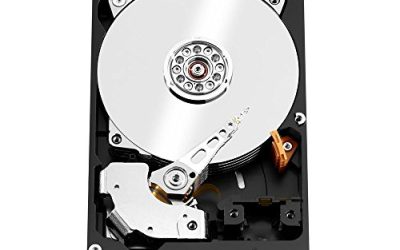
WD Black 6TB
View the WD Black 6TB on Amazon
The WD Black 6TB is the performance pick, and it is built for the kind of sustained workload that video editing creates. It spins at 7200 RPM, carries a large cache and is rated for heavy use, with a design that prioritises sustained throughput over quiet operation. Six terabytes is a good size for an active project drive, holding raw footage, proxies and render files with room to spare, and its dual-stage actuator helps keep the heads on track during long reads.
It is best as a dedicated media and cache drive in a Premiere Pro workstation, and for editors who scrub the timeline heavily and want the drive to keep up. The caveat is that it is a performance drive first, so it runs warmer and louder than a NAS-rated model; keep it cool and do not rely on it as your only copy of a project. Confirm the exact model number, WD6003FZBX, on the live Amazon page before ordering.
Seagate BarraCuda 2TB
View the Seagate BarraCuda 2TB on Amazon
The Seagate BarraCuda 2TB is the affordable workhorse pick, and it suits a smaller project or a secondary drive that holds media for a current edit. It is a 7200 RPM desktop drive with a large cache, and its sustained read speed is enough for high-definition timelines and single-stream four-kilobyte playback. Two terabytes holds a modest project comfortably, and its low cost makes it easy to dedicate one drive per project.
It is best for a first editing setup, a student project, or a drive that holds proxies and render files while the raw footage lives elsewhere. The caveat is recording method: this model uses shingled magnetic recording, which can slow down during large rewrites, so it suits a media drive better than a cache drive, and it is not the pick for a heavily rewritten scratch volume. Confirm the exact model number, ST2000DM008, on the live page before ordering, and note that several codes circulate for this model line.
Seagate Exos X16 14TB
View the Seagate Exos X16 14TB on Amazon
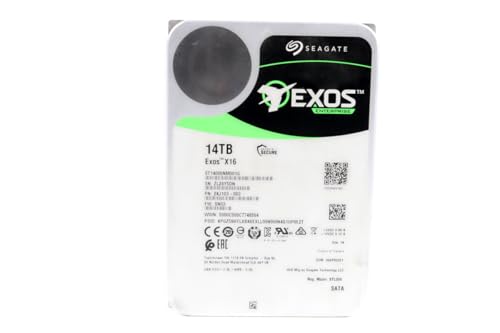
The Seagate Exos X16 14TB is the capacity pick, and it is the drive to choose when a project library outgrows ordinary drives. Fourteen terabytes holds a large archive of raw footage, finished projects and exports in a single volume, and its 7200 RPM spindle and large cache keep it fast enough to edit from directly when needed. It is an enterprise-class drive with a high workload rating, built for continuous operation in servers and workstations.
It is best as an archive and library drive for an editor with a large back catalogue, and as a second media drive when a project spans many terabytes. The caveat is that many listings for this model are Renewed, so confirm the condition, the seller and the warranty on the live Amazon page before ordering, and keep a backup of anything stored on it. It is also a louder, warmer drive than a desktop model, so give it airflow.
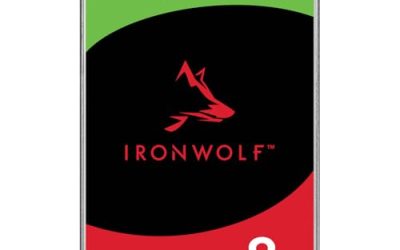
Seagate IronWolf 8TB
View the Seagate IronWolf 8TB on Amazon
The standard Seagate IronWolf 8TB rounds out this guide as the balanced pick: a NAS-rated drive with a 7200 RPM spindle, a large cache and always-on firmware, at a lower tier than the Pro model. It handles the sustained reads of an editing timeline well, and its eight-terabyte capacity suits a growing project library. Its vibration tolerance helps in a multi-drive workstation, and its health monitoring works with major NAS and workstation platforms.
It is best for an editor who wants a large, reliable media drive for a home workstation, and for a second drive that holds a project archive alongside a faster primary drive. The caveat is the shorter warranty and lower workload rating compared with the Pro line, so it suits a home editing setup rather than a shared post-production server. Confirm the exact model number, ST8000VNZ04, on the live page before ordering.
Comparison Table
| Drive | Capacity | Speed | Recording | Best for |
|---|---|---|---|---|
| Seagate IronWolf Pro 8TB | 8TB | 7200 RPM | CMR | Main media drive, heavy use |
| WD Black 6TB | 6TB | 7200 RPM | CMR | Performance media and cache |
| Seagate BarraCuda 2TB | 2TB | 7200 RPM | SMR | Small projects, secondary drive |
| Seagate Exos X16 14TB | 14TB | 7200 RPM | CMR | Archive, large libraries |
| Seagate IronWolf 8TB | 8TB | 7200 RPM | CMR | Home workstation, balanced use |
Which One Is Right for You?
If you want one drive to hold an active project, the IronWolf Pro 8TB is the safest choice: large, fast and built for heavy use. If you want maximum performance for the timeline, the WD Black 6TB is the pick, and if your library is huge, the Exos X16 14TB covers it in a single volume. For a small project or a tight budget, the BarraCuda 2TB works well as a media drive, though its recording method makes it a poor choice for a scratch volume. The standard IronWolf 8TB suits a home workstation that needs capacity and reliability without the Pro tier. Whichever you choose, keep a backup of every project, and confirm the exact model number on the live Amazon page before ordering.
Frequently Asked Questions
Is a hard drive fast enough for Premiere Pro, or do I need an SSD?
An SSD is faster, and it is the best choice for the operating system, the application and the cache. But a fast 7200 RPM hard drive is fast enough for media playback in most timelines, especially high-definition footage and single-stream four-kilobyte work. Many editors use an SSD for the cache and a large hard drive for media, which balances speed and capacity.
What is the best drive setup for Premiere Pro?
A good setup splits storage by role: an SSD for the system and cache, a fast hard drive for media, and a large drive for finished projects and archives. Splitting the work across drives keeps the timeline smooth, because the media drive is not competing with the cache drive for bandwidth.
Does CMR or SMR matter for video editing?
Yes. CMR writes data in parallel tracks and handles rewrites cleanly, which suits a drive that constantly writes render files and cache data. SMR overlaps tracks and can slow down during large rewrites, so it is a poor choice for a scratch or cache drive. Prefer CMR for any drive that holds an active project.
How much storage do I need for a Premiere Pro project?
It depends on the footage. High-definition projects can run to hundreds of gigabytes once you add proxies, renders and exports, and four-kilobyte projects can run to several terabytes. Begin with the largest drive your budget allows, and keep a separate drive for finished work so the active project never runs out of room.
Disclosure: As an Amazon Associate, we may earn from qualifying purchases.
Related guides
More from Amazon
Programs that pair well with the guide above. Offers and eligibility are set by Amazon and may change.
A free business account with business pricing and bulk-buying tools for work, shop or home office.
Create a business accountFree shipping on eligible items, Prime Video and more. Eligible new members can start with a free trial.
Start a Prime free trialAudiobooks and podcasts to listen to on the go. Eligible new members can start with a free trial.
Try Audible freeAd-free music streaming. Eligible new subscribers can start with a free trial.
Try Music Unlimited freeAs an Amazon Associate we earn from qualifying purchases.