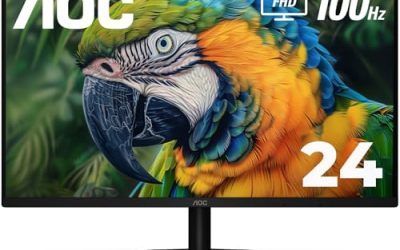
The best monitor with a built-in webcam depends on the job: the Dell UltraSharp U3223QZ is the standout for video calls thanks to its 4K webcam, the Dell P3424WEB suits wide-screen productivity, and an HP E24m G4-class conferencing monitor is the sensible budget pick. Gamers should know the catch up front: monitors with webcams are almost always office-grade IPS panels at 60-75 Hz, not high-refresh gaming displays.
This guide explains why that gap exists, who benefits from an integrated camera, and how to choose between a webcam monitor and a separate camera and gaming display.
As an Amazon Associate we earn from qualifying purchases at no extra cost to you.


Why gaming monitors rarely include a webcam
A built-in camera adds cost, a privacy shutter, a microphone array, and a USB hub inside the monitor. Manufacturers put those features into productivity and business lines, where buyers value a tidy desk and an all-in-one setup for meetings. Gaming monitors compete on refresh rate, response time, and adaptive sync, so their designs stay slim and cost-focused. If you want a 144 Hz or 240 Hz panel, you will normally add a separate webcam.
The exception is the small but growing category of smart monitors, such as Samsung’s Smart Monitor line, where some models include a camera, either built-in or as an attachable accessory, along with streaming apps. These are aimed at living-room and home-office use rather than competitive play.
Quick comparison of picks
| Pick | Best for | Key specs | Typical price range |
|---|---|---|---|
| Dell UltraSharp U3223QZ | Best overall for video calls | 31.5-inch 4K IPS Black panel, 4K webcam, USB-C hub, per Dell’s spec sheet | Usually $900-$1,200 |
| Dell P3424WEB | Best ultrawide with webcam | 34-inch curved 3440 x 1440, built-in webcam and speakers, USB-C hub | Usually $500-$800 |
| HP E24m G4 (conferencing class) | Best budget | 23.8-inch 1080p IPS, built-in webcam with privacy shutter, USB hub | Usually $200-$320 |
| Apple Studio Display | Best for Mac users | 27-inch 5K, 12 MP camera with Center Stage, speaker system | Usually $1,400-$1,800 |
| Gaming monitor plus separate webcam | Best for gamers | 144-240 Hz panel, 1080p or 4K external camera | Usually $250-$600 combined |
Best overall: Dell UltraSharp U3223QZ
This 31.5-inch 4K monitor is aimed at professionals who spend hours on calls. Per Dell’s specifications, its integrated webcam is a 4K sensor with a privacy cover, paired with a microphone array and speakers, and the panel uses IPS Black technology for a higher native contrast than ordinary IPS. A USB-C connection delivers power and data to a laptop, so a single cable handles video, charging, and the camera.
The trade-off is price and refresh rate. It runs at 60 Hz, so it is fine for creative work and calls, but fast shooters will want a separate gaming display. You are also paying for a camera that, if it fails, is built into a very expensive panel.
Best ultrawide: Dell P3424WEB
A 34-inch curved 3440 x 1440 monitor with a built-in webcam suits people who want a multi-window workspace and clean calls from one device. The curve keeps the edges comfortable at a typical desk distance, and the USB hub reduces cable clutter. It is a productivity display at heart, with a refresh rate in the 60-100 Hz area according to the model’s spec sheet, so casual gaming is fine while competitive gaming is not the target.
Best budget: a 24-inch conferencing monitor
Business-class 24-inch monitors, such as HP’s E24m G4, bring a 1080p IPS panel, a webcam with a privacy shutter, and a USB hub at a modest price. The webcam is typically 5 megapixel or lower and delivers a decent 1080p image in good light. Its strength is simplicity: one device, decent color, and a clean desk. The weakness is a camera quality that tops out at roughly the level of a standard laptop webcam.
Best for Mac: Apple Studio Display
The Studio Display has a 27-inch 5K panel and a 12-megapixel ultrawide camera with Center Stage, which keeps you framed as you move. Its speakers and microphones are among the better built-in sets. It is expensive, limited to 60 Hz, and works best with a Mac, so it is a niche choice for people who value camera and audio quality over gaming performance.
Best for gamers: a gaming monitor plus a separate webcam
If gaming is your priority, buy the best display you can afford and pair it with a stand-alone webcam. A separate camera also positions better, because you can place it on top of the monitor at eye level or on an arm, while built-in cameras sit in a fixed spot that may point at your chin. Replacing a failed webcam also costs far less than replacing a monitor.
Worked example: what bandwidth does a webcam monitor need?
A webcam monitor connects the camera through USB, usually shared with the display signal on a single USB-C cable. The calculation below shows whether a basic connection is enough.
- A 1080p webcam at 30 frames per second, uncompressed in YUY2, uses 1920 x 1080 x 2 bytes x 30 = about 124 MB/s, or roughly 1 Gbps. Most webcams compress to MJPEG or H.264, which reduces this to a few tens of Mbps.
- A 4K webcam at 30 fps uncompressed is four times that, about 4 Gbps, which is why 4K cameras need USB 3.x and compression.
- A USB-C connection in DisplayPort Alt Mode with 4 lanes of DisplayPort leaves no high-speed data lanes for the hub, so the connection falls back to USB 2.0 speeds (480 Mbps) for devices on the monitor. With 2 DisplayPort lanes, USB 3 data is available.
The takeaway: if your monitor’s camera and hub are working over a USB-C cable, check that the connection supports USB 3 data alongside video, or limit your resolution settings. If the camera looks blocky or the frame rate falls, the cause is often a laptop port with limited lanes rather than the monitor itself.
Decision matrix
| Your situation | Choose | Why |
|---|---|---|
| Calls all day, few games | 4K webcam monitor | Best camera and one cable |
| Spreadsheets and calls | Ultrawide with webcam | More workspace |
| Tight budget, shared desk | 24-inch conferencing monitor | Cheap and tidy |
| Mac user | Studio Display or similar | Native integration |
| Competitive gaming | 144 Hz+ monitor and separate webcam | Refresh rate matters more |
| Laptop with only HDMI | Check camera connection | Webcam may need an extra USB cable |
What to check before you buy
- Camera resolution. 1080p is fine for calls; 4K helps if you share your screen and your face together or record content.
- Privacy shutter. A physical cover is worth having; software indicators can fail.
- Microphone quality. Built-in microphones pick up the keyboard, so a headset is still better in noisy rooms.
- Camera cable requirements. Some models need a separate USB upstream cable for the camera, in addition to the video cable.
- Refresh rate and panel type. Expect 60-75 Hz IPS on most; pay extra for 100 Hz+ only if gaming matters.
- Camera position. Adjust the monitor so the camera sits at eye level; tilting a monitor too far can distort the frame.
Frequently Asked Questions
Are there gaming monitors with built-in webcams?
Very few. Gaming monitors focus on refresh rate and response time, while webcams appear mostly in business and smart-monitor lines. If you want both, pair a gaming display with a separate webcam.
Is a built-in monitor webcam as good as a standalone one?
Premium models, such as 4K and 12-megapixel units, rival good standalone cameras. Budget monitors usually match a laptop webcam, which is weaker in low light than a dedicated model.
Does a webcam monitor need drivers?
Most use the standard UVC driver built into Windows and macOS, so they work without installation. Some brands offer optional software for settings like field of view and framing.
Why is my monitor webcam not detected?
Often the camera needs a separate USB upstream cable connected to the computer. Check the monitor’s input menu and the cable setup in its manual, and test another USB port.
Can the built-in camera be hacked?
Any connected camera carries some risk. Use the physical privacy shutter when you are not on a call, and keep operating system and firmware updates current.
Is a webcam monitor worth it for home office?
If you take frequent calls and want a clean desk, yes. If you rarely use video, a regular monitor and an inexpensive separate webcam is more flexible.
Related guides
More from Amazon
Programs that pair well with the guide above. Offers and eligibility are set by Amazon and may change.
A free business account with business pricing and bulk-buying tools for work, shop or home office.
Create a business accountFree shipping on eligible items, Prime Video and more. Eligible new members can start with a free trial.
Start a Prime free trialAudiobooks and podcasts to listen to on the go. Eligible new members can start with a free trial.
Try Audible freeAd-free music streaming. Eligible new subscribers can start with a free trial.
Try Music Unlimited freeAs an Amazon Associate we earn from qualifying purchases.