What is a GPU benchmark score? It is a single number a benchmark program produces after running a fixed, repeatable graphics workload on your graphics card. A higher score within the same benchmark and preset means the card finished that workload at higher frame rates, so it is the faster card for that kind of work. It is not the same as FPS in your favorite game, and it only compares fairly when everything else about the run matches.
As an Amazon Associate we earn from qualifying purchases at no extra cost to you.


Our Top Picks
 ASUS Dual NVIDIA GeForce RTX 5060 8GB GDDR7RTX5060|8GB|OC9 x 4.8 x 2 inches1.4 PoundsCheck on Amazon
 ASUS TUF Gaming GeForce RTX™ 5080 16GB GDDR7RTX5080|OC13.7 x 5.7 x 2.8 inches5 PoundsCheck on Amazon
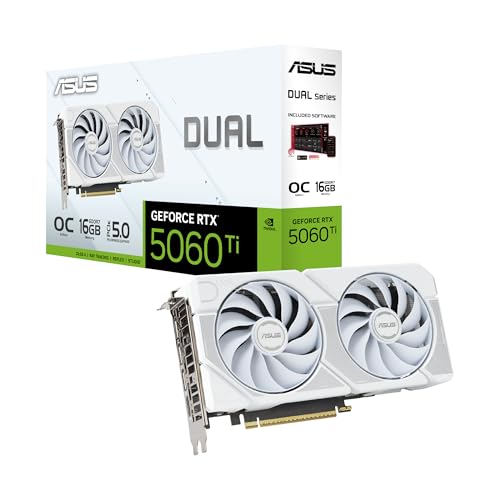 ASUS Dual GeForce RTX 5060 Ti 16GB GDDR7RTX5060Ti|OC|16GB|White9 x 4.7 x 0.1 inches1.4 PoundsCheck on Amazon

Top 3 picks at a glance
Direct answer: what the number really measures
Take 3DMark, the best-known synthetic benchmark. UL Benchmarks, which makes it, documents that every score starts as frame rates. The Time Spy graphics score is built from the average frame rates of two graphics tests, combined with a harmonic mean and multiplied by a scaling constant of 164. So a graphics score is just a scaled frame-rate average from a scripted scene, turned into a bigger, easier-to-compare number than “93 FPS” or “112 FPS”.
That scaling is the reason scores look large (thousands or tens of thousands of points) while game FPS looks small. The points have no unit like watts or gigahertz; they only mean something relative to other scores from the same test.
The main 3DMark tests and what each one stresses
People often ask what a “3DMark Time Spy score” means without realizing 3DMark is a family of separate tests. Each has its own scale, so scores from different tests cannot be compared. The specifications below come from UL Benchmarks’ own 3DMark pages.
| Test | Graphics API | Resolution | Ray tracing | Aimed at |
|---|---|---|---|---|
| Fire Strike | DirectX 11 | 1920 x 1080 (Extreme is 2560 x 1440, Ultra is 3840 x 2160) | No | DirectX 11 gaming PCs |
| Time Spy | DirectX 12 (feature level 11) | 2560 x 1440 | No | Modern gaming PCs, general GPU comparison |
| Port Royal | DirectX 12 (feature level 12_1), DirectX Raytracing | 2560 x 1440 | Yes | Cards with hardware ray tracing support |
| Speed Way | DirectX 12 Ultimate | 2560 x 1440 | Yes (DirectX Raytracing tier 1.1) | High-end gaming PCs with DirectX 12 Ultimate support |
| Steel Nomad | DirectX 12 or Vulkan on Windows (Metal on Apple platforms) | 3840 x 2160 | No | High-end gaming PCs |
| Night Raid | DirectX 12 (feature level 11) | 1920 x 1080 | No | Integrated graphics and low-power platforms |
The practical lesson is that “my score is 12,000” is meaningless until you say which test and preset produced it.
Graphics score vs overall score
A Time Spy result page shows three numbers: an overall score, a graphics score and a CPU score. This is where many comparisons go wrong. According to UL, the overall Time Spy score is a weighted harmonic mean of the graphics score and the CPU score, with a weight of 0.85 for graphics and 0.15 for the CPU. The CPU score uses only the heaviest level of the CPU test and a scaling constant of 298.
For judging a graphics card on its own, use the graphics score. The overall score blends in the processor, so the same GPU can post different overall numbers in different PCs.
Worked example: how the blend behaves
The formula is overall = 1 divided by (0.85 / graphics + 0.15 / CPU). The numbers below are arbitrary round values chosen only to show the arithmetic; they are not real benchmark results for any product.
| Scenario | Graphics score | CPU score | Overall score | Change vs baseline |
|---|---|---|---|---|
| Baseline | 10,000 | 5,000 | about 8,696 | Reference |
| CPU score doubled | 10,000 | 10,000 | 10,000 | about +15 percent |
| Graphics score doubled | 20,000 | 5,000 | about 13,793 | about +59 percent |
| Graphics score raised 50 percent | 15,000 | 5,000 | about 11,538 | about +33 percent |
Two lessons follow. A faster CPU raises the overall score even when the GPU is identical, so overall numbers are the wrong tool for comparing cards. And because the harmonic mean rewards raising the lower of the two scores, an unbalanced system gains more from lifting its weaker part than from pushing the stronger one.
Is a higher benchmark score better?
Yes, within a single test, preset, resolution and system configuration, a higher score means more work completed per second. It stops being a reliable guide in these cases:
- Different tests: a Port Royal score is not comparable with a Time Spy score, and Time Spy and Time Spy Extreme should not be compared either.
- Different roles: a ray-tracing test says little about a game that does not use ray tracing.
- Different systems: overall scores differ with the CPU, memory, drivers and cooling, even for one GPU.
- Very small gaps: results naturally vary from run to run, so a difference of a few percent is noise.
Why your score changes between runs
UL’s release notes state that 3DMark scores can vary by up to about 3 percent between runs, because a modern multitasking operating system has factors that cannot be fully controlled. A UL representative on the 3DMark community forum gave the same figure and suggested averaging multiple runs for better precision. Common causes of larger swings include:
- Background load from updaters, overlays, antivirus scans or browser tabs.
- Thermal or power throttling on the CPU or GPU, especially in laptops and small cases.
- A different graphics driver version, or different driver settings.
- A different memory configuration, firmware version or Windows power mode.
- Running a different preset or resolution from the one you are comparing against.
The 3DMark results page also records average clock speed and temperature, which helps you spot a throttled run.
How to compare two graphics cards fairly
- Choose one test that matches your use. For general rasterized gaming use Time Spy; for ray tracing use a ray-tracing test; for 4K use Steel Nomad or Time Spy Extreme.
- Compare graphics scores, not overall scores, when the aim is to rank cards.
- Check that both results used the same preset and resolution.
- Look at average results from many systems rather than a single top score, because overclocked and extreme-cooled runs sit at the top of leaderboards.
- Convert the gap to a percentage: (higher score minus lower score) divided by the lower score. A gap under about 3 percent is within normal run-to-run variation.
- Cross-check with real game frame-rate results from reviewers at your resolution, because the synthetic number does not capture each game’s engine behavior.
Converting a gap into something useful
Suppose card A scores 15,000 and card B scores 12,000 in the same graphics test (again, arbitrary numbers). The gap is (15,000 minus 12,000) divided by 12,000, or 25 percent. That does not mean A will give exactly 25 percent more FPS in every game; it means A did 25 percent more work in that scene. A rough rule is to expect the gap in games to land in the same direction and in a similar range, but to verify with game-specific reviews.
How to find your card’s typical score
- Run the 3DMark benchmark you want on your own system, then open the result online.
- Use the comparison feature on the 3DMark results site to see how your result ranks against other systems that use the same GPU.
- Look at the median or typical score for your card model rather than the best ever posted.
- If your score is far below the typical range for your card, check the driver, power plan, thermals and whether the card is seated in a full-speed PCIe slot.
Be careful with sites that quote a single “average score” without naming the test, preset and CPU used; the figure could be a graphics score on one site and an overall score on another. A third-party guide notes that some sites list the total and others list only graphics points, so always check which one you are reading.
Synthetic scores vs game benchmarks
A synthetic benchmark such as 3DMark runs a scripted scene written for measuring. A game benchmark runs a real engine with real assets. Each answers a different question.
| Question | Synthetic benchmark (3DMark) | In-game or review benchmark |
|---|---|---|
| Is my card in the normal range? | Good fit: compare to similar systems | Less direct |
| How will it run my specific game? | Weak fit | Best fit |
| Did my overclock or driver change help? | Good fit: repeatable scene | Good if the scene is repeatable |
| Which of two unfamiliar cards is faster overall? | Quick estimate | Better when averaged over many games |
| Does it handle ray tracing? | Use a ray-tracing test | Use games with ray tracing options |
The strongest approach is to use both: a synthetic score to check that your card and system behave normally, then game results from reviewers at your resolution to decide purchases.
How to run a clean 3DMark comparison on your own PC
- Close overlays, browsers, launchers and anything that might update in the background, since background load is a known cause of variation.
- Install the graphics driver version you intend to keep and restart the PC.
- Set Windows to a high-performance power mode, which matters most on laptops. Plug a laptop into mains power first.
- Let the PC idle for a minute so temperatures settle, then run the chosen test. Do not touch the mouse during the run.
- Run it at least three times and average the graphics score. UL itself suggests averaging several runs when you want precision.
- Change one thing at a time (driver, fan curve, power limit), and repeat the same procedure so the comparison stays honest.
- Write down the test name, preset, graphics score, driver version and average clock and temperature shown in the result.
Reading the result page
The result page lists the overall, graphics and CPU scores, plus a monitoring chart with clock speed and temperature. If your clock line drops mid-run or the temperature climbs steeply, the score is limited by heat or power, not by the card’s potential. If the CPU score is unusually low, the overall score will fall too, which is another reason to focus on the graphics number when ranking cards.
What benchmark scores cannot tell you
- Real game FPS: engines, drivers and settings behave differently from a scripted benchmark scene.
- VRAM limits in specific games: a card can score well and still run short of memory at high texture settings.
- Frame-time consistency and stutter: the score is an average, not a smoothness measurement.
- Upscaling and frame generation quality: these features change what you see on screen, and synthetic scores do not rate them.
- Noise, heat and power use: those need separate measurements.
- Value: a score says nothing about what a card costs in your market.
Older tests can also stop scaling on very fast hardware, where the CPU or the low 1440p workload becomes the limit, so a newer 4K-class test is often a better check for high-end cards. Pick a benchmark that matches the hardware tier.
Picking a test that matches your card
UL groups its tests by hardware tier, and choosing the wrong one can distort your picture. Per UL’s guidance, Night Raid is a DirectX 12 test for integrated graphics at 1080p, Fire Strike covers older DirectX 11 systems, Time Spy is the standard DirectX 12 test at 1440p, Steel Nomad and Time Spy Extreme are for 4K gaming, and Port Royal and Speed Way are for ray tracing.
| Your hardware | Sensible test | Why |
|---|---|---|
| Integrated graphics or a very low-end card | Night Raid | DirectX 12 test for integrated graphics, at 1080p |
| Mainstream gaming card, no ray tracing focus | Time Spy | Standard DirectX 12 test at 1440p |
| Ray-tracing capable card | Port Royal or Speed Way | Both are ray-tracing tests rendered at 1440p |
| High-end card, 4K target | Steel Nomad or Time Spy Extreme | Built for 4K-class cards |
| Older DirectX 11 system | Fire Strike | DirectX 11 test starting at 1080p |
Using a heavier test on a weak card gives a low, noisy score that is hard to interpret, while using a light test on a very fast card can make the CPU the limit. Match the test to the tier.
Laptops and integrated graphics
Scores from laptops deserve extra care. Two laptops with the same GPU name can have different power limits set by the manufacturer, which changes sustained clocks and therefore scores. Battery mode and thermal throttling can also lower results. When comparing a laptop score to a desktop score for the same GPU family, expect a gap that comes from power and cooling rather than from a different chip design. Always compare laptop results to the same laptop model when possible.
Do ray tracing scores mean the same thing?
A ray-tracing score measures a different workload. Per UL, Port Royal is a dedicated real-time ray tracing benchmark built on DirectX Raytracing, while Speed Way targets DirectX 12 Ultimate hardware. Scores from these tests sit on their own scales, so a Port Royal number cannot be set beside a Time Spy number. If you play games that do not use ray tracing, a rasterization test is the more relevant measure; if you plan to turn ray tracing on, a ray-tracing score tells you more about how your card handles that extra load.
Who should care and who can ignore it
Worth using benchmark scores if
- You want to confirm your new card performs in the normal range after installing it.
- You are comparing your own results before and after a driver update, cooling change or overclock.
- You need a rough, quick ranking of unfamiliar cards.
You can skip them if
- You only care about two or three specific games; look for frame-rate charts for those games at your resolution.
- You are comparing cards across different generations with different features and rely on one synthetic number.
Common mistakes
- Comparing a Time Spy overall score from one PC with a graphics score from another.
- Mixing results from different tests or presets.
- Treating a 1 to 3 percent difference as a real gap.
- Running only once and trusting the result.
- Ignoring the CPU, memory and cooling differences between systems.
- Assuming a benchmark leader will also be the best value for your games.
Frequently Asked Questions
What is a GPU benchmark score?
It is a number derived from the frame rates a graphics card reaches in a fixed, repeatable test. Higher means more work done per second in that test. The scale belongs to that specific benchmark, so compare only like with like.
What does a 3DMark Time Spy score mean?
Time Spy is a DirectX 12 test at 2560 x 1440, and its score is a scaled frame-rate result. It reports an overall, a graphics and a CPU score; use the graphics score for GPU comparisons.
How do I read GPU benchmark scores?
Identify the test, the preset and whether the figure is a graphics or an overall score, then compare only results that match. Convert the gap to a percentage and ignore differences within roughly 3 percent, which is normal run-to-run variation.
Is a higher benchmark score always better?
Within the same test and system setup, yes. Across different tests, different presets or different PCs, a higher number can be misleading, and game results can still differ from the synthetic ranking.
What is the difference between the graphics score and the overall score?
The graphics score isolates the GPU work. The overall Time Spy score blends graphics at 0.85 weight with CPU at 0.15 weight, according to UL, so a faster processor can raise it even with the same graphics card.
Why is my score lower than other people’s with the same card?
Typical causes are a different CPU, slower memory, thermal or power throttling, background tasks, an older driver, or comparing an overall score with a graphics score. Check clock speeds and temperatures in the result details and run the test a few times.
Can a benchmark score predict FPS in games?
Only roughly. It shows the relative strength of one card against another in a particular workload, but each game responds differently, so confirm with game-specific frame-rate data at your resolution.
Sources
- UL Benchmarks: How is the 3DMark Time Spy score calculated?
- UL Benchmarks: Overview of 3DMark Time Spy benchmarks
- UL Benchmarks: Which 3DMark benchmark should I use?
- UL Benchmarks: 3DMark product page and Windows application release notes
Last updated: October 2026