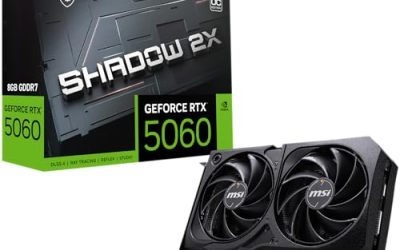
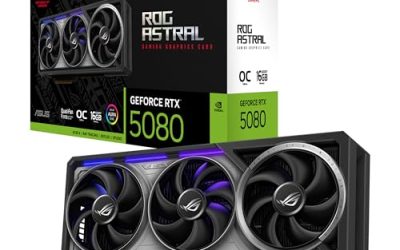
For most photographers in 2026, the best graphics card is a 16GB mid-range model such as the GeForce RTX 5060 Ti 16GB. It has enough VRAM for large raw files, AI denoise and a 10-bit 4K display, without the cost of a flagship. Photo editing rewards VRAM, driver stability and display output far more than raw gaming speed, so the cheapest card that clears those three bars is usually the right one.
As an Amazon Associate we earn from qualifying purchases at no extra cost to you.


Our Top Picks
 ASUS Dual GeForce RTX 5060 Ti 16GB GDDR7RTX5060Ti|OC|16GB9 x 4.7 x 2 inches1.4 poundsCheck on Amazon


Top 3 picks at a glance
Quick comparison of the picks
| Pick | Best for | Key specs (per manufacturer spec sheets) | Budget tier |
|---|---|---|---|
| GeForce RTX 5060 Ti 16GB | Best overall for Lightroom, Photoshop, AI denoise | 16GB GDDR7, 128-bit, 448 GB/s, 180W board power | Mid-range |
| Intel Arc B580 | Best budget | 12GB GDDR6, 192-bit, 190W board power | Budget |
| Radeon RX 9060 XT 16GB | Best non-NVIDIA value | 16GB GDDR6, 128-bit, 160W board power | Mid-range |
| GeForce RTX 5070 Ti | Best for photo plus 4K video and AI tools | 16GB GDDR7, 256-bit, about 300W board power | Upper mid-range / premium |
| GeForce RTX 5090 | Heavy GPU compute, 8K video, local AI | 32GB GDDR7, 512-bit, 575W board power | Flagship |
What a photo-editing GPU actually does
In Lightroom Classic, Photoshop, Capture One and DxO PureRaw, the GPU accelerates previews, zooming and panning, some filters, and especially AI features such as denoise and subject masking. It does not speed up importing, exporting or catalog work much. Those depend on the CPU, RAM and SSD. A faster GPU will not rescue a slow storage setup, so check that side of your build first.
Best overall: GeForce RTX 5060 Ti 16GB
The 16GB version of the RTX 5060 Ti suits photographers who edit 24-61MP raw files, run AI denoise regularly and want a card that stays comfortable for years. It draws about 180W, so it fits most existing power supplies. GeForce cards also support the NVIDIA Studio driver branch, which is validated against creative apps and tends to be more conservative about updates than the game-focused driver.
Trade-off: the 128-bit memory bus limits it in heavy video and 3D work. Avoid the 8GB variant of this card for editing; the price gap is small and the VRAM matters.
Best budget: Intel Arc B580
The Arc B580 offers 12GB of VRAM at a budget tier, which is more than many pricier 8GB cards. It suits hobbyists editing 24-45MP files in Lightroom and Photoshop at 1440p or 4K. Its 192-bit bus is wide for its class.
Trade-off: software support is the risk. Check that your editor’s GPU acceleration works reliably with Arc, and expect fewer vendor-specific optimizations than on NVIDIA. If you rely on a niche plugin or older raw converter, test it during the return window.
Best non-NVIDIA value: Radeon RX 9060 XT 16GB
This card gives you 16GB of VRAM at a modest 160W, and AMD’s drivers handle 10-bit output well. It suits editors who want headroom without paying the NVIDIA premium and whose software lists AMD acceleration as supported.
Trade-off: some AI-based tools and CUDA-dependent plugins run faster or exclusively on NVIDIA hardware. If your workflow includes video denoising, Topaz-style upscalers or local AI generation, GeForce is the safer choice.
Best for photo plus video and AI: GeForce RTX 5070 Ti
With 16GB on a 256-bit bus, the RTX 5070 Ti has far more memory bandwidth than the 5060 Ti. It is worth the step up if you batch-process hundreds of raws with AI denoise, edit 4K or 6K video alongside stills, or stack many layers in Photoshop. Reviews generally show noticeably shorter AI processing times on faster cards, but the size of the gain varies by app version and file size.
Trade-off: about 300W of board power means a quality 750W-class power supply and a case with good airflow.
Best for heavy compute: GeForce RTX 5090
The RTX 5090’s 32GB of VRAM only makes sense if you run local AI models, 8K footage, or large 3D and compositing projects next to your photography. For stills alone it is overkill. It also needs a high-wattage PSU and the correct 12V-2×6 power connection, and it is large.
How much VRAM you need: a worked example
A 61MP camera file is roughly 9504 x 6336 pixels, or about 60.2 million pixels. In Photoshop at 16 bits per channel with three color channels, each pixel needs 6 bytes:
- 60.2 million pixels x 6 bytes = about 361MB per full-resolution layer.
- A 10-layer composite is roughly 3.6GB of raw pixel data; 20 layers is about 7.2GB.
- A 24MP file (6000 x 4000) at the same depth is about 144MB per layer, so 20 layers is about 2.9GB.
The editor does not keep every layer in VRAM at once; it caches what it needs and spills the rest to system RAM, which is slower. But the numbers show why 8GB cards get tight with high-megapixel stacks, AI features and a 4K display all competing for memory. A practical rule is 8GB minimum for 24MP work, 12GB for 45MP and moderate layering, and 16GB for 60MP+, panoramas, focus stacks or video alongside stills. These are rules of thumb, not figures from Adobe.
Display output: 10-bit and bandwidth
Photographers should check the output path as carefully as the GPU. Adobe apps can use a 30-bit (10-bit per channel) display pipeline, which reduces banding in gradients like skies. It needs a monitor with a true or 8-bit+FRC 10-bit panel, a supported cable and the right setting in the driver.
Bandwidth check for common photo monitors, using pixels x refresh rate x 30 bits:
| Display | Raw pixel data at 10-bit | Connection needed |
|---|---|---|
| 4K (3840 x 2160) at 60Hz | about 14.9 Gbps | DisplayPort 1.4 or HDMI 2.0 with 4:4:4 is borderline, so use DP 1.4 or HDMI 2.1 |
| 4K at 144Hz | about 35.8 Gbps | DSC over DP 1.4, or HDMI 2.1 / DP 2.1 |
| 5K (5120 x 2880) at 60Hz | about 26.5 Gbps | Above DP 1.4’s usable rate of roughly 25.9 Gbps without compression, so needs DSC or DP 2.1 |
| 1440p (2560 x 1440) at 60Hz | about 6.6 Gbps | Any modern DP or HDMI port |
These figures exclude blanking overhead, so real requirements run a little higher. If you plan on a 5K or 6K reference-style display, confirm the GPU’s port versions on the manufacturer’s spec sheet before buying.
Power budget example
Say you pair an RTX 5060 Ti (about 180W) with a 125W-class CPU, plus about 75W for the motherboard, RAM, drives and fans. That is about 380W of combined load. Adding roughly 30-40% headroom for transient spikes and efficiency puts you at around 500W, so a quality 650W power supply is a comfortable choice. An RTX 5070 Ti build with the same parts lands near 500W of load, which points to 750W.
Decision matrix: match your situation to a card
| Your situation | Choose | Why |
|---|---|---|
| 24MP files, light editing, tight budget | Arc B580 or an entry 8GB-class card | Moderate VRAM needs; saves money for storage and RAM |
| 24-45MP, regular AI denoise, 4K monitor | RTX 5060 Ti 16GB or RX 9060 XT 16GB | 16GB headroom, low power, 10-bit output |
| 60MP+, panoramas, focus stacks | RTX 5070 Ti | More bandwidth and shader power for big batches |
| Stills plus 4K/6K video grading | RTX 5070 Ti or RTX 5090 | Video is far more GPU-hungry than stills |
| Plugin-heavy, CUDA-dependent workflow | GeForce, any tier | Widest vendor-specific support |
| Laptop or small-form-factor PC | Low-power 16GB card, or laptop GPU with 8GB+ | Thermals matter more than peak speed |
How to choose: a short checklist
- VRAM first: 12GB is the practical floor for new purchases; 16GB is the safer target.
- Check software support: read your editor’s current system requirements for supported GPUs and driver versions.
- Match ports to your monitor: DisplayPort 1.4 or better, or HDMI 2.1, depending on resolution and refresh rate.
- Use a stable driver: on NVIDIA, the Studio driver is aimed at creative apps; update it only when you need a fix or feature.
- Do not overspend on gaming speed: a card that is fast in games may offer little extra in Lightroom.
Frequently Asked Questions
Do I need a dedicated graphics card for photo editing?
Not strictly. Modern integrated graphics can run Lightroom and Photoshop for light work. But a dedicated card noticeably helps with AI denoise, large files, multiple monitors and smooth zooming, so it is worth having if you edit regularly.
Is NVIDIA or AMD better for Lightroom and Photoshop?
Both work, but NVIDIA has the broader compatibility for creative software, particularly AI plugins and video tools that use CUDA. AMD cards can be good value if your specific apps list them as supported. Check your editor’s requirements before deciding.
How much VRAM do I need for photography?
Plan on 8GB as a bare minimum, 12GB for comfortable 24-45MP editing, and 16GB for high-megapixel files, large layered documents, or combined photo and video work. VRAM matters more than core count for most stills workflows.
Do I need a Studio driver instead of a Game Ready driver?
You do not need it, but NVIDIA positions the Studio driver as better validated for creative apps. If you edit for work and want fewer surprises, install the Studio driver and update it deliberately rather than automatically.
Can a graphics card improve color accuracy?
Not directly. Color accuracy depends on the monitor panel and its calibration. The GPU affects whether you can run a 10-bit pipeline and which ports and refresh rates the display can use, which helps avoid banding in gradients.
Is the RTX 5090 worth it for a photographer?
Only if you also do heavy video, 3D or local AI work. For stills alone, a 16GB mid-range card covers nearly everything, and the extra money is better spent on a color-accurate monitor, more RAM or faster storage.
Related guides
More from Amazon
Programs that pair well with the guide above. Offers and eligibility are set by Amazon and may change.
A free business account with business pricing and bulk-buying tools for work, shop or home office.
Create a business accountFree shipping on eligible items, Prime Video and more. Eligible new members can start with a free trial.
Start a Prime free trialAudiobooks and podcasts to listen to on the go. Eligible new members can start with a free trial.
Try Audible freeAd-free music streaming. Eligible new subscribers can start with a free trial.
Try Music Unlimited freeAs an Amazon Associate we earn from qualifying purchases.