As an Amazon Associate we earn from qualifying purchases.
The best height for monitors puts the top of the screen at or just below eye level, with the centre of the screen roughly 15 to 20 degrees below your line of sight, so your neck stays near neutral while you work or play. That single rule answers most of the question, but the details matter: the right height changes with screen size, with sitting versus standing, with glasses, and with one monitor versus two. Get it wrong and the symptoms arrive quietly, a stiff neck by mid-afternoon, tired eyes, shoulders creeping toward your ears, and a headache that seems to come from nowhere.
This guide explains how to find the best height for monitors in your own setup, step by step, with no special tools and no new purchases required to start. It covers the standard eye-level rule, how to measure and adjust your screen, the differences between sitting and standing, and the right heights for dual monitors, ultrawides, and laptops. It also explains what to do when your desk or chair limits your options, because the ideal height is only useful if you can actually reach it.
How to Choose
1. Eye level is the anchor
Start with your eyes, not the desk. Sit in your normal working posture, look straight ahead, and note where your gaze lands. The top edge of your monitor should sit at or slightly below that eye-level line. Your eyes naturally rest looking slightly downward, so a screen whose top is a little below eye level feels comfortable, while a screen whose top is above eye level forces your neck into extension. If you wear bifocals or progressive lenses, this rule shifts: the top of the screen may need to sit lower, so you can view it through the lower part of the lens without tilting your head back.
2. Screen centre sits below the horizon
With the top of the screen at eye level, the centre of the display lands below your horizontal line of sight, typically around 15 to 20 degrees down for a standard monitor. This is the natural resting gaze angle, and it is why a screen that feels “too high” is usually one whose centre is at or above eye level. Large screens change the math: on a 32-inch or larger display, the centre sits further below the top edge, so the top-edge rule matters even more, and the screen may need to sit a little further back to keep the whole display within a comfortable field of view.
3. Viewing distance matters as much as height
Height and distance work together. The common guidance is an arm’s length away, roughly 50 to 70 centimetres from your eyes to the screen, with larger screens at the far end of that range. If the screen is too close, you tilt your head to scan the top and bottom edges; too far, and you lean forward, which pulls your neck out of neutral. Set the distance first, then fine-tune the height, because moving the screen closer or further away changes the angle of your gaze.
4. Your chair sets the floor
Monitor height is relative to your seated eye height, and seated eye height depends on your chair. Adjust the chair first: feet flat on the floor, knees at roughly a right angle, lower back supported, and forearms roughly parallel to the desk when your hands rest on the keyboard. Only then measure your eye level and set the monitor. Raising a monitor to compensate for a chair that is too low, or lowering it for a chair that is too high, treats the symptom instead of the cause.
5. Posture changes during the day
Nobody holds one posture for eight hours. You lean back to read, lean in to focus, and shift in your seat. The best height is the one that works for your most common posture, usually upright with your back against the chair, not for a leaned-in moment. If you catch yourself leaning forward often, the screen may be too far away or the text too small, and moving the monitor closer or enlarging the text is a better fix than raising the screen.
6. Task type changes the ideal
Gaming, reading, coding, and video editing all ask for slightly different setups. Fast-paced games often suit a screen a touch lower and closer, keeping the action in the centre of your view. Long reading sessions suit a screen at the standard eye-level position, where the neck stays neutral for hours. Video editing with a timeline at the bottom of the screen can suit a slightly higher position, so the lower part of the display is not too far below your gaze. Use the standard rule as a baseline, then adjust a little for your main task.
7. What your desk allows
The right height is only useful if your desk and mount can reach it. A monitor on its factory stand has a limited adjustment range, and a thick desk or a low shelf can make the ideal height impossible. Monitor arms, risers, and stands exist to solve exactly this problem, and a stack of sturdy books works as a temporary measure while you decide. Check the adjustment range before assuming a monitor can sit where you want it.
Recommended Heights by Setup
Single Monitor on a Desk
For a single monitor on a standard desk, set the top of the screen at eye level and the screen about an arm’s length away. Sit upright, close your eyes, open them, and look straight ahead: your gaze should meet the top third of the display. If the monitor stand cannot raise the screen high enough, lift the whole monitor on a riser until the top edge reaches eye level. If the screen is too high even at its lowest setting, lower your chair slightly, or move the monitor further back, which lowers the angle of your gaze. For a 24-inch screen, this usually means the centre of the display sits well below eye level; for a 27-inch screen, the centre sits lower still, which is normal and correct.
Dual Monitors Side by Side
With two monitors side by side, the height rule stays the same, but the horizontal layout changes the priority. Place your primary monitor directly in front of you, at the standard height, and the secondary monitor beside it at the same height, angled slightly toward you. Equal height matters: a secondary screen that sits higher or lower than the main one forces repeated neck tilts. If you use both screens equally, centre yourself between them so neither one demands a constant twist. If the two monitors are different sizes, align their top edges, not their centres, since the top edge is what your gaze references.
Ultrawide Monitor
An ultrawide monitor follows the same top-edge rule, but its width and height change the distance. Set the top of the screen at eye level, then move the monitor back until the far edges sit within comfortable peripheral vision, usually a little further than an arm’s length. Because an ultrawide is short relative to its width, the centre of the screen is not far below the top edge, so the height setting is less forgiving: a screen that is even slightly too high will have you looking up at the top corners. A gentle curve helps at the edges, but it does not change the height rule.
Laptop Screen
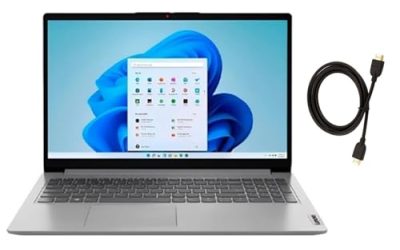
A laptop on a desk is almost always too low, because the keyboard and the screen are fixed together. The top of a laptop screen typically sits well below eye level when the keyboard is at a comfortable typing height, which is why long laptop sessions cause neck strain. The fix is to raise the laptop on a stand until the top of the screen reaches eye level, then use a separate keyboard and mouse at desk height. If you cannot use an external keyboard, raise the laptop partway, enough to reduce the downward tilt without making typing uncomfortable, and take more frequent breaks.
Standing Desk
At a standing desk, the same eye-level rule applies, but your eye height is higher and changes with your shoes and posture. Set the monitor so the top edge is at eye level while you stand in your normal stance, with the screen an arm’s length away. Because standing posture shifts more than sitting posture, check the height again after a few minutes of standing, once you have settled into your natural stance. If you switch between sitting and standing during the day, a monitor arm that adjusts height in seconds is the practical answer, since a fixed stand will be right for one position and wrong for the other.
Monitor Above Eye Level for a Specific Reason
Some setups deliberately place a monitor above eye level, such as a secondary screen used for reference while the main work happens below, or a display mounted for presentations. This is acceptable for a secondary screen that you glance at occasionally, but it is a poor choice for a primary screen used for hours, because sustained upward gaze strains the neck. If your main monitor must sit high, for example on a shelf above a desk, tilt the screen downward toward your face to reduce the angle, and keep your main work on a lower screen when possible.
Comparison Table
| Setup | Top of screen | Screen centre | Distance from eyes | Main adjustment |
|---|---|---|---|---|
| Single monitor, sitting | At eye level | 15 to 20 degrees below gaze | About an arm’s length | Riser or monitor arm |
| Dual monitors | At eye level, both equal | 15 to 20 degrees below gaze | About an arm’s length | Align top edges |
| Ultrawide | At eye level | Slightly below gaze | A little beyond arm’s length | Move further back |
| Laptop | At eye level with a stand | 15 to 20 degrees below gaze | About an arm’s length | Laptop stand plus external keyboard |
| Standing desk | At eye level while standing | 15 to 20 degrees below gaze | About an arm’s length | Height-adjustable arm |
| Secondary screen | At or below eye level | Below gaze | About an arm’s length | Match primary screen height |
Which One Is Right for You?
If you use one monitor for work or gaming, the standard setup is your answer: top of the screen at eye level, an arm’s length away, with your chair adjusted before you touch the monitor. This covers the large majority of desks, and most neck strain comes from a screen that sits too low on its factory stand, so check that first.
If you use two monitors, keep them at equal height with the primary screen directly ahead. The most common mistake in dual setups is not height but placement: a primary screen off to one side forces a constant twist, and no height adjustment fixes that.
If you work on a laptop, a stand and a separate keyboard are the single most effective change you can make. Raising the screen to eye level removes the downward neck bend that defines laptop posture, and it is a larger improvement than any screen setting.
If you alternate between sitting and standing, invest in height adjustment rather than a fixed riser. A monitor arm that moves with you keeps the eye-level rule true in both positions, while a fixed stand is right in one and wrong in the other.
If you wear bifocals or progressive lenses, lower the screen a little below the standard position and tilt it back slightly, so you view it through the lower part of the lens without tipping your head back. This is the one common case where the standard rule needs a deliberate exception.
Frequently Asked Questions
How high should a monitor be for gaming?
The same eye-level rule applies, with a small adjustment: many gamers prefer the screen a touch lower and closer than the office standard, so the centre of the action sits in the middle of their view without upward gaze. Keep the top of the screen at or just below eye level, the screen about an arm’s length away, and the centre of the display below your line of sight. If you play for long sessions, the neutral-neck position matters more than any small preference, so do not raise the screen above eye level.
Should the monitor be at eye level or below eye level?
The top of the screen should be at eye level, which puts the centre of the screen below eye level. Saying the monitor should be “below eye level” and saying it should be “at eye level” both describe the same setup, because they refer to different parts of the screen. If someone tells you the whole screen should sit below eye level, that is correct for the centre; if someone tells you the screen should be at eye level, that is correct for the top edge. Use the top edge as your reference point and the confusion disappears.
Why does my neck hurt even though my monitor looks level?
Neck pain with a level-looking monitor usually comes from distance, chair height, or posture rather than the screen itself. Check three things: whether the screen is an arm’s length away, whether your chair puts your feet flat and your forearms level, and whether you are leaning forward to read small text. Any of those can strain your neck while the monitor height looks fine. Also check whether your screen is actually at eye level or only looks that way from a slouched position; sit upright first, then judge.
How do I measure the right monitor height?
Sit in your normal upright posture and have someone measure from the floor to your eyes, then measure from the floor to the top of your screen; the two numbers should match, or the screen should be slightly lower. Without a helper, use the gaze method: close your eyes, open them, and look straight ahead. Your gaze should meet the top third of the display. Adjust the monitor in small steps and live with each setting for a few minutes before judging it, since a new height can feel odd before it feels right.
Related guides
More from Amazon
Programs that pair well with the guide above. Offers and eligibility are set by Amazon and may change.
A free business account with business pricing and bulk-buying tools for work, shop or home office.
Create a business accountFree shipping on eligible items, Prime Video and more. Eligible new members can start with a free trial.
Start a Prime free trialAudiobooks and podcasts to listen to on the go. Eligible new members can start with a free trial.
Try Audible freeAd-free music streaming. Eligible new subscribers can start with a free trial.
Try Music Unlimited freeAs an Amazon Associate we earn from qualifying purchases.