As an Amazon Associate we earn from qualifying purchases.
A 256 GB SSD sits in an awkward middle ground. It holds far more than a cramped 128 GB boot drive, yet it fills up much sooner than a 500 GB or 1 TB drive. The real decision is not simply picking the fastest drive on a specification sheet. It is deciding whether your machine needs a SATA replacement for an ageing hard drive, a quick NVMe boot drive, or a compact second drive for a handful of games and everyday programs.
This guide serves three groups: owners of older laptops and desktops wanting more responsiveness without replacing the whole machine, builders adding a small, fast boot drive beside larger storage, and anyone setting up a spare computer for school, office work, or light gaming. It explains interfaces, form factors, NAND types, and endurance figures, and how to match a 256 GB drive type to each situation, so you can avoid a drive that does not fit, does not connect, or runs out of room within months.
How to Choose
Start With the Slot and Interface Your Machine Actually Has
Before comparing any drive, open your machine or check its manual and confirm what it can accept. A laptop with only a 2.5-inch SATA bay cannot take an M.2 NVMe drive, and a desktop with a spare M.2 slot may support SATA, NVMe, or both, depending on the slot keying and the motherboard. Check whether the M.2 slot is 2280 length, whether it accepts a B key, an M key, or both, and whether a second slot shares lanes with another port. A drive bought for the wrong interface will not install, and an adapter adds cost and complexity that a first-time upgrader rarely needs. Match the interface first.
Read NAND Type and Endurance Before Chasing Peak Speed
Sequential read and write figures look impressive on a listing, yet they say little about how a small drive behaves when it is nearly full. NAND type matters more over time: TLC flash generally holds up better under repeated writes than QLC flash at this capacity, and a drive with a DRAM cache or a well-managed host memory buffer tends to stay steadier during large installs and updates. Look for the endurance figure, usually expressed in terabytes written, and compare it with how much data you expect to write each year. A drive that slows sharply once its cache fills will feel sluggish during game updates and file copies, even if its headline speed looked strong.
Decide How Much Room Windows, Games and Files Really Need
A 256 GB drive sounds generous until you add up what lives on it. The operating system, updates, restore points, a browser cache, office software, and a few modern games can consume well over half the space before you save a single photo or video. Count the games you play regularly, check their installed sizes, and leave a comfortable margin for patches, temporary files, and future updates. If the total already approaches the usable capacity, treat the 256 GB drive as a boot drive paired with a second drive, rather than as your only storage. Planning the split before you buy prevents the slow, frustrating cycle of uninstalling one game to install another.
Check Form Factor, Thickness, Cooling and Cloning Support
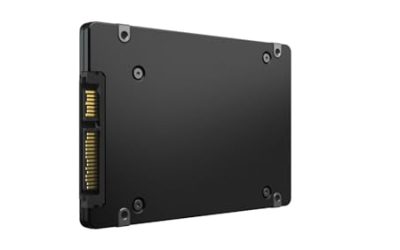
Physical fit decides whether an upgrade takes ten minutes or an afternoon of improvisation. A 2.5-inch SATA drive is usually 7 mm thick, which suits most modern laptops, while some older bays expect a 9.5 mm drive and may need a spacer. An M.2 2280 drive should sit flat under its retaining screw, with clearance from nearby components and any motherboard heatsink. In a thin laptop, a drive that runs hot can throttle during sustained writes, so airflow and placement matter. Also confirm whether the manufacturer offers cloning software or a migration tool, because moving an existing system cleanly saves hours compared with reinstalling everything from scratch.
Which One Fits Your Situation
Reviving an Older Laptop With a SATA Bay
Choose a 2.5-inch SATA SSD, because it is the only type that fits the bay and connector in the machine. It will not match NVMe speeds, yet the jump from a spinning hard drive is dramatic: the system boots sooner, programs open without long pauses, and the laptop feels responsive again. Pick a drive with TLC flash and a good endurance figure, confirm the 7 mm thickness suits the bay, and clone the old drive before swapping it in.
Adding a Fast Boot Drive to a Desktop With a Spare M.2 Slot
Choose an NVMe M.2 2280 drive for this role, and install the operating system and your most-used programs on it. Keep larger games and media on a second, larger drive so the boot drive stays well below full. Check that the slot supports NVMe rather than SATA only, and that the drive length matches the standoff position. This split gives you quick starts and snappy loading while keeping the small capacity from becoming a daily constraint.
Building a Second Drive for a Small Game Library
Choose a drive type that matches your spare slot, and reserve it for the games you actually play each week. Install one or two large titles, move finished games back to slower storage, and keep the drive clear enough for patches to land without a shuffle. A 256 GB second drive works best as a rotating shelf for current favourites, not as a permanent archive for an entire collection, so what stays installed matters as much as the drive itself.
Setting Up a Spare Machine for School, Work or a Family Member
Choose a straightforward SATA or entry-level NVMe drive, depending on the spare slot, and favour reliability and simple installation over headline speed. The machine needs to boot quickly, run a browser and office software smoothly, and hold documents, photos, and a modest set of programs. Confirm the warranty terms, keep a backup of important files elsewhere, and leave enough free space for system updates so the machine stays usable for years rather than months.
Common Mistakes
- Buying the fastest interface your machine cannot use. A PCIe Gen 4 or Gen 5 NVMe drive looks tempting on a specification sheet, yet it delivers nothing extra in a machine whose M.2 slot only supports SATA or PCIe Gen 3, and it may not fit a slot keyed for a different standard at all. The mistake usually starts with shopping by headline speed instead of opening the manual, checking the slot type, and confirming the keying and length. Before ordering, identify the exact slot, note whether it accepts B key, M key, or both, and check whether using it disables another port on the board. A slower drive that fits and runs at its full rated speed will always beat a faster drive that cannot be installed, needs an adapter, or runs at a fraction of its potential because the host connection limits it. Spend the research time up front, and the installation itself becomes a short, uneventful job rather than a return, a reorder, and a second weekend lost to troubleshooting.
- Treating 256 GB as though it were a large drive. Many buyers fill a new 256 GB drive the way they filled a 1 TB hard drive, then wonder why updates fail and the system slows down. The operating system and its updates need room to breathe, browsers and applications accumulate caches, and a single modern game can swallow a large share of what remains. Once free space shrinks toward single digits, write performance drops, temporary files have nowhere to go, and the machine starts prompting for cleanup at the worst moments. Avoid this by listing everything you plan to install, adding the sizes together, and keeping a generous margin for patches and future growth. If the list already strains the capacity, plan for a second drive from the start, or accept that the 256 GB drive will serve as a boot drive only, with games and media living elsewhere.
- Ignoring NAND type, endurance and cache behaviour. Two drives can share the same capacity, the same interface, and similar headline speeds while behaving very differently after months of use. A drive built on QLC flash with a small cache may feel quick when empty, then slow sharply during a large game install or a system update once the cache fills. A drive with a lower endurance rating may also wear sooner under heavy writing, which matters for a small drive that gets rewritten often. Read the endurance figure, look for the NAND type in the specification table, and check whether the drive uses a DRAM cache or relies on host memory. These details are less exciting than a sequential speed number, yet they decide whether the drive still feels responsive a year later or becomes the bottleneck you notice every time a large download finishes.
- Forgetting to check thickness, clearance and cooling. Physical fit causes more failed upgrades than faulty drives do. A 2.5-inch drive that is too thick for a slim laptop bay will not seat properly, an M.2 drive can foul a nearby heatsink or a graphics card, and a drive tucked under a hot component can throttle during long writes. Measure the bay, confirm the M.2 length and standoff, and look at what sits above and beside the slot before you buy. In a desktop, a motherboard heatsink or a little airflow over the slot helps a drive hold its speed during sustained work. In a laptop, a drive that runs hot in a cramped chassis will slow down exactly when you need it most, so placement and ventilation deserve the same attention as the specification sheet.
- Skipping the clone, the backup and the free-space plan. The most avoidable mistake happens after the drive arrives: swapping it in without a tested backup or a cloning plan, then discovering that the old system, the licence keys, or the family photos are trapped on a drive that no longer boots. Clone the existing drive while it still works, verify that the clone boots, and keep a separate backup of irreplaceable files before touching any hardware. After the swap, resist the urge to fill the new drive to the brim on day one. Leave room for updates, set the system to store large downloads on a second drive where possible, and schedule a regular check of free space. A careful migration and a little headroom turn a small drive into a reliable one, while a rushed swap can turn a simple upgrade into a data recovery problem.
Frequently Asked Questions
Is 256 GB enough for Windows and a few games?
Yes, for a focused setup, provided you treat it as a boot drive plus a small set of current favourites. The operating system, office software, and two or three modern games can fit comfortably, but a large library will not. Keep media and finished games on a second drive, and leave room for updates so the drive does not fill up and slow down.
Can I use a 256 GB SSD as my only drive?
You can, but only if your needs are modest and disciplined. It suits a machine used for browsing, office work, streaming, and a small number of programs. If you store large photo libraries, edit video, or keep many games installed at once, a single 256 GB drive will feel cramped quickly, and a second drive or a larger capacity becomes the better choice.
NVMe or SATA: which one should I choose for an older laptop?
Choose the type your laptop actually accepts, which for most older machines is a 2.5-inch SATA drive. NVMe is faster, but it needs a compatible M.2 slot, and many older laptops have none. A SATA SSD still transforms an old laptop, because the leap from a hard drive to any solid-state drive is far larger than the gap between SATA and NVMe in everyday use.
How long will a 256 GB SSD last?
Lifespan depends on how much you write to it, not on the calendar alone. A drive used for browsing, documents, and occasional installs can last many years, while heavy video work or constant large downloads wear it sooner. Check the endurance figure, keep backups of important files, and replace the drive if health monitoring shows wear approaching its rated limit.
Related guides
More from Amazon
Programs that pair well with the guide above. Offers and eligibility are set by Amazon and may change.
A free business account with business pricing and bulk-buying tools for work, shop or home office.
Create a business accountFree shipping on eligible items, Prime Video and more. Eligible new members can start with a free trial.
Start a Prime free trialAudiobooks and podcasts to listen to on the go. Eligible new members can start with a free trial.
Try Audible freeAd-free music streaming. Eligible new subscribers can start with a free trial.
Try Music Unlimited freeAs an Amazon Associate we earn from qualifying purchases.