Our Short List of 3
All 5 Picks at a Glance
| Product | Specs | Action |
|---|---|---|
 1. Dell UltraSharp U2723QE | Check price on Amazon | |
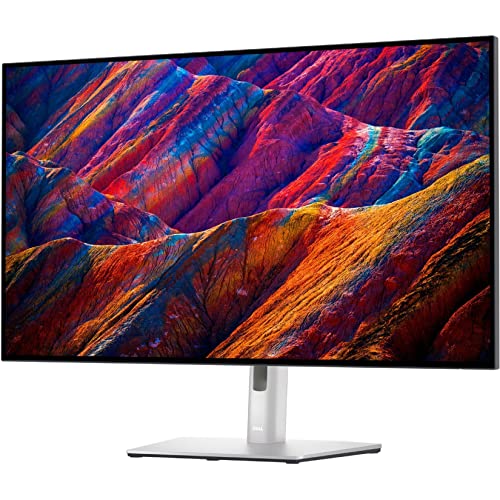 2. Dell UltraSharp U3223QE | Check price on Amazon | |
 3. Dell 27 Plus S2725QC | Check price on Amazon | |
 4. LG 27UP850-W | Check price on Amazon | |
 5. ASUS ProArt Display PA279CRV | Check price on Amazon |
The best monitors for office use are the ones that make eight hours of documents, spreadsheets and video calls feel easy on the eyes. Office work is a different job from gaming: the screen spends its life showing text, so sharpness, comfortable brightness and a stand that adjusts to your posture matter far more than refresh rate or response time. A good office monitor renders small text cleanly, holds colour steady when you shift in your chair, and connects to a laptop over a single cable that also charges it. The five monitors in this guide cover the range of office needs, from a compact 27-inch 4K screen for a single-desk setup to a 32-inch panel for people who live in spreadsheets.
The Dell UltraSharp U2723QE leads as the most complete office monitor, the Dell UltraSharp U3223QE is its larger sibling for big desks, the Dell 27 Plus S2725QC is the simpler 4K choice, the LG 27UP850-W brings wide colour and strong USB-C charging, and the ASUS ProArt Display PA279CRV is the colour-accurate pick for design and photo work. Each one is described with the resolution, panel, ports and ergonomics that decide how it feels at the end of a workday.
Our Top Picks
 ASUS ProArt PA279CRV 27 Inch 4K UHD USB-C27 Inch24.1 x 8.46 x 16.07 Inches18.25 poundsCheck on Amazon
Top 3 picks at a glance
How to Choose
1. Resolution and size
For office work, 27 inches is the sweet spot for most desks. At that size, a 4K panel renders text with crisp edges and leaves room for two documents side by side, while a QHD panel gives more screen space than a 1080p screen at a lower cost. A 32-inch screen suits a deep desk and a wide field of view, but it needs more desk depth to sit at a comfortable distance. Match the resolution to your eyesight and your work: text-heavy work benefits most from 4K, while video calls and general office apps are comfortable on QHD. If you work with fine print or small interface text all day, 4K is worth the step up.
2. Panel type
IPS panels are the standard choice for office monitors because they hold colour and contrast steady when viewed from an angle, which matters when you shift in your chair or share the screen with someone beside you. IPS Black panels raise the native contrast ratio to around 2000 to 1, so dark text on a white page and dark mode interfaces look deeper and less washed out. VA panels give higher contrast but narrower viewing angles, and TN panels are best avoided for office work because their colours shift noticeably off-axis. For an office, an IPS or IPS Black panel is the safe default, and the two Dell UltraSharp models in this guide use IPS Black.
3. USB-C power delivery and hub
A USB-C port that carries video, data and charging over one cable is the single most useful feature on an office monitor. Check the wattage: 65W covers most ultrabooks, while 90W or 96W covers larger laptops that draw more power under load. A built-in hub with USB-A ports connects a keyboard, mouse and webcam without a separate dock, and an Ethernet port lets a desktop-style setup use a wired connection. A KVM switch is worth having when one monitor serves two computers, since it lets one keyboard and mouse control both. The monitors in this guide are ranked partly on how complete their USB-C hub is.
4. Ergonomics and eye comfort
An office monitor should adjust to you, not the other way around. Height adjustment, tilt, swivel and pivot to portrait are the four movements that matter, and a monitor that only tilts will force you to stack books under it. Low blue light modes and flicker-free backlights reduce eye fatigue over long sessions, and a matte anti-glare coating keeps overhead lights from washing out the screen. Brightness around 350 to 400 nits is comfortable in a bright office, while 250 nits can feel dim near a window. Check the stand before you buy, because a good stand is cheaper than a monitor arm and a bad one is a daily annoyance.
5. Colour accuracy
Most office work does not need perfect colour, but design, photo and video work do. A monitor that covers close to 100 percent of the sRGB colour space is fine for documents and the web, while one that covers a wide portion of DCI-P3 suits photo and video editing. Factory calibration, with a report in the box, means the colours are accurate out of the box rather than after hours of adjustment. The ASUS ProArt model in this guide is the colour pick; the others are accurate enough for general office work without being calibration-grade.
6. Ports and connectivity
Beyond USB-C, an office monitor should carry the ports your machines actually use. HDMI covers consoles, streaming sticks and older laptops, DisplayPort covers desktops and docking stations, and a second USB-C or DisplayPort output enables daisy-chaining a second screen from one cable. Count the USB-A ports on the hub, because a keyboard, mouse, webcam and headset quickly fill a two-port hub. If your laptop has only USB-C, a monitor with a strong hub can replace a docking station entirely, which is one of the best desk upgrades an office worker can make.
Top Picks
1. Dell UltraSharp U2723QE
The Dell UltraSharp U2723QE is the most complete office monitor in this guide, and the one most buyers should start with. Its 27-inch 4K IPS Black panel renders text with crisp edges and deep contrast, so documents stay readable for hours and dark mode interfaces look rich rather than grey. The USB-C hub delivers 90W of charging, which covers nearly any work laptop, and it includes USB-A ports, DisplayPort, HDMI and an Ethernet jack, so a single cable can turn a laptop into a full desk setup. A built-in KVM switch lets one keyboard and mouse serve two computers, and the stand adjusts in height, tilt, swivel and pivot. It is the pick for anyone who wants a monitor that disappears into the workday and simply works. The caveats are that it is a previous-generation model, so a successor exists, and the listing has shown inconsistent availability in the past, so confirm the listing is live and sold as new before ordering.
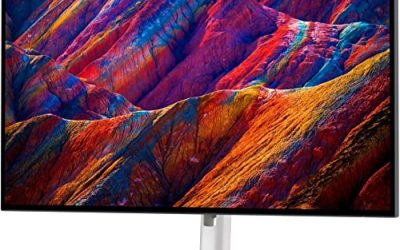
2. Dell UltraSharp U3223QE
The Dell UltraSharp U3223QE is the same idea at 32 inches, and it suits people who live in spreadsheets, timelines or multiple windows at once. The larger 4K IPS Black panel gives more room for side-by-side documents and a wider field of view, while keeping the same pixel density as the 27-inch model, so text stays just as sharp. The USB-C hub matches its smaller sibling with 90W charging, a full set of USB-A ports, DisplayPort, HDMI and Ethernet, and the KVM switch again serves two computers from one keyboard and mouse. The stand is fully adjustable, and the panel’s contrast makes long reading sessions comfortable. Choose this one if your desk is deep enough to sit a comfortable distance from a 32-inch screen and your work benefits from seeing more at once. The caveats are that it needs desk depth, since a 32-inch panel too close is tiring rather than helpful, and some listings are sold by third-party sellers, so check the seller and return terms before ordering.
3. Dell 27 Plus S2725QC
The Dell 27 Plus S2725QC is the simpler 4K office monitor for buyers who want sharp text and a clean desk without the full UltraSharp hub. Its 27-inch 4K IPS panel gives the same crisp text as the premium models, and its USB-C port delivers 65W of charging, which covers most ultrabooks and everyday laptops. The design is slim and modern, the stand adjusts in height and tilt, and the setup is straightforward: one cable from the laptop, and the desk is done. It is the pick for a home office or a small desk where the UltraSharp’s extra ports would go unused. The caveats are that 65W charging is not enough for larger performance laptops under load, and the hub is simpler, with fewer USB-A ports, so a heavy peripheral setup may still need a dock.
4. LG 27UP850-W
The LG 27UP850-W is a 27-inch 4K IPS monitor with wide colour coverage and the strongest USB-C charging in this guide at 96W. The panel covers a wide portion of the DCI-P3 colour space, which makes it a good fit for photo work and design alongside office tasks, and it carries HDR support for media playback. The USB-C port handles video, data and 96W charging over one cable, and the monitor also provides DisplayPort and two HDMI ports, plus a pair of built-in speakers that are genuinely useful for video calls. The stand adjusts in height, tilt and pivot, and the slim bezels suit a dual-monitor setup. Choose this one if you want wide colour and maximum charging power, or if you edit photos between spreadsheets. The caveats are that it is an older model with a successor in the market, so availability should be confirmed live, and the built-in speakers are a convenience for calls rather than a replacement for desktop speakers.
5. ASUS ProArt Display PA279CRV
The ASUS ProArt Display PA279CRV is the colour-accurate pick for office workers who also do design, photo or video work. Its 27-inch 4K IPS panel covers 99 percent of the DCI-P3 colour space and 99 percent of Adobe RGB, and it ships factory calibrated, so colours are accurate out of the box rather than after adjustment. The USB-C port delivers 96W of charging and carries video and data, the hub includes USB-A ports, and the stand adjusts in height, tilt, swivel and pivot, including portrait rotation for document work. It is the pick for anyone whose office work includes colour-critical tasks, or who simply wants the most accurate screen in this guide. The caveat is that its colour strengths are wasted on pure document work, where the Dell models give a more complete hub for the same desk, so buy it for the colour, not for the office features alone.
Comparison Table
| Monitor | Size and resolution | Panel | USB-C charging | Best for |
|---|---|---|---|---|
| Dell UltraSharp U2723QE | 27-inch 4K | IPS Black | 90W | Most complete office setup |
| Dell UltraSharp U3223QE | 32-inch 4K | IPS Black | 90W | Large desk, many windows |
| Dell 27 Plus S2725QC | 27-inch 4K | IPS | 65W | Simple 4K home office |
| LG 27UP850-W | 27-inch 4K | IPS, wide colour | 96W | Colour work plus charging |
| ASUS ProArt PA279CRV | 27-inch 4K | IPS, factory calibrated | 96W | Colour-critical work |
Which One Is Right for You?
For most office workers, the Dell UltraSharp U2723QE is the default: sharp 4K text, deep IPS Black contrast, 90W charging and a hub that replaces a dock. If your desk is deep and your work spreads across many windows, the 32-inch U3223QE gives you the same strengths with more room. If you want 4K text and a single-cable desk without the premium hub, the Dell 27 Plus S2725QC is the simpler and lighter choice. If you edit photos or design between office tasks, the LG 27UP850-W and the ASUS ProArt PA279CRV are the colour picks, with the ASUS the more accurate of the two. The dividing line is simple: hub completeness for a laptop-driven desk, size for multitasking, and colour accuracy for creative work.
Frequently Asked Questions
Is 4K worth it for office work?
For text-heavy work, yes. A 4K panel at 27 inches renders small text with visibly cleaner edges than a QHD panel, and it fits two documents side by side without scrolling. The benefit is smaller on a 32-inch screen, where QHD is already comfortable, but for reading and writing all day, 4K is the most noticeable upgrade an office monitor can have.
How much USB-C charging power does my laptop need?
Most ultrabooks and everyday laptops charge fully on 65W, while larger laptops with discrete graphics or fast charging draw more under load. A 90W or 96W port covers nearly any work laptop, and it also charges faster when the machine is busy. If your laptop’s own charger is rated above 90W, check whether the monitor’s port can keep up during heavy use.
Do I need a monitor with a KVM switch?
A KVM switch matters when one monitor serves two computers, such as a work laptop and a personal desktop. It lets one keyboard and mouse control both machines, switching with a button instead of replugging. If you use one computer, it is a feature you will never touch, so do not pay extra for it.
What is IPS Black, and does it matter for office work?
IPS Black is a panel variant with roughly double the native contrast of a standard IPS panel, around 2000 to 1. In office use, that means dark text on white pages looks deeper, dark mode interfaces look richer, and the screen feels less washed out in a bright room. It is a real improvement for reading, though not essential if your work is mostly bright spreadsheets.
Disclosure: As an Amazon Associate, we may earn from qualifying purchases.
Related guides
More from Amazon
Programs that pair well with the guide above. Offers and eligibility are set by Amazon and may change.
A free business account with business pricing and bulk-buying tools for work, shop or home office.
Create a business accountFree shipping on eligible items, Prime Video and more. Eligible new members can start with a free trial.
Start a Prime free trialAudiobooks and podcasts to listen to on the go. Eligible new members can start with a free trial.
Try Audible freeAd-free music streaming. Eligible new subscribers can start with a free trial.
Try Music Unlimited freeAs an Amazon Associate we earn from qualifying purchases.