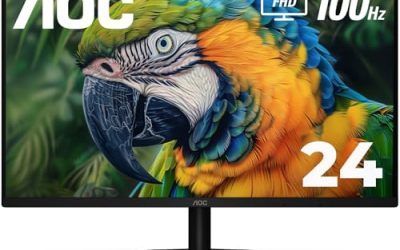
The best 120 Hz monitors in 2026 depend on what you want from them: a 1440p 144 Hz-class IPS panel such as the LG UltraGear 27GP850 or Gigabyte M27Q covers gaming at 120 Hz and above for around $250-$350, while a 4K 120 Hz-capable OLED or fast IPS suits PS5 and Xbox Series X owners who want 4K at 120 fps through HDMI 2.1. If you only need a smooth desktop and 120 fps in games, almost any 144 Hz monitor will run at 120 Hz without trouble. The key spec to check is HDMI 2.1 bandwidth for consoles and DisplayPort 1.4 or higher for PCs.
Quick comparison of the best 120 Hz monitor picks
| Pick | Best for | Key specs | Typical price range |
|---|---|---|---|
| LG UltraGear 27GP850-B class | Best overall for PC gaming | 27-inch 1440p IPS, 165 Hz, 1 ms GtG, HDMI 2.0 and DP 1.4 | usually $250-$350 |
| Gigabyte M28U or Sony Inzone M9-class 4K | Best for PS5 and Xbox at 4K 120 Hz | 28-inch 4K IPS, 144 Hz, HDMI 2.1, VRR | usually $500-$800 |
| LG 27GR93U-B / 27GR95QE-class OLED | Best image quality and response | OLED or fast-IPS, 240 Hz class, near-instant pixel response | usually $450-$900 |
| Budget 24-inch 1080p 120-144 Hz IPS | Best budget | 1080p, 120-144 Hz, adaptive sync, about 1 ms | usually $100-$170 |
| 34-inch ultrawide 1440p 120-144 Hz | Best for immersive racing and sims | 3440×1440, VA or IPS, 144 Hz class | usually $300-$500 |
Prices are general market ranges that shift with sales. The 120 Hz refresh rate is a floor in this list; most of these monitors reach 144 Hz or higher.
Best overall: a 27-inch 1440p IPS monitor
A 27-inch 1440p panel is the sweet spot for PC gaming because it delivers sharper images than 1080p without needing the GPU power of 4K. A model in the LG UltraGear 27GP850 class runs at up to 165 Hz, supports adaptive sync, and has a fast IPS panel with wide color coverage. Running it at 120 Hz is trivial, which leaves headroom if you upgrade your graphics card later.
Trade-off: HDMI 2.0 on this class limits consoles to 1440p at 120 Hz only on some models, and PS5 does not output 1440p natively on many setups, so it is a PC-first choice.
Best for consoles: a 4K monitor with HDMI 2.1
The PlayStation 5 and Xbox Series X can output 4K at 120 Hz, but only over an HDMI 2.1 connection with enough bandwidth. A 4K 144 Hz IPS monitor with HDMI 2.1 and variable refresh rate suits this, and it can also take a PC with a DisplayPort connection. Check that the monitor lists 4K 120 Hz over HDMI explicitly, because some “HDMI 2.1” ports are limited to 4K 60 Hz or use compressed signaling.
Trade-off: prices run double those of a 1440p panel, and running 4K at 120 fps in modern games requires a powerful GPU or relies on upscaling.
Best for image quality: an OLED or fast-IPS panel
OLED monitors have near-instant pixel response (about 0.03 ms GtG per manufacturers), perfect blacks and strong HDR. They make 120 Hz motion look very clean because there is almost no pixel smearing. Fast-IPS models narrow the gap at a lower price.
Trade-off: OLED can suffer burn-in with static desktop elements over long use, and brightness is lower than the best mini-LED panels in a bright room.
Best budget: 24-inch 1080p at 120-144 Hz
A 24-inch 1080p IPS at 120-144 Hz gives you smooth competitive gaming for $100-$170. At 1080p, even mid-range graphics cards can reach 120 fps in esports titles, so the monitor makes full use of the card.
Trade-off: the pixel density at 24 inches is about 92 PPI, which looks softer for desktop work than a 1440p 27-inch screen at about 109 PPI.
Best for immersion: a 34-inch ultrawide
A 3440×1440 ultrawide at 120-144 Hz fills your field of view in racing and flight games. It needs about 34 percent more GPU work than 2560×1440 because it has 4.95 million pixels versus 3.69 million.
Trade-off: some games lack proper ultrawide support, and the width reduces desk space for competitive players.
Worked example: can your cable carry 4K at 120 Hz?
Bandwidth needed is roughly width x height x refresh rate x bits per pixel, plus blanking overhead of about 5-10 percent. For 4K (3840×2160) at 120 Hz with 10-bit color (30 bits per pixel): 3840 x 2160 x 120 x 30 = about 29.9 Gbps, or roughly 32 Gbps with overhead.
| Resolution and refresh | Color depth | Approx. bandwidth needed | Works over HDMI 2.0 (14.4 Gbps)? | HDMI 2.1 (up to 42 Gbps) or DP 1.4 (25.9 Gbps with DSC)? |
|---|---|---|---|---|
| 1080p at 120 Hz | 8-bit | about 6.5 Gbps | Yes | Yes |
| 1440p at 120 Hz | 8-bit | about 11.6 Gbps | Yes | Yes |
| 1440p at 120 Hz | 10-bit | about 14.5 Gbps | Borderline | Yes |
| 4K at 60 Hz | 8-bit | about 12.5 Gbps | Yes (4:4:4 limited) | Yes |
| 4K at 120 Hz | 10-bit | about 32 Gbps | No | HDMI 2.1 yes; DP 1.4 needs DSC |
These are approximate calculations using nominal signal timing; exact numbers vary with the timing standard and chroma format. The takeaway: for 4K 120 Hz, use a certified HDMI 2.1 (48 Gbps-rated) cable on consoles, or DisplayPort 1.4 with DSC on PC.
How to set up 120 Hz correctly
- Use the right cable and port. DisplayPort 1.4 or HDMI 2.1 for high resolutions. The cable that came with the monitor is usually a safe choice.
- Set the refresh rate in the operating system. On Windows, go to Settings, System, Display, Advanced display, and choose 120 Hz or the highest option. Many monitors default to 60 Hz.
- Enable the monitor’s high refresh or overdrive setting. Choose a medium overdrive level; the highest setting often creates inverse ghosting (bright trails).
- Turn on adaptive sync (G-Sync Compatible or FreeSync). It removes tearing when frame rates fall below the refresh rate.
- On consoles, enable 120 Hz output. In PS5 settings, turn on 120 Hz output and VRR; on Xbox, choose 120 Hz in Video Modes.
- Cap frame rate. Limit fps to about 3 below the refresh rate (117 fps at 120 Hz) when using VRR with V-Sync to avoid latency spikes.
What 120 Hz adds, in numbers
At 60 Hz each frame lasts 16.7 ms; at 120 Hz it lasts 8.3 ms, and at 144 Hz 6.9 ms. Going from 60 to 120 Hz halves the interval between updates, which reduces motion blur and input delay by up to about 8 ms. Going from 120 to 240 Hz saves another 4.2 ms, a much smaller improvement, so the jump from 60 to 120 Hz gives the biggest noticeable gain per dollar.
Decision matrix: choose by your device
| Your device | Best monitor type | Port needed |
|---|---|---|
| Mid-range gaming PC | 1080p or 1440p 144 Hz IPS | DisplayPort 1.4 |
| High-end gaming PC | 1440p 240 Hz or 4K 144 Hz | DisplayPort 1.4 or HDMI 2.1 |
| PS5 or Xbox Series X | 4K 120 Hz HDMI 2.1 monitor | HDMI 2.1 |
| Xbox Series S | 1440p 120 Hz monitor | HDMI 2.0 or 2.1 |
| Work and gaming laptop | 1440p 120-144 Hz with USB-C | USB-C with DisplayPort Alt Mode |
Frequently Asked Questions
Is 120 Hz noticeably better than 60 Hz?
Yes. Most people see smoother scrolling and clearer motion within minutes, and the gap is easy to see when moving the mouse or turning the camera in a game. The improvement requires your game to run at 100-plus fps to be fully felt.
Can a 144 Hz monitor run at 120 Hz?
Yes. You can select 120 Hz in the operating system or the console menu. Some people choose 120 Hz on consoles because consoles output 120 Hz rather than 144 Hz.
Do I need HDMI 2.1 for 120 Hz?
Not at 1080p or 1440p, where HDMI 2.0 or DisplayPort 1.2 is enough. For 4K at 120 Hz you need HDMI 2.1 or DisplayPort 1.4 with DSC, and consoles require HDMI 2.1.
Is a 120 Hz monitor worth it for office work?
It makes scrolling and cursor movement feel smoother, and the price premium over 60 Hz has shrunk to $30-$60 on many 1080p and 1440p models. If you also game, it is a sensible choice; for pure spreadsheet work, resolution and ergonomics matter more.
Will my graphics card be able to hit 120 fps?
It depends on the game and settings. Esports titles at 1080p usually reach 120 fps on mid-range cards, while demanding games at 4K often fall to 40-80 fps and rely on upscaling or lower settings. Frame rates vary widely with settings, resolution, CPU and game patch.
Related guides
More from Amazon
Programs that pair well with the guide above. Offers and eligibility are set by Amazon and may change.
A free business account with business pricing and bulk-buying tools for work, shop or home office.
Create a business accountFree shipping on eligible items, Prime Video and more. Eligible new members can start with a free trial.
Start a Prime free trialAudiobooks and podcasts to listen to on the go. Eligible new members can start with a free trial.
Try Audible freeAd-free music streaming. Eligible new subscribers can start with a free trial.
Try Music Unlimited freeAs an Amazon Associate we earn from qualifying purchases.