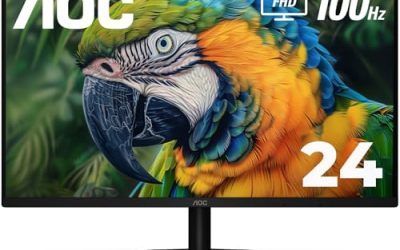
The best TV to use as a gaming monitor is a 42-inch OLED such as the LG C4 or LG C5 42-inch, because it combines a 4K 120 Hz panel, near-instant pixel response and HDMI 2.1 in a size that still fits on a desk. If you want a brighter and cheaper alternative for a living-room setup or a sunlit room, a mini-LED 4K TV in the 55-inch class from Hisense or TCL is the better pick.
This guide interprets “best 10 TV monitors” as a search for the best televisions that double as gaming displays. It covers a comparison table, picks by use case, a worked calculation for viewing distance and bandwidth, and the settings that matter to keep input lag low.
Quick comparison of TVs for gaming use
| Pick | Best for | Key specs | Typical price range |
|---|---|---|---|
| LG C4 / C5 42-inch OLED | Best overall desk TV | 4K, 120 Hz (144 Hz on newer models), HDMI 2.1, VRR, 0.1 ms class response | $700-$1,100 |
| LG C-series 48-inch OLED | Best for larger desks or couch-and-desk setups | 4K, 120 Hz, HDMI 2.1, Dolby Vision gaming | $800-$1,300 |
| Hisense U8 class mini-LED, 55-inch | Best bright-room value | 4K, 144 Hz class panel, high peak brightness, VRR | $600-$1,000 |
| TCL QM8 class mini-LED, 55-inch | Best brightness per dollar | 4K, 120-144 Hz, local dimming, game mode | $600-$1,100 |
| Budget 4K 60 Hz, 43-inch class | Best cheap option for consoles at 60 fps | 4K 60 Hz, HDMI 2.0, basic VRR on some models | $200-$350 |
Prices are general market ranges, and panel specifications vary by year and region. Refresh rates and HDMI versions follow each manufacturer’s published spec sheet.
Best overall: LG C4 or C5 42-inch OLED
LG’s 42-inch OLED line is the TV that effectively created the “big gaming monitor” category. You get true per-pixel dimming, pixel response around 0.1 ms per the manufacturer’s spec sheet, 4K at 120 Hz with variable refresh rate, and four HDMI 2.1 ports. Input lag in Game mode is typically reported at around 10 ms or less at 60 Hz and lower at 120 Hz.
The main trade-offs are screen size and burn-in care. At a normal desk distance of 60 to 80 cm, 42 inches is very large, so you may need to sit farther back or use a monitor arm. Static elements such as a taskbar can cause image retention, so hide the taskbar and use dark mode in desktop apps. Text can look slightly soft on a 4K panel at close range, because OLED subpixel layouts differ from standard RGB stripes.
Best for bigger rooms: 48-inch OLED
If you game from a couch or a deeper desk, the 48-inch version has the same panel quality at a larger size. It is better for console play and movies than for close-up desktop use. The picture is excellent for HDR content, and the price premium over the 42-inch is modest. The trade-off is that at desk distance the screen may feel too big for competitive shooters, forcing head movement to see the corners.
Best bright-room value: Hisense U8 class mini-LED
Mini-LED TVs use hundreds or thousands of local dimming zones with an LCD panel, delivering much higher peak brightness than OLED, often above 1,000 nits in HDR. This makes HDR highlights pop in sunny rooms. Hisense’s U8 class models also include a 144 Hz mode with VRR. The trade-offs are blooming around bright objects on dark backgrounds and slower pixel response than OLED, which can show as slight motion smearing in fast games.
Best brightness per dollar: TCL QM8 class mini-LED
TCL’s QM series competes directly with Hisense, often with strong local dimming for the price and a dedicated game mode. If you find a 55-inch model on sale in the $600 to $800 range, it offers features that cost well over $1,000 only a few years ago. Check that the model supports 4K 120 Hz on at least one HDMI 2.1 port, since some budget TVs only enable it on a single input.
Best cheap: 43-inch 4K 60 Hz
If you play on a console at 60 fps or on a PC at 4K 60, a budget 43-inch 4K television is enough and usually costs $200 to $350. You will not get HDMI 2.1 or high refresh rates, but you will get a large 4K picture. Make sure the TV has a Game mode and low input lag listed in the manual or by credible published measurements.
How to choose with numbers
Worked example: bandwidth and viewing distance
4K at 120 Hz with 10-bit color needs about 3840 x 2160 x 120 x 30 bits = roughly 29.9 Gbit/s of raw pixel data, before blanking overhead. That is why you need HDMI 2.1, which supports up to 48 Gbit/s. HDMI 2.0 only carries 18 Gbit/s, which limits you to about 4K 60 Hz with 8-bit 4:4:4, or 4K 120 Hz only with chroma subsampling or lower resolution.
- 4K 60 Hz, 8-bit RGB: about 12 Gbit/s, which fits on HDMI 2.0.
- 4K 120 Hz, 10-bit RGB: about 30 Gbit/s, which requires HDMI 2.1.
- For your GPU, you need an HDMI 2.1 port or a DisplayPort-to-HDMI adapter that supports the full bandwidth. Many modern graphics cards have HDMI 2.1.
For viewing distance, a common guideline for 4K is to sit about 1 to 1.5 times the screen diagonal away. A 42-inch screen suits about 1.0 to 1.6 m, while a desk setup at 70 cm is on the close side.
Decision matrix
| Your situation | Choose | Reason |
|---|---|---|
| Desk use, dark or mixed room | 42-inch LG OLED | Best response time and contrast at desk size |
| Couch gaming with a PS5 or Xbox Series X | 48 to 55-inch OLED or mini-LED | Larger picture, HDMI 2.1 for 120 Hz |
| Very bright room | Mini-LED 55-inch | Higher peak brightness fights glare |
| Mostly static desktop work | Mini-LED or a regular monitor | Avoids OLED retention risk |
| Tight budget | 43-inch 4K 60 Hz | Cheap big screen |
Settings that cut input lag
- Enable Game mode on the HDMI input you use. It bypasses much of the picture processing and can cut input lag from 50+ ms to roughly 10 ms.
- Turn off motion smoothing (TruMotion, Motion Flow and similar). It adds delay and artifacts.
- Enable VRR (HDMI VRR, FreeSync or G-SYNC Compatible) in both the TV and the GPU driver.
- Set the PC output to 4:4:4 RGB and name the HDMI input “PC” on some TVs, so text stays sharp.
- Disable energy-saving brightness limiters for desktop use, but keep OLED pixel-refresh features enabled.
Frequently Asked Questions
Can I use a TV as a PC gaming monitor?
Yes. Connect it via HDMI 2.1 if you want 4K at 120 Hz, enable Game mode and set RGB 4:4:4. The main compromises are size, which makes it awkward on a small desk, and slightly lower text sharpness than a dedicated monitor.
Is OLED burn-in a real risk on a gaming TV?
It is possible with static content shown for long hours. Hide the taskbar, use dark themes, enable auto-dimming and vary what you display. For mixed gaming and video use, most users never notice a problem within the warranty period.
Does a TV have more input lag than a monitor?
In Game mode, modern TVs have input lag close to many monitors, around 5 to 15 ms. Outside of Game mode, processing can add 40 ms or more, so always enable it.
Do I need 144 Hz or is 120 Hz enough?
For consoles, 120 Hz is the cap, so it is enough. On a PC, 144 Hz is a small step beyond 120 Hz, and most players would not notice the difference unless their frame rate regularly exceeds 120 fps.
What size TV works best on a desk?
For most desks, 42 inches is the upper limit. Sit at least 70 to 80 cm from the screen and consider a monitor arm or wall mount to push it back a little further.
Related guides
More from Amazon
Programs that pair well with the guide above. Offers and eligibility are set by Amazon and may change.
A free business account with business pricing and bulk-buying tools for work, shop or home office.
Create a business accountFree shipping on eligible items, Prime Video and more. Eligible new members can start with a free trial.
Start a Prime free trialAudiobooks and podcasts to listen to on the go. Eligible new members can start with a free trial.
Try Audible freeAd-free music streaming. Eligible new subscribers can start with a free trial.
Try Music Unlimited freeAs an Amazon Associate we earn from qualifying purchases.