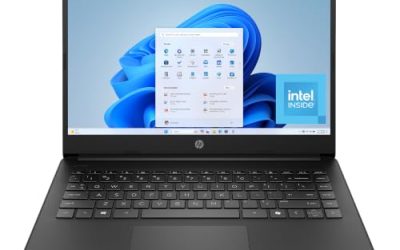
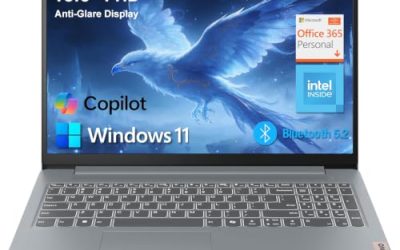
A RAM upgrade is one of the few laptop improvements you can still do yourself, and it transforms a machine that thrashes with a dozen browser tabs into one that stays smooth. But laptop memory has its own rules—the wrong module simply will not work, or will not run at full speed. Here is how to pick the correct SODIMM and install it without drama.
First: can your laptop even be upgraded?
Before buying anything, confirm the memory is not soldered. Many thin-and-light and premium laptops have RAM fixed to the board with no slots at all—those cannot be upgraded, period. Check your model’s specifications or service manual for “SODIMM slots” and how many. Some laptops have one slot (single-channel), some have two, and a few have one slot plus soldered memory. This determines your options entirely.
Match the standard exactly
Laptop memory uses the smaller SODIMM form factor, and it must match your platform’s generation: DDR4 boards take only DDR4 SODIMMs, DDR5 boards take only DDR5. The two are physically keyed differently and are not interchangeable. Buying the wrong generation is the single most common upgrade mistake.
| Spec to match | What to check | Why it matters |
|---|---|---|
| Form factor | SODIMM (not desktop DIMM) | Physically won’t fit otherwise |
| Generation | DDR4 vs DDR5 | Incompatible, keyed differently |
| Speed (MHz) | At or above board’s max | Runs at the lower of the two |
| Capacity per slot | Within board’s limit | Excess isn’t recognized |
| Voltage | Standard for the generation | Non-standard may not POST |
Capacity and dual channel
Decide total capacity by workload: 16 GB is the comfortable baseline for general use and light gaming, 32 GB suits heavy multitasking, content creation, or demanding games, and 64 GB is for serious editing or virtualization. Whenever the laptop has two slots, install a matched pair (for example 2×8 GB rather than 1×16 GB) to run in dual channel, which meaningfully improves performance—especially on laptops with integrated graphics that share system memory.
The installation itself
Power off, unplug, and remove the battery if it is removable. Ground yourself to discharge static—touch a bare metal surface—before handling modules. Open the service panel, spread the retaining clips on the existing SODIMM if you are replacing it, and it pops up at an angle. Insert the new module at roughly a 30-degree angle until the contacts seat fully, then press it flat until the clips snap. Reassemble, boot, and confirm the new total appears in the system’s memory information.
If the laptop does not POST after the upgrade, reseat the module—partial seating is the usual culprit—and double-check you bought the right generation and a capacity the board supports.
Frequently asked questions
Can I mix a new SODIMM with the existing one?
You can, and it will usually work, but for best results the two sticks should match in capacity, speed, and ideally brand. Mismatched modules run at the slower stick’s speed and may not enable dual channel cleanly. A matched kit avoids the guesswork.
Will faster RAM than my laptop supports make it quicker?
No. The system runs memory at the lower of the module’s rating and the board’s maximum, so a faster SODIMM simply downclocks to the supported speed. Buy to match your platform, not above it, unless the faster kit is the same price.
Bottom line
Confirm your laptop has actual SODIMM slots (not soldered RAM), match the DDR generation and speed exactly, and fill both slots with a matched pair for dual channel. Choose 16 GB for general use, 32 GB for demanding work. Handle the modules with anti-static care and seat them fully, and a ten-minute upgrade will keep an aging laptop feeling responsive for years.
Related guides
More from Amazon
Programs that pair well with the guide above. Offers and eligibility are set by Amazon and may change.
A free business account with business pricing and bulk-buying tools for work, shop or home office.
Create a business accountFree shipping on eligible items, Prime Video and more. Eligible new members can start with a free trial.
Start a Prime free trialAudiobooks and podcasts to listen to on the go. Eligible new members can start with a free trial.
Try Audible freeAd-free music streaming. Eligible new subscribers can start with a free trial.
Try Music Unlimited freeAs an Amazon Associate we earn from qualifying purchases.