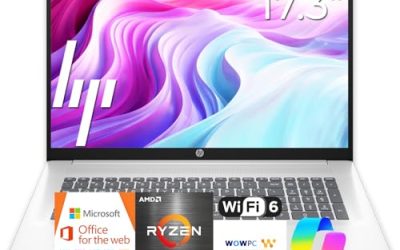
An SSD is already one of the more efficient parts in a gaming laptop, so expectations matter: the biggest savings usually come from reducing unnecessary wake-ups, background writes, and time spent in sleep rather than chasing a tiny difference during active gaming. On a healthy laptop, the practical goal is lower idle drain, less heat, and better battery life away from the charger—not a dramatic FPS change. If you are researching how to reduce SSD power consumption laptop systems use, start with the changes that let the drive enter low-power states more often without compromising reliability.
The steps below focus on Windows laptops with NVMe or SATA SSDs. Apply one change at a time, measure it, and keep only the changes that improve your real battery-life routine. In 2026, many laptops use Modern Standby, which can keep storage-related activity alive while the lid is closed; that makes sleep behavior especially important.
Quick Wins
| Change | Effort | Expected gain |
|---|---|---|
| Use Hibernate instead of extended Sleep | Low | High for overnight or bag carry |
| Set PCI Express Link State Power Management to Maximum power savings on battery | Low | Low to moderate during idle use |
| Pause unneeded cloud-sync and game-launcher activity | Low | Moderate when background writes are frequent |
| Reduce Windows Search indexing on large game libraries | Low | Low to moderate at idle |
| Install the laptop maker’s BIOS and SSD firmware updates | Moderate | Variable; potentially meaningful if a power-state bug exists |
| Use the Balanced power plan rather than a performance-focused plan on battery | Low | Low to moderate system-wide |
| Check for a drive that never reaches an idle state | Moderate | High when a specific app is constantly accessing storage |
Step-by-Step Tuning
1. Stop background writes that keep the SSD awake
What causes it: Cloud backup tools, game launchers, browser downloads, Windows Update, telemetry, and antivirus scans can repeatedly read or write small files. Even light activity can prevent an NVMe SSD from staying in its lowest idle-power state.
How to check: Press Ctrl+Shift+Esc to open Task Manager. Select Processes, click the Disk column to sort it, and watch the list for a few minutes while the laptop is otherwise idle. For more detail, press Win+R, type resmon, press Enter, then open the Disk tab. Check Processes with Disk Activity and Disk Activity for an app that repeatedly accesses files.
What to do: Pause OneDrive, Dropbox, Google Drive, Steam downloads, Epic Games Launcher downloads, and similar sync jobs when on battery. In Steam, open Steam > Settings > Downloads and disable automatic updates during your usual unplugged hours. In Task Manager, open Startup apps and disable nonessential launchers or updaters that do not need to run at sign-in. Do not disable security software.
How to undo: Resume syncing from the cloud app’s tray icon, re-enable automatic downloads in the launcher, or right-click the app under Task Manager > Startup apps and choose Enable.
2. Use hibernation for long breaks and travel
What causes it: Sleep is not always a true off state. On many modern laptops, Modern Standby can periodically wake the system for networking, maintenance, or device activity. That can create SSD access while the machine is in a backpack or sitting overnight.
How to check: Open Terminal as administrator by right-clicking Start and selecting Terminal (Admin). Run powercfg /a. If the output lists Standby (S0 Low Power Idle), the system uses Modern Standby. To review recent sleep drain, run powercfg /sleepstudy; Windows saves an HTML report in the location shown in the command output.
What to do: Enable hibernation with powercfg /hibernate on. Then go to Control Panel > Hardware and Sound > Power Options > Choose what closing the lid does. Set When I close the lid to Hibernate for On battery if you frequently carry the laptop between classes, work, or travel. You can also choose Start > Power > Hibernate before storing the machine. Hibernate writes memory contents once, then powers the system down, so it is normally far better than sleep for long idle periods.
How to undo: Return the lid-close action to Sleep or Do nothing. To remove Hibernate entirely, run powercfg /hibernate off in Terminal (Admin).
3. Enable PCI Express link power savings on battery
What causes it: Most internal NVMe SSDs communicate through PCIe. If the PCIe link remains fully active while the drive is idle, the SSD and platform can consume more power than necessary.
How to check: Go to Settings > System > Power & battery and verify the laptop is unplugged. Then open Control Panel > Hardware and Sound > Power Options. Next to the active plan, choose Change plan settings > Change advanced power settings. Expand PCI Express > Link State Power Management. If On battery is set to Off, PCIe power saving is disabled for that plan.
What to do: Set On battery to Maximum power savings. If your laptop shows occasional storage stutters after the change, use Moderate power savings instead. Leave the plugged-in setting at your preference; gamers commonly keep it at Off while connected to AC power.
How to undo: Return to the same advanced power menu and set On battery back to Off or Moderate power savings.
4. Use Balanced mode instead of a performance plan when unplugged
What causes it: A high-performance power configuration often keeps CPU, chipset, and PCIe devices more responsive. The SSD may not be the only component drawing extra power, but less aggressive platform power management can reduce opportunities for storage idle states.
How to check: Open Settings > System > Power & battery and look at Power mode. Also check Control Panel > Hardware and Sound > Power Options to see whether a vendor performance plan is active.
What to do: Under Power mode, select Balanced or Best power efficiency for battery use. If your gaming laptop has a manufacturer control app, select its balanced, silent, or eco profile when you are browsing, streaming, or doing office work. Switch back to performance mode before demanding games if needed.
How to undo: Return to Settings > System > Power & battery > Power mode and select your previous setting. Reapply your manufacturer performance profile if applicable.
5. Limit indexing on game libraries and archive folders
What causes it: Windows Search indexing improves search speed by scanning file names and selected content. Large game libraries, mod folders, captured-video directories, and archives can generate needless reads when you rarely search their contents.
How to check: Open Settings > Privacy & security > Searching Windows. Review the listed excluded folders and the selected search mode. If Enhanced is enabled, Windows indexes the entire PC rather than primarily user-profile locations.
What to do: Choose Classic under Find my files if you do not need full-drive indexing. Alternatively, keep Enhanced mode and add exclusions for folders such as D:\SteamLibrary, C:\Program Files (x86)\Steam\steamapps, game capture folders, virtual-machine images, and large archives. Use Add an excluded folder and select the relevant directory. Keep Documents and other folders you actively search indexed.
How to undo: In Searching Windows, select an excluded folder and remove it, or switch Find my files back to Enhanced. Search results may take time to rebuild.
6. Update SSD firmware, storage drivers, and laptop BIOS carefully
What causes it: SSD firmware and laptop BIOS control parts of power-state behavior, compatibility, and sleep/resume handling. A firmware issue can cause unusual idle drain, failed low-power transitions, or repeated device resets.
How to check: Open Device Manager > Disk drives to identify the SSD model. Open Settings > Windows Update > Update history and review driver or firmware updates already installed. Also check the laptop manufacturer’s support utility for BIOS, chipset, and storage-related updates.
What to do: Install only updates intended for your exact laptop model and exact SSD model. Connect AC power, close games and apps, suspend BitLocker protection if the manufacturer specifically instructs you to do so, and do not interrupt a firmware or BIOS update. Prefer the laptop maker’s validated storage driver when one is supplied; otherwise, Windows’ standard NVMe driver is usually the safest choice.
How to undo: Firmware updates generally cannot be rolled back. That is why verification matters. For a problematic driver update, use Device Manager > Storage controllers or Disk drives > Properties > Driver > Roll Back Driver when the button is available.
7. Check SATA AHCI power management only if your laptop uses a SATA SSD
What causes it: A 2.5-inch SATA SSD or M.2 SATA SSD uses AHCI rather than NVMe. Its controller may support HIPM/DIPM link power management, which can reduce idle draw.
How to check: In Device Manager > Storage controllers, look for an AHCI controller. In Device Manager > Disk drives, your SSD model documentation may indicate SATA rather than NVMe. Do not apply this method merely because you see “PCI Express” settings; NVMe and SATA tuning are different.
What to do: In Control Panel > Power Options > Change plan settings > Change advanced power settings, look under Hard disk for an AHCI or link-power-management option supplied by your driver. If present, choose the least aggressive setting first, such as HIPM+DIPM on battery. Test sleep, wake, file transfers, and gaming afterward.
How to undo: Return the setting to Active, Off, or its previous value if you see freezes, delayed drive detection, or resume errors.
Measure Before and After
Do not judge SSD power savings from a single battery percentage reading. Start at the same charge level, use the same brightness, disconnect the same peripherals, and repeat the same idle workload for at least 30 minutes. For example, leave the laptop on the desktop with Wi-Fi connected and no downloads running, then compare battery drop before and after one change.
Use Task Manager > Processes and Resource Monitor > Disk to confirm that disk activity actually fell. For broader power diagnostics, open Terminal (Admin) and run powercfg /energy. After the analysis completes, open the report path shown by Windows and look for power-management warnings. For sleep behavior, run powercfg /sleepstudy after an overnight test and compare sleep duration, active periods, and battery drain.
Hardware monitoring software can sometimes report NVMe drive temperature, controller activity, or power-state information, but many laptops do not expose per-SSD wattage accurately. Treat those readings as supporting evidence, not absolute proof. The most useful outcome is a repeatable reduction in battery drain with no new stutter, wake delay, or storage error.
What Not to Do
Do not disable the page file to “save SSD power.” Windows may become unstable or run out of memory, and any storage-power benefit is unpredictable. Do not disable TRIM; it helps SSD housekeeping and long-term performance. Do not turn off BitLocker or Device Encryption solely for battery life, because the security loss is not justified by a speculative SSD-power change.
Avoid registry tweaks that force undocumented NVMe autonomous power-state settings. These changes vary by controller, BIOS, and driver, can cause resume failures, and are difficult to validate. Also avoid setting Windows’ old Turn off hard disk after timer as a primary NVMe fix. That option is mainly relevant to mechanical hard drives and often does not control NVMe behavior in the way users expect.
Finally, do not update SSD firmware from an unofficial package, and never interrupt a BIOS or firmware flash. A slightly lower idle draw is not worth risking data loss or an unusable laptop.
FAQ
Does an NVMe SSD use much battery power?
Usually, not compared with the display, CPU, GPU, and wireless radios. NVMe SSD power becomes more noticeable when the laptop is idle but the drive is repeatedly awakened by sync tools, indexing, updates, or Modern Standby activity. Reducing those wake-ups is more effective than trying to throttle normal game loading.
Will Maximum power savings make games stutter?
It can add a small wake-up delay on some laptop and SSD combinations, but many systems handle it without a visible problem. Use it for the battery setting first, test your regular games, and change to Moderate power savings if you encounter storage-related pauses or device-resume issues.
Should I disable Windows Search indexing completely?
Usually no. Excluding large game libraries, recordings, and archive folders is the safer compromise. Keep commonly searched folders, such as Documents and Desktop, indexed so Start menu and File Explorer searches remain convenient.
Why does my laptop lose battery while sleeping even when SSD activity looks low?
Modern Standby battery drain is often caused by the network adapter, background maintenance, USB devices, CPU wake events, or a driver issue rather than the SSD alone. Run powercfg /sleepstudy, check for unusually long active periods, and use Hibernate for long periods away from AC power.
Related guides
More from Amazon
Programs that pair well with the guide above. Offers and eligibility are set by Amazon and may change.
A free business account with business pricing and bulk-buying tools for work, shop or home office.
Create a business accountFree shipping on eligible items, Prime Video and more. Eligible new members can start with a free trial.
Start a Prime free trialAudiobooks and podcasts to listen to on the go. Eligible new members can start with a free trial.
Try Audible freeAd-free music streaming. Eligible new subscribers can start with a free trial.
Try Music Unlimited freeAs an Amazon Associate we earn from qualifying purchases.