Our Short List of 3

- Best for: Players at 1080p upgrading from an aging card.
- GeForce RTX 4060 as titled
- Ventus 2X Black design as titled
- 8G memory as titled
- OC Edition as titled
- Best for: Players at 1440p whose current card runs out of memory.
- Radeon RX 9060 XT as titled
- 16GB GDDR6 memory as titled
- PCIe 5.0 interface as titled
- HDMI 2.1b and DisplayPort 2.1a as titled

- Best for: Players chasing high frame rates at 1440p or starting 4K.
- GeForce RTX 5070 Ti as titled
- Gaming OC design as titled
- 16G memory as titled
- ASIN: ⚠ B0DTR7GWG6
All 5 Picks at a Glance
| Product | Specs | Action |
|---|---|---|
| 1. MSI GeForce RTX 4060 Ventus 2X Black 8G OC |
| Check price on Amazon |
| 2. ASUS Dual Radeon RX 9060 XT 16GB GDDR6 |
| Check price on Amazon |
| 3. GIGABYTE GeForce RTX 5070 Ti Gaming OC 16G |
| Check price on Amazon |
 4. Sapphire Pulse Radeon RX 9070 XT |
| Check price on Amazon |
 5. ASUS Prime GeForce RTX 5080 16GB GDDR7 |
| Check price on Amazon |
High GPU usage is usually normal, not a problem. When a game or render is running, a healthy graphics card should work hard, and usage near the top of the range means the card is doing the job it was bought for. It becomes a problem when usage stays high at idle, when it comes with stuttering, crashes, or overheating, or when an unknown background process is eating the card. The most useful first check is to open Task Manager, see which process is using the GPU, and note whether the load appears only under load or all the time.
The five graphics cards below are upgrade options for one specific situation: a card that is the bottleneck, running out of memory, or too slow for the resolution being played at. They are not a fix for high usage on its own, and the checks in this guide come first. Each card is listed only with the specifications its listing title states, so nothing here rests on a guess.
Our Top Picks
- ASUS Dual Radeon RX 9060 XT 16GB GDDR6RX9060XT|16GB|Black8 x 4.7 x 1.9 inches1.3 poundsCheck on Amazon
Top 3 picks at a glance
Quick Picks
As an Amazon Associate we earn from qualifying purchases.
| Product | Best for | Key spec from title |
|---|---|---|
| MSI GeForce RTX 4060 Ventus 2X Black 8G OC | 1080p gaming on a modest upgrade budget | RTX 4060, 8G, OC Edition |
| ASUS Dual Radeon RX 9060 XT 16GB GDDR6 | 1440p gaming with 16GB of memory | 16GB GDDR6, PCIe 5.0, 0dB Technology |
| GIGABYTE GeForce RTX 5070 Ti Gaming OC 16G | High-refresh 1440p and entry-level 4K | RTX 5070 Ti, Gaming OC, 16G |
| Sapphire Pulse Radeon RX 9070 XT | 4K gaming without a flagship card | Radeon RX 9070 XT, Pulse design |
| ASUS Prime GeForce RTX 5080 16GB GDDR7 | Demanding 4K play in a compact build | 16GB GDDR7, SFF-Ready, Vapor Chamber |
How to Choose
Check Which Process Is Using the GPU First
Before changing any setting or considering a new card, find out what is actually loading the GPU. Open Task Manager, switch to the Processes tab, and sort by the GPU column to see which program holds the load. A game at the top during play is expected. A browser, updater, or unknown process holding the card at high usage while nothing is running is not, and that changes the whole diagnosis. Write down the process name and the usage figure, then check whether the load disappears when the program closes. This one check separates a healthy working card from a runaway process, a misbehaving driver, or unwanted software, and it takes less than a minute.
Tell Normal Load From a Real Problem
High usage alone is not a diagnosis. A card running near its limit while a game holds a steady frame rate, with temperatures in the normal range and no stuttering, is doing its job. The warning signs are different: usage pinned high at idle on the desktop, frame rates that swing wildly, crashes to the desktop, fans at full speed with rising temperatures, or visible stuttering while the card reports high load. Context decides everything, so compare usage at idle, in menus, and in heavy scenes rather than judging one number. A card that rests near zero on the desktop and works hard only in games is behaving exactly as it should.
Try the Free Fixes Before Spending Anything
Most high-usage complaints have free answers, and they should all be tried before any purchase. Update the graphics driver from the manufacturer’s own download, then check for background programs, overlays, and browser tabs using the card. A frame-rate cap or V-Sync setting can calm a card that renders far more frames than the monitor shows, and lowering one demanding setting, such as ray tracing or render resolution, shows immediately whether the load was simply too much work. Scan for unwanted software if an unknown process holds the load. Only when the card is still the limit after these checks, with settings already lowered and nothing else competing for it, does an upgrade make sense.
Decide Whether an Upgrade Is Actually the Answer
An upgrade answers one question only: is the current card too slow or too short on memory for the resolution and settings being used? Signs that point that way are a card constantly at its limit while the processor waits, games that stutter when memory fills, or settings kept low to hold a playable frame rate. Check the rest of the system too: a weak processor, slow memory, or a small power supply can hold back even a strong new card. Measure the case, confirm the power supply has the right connectors and headroom, and match the card to the monitor, since 1080p needs far less than 4K.
The 5 Best Options
1. MSI GeForce RTX 4060 Ventus 2X Black 8G OC
- Best for: Players at 1080p upgrading from an aging card.
- GeForce RTX 4060 as titled
- Ventus 2X Black design as titled
- 8G memory as titled
- OC Edition as titled
Players at 1080p upgrading from an aging card.
The title states no clock speed, cooler detail, or power requirement, so confirm those on the full listing before buying.
The MSI RTX 4060 Ventus 2X is the sensible starting point for 1080p play, pairing the RTX 4060 chip with 8G of memory and an OC Edition factory tuning in a twin-fan Black design. It suits a system where the current card is several generations old and the monitor stays at 1080p, because the card has enough headroom for high settings at that resolution without demanding a large power supply or a big case. The Ventus 2X layout is a straightforward dual-fan design with no extra frills stated in the title. For a first upgrade from an aging card, it is the least disruptive step on this list.
Watch out for: The title states no clock speed, cooler detail, or power requirement, so confirm those on the full listing before buying.
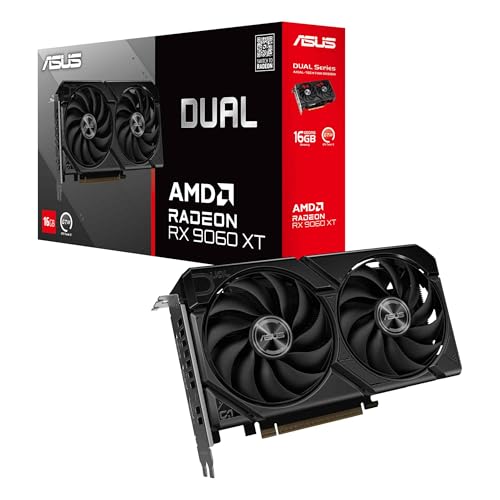
2. ASUS Dual Radeon RX 9060 XT 16GB GDDR6
- Best for: Players at 1440p whose current card runs out of memory.
- Radeon RX 9060 XT as titled
- 16GB GDDR6 memory as titled
- PCIe 5.0 interface as titled
- HDMI 2.1b and DisplayPort 2.1a as titled
Players at 1440p whose current card runs out of memory.
The title states no clock speed or power requirement, so confirm both on the full listing before buying.
The ASUS Dual RX 9060 XT is the memory-rich pick for 1440p, with 16GB of GDDR6 memory that gives newer games room for high-resolution textures without spilling over into slower system memory. The Dual design uses Axial-tech fans with 0dB Technology, so the fans can stop under light loads, and the 2.5-slot design, PCIe 5.0 interface, HDMI 2.1b, and DisplayPort 2.1a connections cover modern monitors and boards. It suits players whose current card runs out of memory at 1440p and stutters when texture-heavy scenes load. For a mid-range system that needs memory more than raw flagship speed, this is the balanced choice.
Watch out for: The title states no clock speed or power requirement, so confirm both on the full listing before buying.
3. GIGABYTE GeForce RTX 5070 Ti Gaming OC 16G
- Best for: Players chasing high frame rates at 1440p or starting 4K.
- GeForce RTX 5070 Ti as titled
- Gaming OC design as titled
- 16G memory as titled
- ASIN: ⚠ B0DTR7GWG6
Players chasing high frame rates at 1440p or starting 4K.
The title states no clock speed, cooler detail, dimensions, or power requirement, so confirm all four on the full listing before buying.
The GIGABYTE RTX 5070 Ti Gaming OC is the high-refresh pick, built around the RTX 5070 Ti chip with 16G of memory and a Gaming OC factory tuning. It suits players chasing high frame rates at 1440p or stepping into 4K, where the combination of a newer chip and a full 16G of memory keeps demanding games smooth at settings a smaller card cannot hold. The Gaming OC wording points to a factory-tuned design rather than a reference board. For a system with a strong processor and a high-refresh monitor, this card removes the GPU as the limit in most current games.
Watch out for: The title states no clock speed, cooler detail, dimensions, or power requirement, so confirm all four on the full listing before buying.
4. Sapphire Pulse Radeon RX 9070 XT
- Best for: Players moving to 4K without buying a flagship card.
- Radeon RX 9070 XT as titled
- Pulse design as titled
- ASIN: ⚠ B0DTHPM52L
Players moving to 4K without buying a flagship card.
The title states no memory size, clock speed, cooler detail, or dimensions, so confirm all of them on the full listing before buying.
The Sapphire Pulse RX 9070 XT is the value route to 4K, pairing the Radeon RX 9070 XT chip with the Pulse design that Sapphire aims at straightforward gaming builds. It suits players who want 4K-capable hardware without paying for a flagship, and whose processor and power supply can support a strong card. The Pulse name covers the cooler and board design rather than a reference layout, which matters for noise and temperatures under sustained load. For a 4K monitor paired with a capable processor, this card takes the GPU out of the bottleneck position in most current titles.
Watch out for: The title states no memory size, clock speed, cooler detail, or dimensions, so confirm all of them on the full listing before buying.
5. ASUS Prime GeForce RTX 5080 16GB GDDR7
- Best for: Demanding 4K play in a compact high-end build.
- GeForce RTX 5080 as titled
- 16GB GDDR7 memory as titled
- SFF-Ready design as titled
- PCIe 5.0 interface as titled
Demanding 4K play in a compact high-end build.
The title states no clock speed or power requirement, so confirm both on the full listing and check power supply headroom before buying.
The ASUS Prime RTX 5080 is the flagship-class pick for demanding 4K play, combining the RTX 5080 chip with 16GB of GDDR7 memory, a Vapor Chamber cooler, and a Dual BIOS switch. Its SFF-Ready wording means it is designed for smaller cases, while the 2.5-slot design, PCIe 5.0 interface, HDMI and DisplayPort 2.1 connections, and Axial-tech fans cover modern compact builds that still want top-tier performance. It suits a high-end system where the monitor is 4K, the processor is strong, and nothing else in the build is the limit. For that system, it is the card that ends the GPU question.
Watch out for: The title states no clock speed or power requirement, so confirm both on the full listing and check power supply headroom before buying.
Which One Fits Your Situation
You Play at 1080p and the Old Card Struggles
Start with the MSI RTX 4060, which covers 1080p at high settings without demanding a new power supply or a larger case. Check that the current card is really the limit first, using Task Manager and one lowered setting, and confirm the monitor stays at 1080p. If the processor is also several generations old, a card alone may not fix stuttering, so weigh the whole system before spending.
You Moved to 1440p or 4K and Ran Out of Room
The ASUS RX 9060 XT with 16GB of memory is the first step when texture-heavy scenes stutter, and the GIGABYTE RTX 5070 Ti or Sapphire RX 9070 XT take over when high-refresh 1440p or 4K is the goal. Match the card to the monitor’s resolution and refresh rate, and check case length and power supply connectors before ordering, since bigger cards need both.
Usage Is High at Idle or on the Desktop
Do not buy a card for this problem. High usage at idle points to a runaway process, a driver issue, or unwanted software, and a new card will show the same symptom. Find the process in Task Manager, update the driver, and scan for unwanted software first. Only if usage rests near zero at idle and spikes only in games is the card working normally.
You Want a Quieter Card That Stays Cool Under Load
Look at the cooler wording in the title: the ASUS Dual card’s 0dB Technology lets fans stop under light loads, and the ASUS Prime RTX 5080 uses a Vapor Chamber cooler for sustained heavy scenes. Bigger coolers and more fan area run quieter than small single-fan designs, but confirm dimensions and case airflow, since a quiet card in a starved case still runs hot.
Common Mistakes
- Judging one usage number without checking which process holds the load or whether the system is idle or in a game.
- Buying a new graphics card to fix high usage at idle, which is a software or driver problem, not a hardware one.
- Assuming high GPU usage means the card is failing, when a healthy card should work hard during games and renders.
- Ignoring power supply connectors and headroom, then finding the new card cannot run at full load.
- Skipping the driver update and background-process check, which cost nothing and solve many complaints outright.
Frequently Asked Questions
Is 100 Percent GPU usage bad?
No, not on its own. A card running at 100 Percent during a demanding game or render is doing its job, and that is the behavior to expect when nothing else limits the frame rate. It only signals a problem when it comes with stuttering, crashes, overheating, or high usage at idle on the desktop. Judge the symptoms and the context, not the number alone, and check temperatures before worrying.
Why is GPU usage high when nothing is running?
Something is using the card, even if no game is open. Check Task Manager for the process holding the load: a browser with hardware acceleration, an updater, a background render, or unwanted software such as a miner can all hold the GPU. Update the driver, close background programs, and scan for unwanted software. If usage falls to near zero with everything closed, the card itself is fine.
Does high GPU usage wear the card out faster?
Running a card hard does not wear it out quickly, because cards are built for full load. Heat is the real enemy: high temperatures, dust-clogged fans, and poor airflow age a card faster than load alone. Keep temperatures normal, clean dust from fans and filters, and ensure the case has intake and exhaust airflow. A cool card at full load lasts far longer than a hot card at half load.
Should V-Sync or a frame cap lower GPU usage?
Yes, usually. Without a cap, a card renders as many frames as it can, beyond what the monitor shows, which holds usage near the top. V-Sync or a frame-rate cap matched to the monitor’s refresh rate tells the card to stop when the work is done, so usage falls and the card runs cooler. If the goal is maximum competitive frame rates, leave the cap off and accept the load.
Related guides
More from Amazon
Programs that pair well with the guide above. Offers and eligibility are set by Amazon and may change.
A free business account with business pricing and bulk-buying tools for work, shop or home office.
Create a business accountFree shipping on eligible items, Prime Video and more. Eligible new members can start with a free trial.
Start a Prime free trialAudiobooks and podcasts to listen to on the go. Eligible new members can start with a free trial.
Try Audible freeAd-free music streaming. Eligible new subscribers can start with a free trial.
Try Music Unlimited freeAs an Amazon Associate we earn from qualifying purchases.