
“VGA graphics card” can mean two different things: a graphics card with an old VGA monitor connector, or simply a video card for a PC. That distinction matters before you spend money. Most current GPUs use HDMI and DisplayPort, while VGA is analog and increasingly uncommon. If your display has only a VGA input, you may need an adapter—or a different monitor—not a special “VGA card.”
For a new gaming PC, choose a GPU for your games, screen resolution, power supply and budget. For an older office computer or a legacy display, prioritize compatibility and outputs instead. The best choice depends on which problem you’re solving.
As an Amazon Associate we earn from qualifying purchases at no extra cost to you.


Our Top Picks
 GIGABYTE Radeon RX 9070 XT Gaming OC 16GRADEON9070XT11.34 x 5.2 x 2.2 Inches3.9 PoundsCheck on Amazon
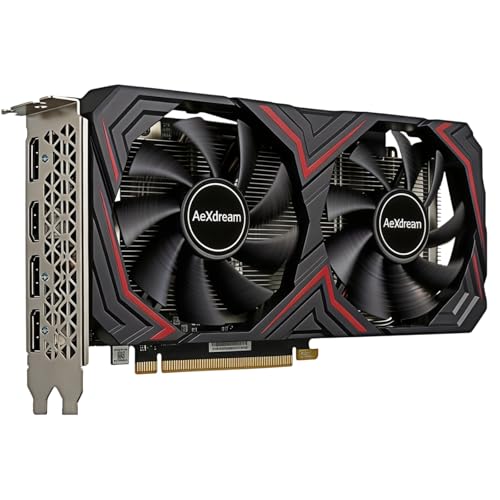
Top 3 picks at a glance
What “VGA” means when shopping
VGA is an analog video connection, usually a blue 15-pin port. It is not a GPU brand or performance tier. A graphics card advertised as having VGA may be an older model, while many newer cards have no VGA port at all. They commonly offer HDMI, DisplayPort or both.
Adapters can connect a modern card to a VGA monitor, but check the direction: a DisplayPort-to-VGA or HDMI-to-VGA adapter converts a digital signal to analog. A simple cable with different plugs often will not work. Active adapters need electronics, and some have limits on resolution or refresh rate. If you want to keep a VGA display, confirm the card’s output, the adapter’s direction and the monitor’s supported resolution before buying.
Choose by what you need the card to do
| Use case | What to prioritize | Main trade-off |
|---|---|---|
| Modern gaming | Performance at your resolution, memory capacity, power draw and current driver support | More performance usually means a higher price and greater power and cooling needs |
| Older PC or VGA-only monitor | Physical fit, compatible slot, outputs and a tested active adapter if needed | Old cards may be cheap, but their age can mean weaker support and limited performance |
| Office, video and everyday use | Compatibility, quiet operation and the ports your displays use | A discrete card may be unnecessary if the processor already has usable integrated graphics |
| Creative work | Software compatibility, memory and performance in your specific applications | Gaming benchmarks alone may not predict results in professional software |
For gaming: buy for your screen, not the VGA label
At 1080p, a reasonably priced entry-level or mainstream card is often enough for smooth play, especially if you’re willing to reduce demanding settings. If you mainly play esports or older titles, an even cheaper card—or integrated graphics—may be fine. Spending more on a high-end GPU makes little sense if your monitor is 1080p and you don’t need high refresh rates or maximum settings.
For 1440p, look for a stronger midrange card with enough video memory for the games and settings you use. At 4K, expect to pay more, and be prepared to use upscaling or lower demanding settings in newer games. AMD, Intel and NVIDIA each have options across parts of the market; compare current prices and game performance rather than assuming one brand is automatically the best value.
Start with 1080p gaming graphics cards if that matches your display. Check independent benchmarks for the games you play, and compare the total system cost: a GPU upgrade can also require a better power supply or more case airflow.
For an old VGA monitor or computer
If your current card has failed and you need a replacement for an older PC, first check the motherboard slot, case clearance and power connectors. Some compact or older systems cannot accept a modern full-size card, and a card that fits may still need more power than the computer can provide. For basic desktop use, a low-power card may be a better fit than an older gaming GPU.
If you’re connecting a VGA monitor to a newer card, an active adapter is often the practical route. Search for active DisplayPort-to-VGA adapters or active HDMI-to-VGA adapters, matching the card’s output. Read the supported resolution and refresh rate carefully. VGA’s analog signal can look soft, especially at higher resolutions, and adapter compatibility can vary. If the monitor has a digital input, using HDMI or DisplayPort directly is usually simpler and avoids conversion.
Check these details before you buy
- Power supply: Confirm its wattage, available PCIe power connectors and condition. Don’t assume an old PSU is suitable just because a card physically fits.
- Case fit: Check card length, thickness and whether nearby slots or drive cages get in the way.
- Monitor connection: Match the card’s outputs to the display. If VGA is involved, verify that the adapter is active and points in the correct direction.
- Used-card condition: Ask whether the card has been tested under load. Watch for crashes, visual artifacts, excessive fan noise or a seller who cannot show it working.
- Value: Compare the card’s price with newer alternatives. A very cheap used GPU can be a poor deal if it draws more power, lacks useful driver support or needs an adapter and PSU upgrade.
FAQ
Do graphics cards still have VGA ports?
Some older or specialized cards do, but VGA is uncommon on current gaming cards. Check the exact card’s outputs rather than relying on the listing title.
Can I connect a VGA monitor to HDMI?
Usually, yes, with an active HDMI-to-VGA adapter. Confirm that it converts from HDMI to VGA and supports your monitor’s resolution.
Is a VGA graphics card good for gaming?
VGA describes the connector, not gaming performance. Judge the GPU by benchmarks, memory, power requirements and the games and resolution you want to use.
Should I replace my VGA monitor?
Not necessarily for basic use if it works and an adapter supports its resolution. For gaming or sharper text, a monitor with HDMI or DisplayPort is generally easier to connect and gives you more modern display options.



