
Our Top Picks
 GIGABYTE Radeon RX 9070 XT Gaming OC 16GRADEON9070XT11.34 x 5.2 x 2.2 Inches3.9 PoundsCheck on Amazon
 ASUS Dual GeForce RTX 5060 Ti 16GB GDDR7RTX5060Ti|OC|16GB9 x 4.7 x 2 inches1.4 PoundsCheck on Amazon
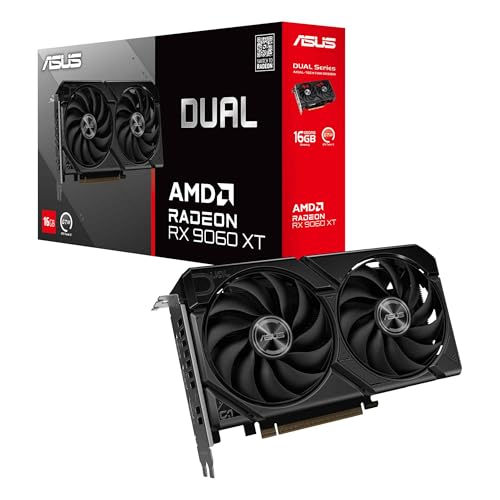 ASUS Dual Radeon RX 9060 XT 16GB GDDR6RX9060XT|16GB|Black8 x 4.7 x 1.9 inches1.3 poundsCheck on Amazon

Top 3 picks at a glance
Best graphics cards for video rendering: quick picks
The best rendering GPU depends less on the card’s gaming frame rate than on the software you use, the effects in your timeline, and how much video memory your projects need. For many editors, an NVIDIA card is the easiest all-round choice because CUDA and NVIDIA’s video encoders are well supported across popular editing apps. AMD can be a better-value fit in some workloads, while Intel’s Arc cards can offer useful media features at a lower price—but check support in your exact software before buying.
If you want a practical starting point, look at a current midrange NVIDIA card with 12GB or more of VRAM, or compare it with an AMD card in the same price range. A 12GB NVIDIA graphics card is a sensible shortlist for mixed editing and rendering, not a guarantee of faster exports in every app.
As an Amazon Associate we earn from qualifying purchases at no extra cost to you.


What matters when choosing a rendering GPU
Software support comes first. DaVinci Resolve uses the GPU heavily for color grading, effects, and some export tasks. Adobe Premiere Pro can use GPU acceleration for supported effects and encoding, but performance also depends on the CPU, codecs, and project settings. Blender rendering is a different case: CUDA and OptiX give NVIDIA cards broad support, while AMD cards use other supported back ends. Look up benchmarks for your own application and workload rather than relying on gaming comparisons.
VRAM determines how comfortably a card handles large projects. High-resolution footage, noise reduction, layered effects, and large 3D scenes can push memory use up. When a project exceeds available VRAM, performance may fall sharply, or the application may run out of memory. More VRAM does not automatically make every export faster, though. For straightforward 1080p editing, an expensive high-memory card may sit mostly idle.
Hardware encoders are useful, but not universal. Recent NVIDIA, AMD, and Intel GPUs include video encoding and decoding hardware. Support varies by codec, format, bit depth, and application. If you routinely export H.264 or H.265, check whether your editor uses the card’s encoder and whether it meets your quality and speed needs. Hardware encoding can save time, but a CPU or software export may still be preferable for some quality-focused workflows.
How the main options compare
| GPU category | Best fit | Main advantage | Trade-off |
|---|---|---|---|
| NVIDIA midrange, 12GB or more | Mixed editing, effects, and GPU rendering | Broad CUDA and app support; strong encoder options | Can cost more than comparable alternatives; check VRAM before choosing |
| NVIDIA high-end, 16GB or more | Heavy effects, 4K/8K work, and 3D rendering | More compute and memory headroom | High price, power draw, and cooling needs; poor value for light editing |
| AMD midrange or high-end | Editors whose software performs well on AMD | Can offer competitive performance and memory for the price | Performance and feature support vary more by application and rendering back end |
| Intel Arc | Budget builds and media-focused workflows | Useful codec support and often attractive entry pricing | App behavior, drivers, and performance in GPU-heavy effects need careful checking |
When NVIDIA is the safest buy
Choose NVIDIA if your work depends on CUDA, OptiX, or applications where NVIDIA acceleration is well established. It is often the least complicated route for Blender GPU rendering and can be a strong choice for Resolve users who rely on GPU-intensive effects. For an editing-first PC, compare NVIDIA cards with 16GB of VRAM if your projects are large or your effects routinely push memory use high.
The catch is price. A faster card will not fix a slow storage drive, a CPU bottleneck, or an export format that does not use GPU acceleration. Avoid paying for a flagship GPU just to cut simple clips or make occasional social videos. Also check your case clearance, power supply capacity, and airflow: a large, power-hungry card can be a poor fit for a compact workstation.
When AMD makes more sense
AMD is worth considering when benchmarks for your editor show competitive performance and the card offers more useful memory or speed for your budget. It can be a sensible option for Resolve and other supported workloads, particularly if you do not need CUDA-specific features. Compare AMD graphics cards with 16GB of VRAM against similarly priced NVIDIA options using tests for your actual effects and export settings.
The failure mode is buying on specifications alone. A large VRAM number will not compensate for weaker performance in a feature your software accelerates differently. Before purchasing, confirm the application’s current AMD support, the render back end for 3D work, and whether your plugins have known limitations.
Where Intel Arc fits
Intel Arc can be appealing for a budget editing PC, especially when its media engine supports the codecs you use. It may deliver good value for decoding and encoding without matching the price of a high-end workstation card. Look for recent tests of your editor and codec, and check that your system meets the card’s platform requirements.
Arc is less suitable as a blind, buy-it-and-forget-it choice for specialized GPU rendering. Driver and application behavior can differ from established CUDA workflows, and a card that handles exports well may not be the best choice for complex effects or 3D scenes. Buy it when the price and tested workload line up, not just because the spec sheet looks generous.
Choose for your workload, not the export button
For basic 1080p editing, keep your GPU budget modest; a recent entry-level or midrange card may be enough, and upgrading storage or memory could help more. For regular 4K editing with color grading and GPU effects, prioritize a tested midrange card with at least 12GB of VRAM. For demanding 3D rendering, heavy noise reduction, or large multi-layer projects, a higher-end card with 16GB or more can reduce memory-related slowdowns, provided the software benefits from its extra compute.
Before buying, check three things: benchmarks in your editing or rendering app, VRAM use on a representative project, and the card’s power and physical fit in your PC. If possible, compare export time as well as timeline playback; those are different workloads, and a GPU that speeds up one may barely change the other.
FAQ
Is NVIDIA better than AMD for video editing?
Not in every app. NVIDIA is often the safer pick for CUDA-dependent tools and some GPU renderers, but AMD can perform well in supported editing workloads. Compare results for your software and effects.
How much VRAM do I need for 4K editing?
For regular 4K work, 12GB is a reasonable starting point; complex effects and larger projects can benefit from 16GB or more. Simple edits may need less.
Will a better graphics card make every export faster?
No. Export speed depends on the codec, encoder, CPU, storage, and effects used. Check whether your software uses GPU acceleration for the task you care about.
Is a gaming graphics card suitable for rendering?
Usually, yes, if the card and software support your workload. Check VRAM, application compatibility, cooling, and power requirements before buying.



