
Our Top Picks
 GIGABYTE Radeon RX 9070 XT Gaming OC 16GRADEON9070XT11.34 x 5.2 x 2.2 Inches3.9 PoundsCheck on Amazon

Top 3 picks at a glance
Quick answer
Most office PCs do not need a separate graphics card. If you mainly use email, spreadsheets, video calls, web apps and one or two monitors, the graphics built into a recent Intel or AMD processor are usually enough—and cost less, use less power and make less noise. Add a card when you need more display outputs, smoother performance across several high-resolution screens, GPU-accelerated creative work, or a low-cost way to add graphics to a desktop whose processor has none.
For a typical office upgrade, start by checking the PC’s existing video ports and power supply. A new card will not fix a slow processor, limited memory or a poor internet connection, and it can be a poor fit for a compact or older computer.
As an Amazon Associate we earn from qualifying purchases at no extra cost to you.


When a graphics card is worth buying
Consider a discrete card if your desktop has no working graphics output, or if its current graphics cannot run the monitors and resolution you need. This can happen with a workstation driving several displays, a system connected to high-resolution screens, or a PC with a processor that lacks integrated graphics. (Many Intel desktop chips have integrated graphics, but not all; AMD support varies by processor generation and model.)
A card can also help with GPU-accelerated work in compatible photo, video, design and 3D applications. The benefit depends on the software and the task: a graphics card is not automatically a worthwhile upgrade for ordinary Office documents or browser tabs. Check the applications’ hardware requirements before spending.
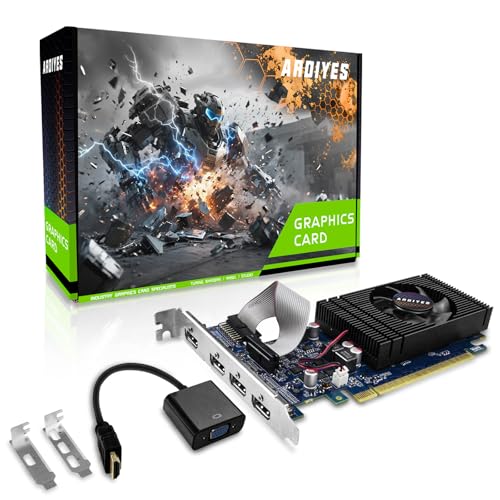
For a basic office PC, the low-profile graphics card options are worth considering if you need a card that fits a small case. Confirm the exact card’s dimensions, output connectors and power requirements before ordering; “low profile” does not guarantee compatibility with every slim computer.
Compare the main options
| Option | Best for | Main trade-off |
|---|---|---|
| Integrated graphics | Email, documents, browsing, video calls and ordinary multi-monitor use | Depends on the processor; limited for demanding 3D work and some GPU-accelerated tasks |
| Basic discrete card | Adding display outputs or graphics to a desktop without usable integrated graphics | Extra cost, heat and power use; may still be unsuitable for slim cases |
| Midrange discrete card | Regular creative work, heavier GPU-accelerated applications or demanding display setups | Higher price and power requirements; overkill for most office workloads |
For a straightforward display-output upgrade, browse entry-level cards for multi-monitor desktops. Compare the ports on the specific card with the cables and monitors you own. Adapters can work, but they add cost and can introduce compatibility or resolution limits.
Choose by workload
Everyday office and home-office tasks
Keep integrated graphics if your current setup runs smoothly. For these tasks, spending more on memory, a faster processor or a solid-state drive is often a better upgrade. Do not buy a card simply because the PC feels sluggish: graphics is rarely the bottleneck in spreadsheets, email or ordinary web use.
Two or more monitors
First count the video outputs on the PC, then check whether they support the monitors’ required resolution and refresh rate. Integrated graphics can handle common multi-monitor office setups, but support varies by processor, motherboard and port. A discrete card is useful when you need more compatible outputs or the existing hardware cannot drive your screens as required. Make sure the card has the right combination of HDMI, DisplayPort or other inputs for your monitors.
Creative and technical applications
Check the software maker’s recommended and certified hardware lists before choosing a GPU. Some programs benefit from NVIDIA-specific features, while others work well with AMD or Intel hardware; the application, driver support and memory needs matter more than the brand alone. For demanding work, choose a card based on the actual project and software rather than buying the cheapest model and assuming it will accelerate everything.
An entry-level workstation graphics card may suit users whose professional software has a specific certification requirement. For general office use, that added driver focus is rarely worth paying for. Compare the supported applications and total system requirements first.
Check compatibility before buying
Case size: Measure the available length and height, and check whether the case needs a half-height card. Small-form-factor office desktops often have tight clearances or proprietary layouts, so a card that fits a standard tower may not fit.
Power supply: Check the power supply’s rated capacity and available connectors against the card maker’s requirements. Some basic cards draw power from the motherboard; others need a connector from the power supply. Do not assume a spare plug means the supply has enough capacity, or use an adapter to work around an inadequate supply.
Ports and displays: Check the card’s output types, the number of screens it supports, and the maximum resolution and refresh rate for each connection. Also check whether your monitors have matching inputs. A card with several ports may not support every combination of screens at their maximum settings.
Operating system and drivers: Confirm that the card has drivers for your operating system and that your office software supports it. In managed workplaces, ask IT before changing hardware; security policies, warranty terms or remote-management requirements may affect the choice.
Common buying mistakes
The most common mistake is buying more GPU than the workload needs. A powerful gaming card adds cost and heat without improving routine office tasks. The opposite mistake is choosing a bargain card without checking display support, physical clearance or power connections; the result may require new cables, a different case or a power-supply replacement.
Also check whether the computer can be upgraded at all. Some office PCs have soldered components, restricted firmware or very small power supplies. If the system is old, compare the cost of a card and any supporting upgrades with the cost of replacing the PC. A graphics card cannot overcome every limitation of an aging system.
FAQ
Do I need a graphics card for Microsoft Office?
No. Integrated graphics are normally sufficient for Office, browsing and video calls. A separate card is only needed if you have a specific display or application requirement.
Can integrated graphics run two monitors?
Often, yes. Confirm that the processor and motherboard support the number of displays and that their ports match your monitors’ resolution and refresh-rate needs.
Will any graphics card fit my office PC?
No. Check the case dimensions, card height, power-supply capacity and connectors, motherboard compatibility and driver support. Small-form-factor PCs are especially easy to misjudge.
Is a gaming graphics card a good office upgrade?
Usually not for ordinary office work. Buy one only if your applications benefit from its GPU performance or you also plan to use the PC for gaming or other demanding graphics tasks.



