
The best graphics card for 3D work depends on what you make. A card that’s excellent for Blender rendering may be a poor-value choice for CAD, where CPU performance and certified drivers can matter more. For most people who use a mix of 3D modeling, rendering and games, NVIDIA is the safest all-round pick; AMD can offer strong value in workloads that support it well. Intel’s Arc cards are worth considering for lighter projects, but check software compatibility before buying.
Our Top Picks
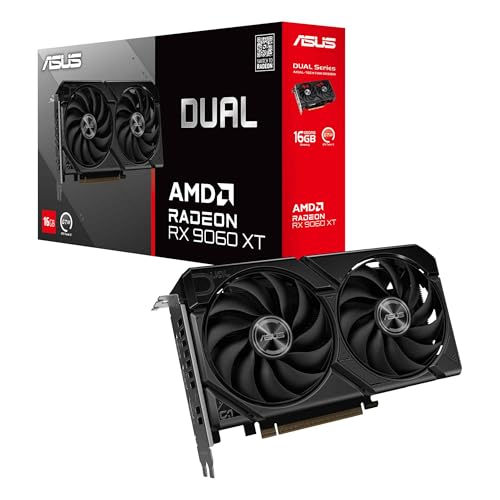 ASUS Dual Radeon RX 9060 XT 16GB GDDR6RX9060XT|16GB|Black8 x 4.7 x 1.9 inches1.3 poundsCheck on Amazon

What matters in a 3D graphics card
Start with your main software and the work you do in it. Blender Cycles can render on GPUs, and its OptiX renderer gives NVIDIA cards a useful advantage. Other renderers may support CUDA, HIP, or multiple APIs, with performance varying by application and version. Check the renderer’s current requirements rather than assuming every GPU brand works equally well.
For modeling and viewport work, the card needs to keep scenes responsive, but a faster GPU won’t fix every slowdown. Large assemblies, complex modifiers, simulation, and some CAD tasks can lean heavily on the CPU. For GPU rendering, memory capacity is a hard limit: if a scene and its textures don’t fit in VRAM, rendering may fail or spill into slower system memory, if the application supports that at all.
Also check your actual projects. A 12GB card may be a better choice than a faster 8GB card if you regularly use large textures or detailed scenes. Conversely, for small scenes and occasional renders, paying extra for more VRAM may not improve your day-to-day work.
Best choices by workload
| Workload | What to prioritize | Best fit | Main trade-off |
|---|---|---|---|
| Blender and mixed creative work | CUDA/OptiX support, VRAM, render speed | NVIDIA GeForce RTX card with enough memory for your scenes | Often costs more than comparable alternatives |
| Budget GPU rendering | VRAM and support for your renderer | AMD Radeon card when your software’s HIP support is solid | Performance and compatibility can vary more by application |
| CAD and professional visualization | Certified drivers and application support | Workstation card if your software or employer requires certification | Higher cost; not automatically faster for every task |
| Learning 3D or smaller projects | Reasonable VRAM, low total system cost | Midrange card you can verify against your software | Large scenes and GPU renders take longer |
NVIDIA: the safest general-purpose pick
If Blender is central to your workflow, start by comparing NVIDIA GeForce RTX cards with 12GB or more of VRAM. NVIDIA’s CUDA and OptiX support is widely used in 3D software, and RTX features can accelerate supported rendering tasks. That broad support reduces the chance of buying a card only to find your preferred renderer doesn’t use it well.
The trade-off is price. A cheaper card may be enough for modeling, tutorials and modest scenes, while a higher-tier GPU mainly pays off when you render often or need more memory and speed. Don’t buy by product tier alone: compare VRAM, your renderer’s benchmarks, power requirements and case clearance. NVIDIA’s professional drivers and workstation cards can make sense where certification or vendor support is required, but they’re not a default upgrade for every independent artist.
AMD: a value option when your software fits
AMD Radeon cards can be a good buy for users whose renderer supports HIP well, especially when a sale gets you more VRAM for the money. Check benchmarks for the exact application and render engine you use; results from gaming tests don’t tell you how quickly a GPU will render a 3D scene. If you’re considering one, compare AMD Radeon cards with 16GB of VRAM against NVIDIA alternatives at the same price.
AMD is less suitable when a required plugin, renderer, or studio pipeline depends on CUDA. That is a compatibility issue, not a small performance difference. Before buying, confirm that your exact software version supports AMD GPU rendering and that the features you rely on are included. If the answer is unclear, NVIDIA is the lower-risk choice.
Intel Arc: consider it for light workloads
Intel Arc can be appealing for a low-cost workstation used for learning, basic modeling and general desktop work. But 3D application support and render performance are less predictable across tools than with the established NVIDIA ecosystem. Treat it as a software-specific purchase: look up tests for your application, confirm GPU rendering works, and check for any known driver limitations before relying on it for paid deadlines.
Avoid the common buying mistakes
Don’t assume more cores solve a VRAM problem. A fast card that can’t hold your scene may be less useful than a slower card with enough memory. If you’re already hitting memory limits, reduce texture sizes or scene complexity as a short-term fix, but plan around the real workload.
Don’t pay for gaming performance you won’t use. High frame rates matter if you also game or need a very responsive viewport, but they don’t guarantee proportionally faster renders. Use render benchmarks from your own software and compare prices before choosing a higher tier.
Check the rest of the PC. A new GPU may need a stronger power supply, more case space, or better airflow. It can also sit underused if your CPU, RAM or storage is limiting the project. For demanding scenes, system memory matters too; upgrading the graphics card alone won’t fix a project that runs out of RAM.
FAQ
How much VRAM do I need for 3D work?
It depends on scene size, textures and renderer. Choose enough for your typical projects, and leave headroom for larger ones. Check your application’s memory use before upgrading.
Is NVIDIA better than AMD for Blender?
NVIDIA is usually the safer choice for GPU rendering because Blender supports CUDA and OptiX. AMD can work well with HIP, but compare current benchmarks for your Blender version and projects.
Do I need a workstation graphics card?
Usually not for independent 3D work. Consider one if your CAD software requires certified drivers, or your organization needs vendor support and validated configurations.
Can I use a gaming graphics card for professional 3D work?
Yes. Many artists use GeForce, Radeon or Arc cards. Confirm software compatibility, VRAM capacity and stability with your actual workflow before buying.



