
For 3D design, the best graphics card is not automatically the one with the highest gaming frame rate. Blender, 3ds Max, Maya, SolidWorks, Fusion 360 and Unreal Engine place different demands on a GPU. Viewport smoothness, ray-tracing performance, VRAM capacity and application support all matter—and spending more on the wrong feature can leave you with a slower or less reliable workstation.
For most people, an NVIDIA GeForce RTX card is the safest choice. NVIDIA has broad support for CUDA and OptiX, which are used by many rendering applications. AMD Radeon cards can offer excellent raster performance and more VRAM for the money, while Intel Arc is attractive at the budget end but requires more care with software compatibility and drivers.
Our Top Picks

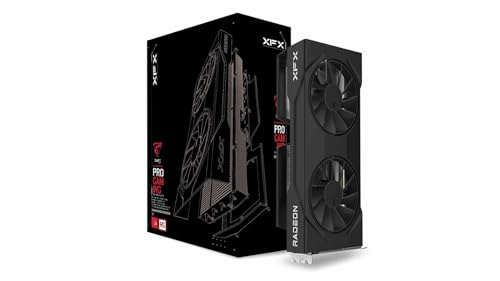
Quick picks for different 3D workloads
| Workload | Best fit | What to prioritize | Main compromise |
|---|---|---|---|
| General 3D design and Blender | Upper-midrange NVIDIA RTX | OptiX support, 12GB or more VRAM, strong CUDA performance | Usually costs more than comparable AMD hardware |
| Large scenes and GPU rendering | High-end NVIDIA RTX or Radeon with 20GB-plus VRAM | VRAM capacity and sustained cooling | High power use and diminishing returns |
| CAD and engineering | Midrange professional or gaming GPU | Certified drivers, viewport stability and application support | Professional cards can be expensive for their raw speed |
| Budget modeling and student work | Modern midrange GPU with 8GB to 12GB VRAM | Good driver support and value | Heavy textures, simulations and final renders take longer |
Best overall: an upper-midrange NVIDIA RTX card
An upper-midrange NVIDIA GeForce RTX graphics card with 12GB or more VRAM is the best all-round purchase for most 3D designers. A card in this class provides a large improvement over entry-level hardware without the price, heat and power demands of flagship models.
In Blender, OptiX can accelerate Cycles rendering and usually makes NVIDIA the easiest choice. CUDA support also reduces the chance that a plug-in or renderer simply does not support your card. You still need to check the exact software version: GPU rendering support changes, and some features remain CPU-only.
This category suits freelancers, students working on moderately complex scenes, product designers and artists who want one PC for both creative work and gaming. It is also a sensible match for a 1440p monitor, where the GPU has enough headroom for viewport work and interactive previews.
The failure mode is buying an 8GB card because it looks fast in game benchmarks. It may handle modeling well, but large textures, dense environments, hair, particle effects and GPU rendering can exceed its memory. When that happens, performance can collapse or the render may fail altogether. If your budget allows it, prioritize 12GB or more over a small increase in theoretical shader speed.
Best for large scenes: high-end NVIDIA or AMD Radeon
Large architectural scenes, cinematic assets and GPU-rendered animation benefit from a high-end GPU, but VRAM is often more important than headline gaming performance. A high-end graphics card with 16GB or more of VRAM gives demanding projects more room for geometry, textures and render buffers.
NVIDIA remains the lower-risk option if your renderer uses CUDA or OptiX. Its ray-tracing hardware and software ecosystem are well established. AMD Radeon cards can be compelling when a comparable model offers substantially more VRAM for less money, especially for viewport work, rasterized previews and applications that do not depend on CUDA.
Do not assume two cards with the same VRAM will perform alike. Renderer support, memory bandwidth, ray-tracing speed and cooling all affect real results. A high-end card also needs a suitable power supply, case airflow and motherboard clearance. Thick cards can occupy three or more expansion slots, potentially blocking another card or an important motherboard connector.
For a professional who renders every day, a faster GPU can pay for itself through shorter waits. For occasional rendering, it is often poor value: spending twice as much rarely makes every part of a design workflow twice as fast. Modeling, simulation setup, file loading and CPU-based tasks may barely change.
When AMD or Intel makes more sense
AMD is worth serious consideration when you need abundant VRAM on a controlled budget. A Radeon graphics card with 16GB or more VRAM can be a strong choice for CAD viewport work, sculpting, texture-heavy scenes and general 3D use. It is less attractive when your main renderer requires CUDA, or when a plug-in officially supports NVIDIA but not Radeon.
Intel Arc cards can be good value for entry-level 3D work and gaming. They have improved substantially through driver updates, but they are not the default recommendation for a workstation. Some older applications, viewport features or render engines may behave unpredictably, and performance can vary more between software packages. Buy Intel when your specific applications are confirmed to work well, not simply because the specifications look generous.
AMD and Intel also need a modern system platform. Enable the motherboard features recommended by the manufacturer, keep drivers current and check whether your power supply meets the card’s requirements. Older PCs can turn an otherwise capable GPU into a frustrating upgrade.
CAD, certified drivers and professional cards
For SolidWorks, CATIA, Siemens NX and similar engineering software, raw gaming benchmarks are not the whole story. Certified drivers can improve stability and unlock official support for particular application versions. If a workstation is used for paid engineering work, a professional GPU may be justified even when its gaming performance is lower than a similarly priced GeForce or Radeon.
For students, hobbyists and many independent designers, a gaming GPU is usually fine. The cheaper option is especially sensible when models are modest, files are saved frequently and you can tolerate troubleshooting. Professional hardware becomes more valuable when an application vendor requires certification, a crash risks expensive work, or a company needs direct support.
What to check before buying
- VRAM: 8GB is workable for basic modeling; 12GB is a better general target; 16GB or more helps with large scenes and GPU rendering.
- Renderer support: Confirm whether your renderer uses CUDA, OptiX, HIP, oneAPI or another standard.
- Power and size: Check connector type, power-supply capacity, card length and slot thickness.
- Monitor output: Make sure the card supports the resolution, refresh rate and number of displays you use.
- CPU balance: A very expensive GPU cannot fix a weak processor, insufficient RAM or slow storage during CPU-heavy tasks.
- Used hardware: Used cards can save money, but test temperatures, fans, memory stability and return coverage before relying on one professionally.
FAQ
Is NVIDIA better than AMD for 3D design?
Usually, NVIDIA is the safer choice because CUDA and OptiX are widely supported. AMD can be better value when your software supports it and you need more VRAM.
Is 8GB of VRAM enough for Blender?
Yes for learning, modeling and smaller scenes. It becomes limiting with large textures, complex environments, simulations and GPU rendering, where 12GB to 16GB is more comfortable.
Do I need a professional workstation graphics card?
Not necessarily. A gaming GPU is adequate for many designers. Choose a professional card when certified drivers, vendor support or mission-critical stability matter more than raw value.
Should I spend more on the GPU or RAM?
For GPU rendering and real-time viewport work, prioritize the graphics card. For large assemblies, heavy multitasking and CPU rendering, system RAM and processor performance may deliver a bigger improvement.



